How to Build a Second Brain with Microsoft OneNote
TL;DR
Use OneNote as the nerve center of a second brain by capturing typed text, handwriting, voice, images, and linked notes in one searchable system. Organize information with notebooks, sections, pages, and nested levels, then connect OneNote with Microsoft 365 tools such as Outlook, To Do, Planner, Loop, SharePoint, Teams, and OneDrive.
Transcript
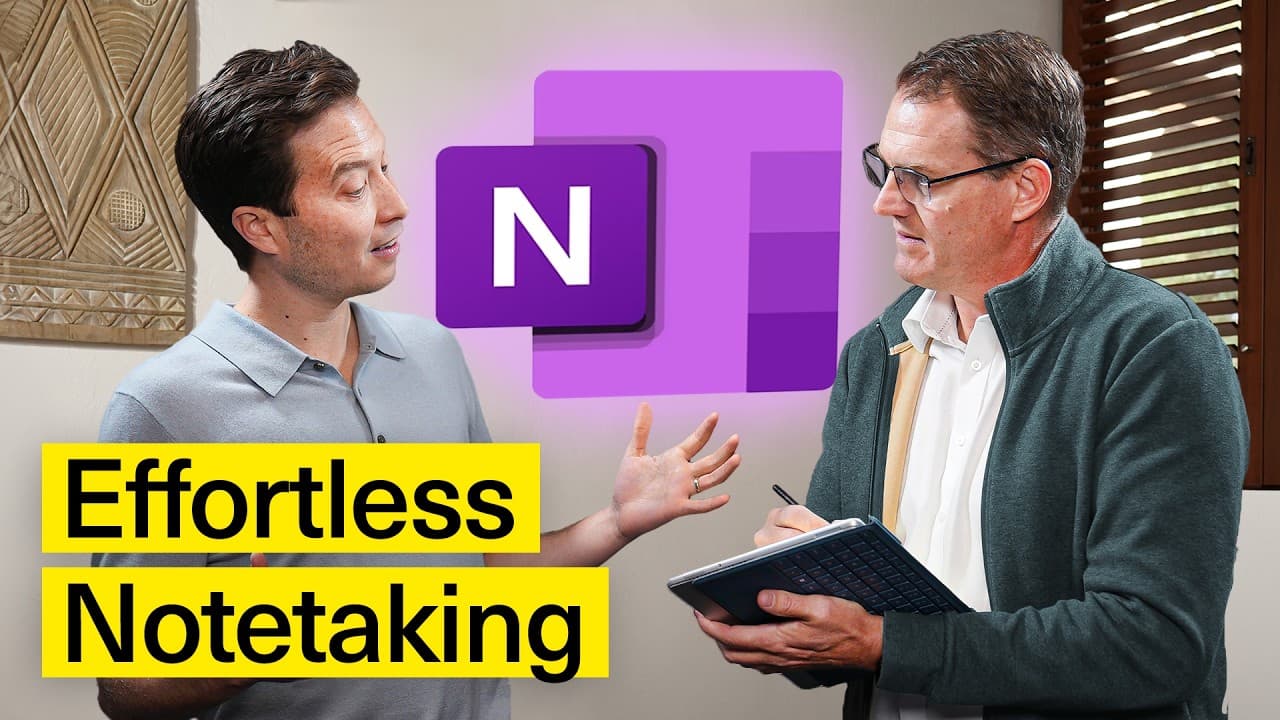
it's like your little personal internet yeah exactly this is a photograph of a printed piece of paper that I captured in one note the handwriting on the paper is now searchable I can actually copy the text out of that picture so cool youve basically just folded the keyboard under the tablet and are now just rating on it when I type on a keyboard th... Read More
Key Insights
- OneNote is a multimodal capture system that accepts typed text, digital handwriting, voice input, images, and touch-based interaction. This flexibility lets users record information with whichever method is available in the moment instead of interrupting their thinking to select a rigid note format.
- OneNote is the nerve center of a broader Microsoft-based second brain, rather than the entire system by itself. Its integrations with Outlook, To Do, Planner, Loop, SharePoint, Teams, and OneDrive allow notes, tasks, collaboration, files, and communication to operate within a connected ecosystem.
- OneNote uses a layered organizational hierarchy that includes notebooks, section groups, sections, pages, and nested subpages. Mathew describes six available levels, combining the notebook level, two section levels, and three page levels to support both simple notes and deeply structured information collections.
- OneNote pages are limitless canvases that can hold different content types together. Text, ink, captured images, and presentation material can be positioned freely, allowing the page to follow the user's thought process rather than imposing the fixed dimensions and sequence associated with conventional documents.
- OneNote automatically saves information and records useful context without requiring a save command. A new page includes its own title area and creation date, while the application also tracks changes and authors, reducing the need for users to manage basic recordkeeping manually.
- Digital handwriting supports a different thinking experience from keyboard entry. Mathew says keyboard use primarily activates the audio part of his brain, while drawing engages his whole brain, which is why he values a digital pen alongside the keyboard, microphones, speakers, and touch controls.
- Searchable image capture can turn photographed paper into reusable digital information. The demonstration shows a photograph of a printed sheet whose handwritten content becomes searchable, while text within the image can also be copied, extending the usefulness of existing paper-based notes.
- Effective technology adoption depends on changing work practices, not merely purchasing devices. Mathew found that customers often left tablet capabilities unused until they received training, while practical use encouraged stronger adoption by demonstrating how technology could improve real work rather than listing features alone.
- More videos from this channel:
- More from this channel: Tiago Forte
Install to Summarize YouTube Videos and Get Transcripts
Explore YouTube Video Summarizer or Get YouTube Transcript Extractor
Questions & Answers
Q: How do you build a second brain in OneNote?
Start by making OneNote the central place for capturing and creating information in whatever format is convenient, including typing, digital handwriting, voice, images, and touch. Organize major topics into notebooks, then divide them through section groups, sections, pages, and nested subpages. Connect the notes with relevant Microsoft tools such as Outlook, To Do, Planner, Loop, SharePoint, Teams, and OneDrive.
Q: Why is OneNote useful as a second-brain hub?
OneNote is useful as a second-brain hub because it combines flexible capture, structured organization, search, and connections to other Microsoft applications. It can preserve typed notes, handwriting, images, and other content on the same free-form page. Its automatic saving, timestamps, change tracking, and author tracking also create a lasting information history that users can search instead of reconstructing from memory.
Q: How should notebooks and pages be organized in OneNote?
One practical approach is to create a notebook for each major topic, including project-based, area-based, or research-related subjects, while keeping older material in archive notebooks. Within each notebook, section groups and sections act like dividers. Pages can then be organized with subpages and another nested subpage level, producing six hierarchy levels when combined with the notebook and two section levels.
Q: What types of information can OneNote capture?
OneNote can capture typed text, digital handwriting, spoken input, images, and touch-based interactions. These methods can be combined on a single page rather than separated into different systems. A photographed paper document can also become searchable, and text can be copied from its image. This range of input methods supports immediate capture without forcing the user to stop and choose one fixed modality.
Q: How does OneNote support handwritten note-taking?
OneNote supports handwriting through a digital pen on a tablet-style device, including configurations where the keyboard is folded behind the screen. Handwriting can coexist with typed text and captured images on the same page. Mathew values this because he describes drawing as engaging his whole brain, while keyboard input primarily engages the audio part, making ink useful for thinking as well as recording.
Q: Can OneNote organize information without manual saving?
OneNote saves information automatically, so users do not need to press a save button while capturing or arranging notes. It also records the creation time and date for pages, tracks changes, and identifies authors. These features preserve useful context with little manual effort, allowing users to concentrate on their ideas while the system maintains a record of when information appeared and who contributed it.
Q: How does OneNote work with Microsoft 365 apps?
OneNote participates in a wider Microsoft 365 ecosystem that includes Outlook, To Do, Planner, Loop, SharePoint, Teams, and OneDrive. These applications can support different parts of a second brain, such as notes, tasks, planning, shared work, communication, and file storage. The value comes from treating them as interacting components, with OneNote serving as the central environment for flexible knowledge capture and creation.
Q: Why is training important when adopting OneNote and tablets?
Training is important because access to a capable device does not automatically change how someone works. Mathew observed that people could watch a tablet demonstration and purchase the hardware without using its distinctive capabilities afterward. When users received training, they achieved better practical results and adopted more devices because they understood how the technology could improve actual workflows, rather than merely recognizing its advertised features.
Summary & Key Takeaways
-
OneNote serves as a flexible digital notes hub because it accepts many forms of input on a limitless canvas. Users can type, write with a digital pen, capture voice, add images, and arrange mixed content freely, reducing the friction between having an idea and recording it for later use.
-
OneNote provides a structured hierarchy consisting of notebooks, section groups, sections, pages, and nested subpages. Mathew creates notebooks for major topics and relates this approach to projects, areas, resources, and archives. Automatic saving, timestamps, change tracking, and author tracking help preserve a searchable history of information.
-
A second brain in the Microsoft ecosystem extends beyond one application. OneNote can function as its nerve center while interacting with Outlook, To Do, Planner, Loop, SharePoint, Teams, and OneDrive. The broader goal is practical technology adoption that improves capture, collaboration, idea exchange, and access to information across personal and corporate work.
Read in Other Languages (beta)
Share This Summary 📚
Summarize YouTube Videos and Get Video Transcripts with 1-Click
Try YouTube Summary with ChatGPT & Claude or YouTube Transcript Generator
Explore More Summaries from Tiago Forte 📚


Summarize YouTube Videos and Get Video Transcripts with 1-Click
Try YouTube Summary with ChatGPT & Claude or YouTube Transcript Generator