How to Create AI Videos with Runway Gen 3
TL;DR
Create Runway Gen 3 videos by writing one prompt that specifies camera movement, the establishing scene, and additional visual details such as lighting and atmosphere. The model generates 5-second or 10-second clips at 10 credits per second, but results are inconsistent, so strong prompts, repeated attempts, and seed control are important for producing usable shots.
Transcript
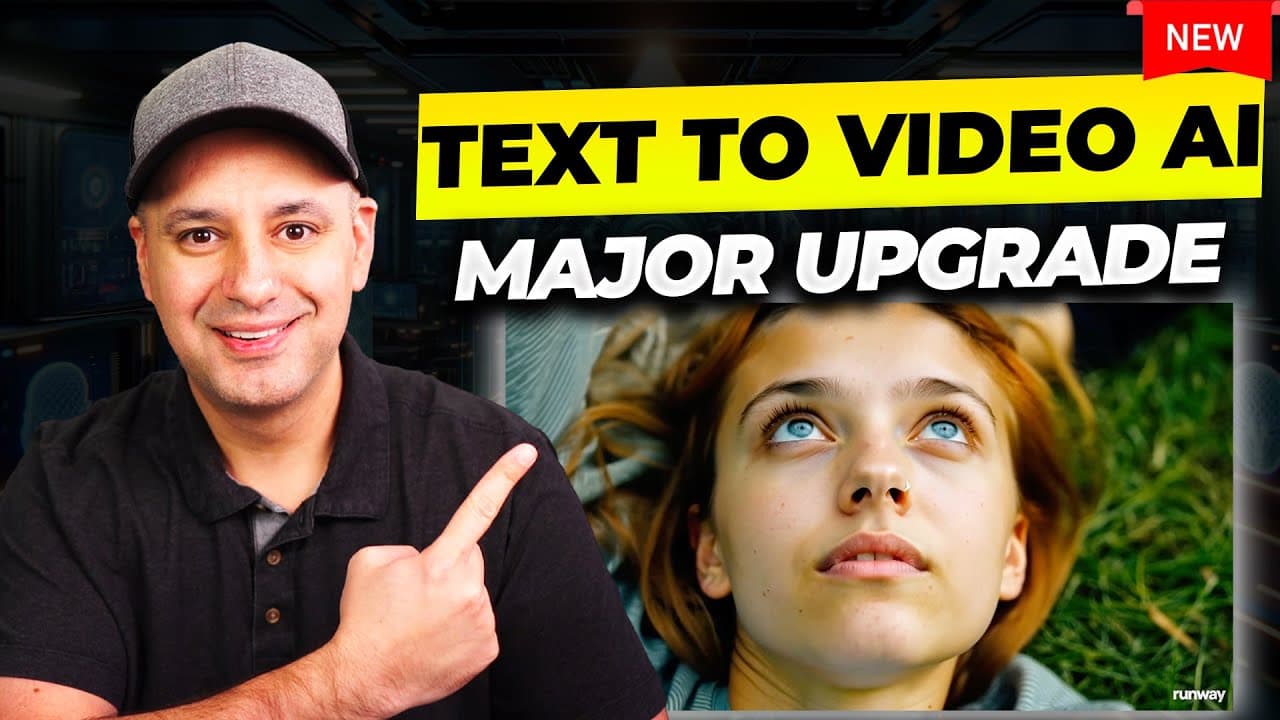
there's a brand new text to video AI model and it's from the company Runway the leading text to video AI model they've been around for quite a while they had something called gen 1 then they had something called Gen 2 and this new model is called gen 3 everything I'm showing you here on screen is actually just text prompts turned into video from th... Read More
Key Insights
- Runway Gen 3 is a text-to-video model available through RunwayML.com in an alpha version. The demonstrated interface allows users to select Gen 3, enter a written prompt, choose a clip duration, and generate a downloadable video without configuring numerous separate production controls.
- The recommended Gen 3 prompt structure is camera movement, establishing scene, and additional details. A prompt can begin with framing or motion, continue by identifying the subject and environment, and finish with details about lighting, angle, atmosphere, appearance, or action.
- Prompt quality is especially important because the demonstrated Gen 3 interface has few adjustable settings. Camera speed, camera motion, lighting, composition, and atmosphere must be expressed directly in the prompt when the user wants a specific visual result.
- Gen 3 generates either 5-second or 10-second clips in the demonstrated workflow. A 5-second generation generally takes about one minute, while a 10-second clip can take about 120 seconds, although one demonstrated 10-second result finished in roughly 60 seconds.
- Gen 3 generation costs 10 credits per second. A 10-second clip therefore uses 100 credits, making repeated experimentation expensive when several attempts are required before the model produces a satisfactory or usable shot.
- Gen 3 outputs are inconsistent even when prompts are detailed. Demonstrated problems include background people morphing, subjects changing near the end, unusual object designs, cars moving incorrectly, and scenes that look more cartoon-like than expected.
- The seed setting is designed to make a later generation resemble an earlier result more closely. Leaving it disabled can produce wildly different outputs, while enabling it may help when developing multiple shots intended to share a similar scene or visual direction.
- Runway includes tools for managing generated material. Users can download clips from the generation page, mark useful outputs as favorites, save prompt templates as named presets, and place generations into folders so they remain organized and accessible from the dashboard.
Install to Summarize YouTube Videos and Get Transcripts
Explore YouTube Video Summarizer or Get YouTube Transcript Extractor
Questions & Answers
Q: How do you create a video with Runway Gen 3?
Open RunwayML.com, sign in, select the option to try Gen 3, and confirm that Gen 3 rather than Gen 2 is chosen in the model menu. Enter a text prompt describing the shot, select a 5-second or 10-second duration, and press generate. When processing finishes, preview the result and use the download control to save the clip.
Q: How should a Runway Gen 3 prompt be structured?
A Runway Gen 3 prompt should follow three connected parts: camera movement, the establishing scene, and additional details. Start by naming the camera angle or movement, then describe the main subject and environment, and finally add useful visual information such as lighting, atmosphere, appearance, or action. The complete request should describe one continuous shot without cuts.
Q: How can ChatGPT or Claude write Runway Gen 3 prompts?
Give ChatGPT or Claude instructions to act as a text-to-video prompt generator and require the structure of camera movement, establishing scene, and additional details. Ask for one continuous shot, no cuts, no labeled sections, and a single block under 400 characters. Then provide a simple concept, such as a submarine in the deep ocean, for the assistant to expand.
Q: How much does Runway Gen 3 video generation cost in credits?
Runway Gen 3 uses 10 credits for every second of generated video in the demonstrated version. A 5-second clip consequently uses 50 credits, while a 10-second clip uses 100 credits. Because imperfect results may require several attempts, experimentation can consume credits quickly, especially for users developing multiple clips for a commercial or creative film project.
Q: How long does Runway Gen 3 take to generate a clip?
A 5-second Runway Gen 3 clip generally takes about one minute to render in the demonstrated workflow. A 10-second clip is described as taking about 120 seconds, although one example completed in roughly 60 seconds. Processing time can therefore vary, and users should expect both generation time and credit use to increase when making repeated attempts.
Q: Why does Runway Gen 3 sometimes produce unusable videos?
Runway Gen 3 does not consistently interpret movement, anatomy, objects, and scene continuity correctly. Examples in the demonstration include background people morphing, a shot drifting toward a subject's feet, strange-looking vehicles, and a car moving backward when the intended motion was different. The presenter reports that approximately one out of three generated clips is good after testing 20 to 30 clips.
Q: What does the seed setting do in Runway Gen 3?
The seed setting helps a new generation remain closer to a previous rendering. When the setting is disabled, repeated generations can look wildly different even when they use related instructions. Turning it on may support the creation of several shots within a similar scene, although users still need to generate and review the results to determine whether the visual continuity is sufficient.
Q: Can Runway Gen 3 add lip sync to an AI character?
Runway Gen 3 includes a lip-sync option that can make a generated character appear to read a typed script using AI voices. The demonstration shows a generated person whose lips move while reading supplied text. This capability can be applied to subjects such as a news anchor facing the camera, although the transcript does not provide the complete step-by-step lip-sync setup.
Summary & Key Takeaways
-
Runway Gen 3 converts text prompts into short video clips through RunwayML.com. After selecting Gen 3, users enter a prompt and choose either a 5-second or 10-second output. The demonstrated alpha version offers few controls, making precise descriptions of camera movement, subject, lighting, atmosphere, and action central to the workflow.
-
The recommended prompt structure contains three parts: camera movement, an establishing scene, and additional details. ChatGPT or Claude can expand a simple idea into a single-shot prompt under 400 characters. Runway's prompting guide also provides terminology and examples for camera angles, static or moving shots, lighting styles, and visual composition choices.
-
Gen 3 charges 10 credits for each generated second, so a 10-second clip costs 100 credits. Outputs can contain morphing people, strange objects, or physically incorrect motion, and the presenter estimates that roughly one in three attempts is good. Users can reuse seeds, save prompt presets, download clips, favorite results, and organize generations into folders.
Read in Other Languages (beta)
Share This Summary 📚
Summarize YouTube Videos and Get Video Transcripts with 1-Click
Try YouTube Summary with ChatGPT & Claude or YouTube Transcript Generator
Explore More Summaries from Skill Leap AI 📚





Summarize YouTube Videos and Get Video Transcripts with 1-Click
Try YouTube Summary with ChatGPT & Claude or YouTube Transcript Generator