How to Connect Glasp to Claude, ChatGPT, and Claude Code (MCP Connector)

Jul 30, 2026
6 min read
160 views
🌐 Read this in your language: English · 日本語 · Español · Français · Português (BR) · Tiếng Việt · 한국어
Have you ever wished your AI assistant knew what you have been reading? With Glasp's MCP Connector, you can connect your Glasp account to any MCP-compatible AI tool, including Claude, ChatGPT, Claude Code, and clients built on the OpenAI API, and ask them about everything you have read, highlighted, and saved. Your AI assistant can search your highlights and memories in natural language and pull the exact passages you saved from articles, PDFs, YouTube videos, and Kindle books into any answer.
Picture this: instead of digging through old bookmarks, you ask Claude "what did I save about deep work?" and get your own highlighted passages back, with their sources, right inside the chat you already use.
The connector is private to you and read-only by default. It reads your own highlights, bookmarks, AI summaries (including YouTube summaries), Kindle highlights, and memories, plus the passages on a page that two or more public readers highlighted, as anonymous counts. One optional tool can add a link to your reading list, and it stays off unless you turn it on when you connect. It can never edit or delete your highlights.
In this tutorial, we will walk you through how to connect Glasp to each of them: Claude, ChatGPT, Claude Code, and any other MCP-compatible client. The steps are almost the same everywhere, so once you have done one, the rest take a minute each.
Before you start
Go to the Settings page on Glasp and click MCP Connector in the left sidebar. You can also learn more on the MCP Connector page.
The MCP server URL you will use in every client is:
https://glasp.co/api/mcp
Connect your AI tool
Pick the tool you use below. You do not need to do all of them. The idea is the same everywhere: point the client at the Glasp server URL and authorize.
Claude
All you need is your Glasp account. The connection uses OAuth, so there is no token to copy or paste.
First, in Claude, open Settings, then Connectors.
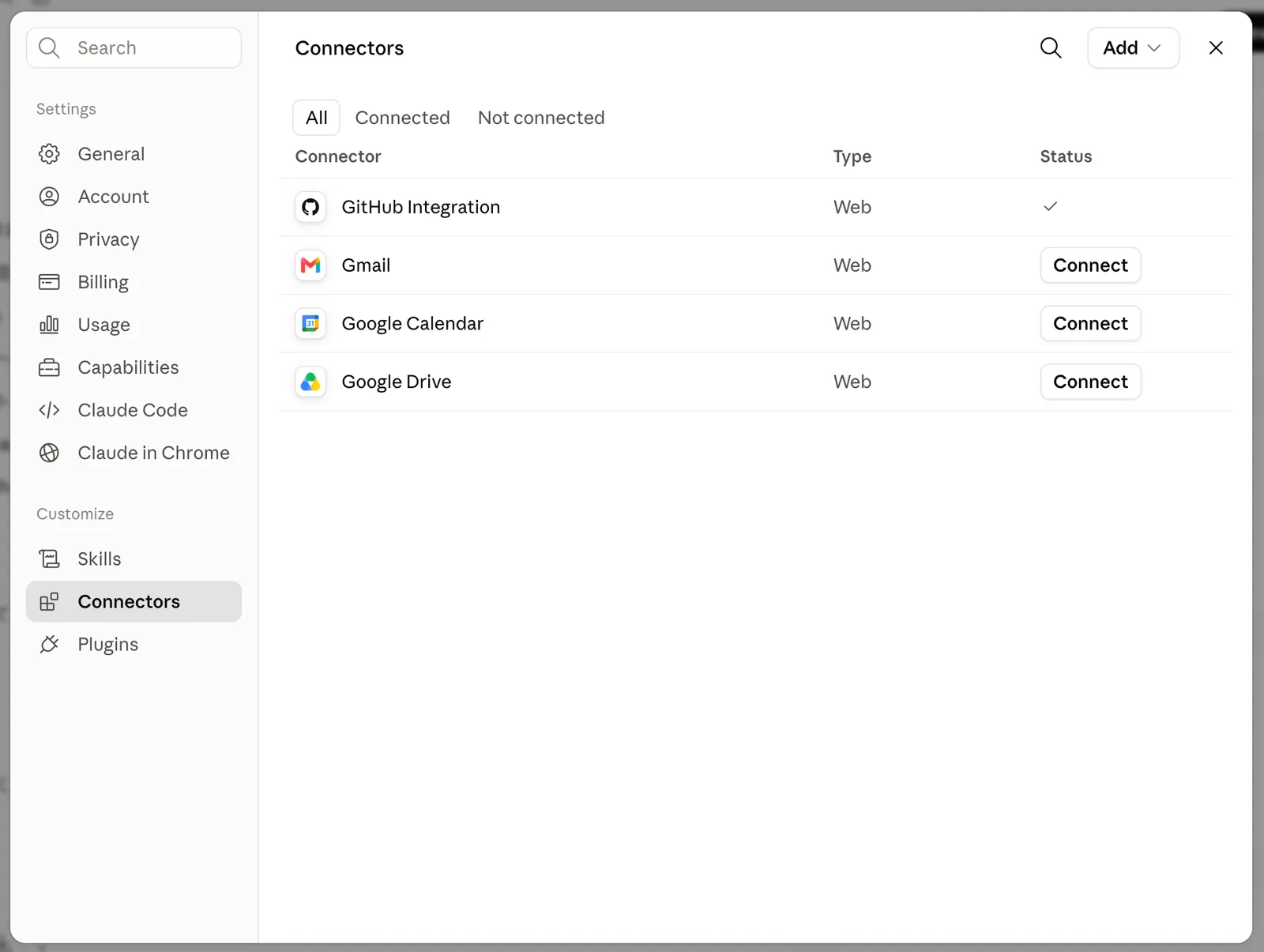
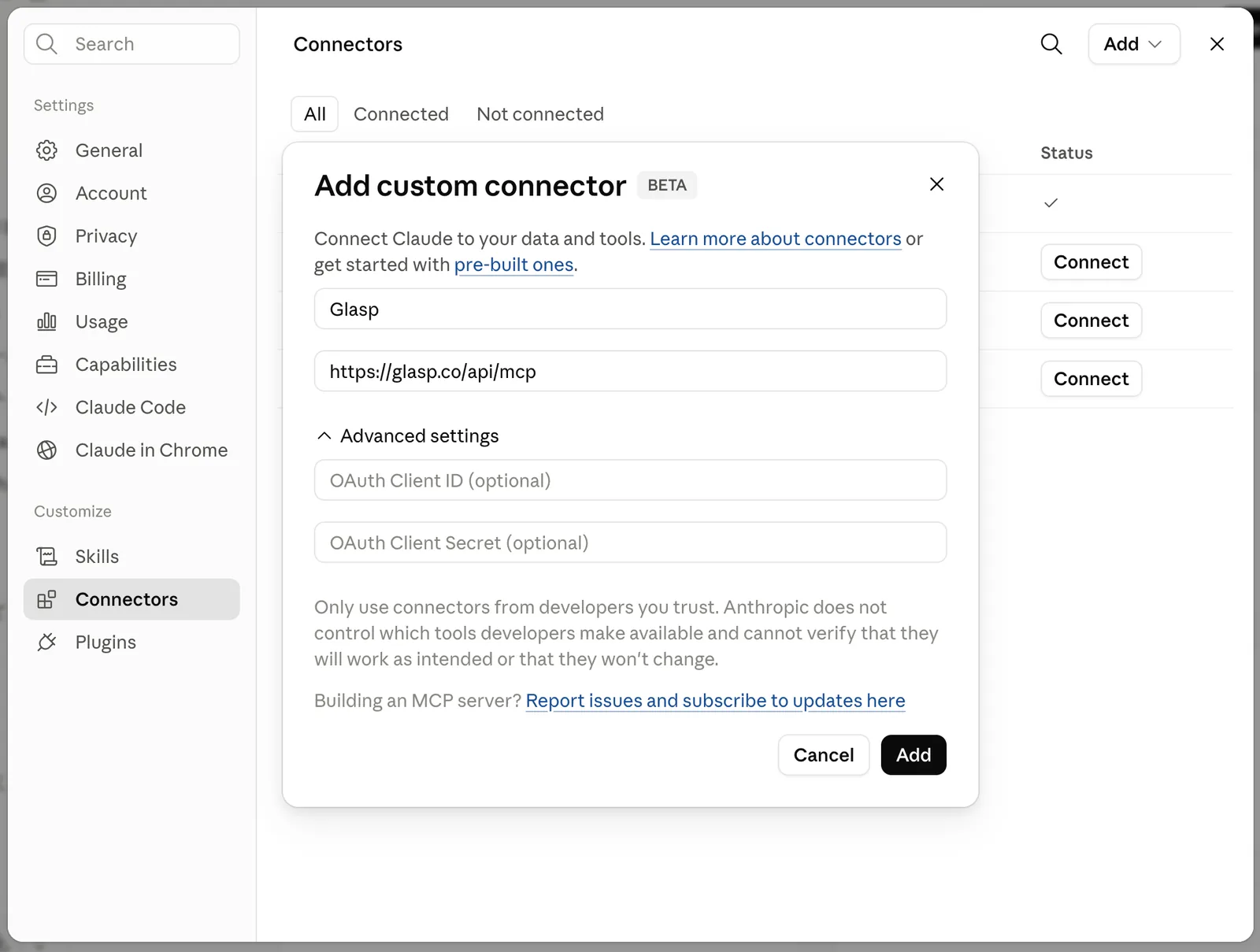
Click Add, then Add custom connector. Enter a name (for example, Glasp) and paste the Glasp server URL: https://glasp.co/api/mcp. Then click Add.
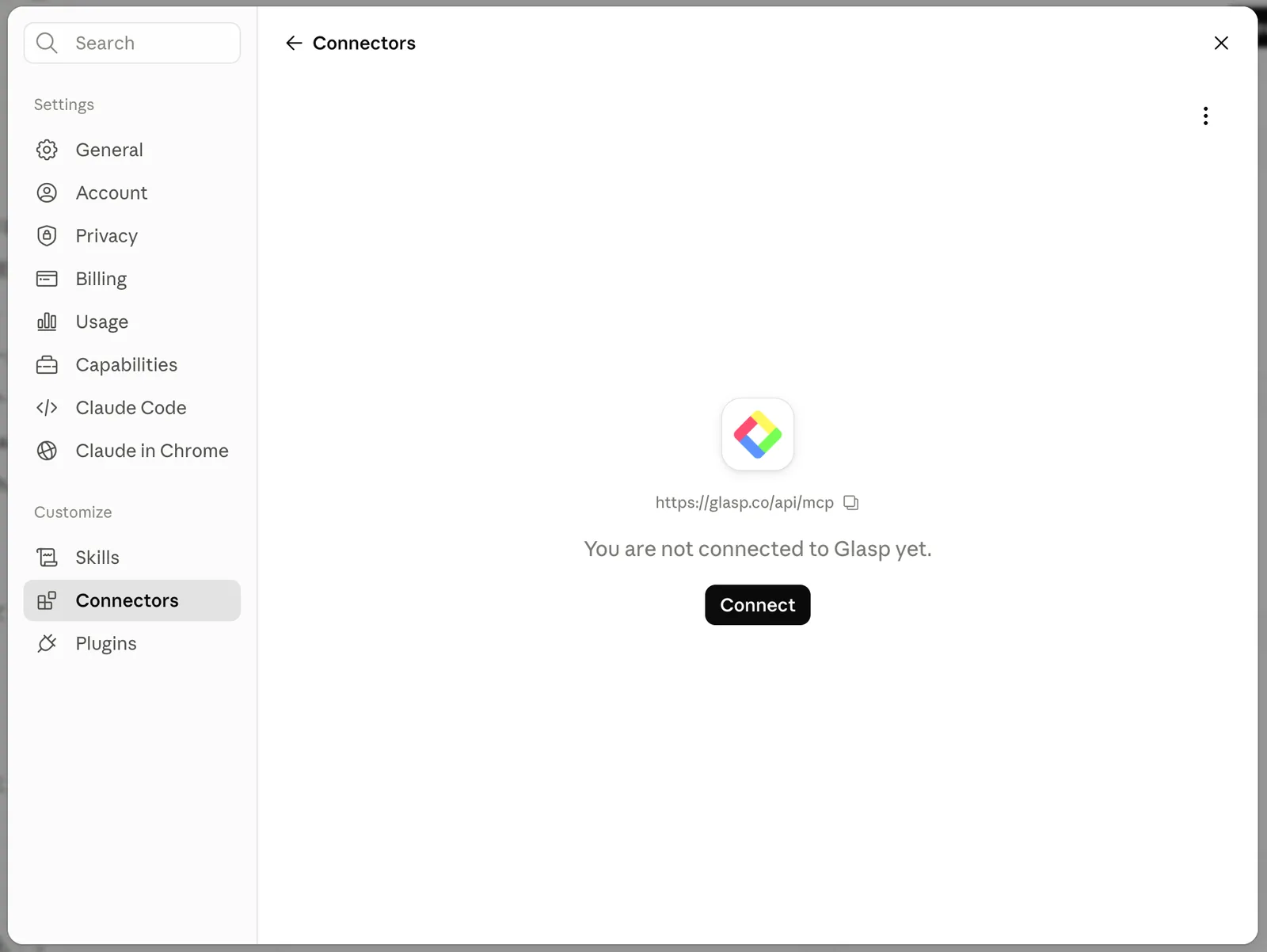
Open the Glasp connector you just added and click Connect.
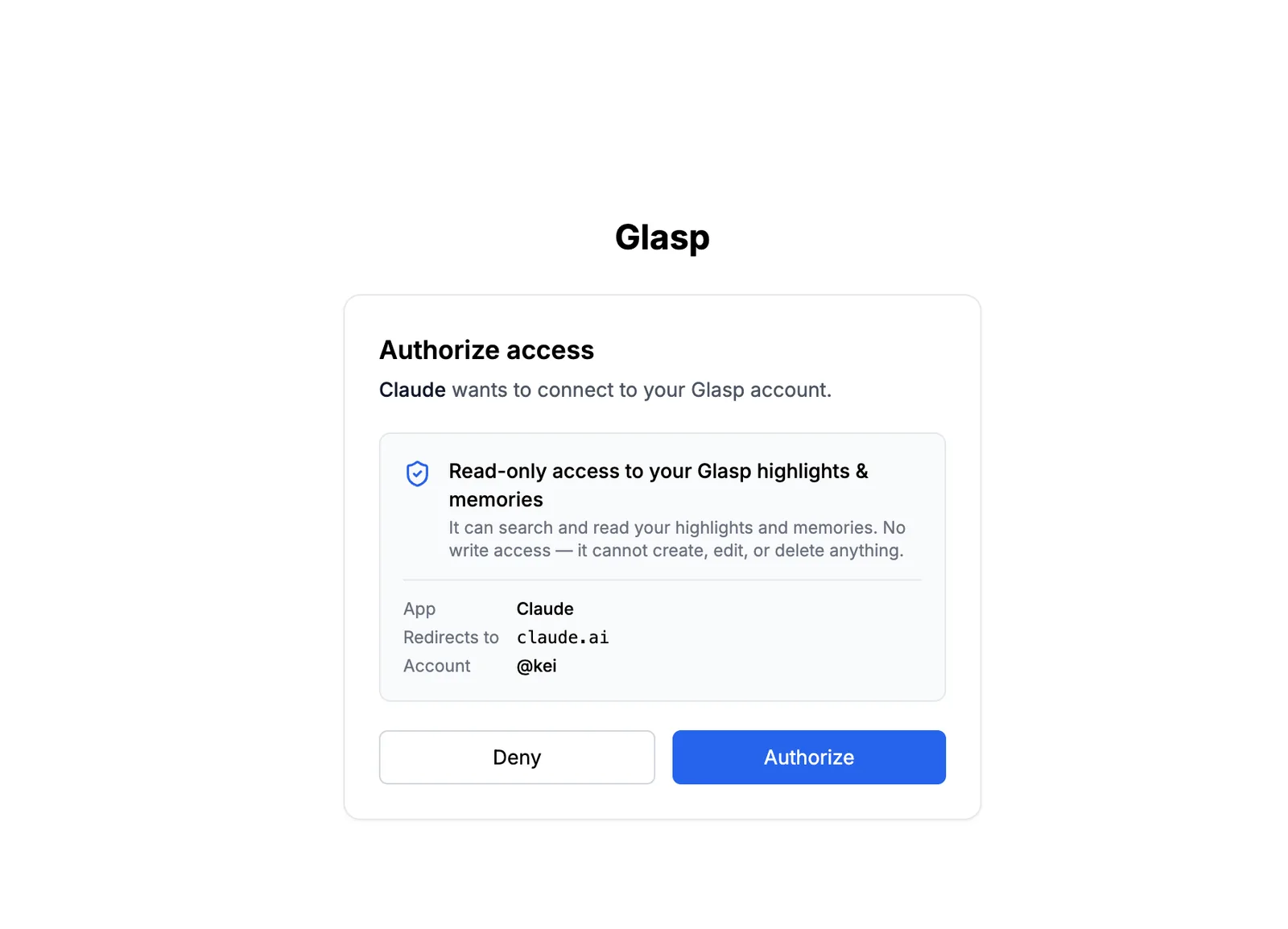
It opens Glasp's authorization page. Check that the access is read-only and click Authorize. That's it. Claude can now search and read your highlights and memories.
ChatGPT
You need a ChatGPT plan that supports custom connectors. Availability depends on your plan.
In ChatGPT, open
Settings, thenConnectors(orApps).Add a custom connector with the Glasp server URL:
https://glasp.co/api/mcpSign in with Glasp and approve.
Claude Code
For Claude Code, you need a Glasp access token. You can create one at Settings then MCP Connector.
Create a token on the MCP Connector settings page.
Run the command below in your terminal, replacing
YOUR_TOKENwith the token you created:
claude mcp add --transport http glasp https://glasp.co/api/mcp --header "Authorization: Bearer YOUR_TOKEN"
Ask Claude Code about your highlights.
Note: The token is shown only once, so please copy it right away. Tokens are stored only as hashes on Glasp's side.
The OpenAI API or any MCP client
This one is for developers and power users: if your tool has a place to add an MCP server, like Cursor, VS Code, or your own app built on the OpenAI API, these three steps are all you need.
The Glasp MCP Connector works with any client that supports the Model Context Protocol or the OpenAI API.
Create a token on the MCP Connector settings page.
Point your MCP client at the server URL:
https://glasp.co/api/mcpSend the token in the Authorization header:
Authorization: Bearer YOUR_TOKEN
Ways to use it
Once connected, your highlights become something your AI can actually work with. A few ways people use it:
Write with your own sources, not generic AI text
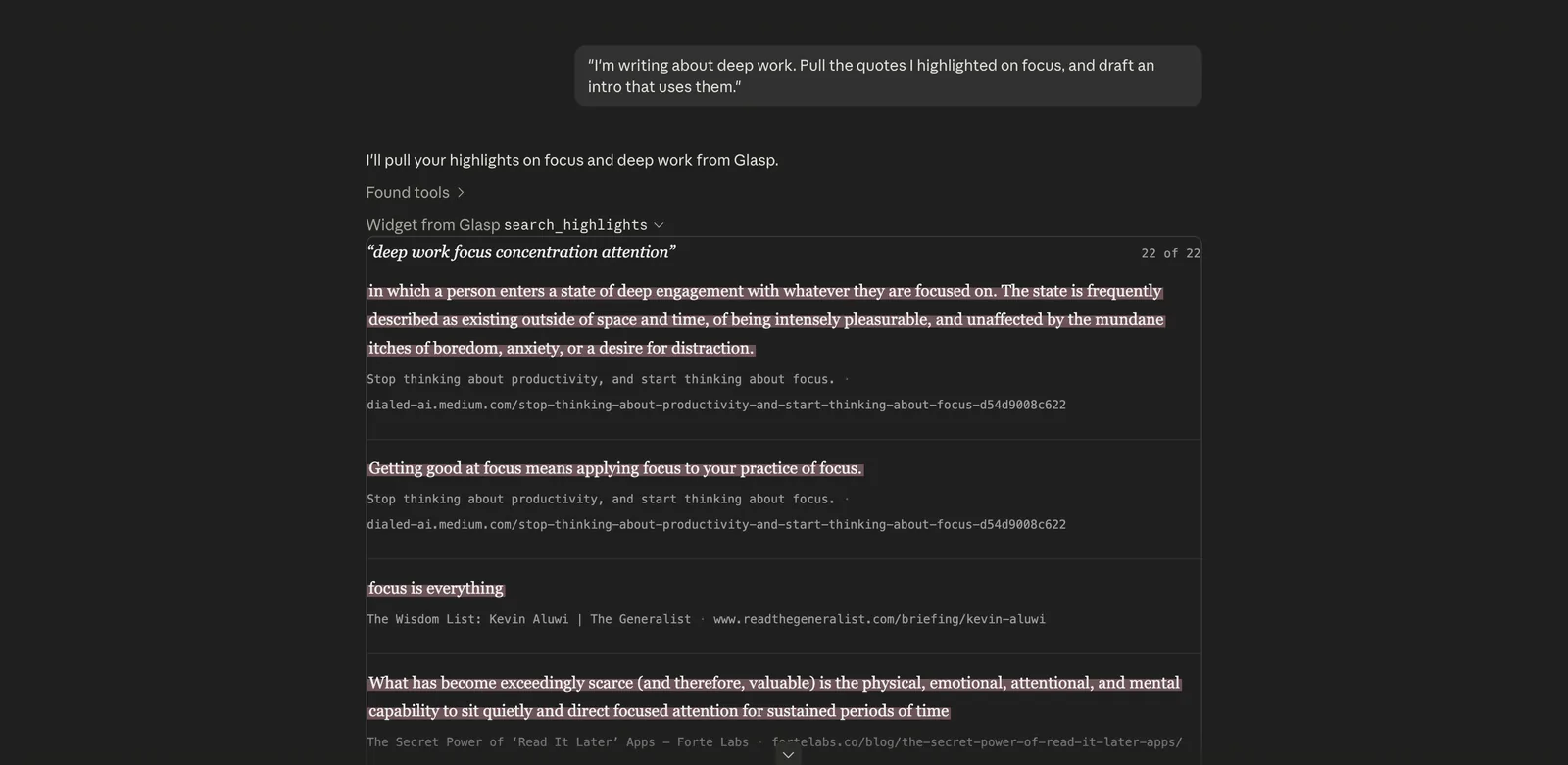
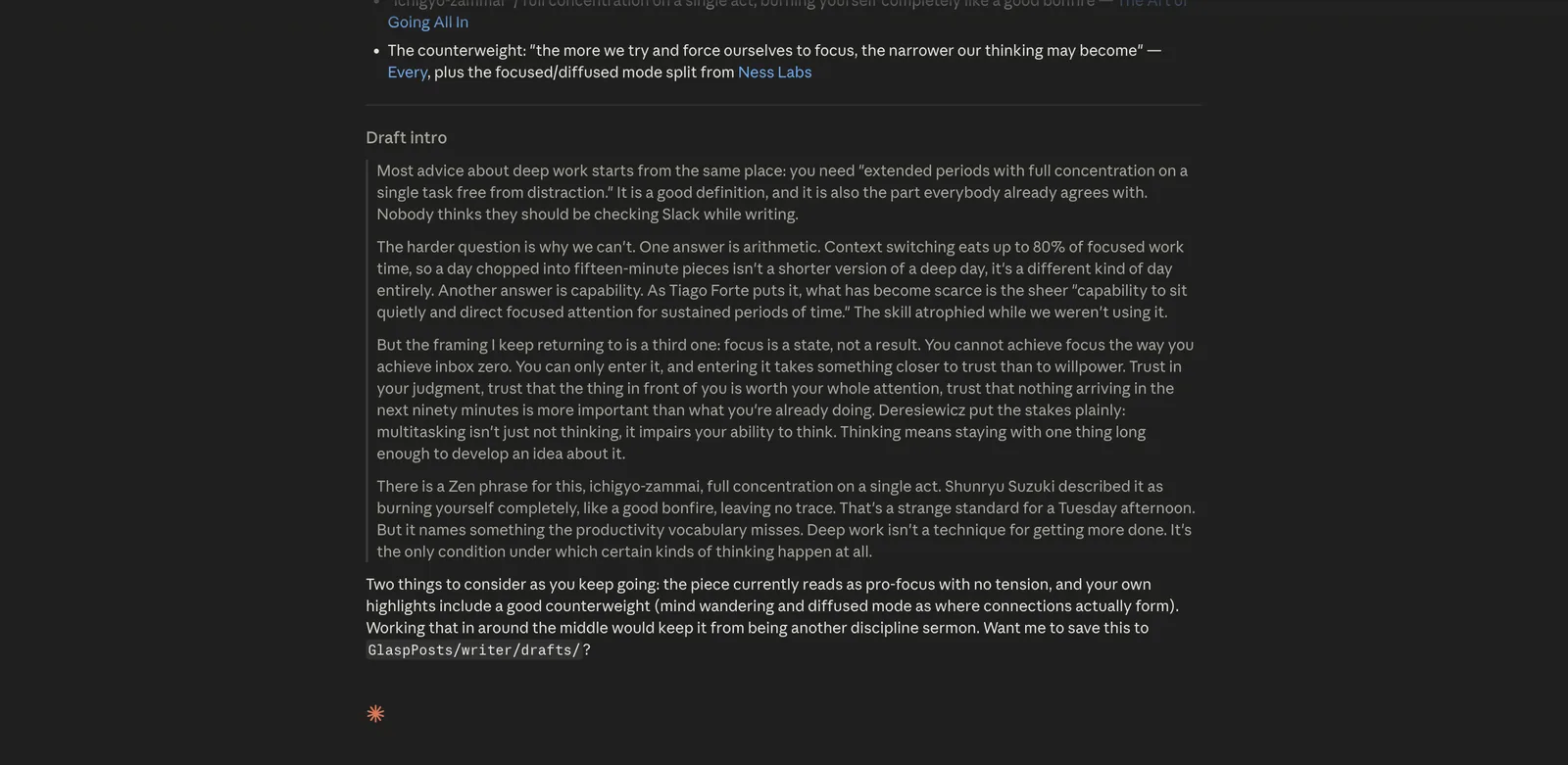
Drafting an article or newsletter? Ask your assistant to pull the passages you already highlighted and weave them in with citations. You get writing grounded in what you actually read, not filler.
"I'm writing about deep work. Pull the quotes I highlighted on focus, and draft an intro that uses them."
Resurface what you forgot you saved
Highlighted something months ago and cannot find it? Just ask. It searches across every article, PDF, YouTube video, and Kindle book you saved.
"What have I saved about pricing strategy, and where was each from?"
Find the posts you highlighted on X
Highlighted a post on X (Twitter) or LinkedIn and lost it in the feed? Your AI can search those too. Tip: open the post before you highlight it, so the link to the post is saved with your highlight (how to highlight X, Facebook, and LinkedIn posts).
"Find the posts I highlighted on X about AI agents, and tell me who wrote each one."
Get a briefing before a meeting or decision
Turn scattered highlights into a one-paragraph brief.
"Summarize everything I've highlighted about a competitor or topic into five bullet points."
Review what you are learning
Turn your reading into study material.
"Quiz me on my recent highlights about AI agents," or "Summarize my Kindle highlights from a book."
Stay in your coding flow (Claude Code)
Ask about something you saved without leaving the terminal.
"What did I highlight about rate limiting in that API article?"
It's easy and useful, right? With the MCP Connector, your highlights and notes stop being a static archive and become a knowledge base your AI assistant can actually use. The more you highlight, the more your AI knows about what you have learned.
FAQs
Q. What is the Glasp MCP Connector?
It is a feature that connects your Glasp account to AI assistants such as Claude and ChatGPT as an MCP (Model Context Protocol) server. Your AI assistant can then search and read your highlights and memories to answer your questions.
Q. Is the MCP Connector free?
Yes. It is included with your Glasp account.
Q. What can the connector access?
Your own web highlights (including posts you highlighted on X, Facebook, and LinkedIn), bookmarks, AI summaries such as YouTube summaries, Kindle highlights, and AI-generated memories. It can also show which passages on a page two or more public readers highlighted, only as anonymous counts, never who they are. Every other request is scoped to your account, and it can never see another person's private data.
Q. Which apps work with it?
Claude on the web, Claude Code, ChatGPT, and any client that supports the OpenAI API or the Model Context Protocol.
Q. Can it change or delete my data?
It cannot edit or delete anything. Only one tool, save_bookmark, can add a URL to your reading list, and it is off unless you turn it on when you connect. Everything else is read-only.
Q. How do I disconnect it?
Open Settings, then MCP Connector to revoke tokens or disconnect connected apps at any time.
Q. 휴대폰에서도 Glasp를 사용할 수 있나요?
네. Glasp에는 iPhone, iPad, Android용 네이티브 앱이 있으며, iPhone과 iPad용 Glasp Safari 확장 프로그램은 iOS 앱에 포함되어 있습니다. 하이라이트는 앱, 웹, 데스크톱 확장 프로그램 간에 동기화됩니다. 자세한 내용은 How to Use the Glasp Mobile App on iOS, iPad, and Android(영어)을 참고하세요.
Before you leave
If you have any questions, please refer to the FAQ or contact us.
👉 FAQs
👉 X
See you next time,
Glasp team