How to Use the Glasp Mobile App on iOS, iPad, and Android

Aug 10, 2026
8 min read
244 views

Last updated: August 2026
The Glasp mobile app was rebuilt from the ground up in 2026. It is no longer just a way to highlight web pages on your phone: it summarizes YouTube videos, gives you a distraction-free reader, tracks the channels you care about, and keeps every highlight you have ever made in your pocket.
This page is the overview. Each section links to a full tutorial if you want the detailed steps.
👉 Get the Glasp app for iOS and Android
What you can do with the app
Summarize a YouTube video by sharing its link to the app. Summaries come with timestamps, so you can jump to the moment a point was made.
Summarize videos that have no captions. When YouTube provides no transcript, Glasp transcribes the audio instead.
Read without distractions with Reader, and highlight what matters in any color.
Read and highlight PDFs, including PDFs you upload yourself.
Follow YouTube channels, newsletters, and blogs and read them in your Feed.
Carry your whole library: web highlights, PDFs, Kindle highlights, bookmarks, and saved summaries in one place.
Bring in highlights from other apps without leaving the app: Readwise, Instapaper, Medium, Hypothesis, Snipd, and Raindrop.io.
Add a Feed widget to your home screen, or to your Lock Screen on iOS.
Highlight in mobile Safari with the Safari extension on iPhone and iPad.
Everything syncs with the web app and the browser extension automatically, so what you save on your phone is waiting on your laptop, and the other way around.
Step 1: Install the app and sign in
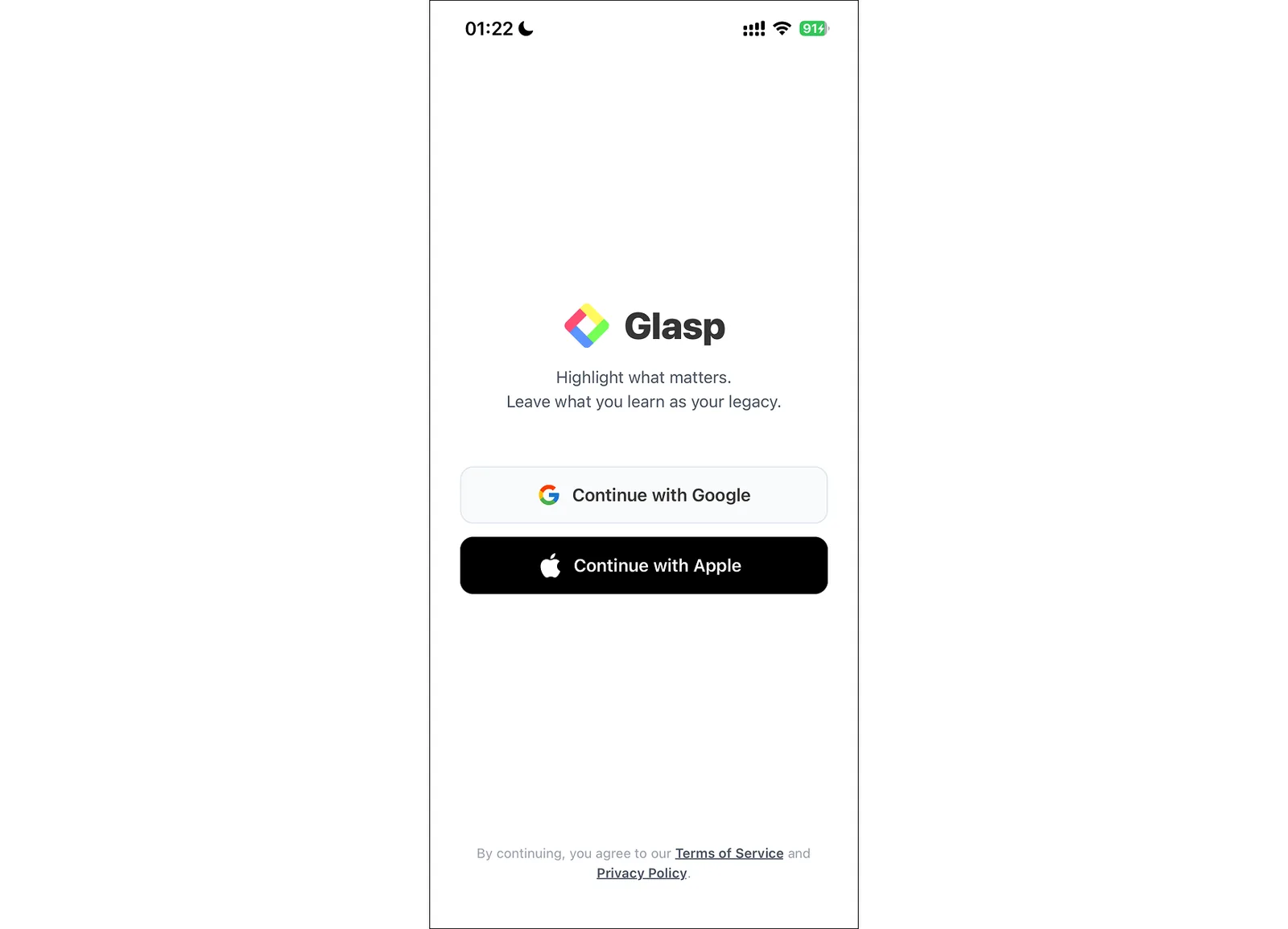
Install the app from the App Store or Google Play, open it, and sign in with Google or Apple. Both work on mobile and on the web, and your highlights sync either way.
The app is free. A Glasp account is also free, and you need one so your highlights have somewhere to live.
Step 2: Summarize a YouTube video
Open a video anywhere on your phone, tap the share button, and choose Glasp. A summary with timestamps appears in seconds. You can also paste a link inside the app.
Once the summary is there, you can copy it or share it out to any other app, so a video you watched on the train can turn into a message or a note without retyping anything.
The free plan includes 3 summaries per day. Pro raises that to 1,000 per month, and Unlimited to 5,000 per 30 days.
Two things people often ask about:
Videos without captions still work. Glasp transcribes the audio, which is included up to 30 minutes per month on the free plan, 300 minutes on Pro, and 1,500 minutes on Unlimited.
Long videos are fine. Current models handle videos of around 10 hours.
👉 How to Summarize YouTube Videos on iPhone and Android (Free App)
Wondering how it compares to other apps? See our roundup of the best YouTube summary apps for mobile.
Step 3: Read and highlight
Open any article or video page inside the app and you get a toolbar at the bottom: Highlight, Community, Reader, Summary, and More.
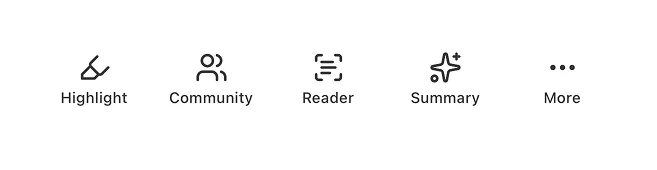
Reader strips the page down to the text. Highlight lets you select a sentence and save it in one of four colors, with a note if you want one, and a long press on an image highlights the image instead. Community shows what other people highlighted on the same page.
If you are not sure what is worth marking, tap Suggest highlights in the Highlight tab. It offers passages other readers found notable, or AI-picked ones when there are not enough, and on YouTube it suggests timestamped moments from the transcript.
Step 4: Build a Feed you actually read
The Feed tab collects new videos from the YouTube channels you follow, so you can summarize them without hunting for the video first. It also has a Newsletters section: follow newsletters and blogs by URL, or start from a curated pack, and read them in one chronological place with Popular and Archived views.
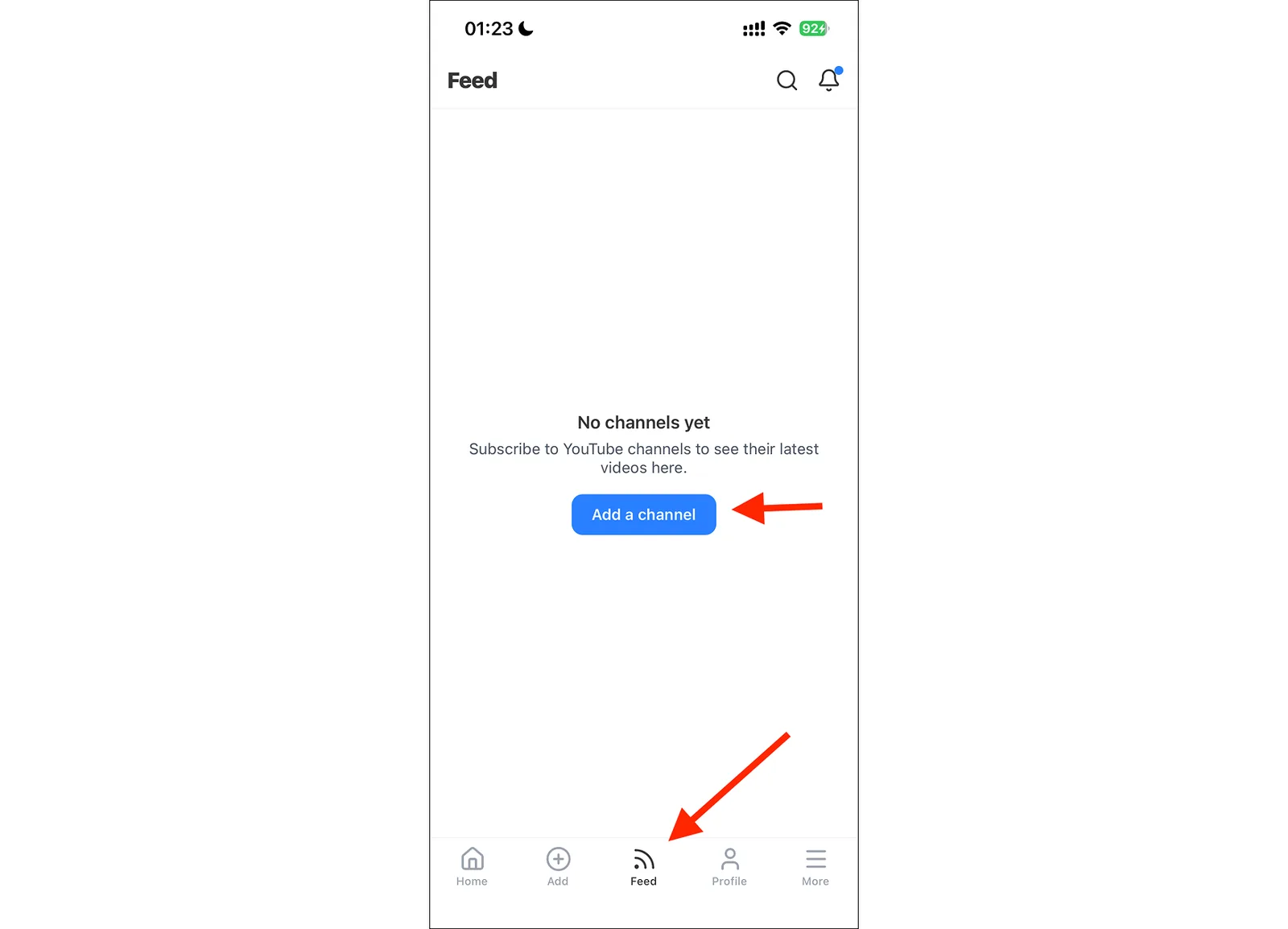
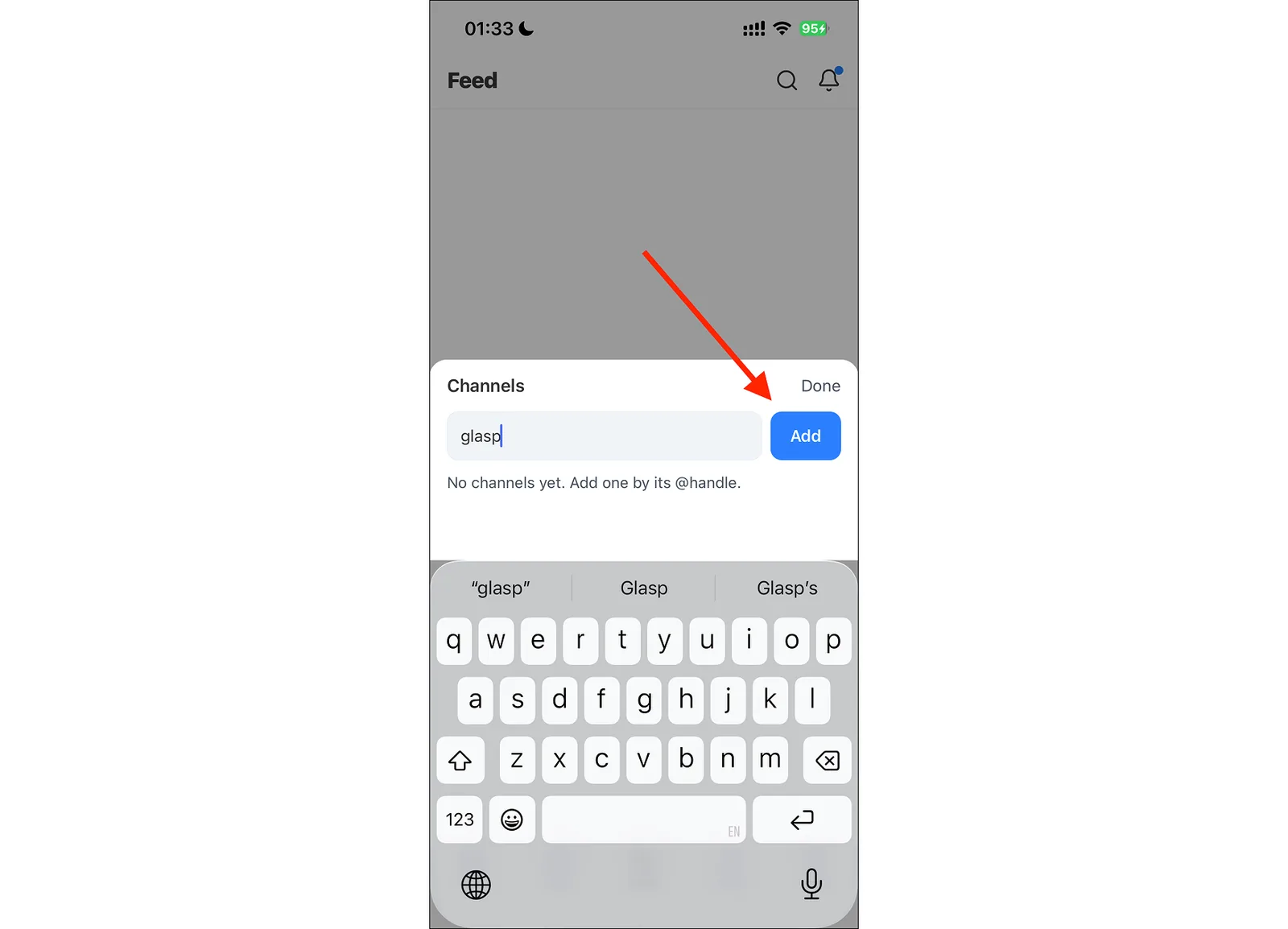
For YouTube, tap Add a channel and enter the channel's @handle.
Step 5: Find everything you have saved
The Profile tab is your library. It separates Highlights, Kindle, Bookmarks, PDFs, and Summaries, so a book passage and a video summary are both a tap away.
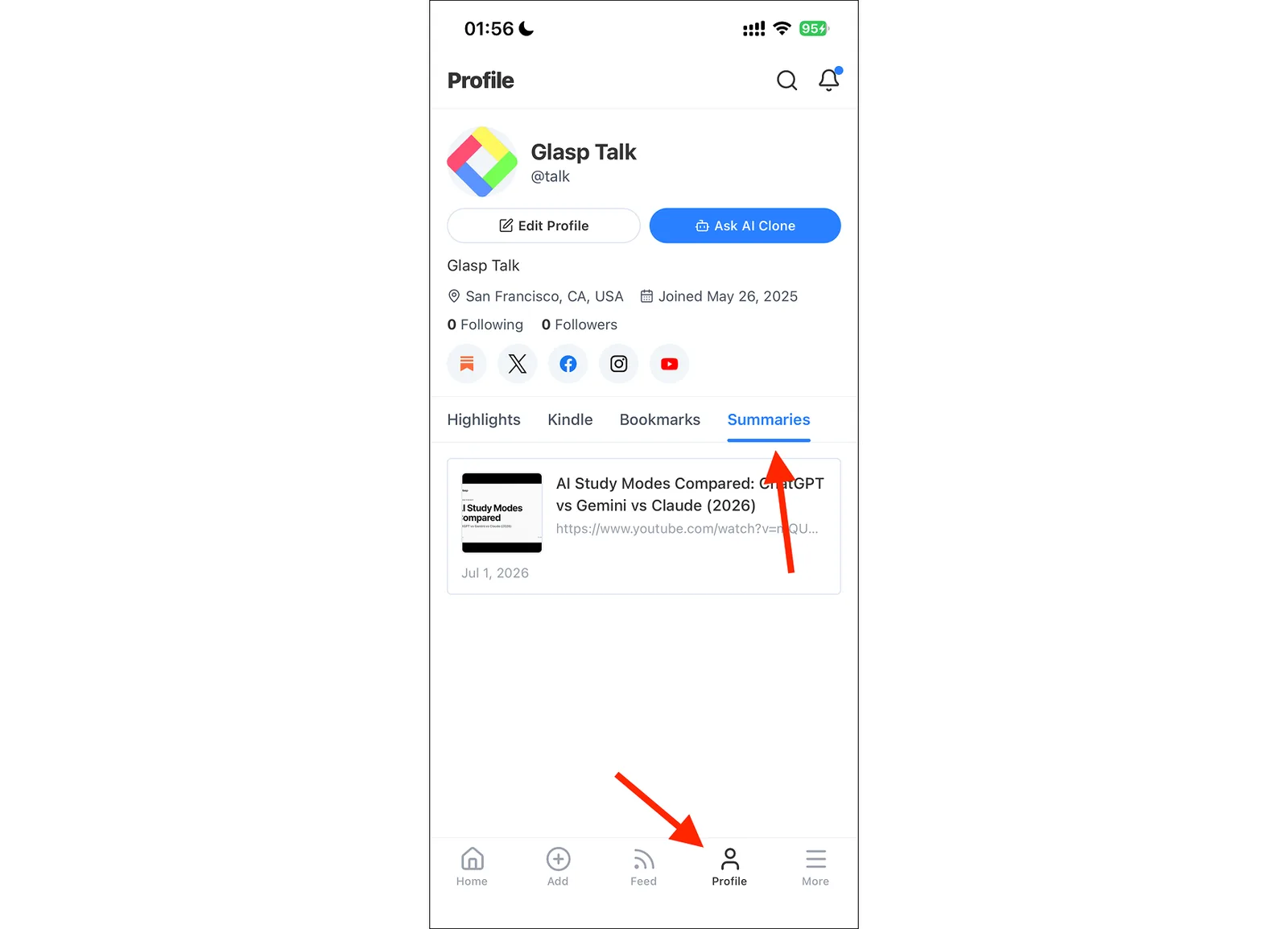
Kindle highlights show up here too. Import them once on the web, and they are in the app from then on.
👉 How to Download Highlights and Notes from Kindle
Read and highlight PDFs
The app reads PDFs as well as web pages. Open one in the Reader to highlight it and take notes, or upload your own and find it later under the PDFs tab on your profile. PDF highlights sync across the web, the browser extension, and the app, the same way web highlights do.
👉 Full tutorial: How to Upload, Highlight, and Summarize PDFs in the Glasp Mobile App
Bring highlights in from other apps
Highlights you have made elsewhere can come across from inside the app. Under Add, open Import and connect Readwise, Instapaper, Medium, Hypothesis, Snipd, or Raindrop.io. Raindrop syncs new highlights automatically each day, and you can also tap Sync Now.
👉 How to Import Highlights from Raindrop.io into Glasp
Keep it in front of you: widgets
Glasp has home screen widgets, so what you saved stays in view instead of waiting behind an app icon.
To add one on iOS, touch and hold an empty area of your home screen, tap the + button in the corner, and search for Glasp. Swipe through the available widgets, pick the one you want, and tap Add Widget.
Glasp Highlightshows a recent highlight, rotating through the day.Glasp Bookmarksshows your most recent saved bookmarks.Glasp Feedshows new videos from the channels you follow, with thumbnails, and taps straight through to one.

Each widget comes in more than one size. The larger Glasp Feed widget fits about twice as many videos on your home screen.

On iOS there is a Lock Screen version too, which shows the newest video at a glance.
Highlight in Safari on iPhone and iPad
The app installs a Safari extension, so you can highlight web pages in Safari itself rather than opening them in the app first. Enable it once from Safari's aA menu, under Manage Extensions.
👉 How to Use the Glasp Safari Extension on iPhone and iPad
Platform tutorials
FAQs
Q. Is the Glasp mobile app free?
Yes. The app and a Glasp account are both free. The free plan includes 3 YouTube summaries per day and 30 minutes of audio transcription per month. Pro and Unlimited raise those limits.
Q. Can I summarize a YouTube video that has no subtitles?
Yes. When YouTube provides no transcript, Glasp transcribes the video's audio and summarizes that.
Q. Do summaries include timestamps?
Yes. Each point links back to the moment in the video it came from.
Q. Can I copy or share a summary?
Yes. From the summary in the app you can copy the text or send it to another app.
Q. Can I read and highlight PDFs in the app?
Yes. Open a PDF in the Reader to highlight it and take notes, and upload your own PDFs to find them under the PDFs tab on your profile. PDF highlights sync with the web and the browser extension.
Q. Can I import highlights from other apps on my phone?
Yes. Under Add, open Import and connect Readwise, Instapaper, Medium, Hypothesis, Snipd, or Raindrop.io without leaving the app.
Q. Can I see my Kindle highlights in the app?
Yes. Import your Kindle highlights once on the web, and they appear under the Kindle tab on your profile in the app.
Q. Does the app sync with my account on the web?
Yes. Highlights, notes, and tags sync automatically across the app, the web app, and the browser extension, as long as you sign in with the same account.
Q. Can I highlight web pages on my phone?
Yes, in two ways. Open the page inside the app and use Highlight, or enable the Safari extension and highlight in Safari directly.
Q. Is the app available in my language?
The interface is localized in 7 languages, and you can set the language your AI summaries are written in from Settings. That setting syncs with the web app and the extension.
Q. Which devices does the app support?
iPhone, iPad, and Android. On iOS the app requires iOS 15.1 or later, which covers phones going back to the iPhone 7.
Q. Do I need the browser extension as well?
No. The app works on its own. The extension is what you use when you read on a computer, and the two share the same library.
Q. Can Claude or ChatGPT read my Glasp highlights?
Yes. With the Glasp MCP Connector, AI assistants such as Claude, ChatGPT, and Claude Code can search and read your own highlights, notes, Kindle highlights, and AI summaries, including your YouTube summaries. The connection is private to you and read-only, apart from one permission you can approve: saving a page to your Glasp bookmarks, which are public on your profile. See How to Connect Glasp to Claude, ChatGPT, and Claude Code (MCP Connector).
Before you leave
If you have any questions, please refer to the FAQ or contact us.
👉 FAQs
👉 X
See you next time,
Glasp team