How to Import Highlights from Raindrop.io into Glasp

Aug 05, 2026
5 min read
18 views
Do you save and highlight articles with Raindrop.io? With Glasp's Raindrop.io import integration, you can bring your Raindrop highlights into Glasp by connecting your account once. Your notes, highlight colors, and tags come across too, and there's no file export needed.
In this tutorial, you'll learn step by step how to connect Raindrop to Glasp, run your first sync, and import from a CSV file instead if you prefer. One thing to know before you start: items without highlights are not imported, so plain bookmarks stay in Raindrop.
If you haven't signed up for Glasp or installed the Glasp browser extension, please do so. You can refer to this tutorial.
Step 1: Open the Raindrop card
Go to the Settings page on Glasp and click Integrations in the left sidebar. Open the Import tab, find Raindrop.io, and click it.
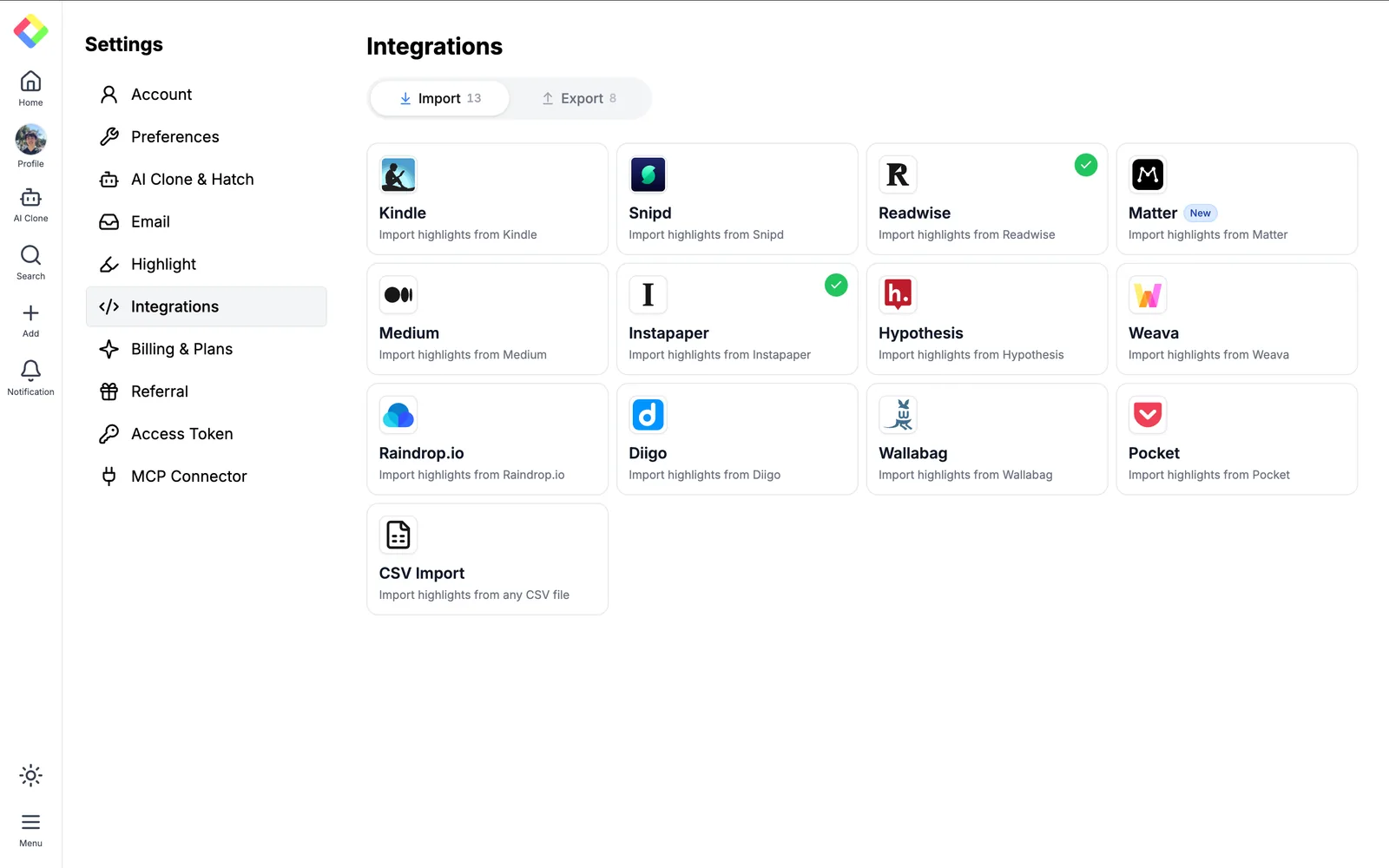
It opens the Sync your Raindrop.io account modal. Click Connect Raindrop.io to get started.
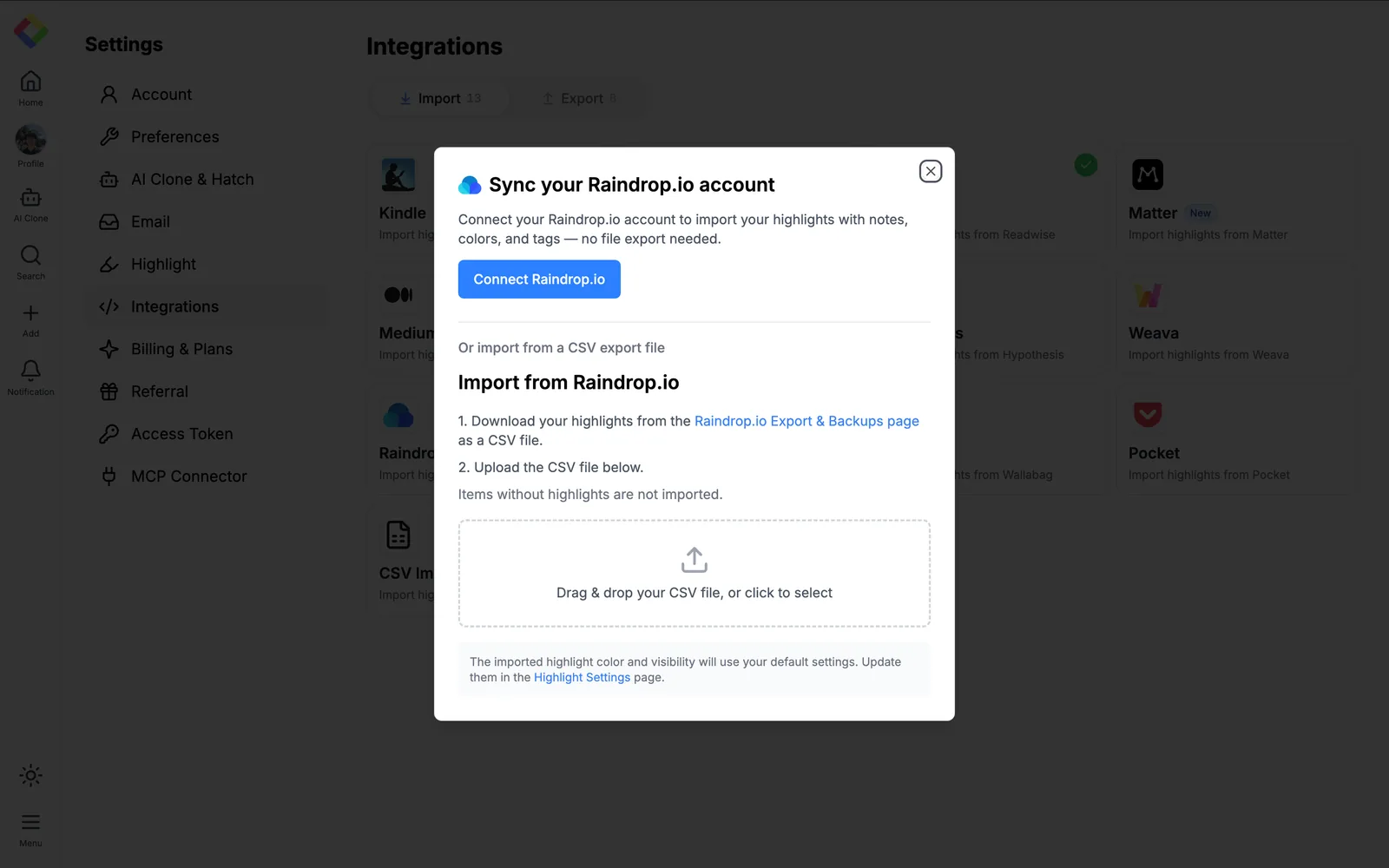
Step 2: Sign in to Raindrop and authorize Glasp
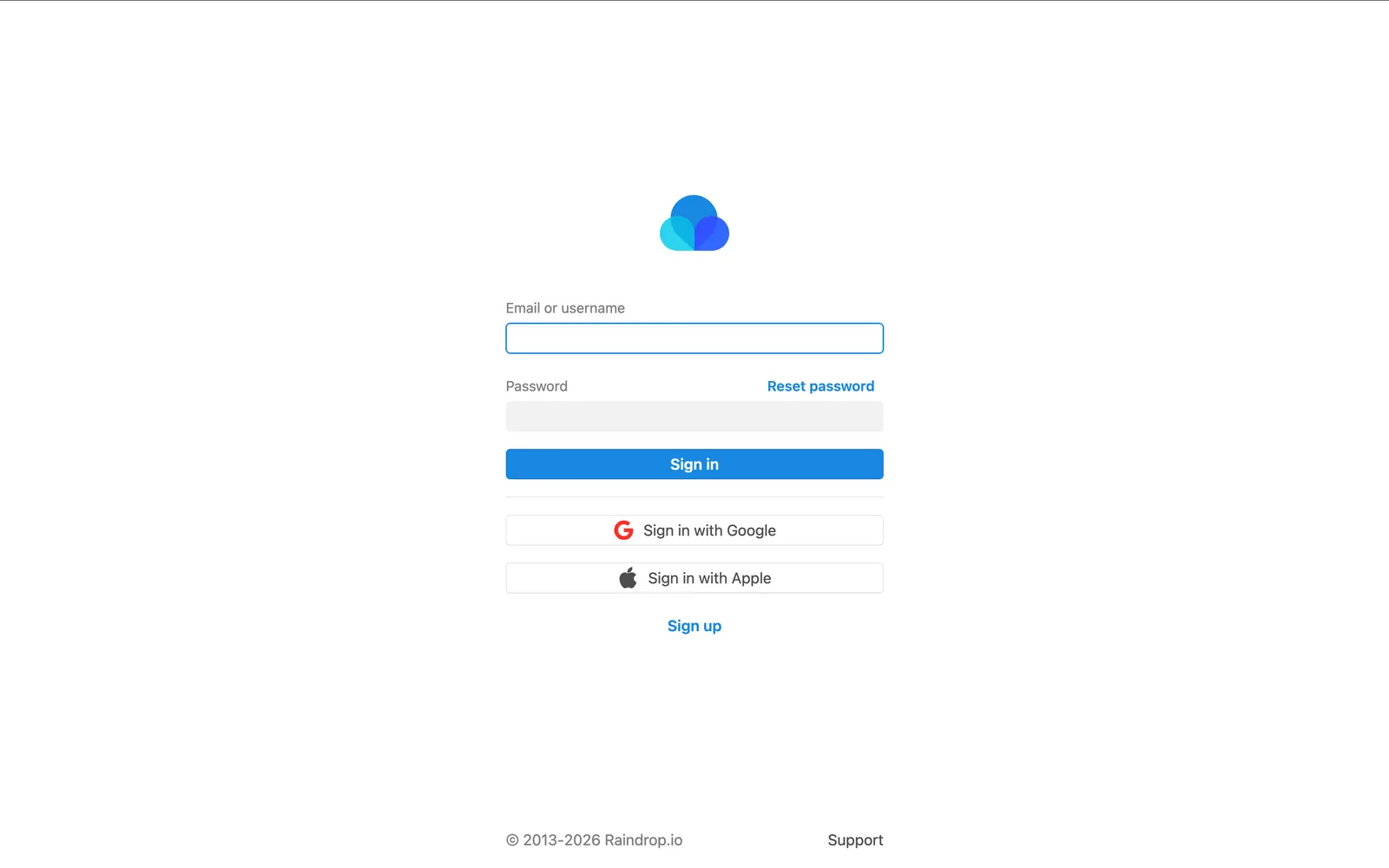
You're taken to Raindrop. Sign in with your email and password, or with Google or Apple, whichever you use for your Raindrop account.
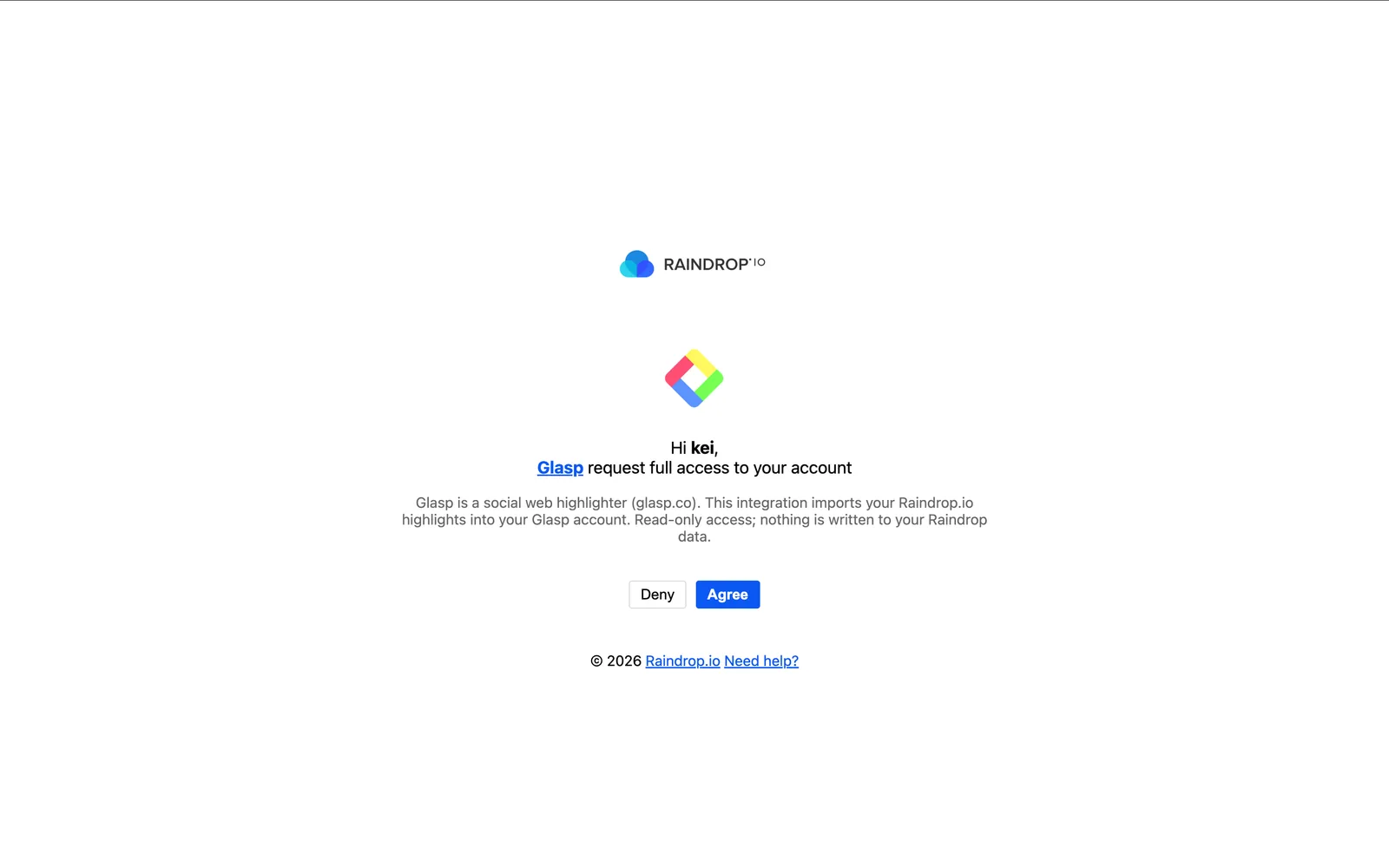
Next, Raindrop asks you to authorize Glasp. The screen reads Glasp request full access to your account, which is the standard wording Raindrop shows for every connected app. The description right below it is the scope that actually applies here: Glasp reads your highlights and writes nothing back to your Raindrop data.
Click Agree to continue.
Step 3: Sync your highlights
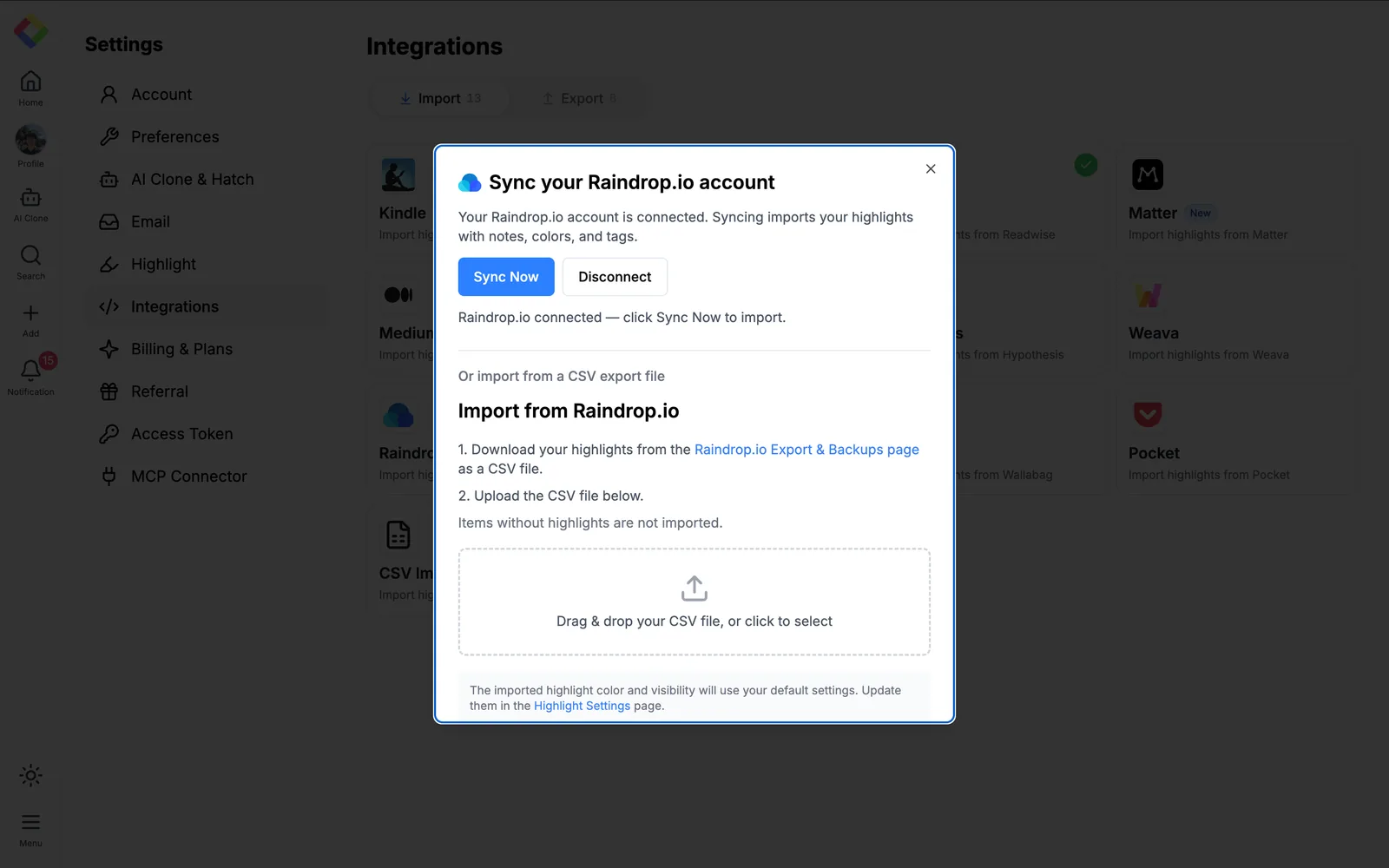
You're returned to Glasp, and the modal now shows that your account is connected, with Sync Now and Disconnect buttons.
Click Sync Now to start importing.
When the sync finishes, the modal tells you that you're up to date. Run Sync Now again anytime you've highlighted something new in Raindrop, and only the new highlights are imported.
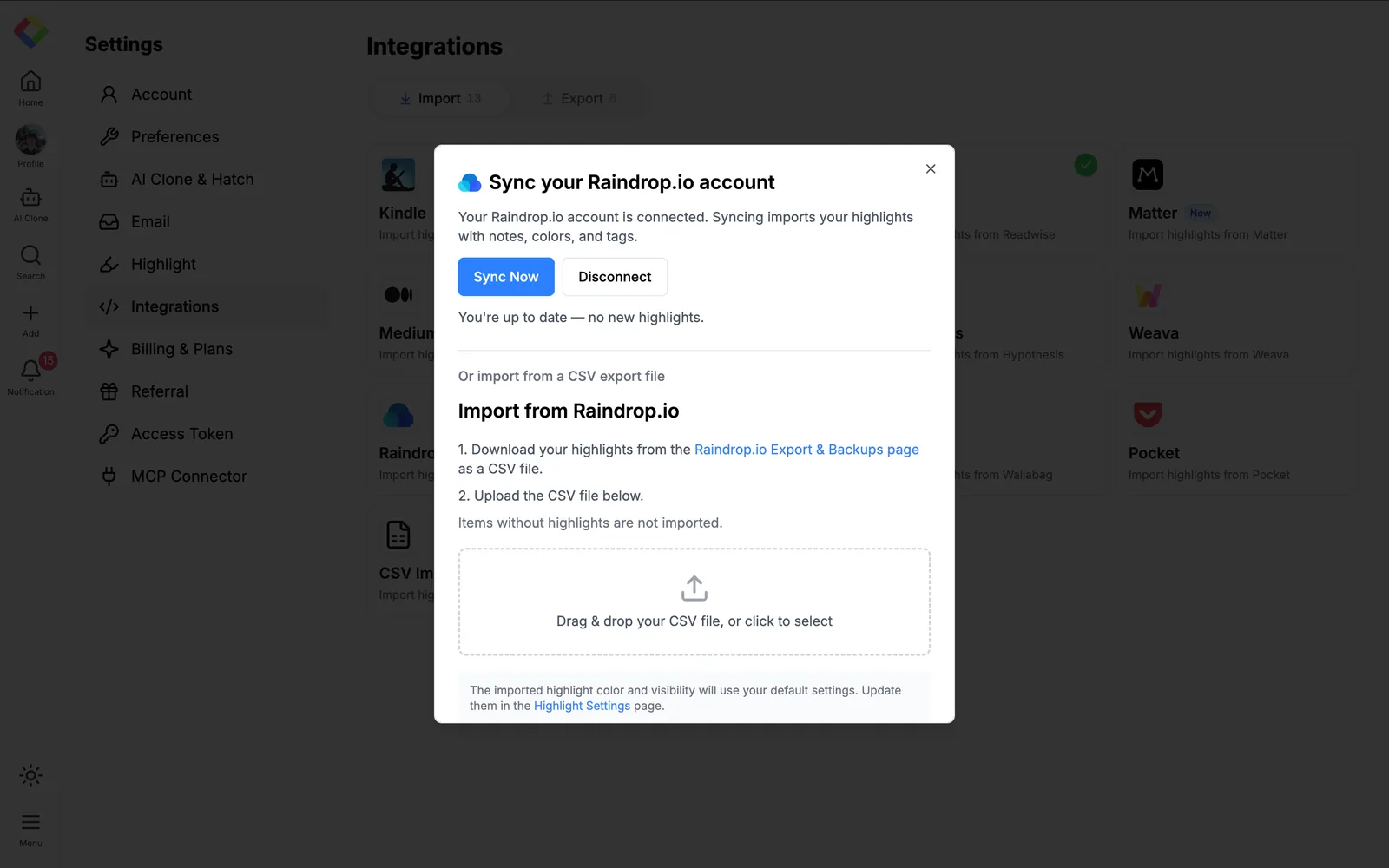
Your imported highlights use the default highlight color and visibility from your Glasp account. You can change those defaults on the Highlight Settings page.
Alternative: Import from a CSV file
If you'd rather not connect your account, the same modal accepts a CSV file.
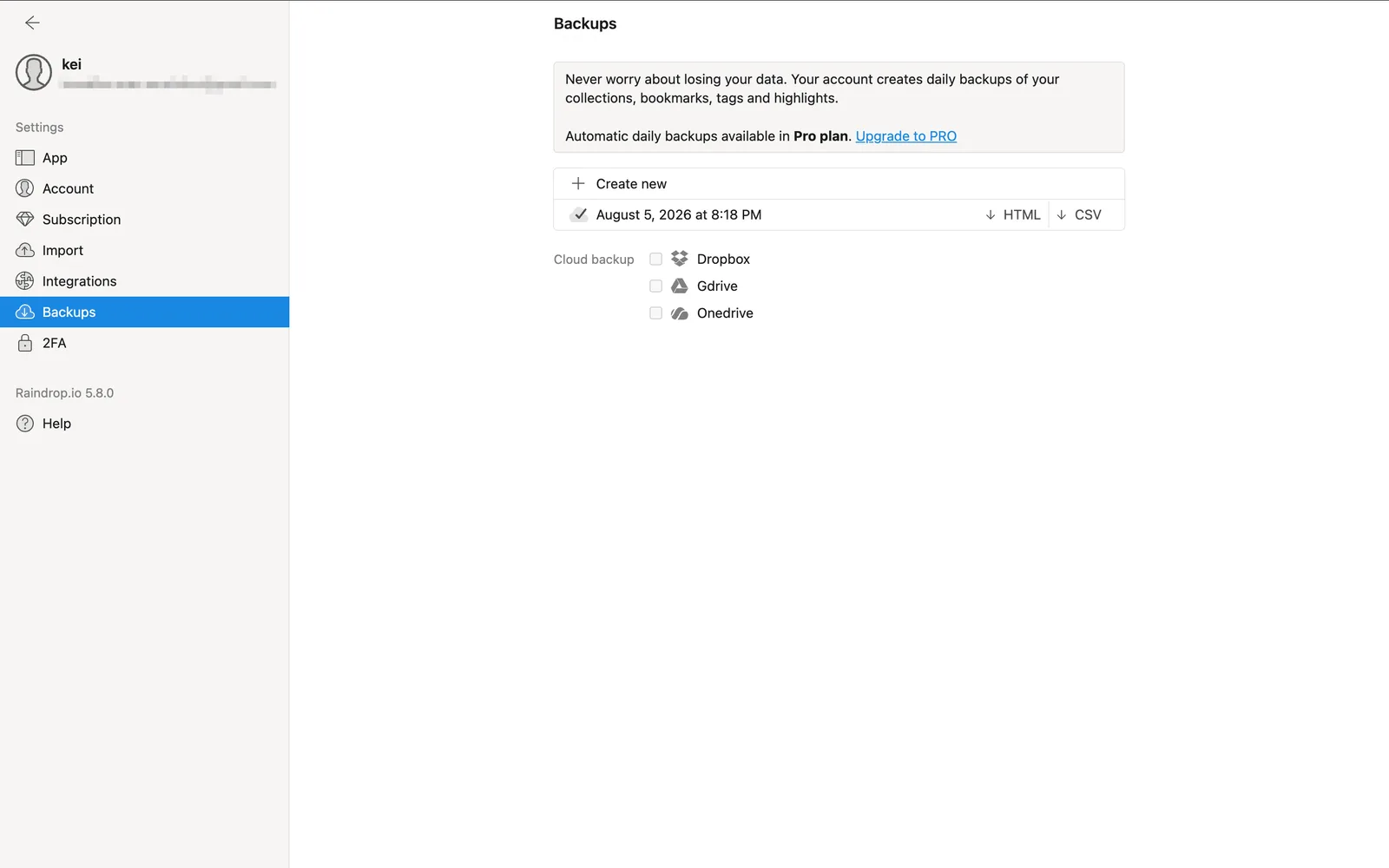
In Raindrop, open Settings, click Backups in the left sidebar, and click Create new. Raindrop prepares the file and emails you when it's ready. The backup then appears on this same page, where you can download it as CSV.
Back in the Glasp modal, drag and drop the CSV file into the upload area, or click it to select the file. Glasp checks the file and tells you how many highlights it found, so you can confirm you picked the right one before anything is added.
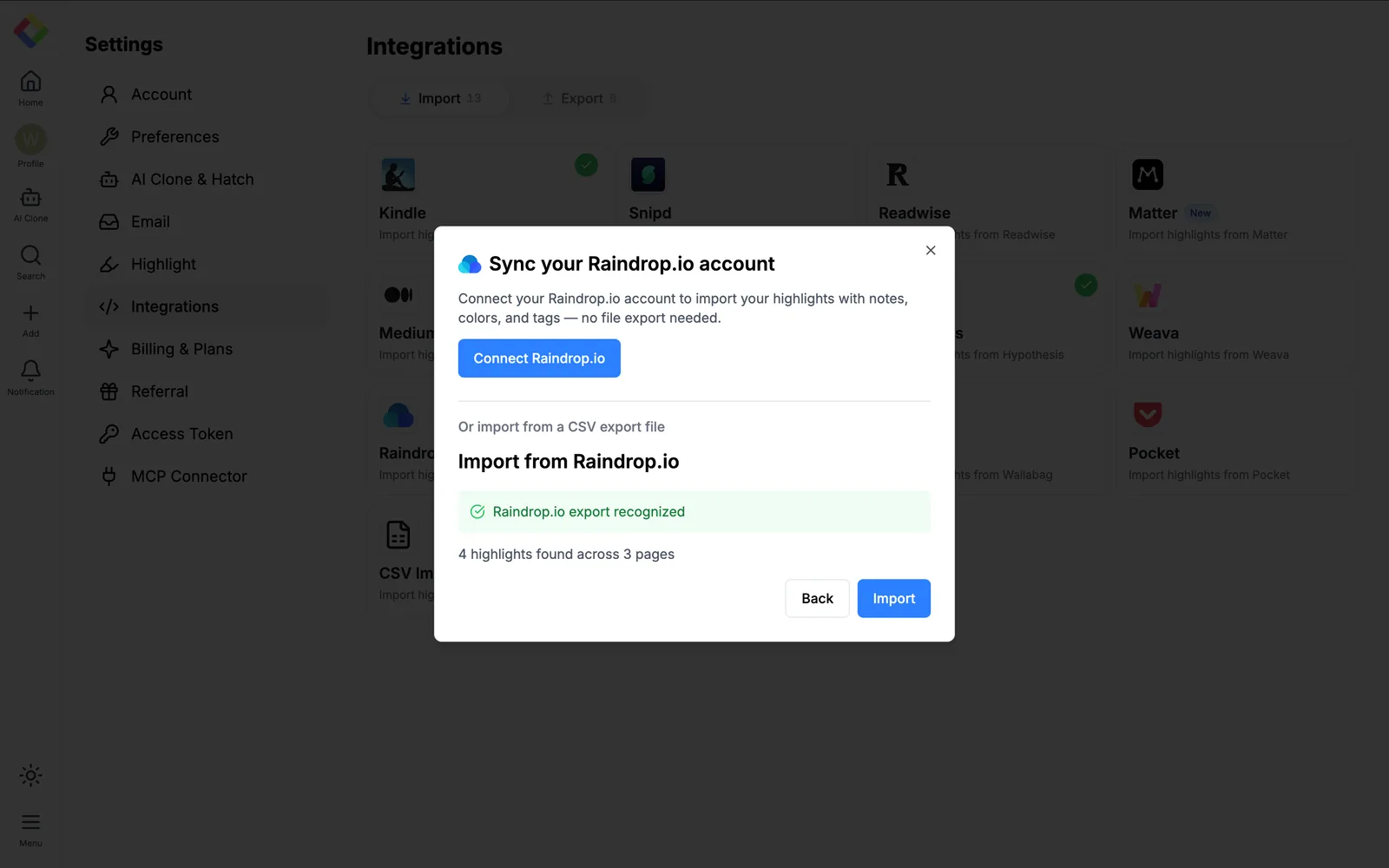
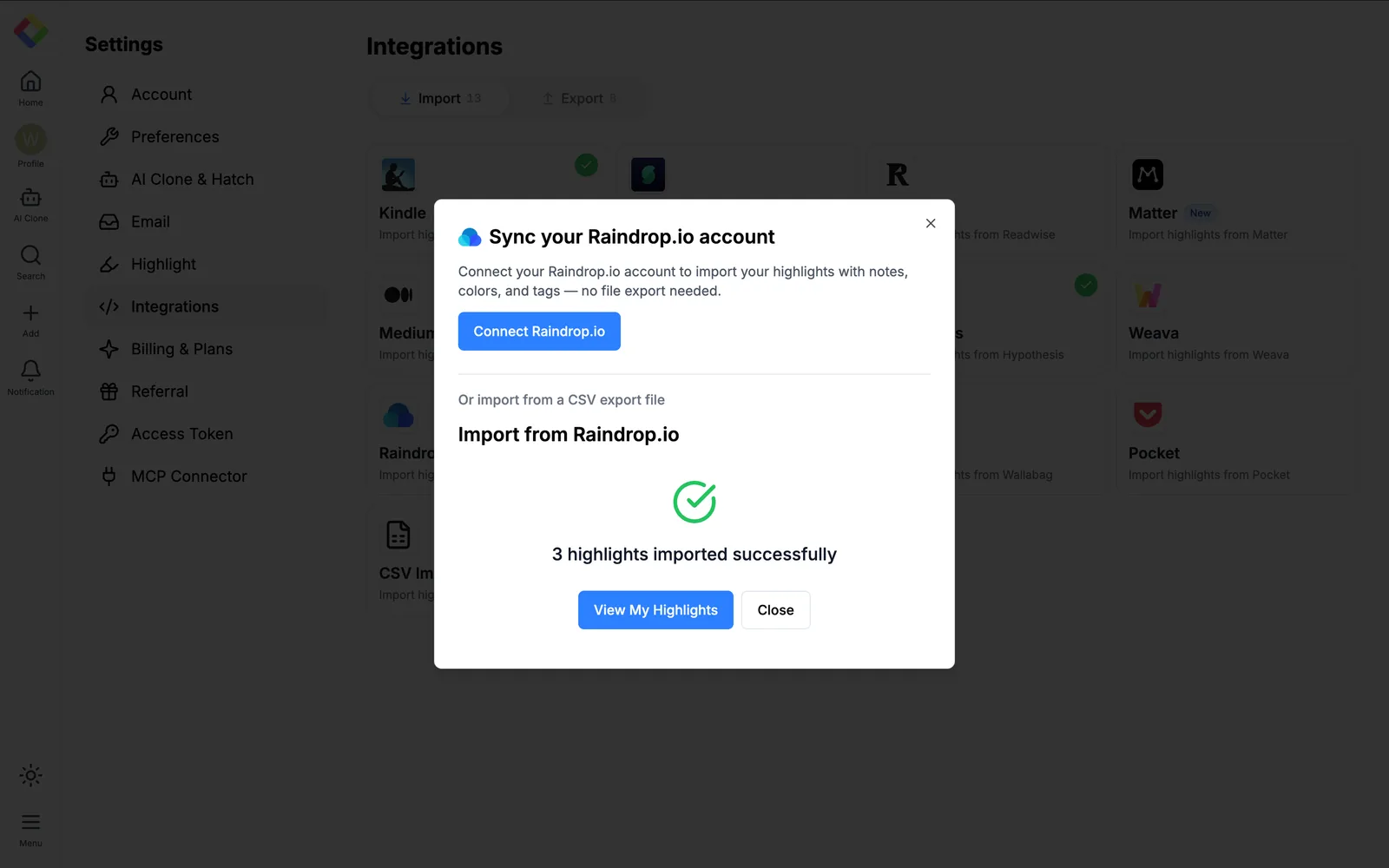
Click Import to finish. Glasp confirms how many highlights were added, and View My Highlights takes you straight to them.
The result is the same, though you'll need to create and download a fresh backup each time you want to bring in new highlights. Connecting your account is the easier option if you highlight in Raindrop regularly.
It's easy and useful, right? With the Raindrop integration, the highlights you collect while reading flow into Glasp, ready to be searched, tagged, and exported to your note-taking apps.
FAQs
Q. Does Glasp change anything in my Raindrop account?
No. The integration has read-only access. It imports your highlights into Glasp and writes nothing back to Raindrop.
The authorization screen reads Glasp request full access to your account, which understandably gives people pause. That line is Raindrop's standard wording, shown the same way for every app you connect. The description directly beneath it states the scope that applies to this integration: read-only access, with nothing written to your Raindrop data.
Q. Do my notes, colors, and tags come across?
Yes. Syncing imports your highlights along with their notes, colors, and tags. Please note that adding notes to a highlight is a Raindrop Pro feature, so on a free Raindrop plan your highlights simply arrive without notes.
Q. Why are some of my Raindrop items missing?
Items without highlights are not imported. If you saved a page in Raindrop as a bookmark but never highlighted anything on it, it stays in Raindrop and doesn't appear in Glasp.
Q. What color and visibility do the imported highlights use?
They use the default settings on your Glasp account. You can update them on the Highlight Settings page.
Q. How do I import new highlights later?
Open the Raindrop.io card in Settings → Integrations and click Sync Now. New highlights also sync in automatically once a day. Only new highlights are imported, so you don't have to worry about duplicates.
Q. Do I need a paid Raindrop plan?
No. Highlights are free for all Raindrop users, with no limit on pages or highlights, and connecting your account works on a free plan. Only notes on highlights require Raindrop Pro.
Q. How do I disconnect Raindrop from Glasp?
Open the Raindrop.io card in Settings → Integrations and click Disconnect.
Q. Can Claude or ChatGPT read my Glasp highlights?
Yes. With the Glasp MCP Connector, AI assistants such as Claude, ChatGPT, and Claude Code can search and read your own highlights, notes, Kindle highlights, and AI summaries, including your YouTube summaries. The connection is read-only and private to you. See How to Connect Glasp to Claude, ChatGPT, and Claude Code (MCP Connector).
Q. Can I use Glasp on my phone?
Yes. Glasp has native apps for iPhone, iPad, and Android, and the Glasp Safari extension for iPhone and iPad comes with the iOS app. Your highlights sync between the apps, the web, and the desktop extension. See How to Use the Glasp Mobile App on iOS, iPad, and Android.
Before you leave
If you have any questions, please refer to the FAQ or contact us.
👉 FAQs
👉 X
See you next time,
Glasp team