How to Use the Glasp iOS Mobile/Tablet App

Aug 10, 2026
4 min read
79 views

Last updated: August 2026
Want to highlight and save what you read on your iPhone or iPad? With the Glasp iOS app, you can capture passages from articles, keep them in one place, and sync them with your desktop account. This tutorial walks you through installing the app, saving an article, highlighting it, and syncing to desktop.
If you'd like to see a tutorial for Android, please check here.
Step 1: Install the Glasp iOS app
Please open the link below and install the Glasp iOS app.
👉 Glasp: AI Summary & Highlight
Step 2: Sign up or log in to the Glasp account
After installation of the Glasp iOS app, please click and open it.
If you're new to Glasp, please sign up for Glasp. You can sign up with either Google or Apple.
Notes: There's no difference in Glasp features between Apple Sign-in and Google Sign-in. You can sign in with either one on mobile and on desktop, and your highlights sync across both.
If you already have a Glasp account, please log in to Glasp with the same account you signed up for Glasp. If you aren't sure which account you used to sign up before, please check your email inbox and search for Glasp. You should find the email address from us.
If you're asked to sign in to your Google or Apple account, please do so.

Step 3: Open an article to highlight with a browser
If you're new to Glasp, you can see an empty screen below.
To start highlighting with Glasp, you need to save an article you'd like to highlight through a browser such as Safari, Chrome, etc.
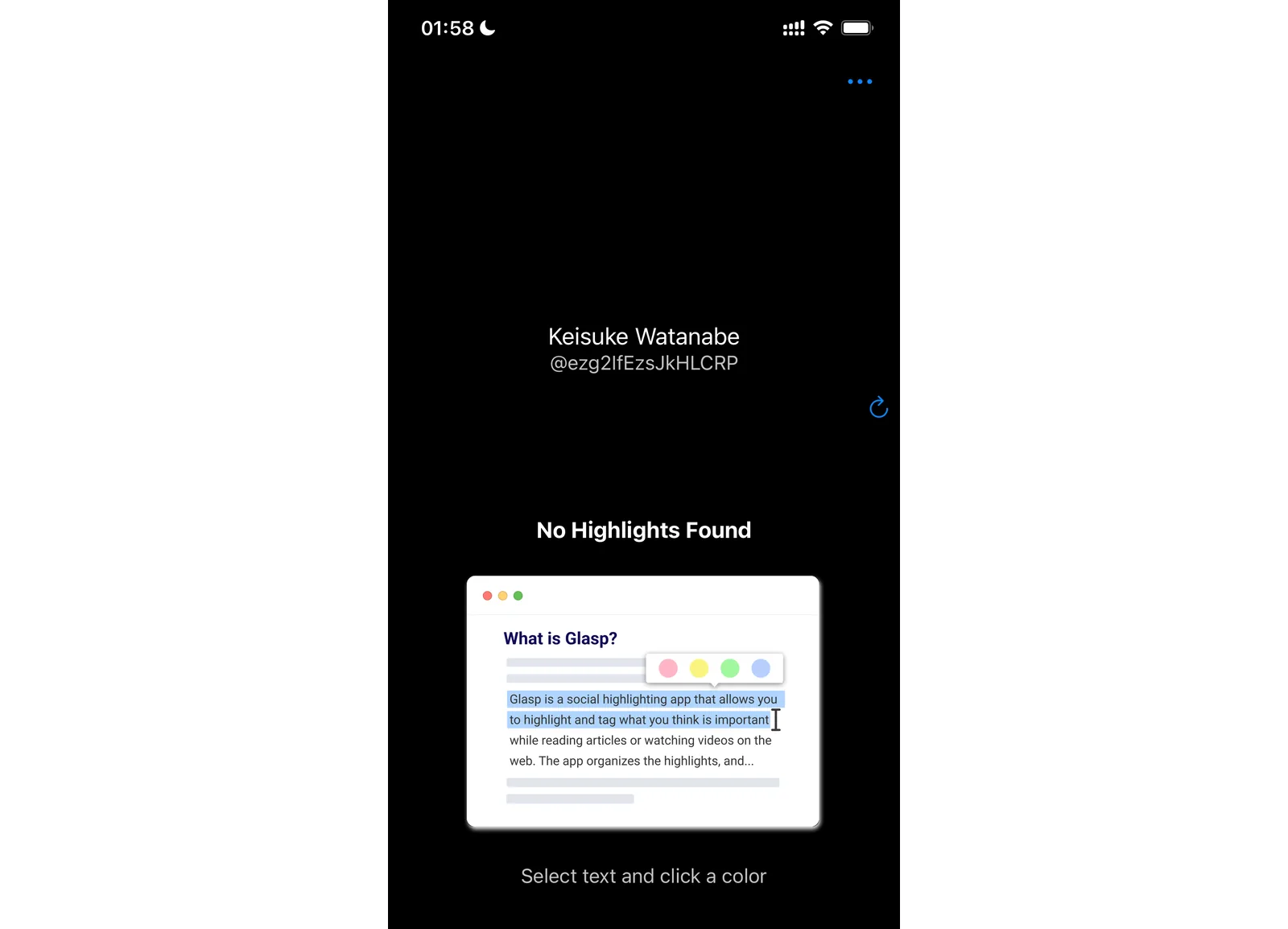
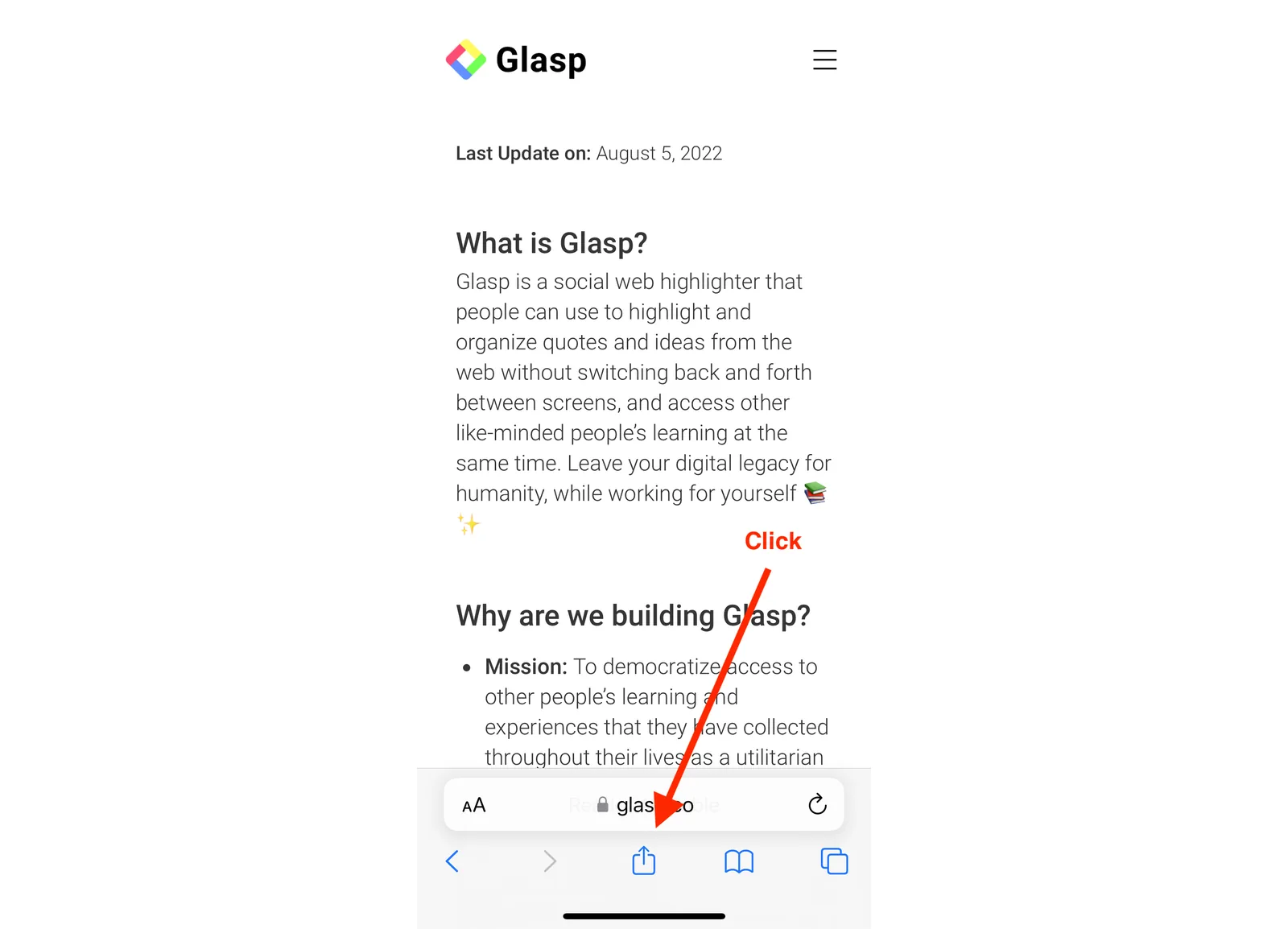
Please open an article with your browser. You can open it with any browser such as Safari, Chrome, Firefox, Edge, etc. Please click the Share button at the bottom.
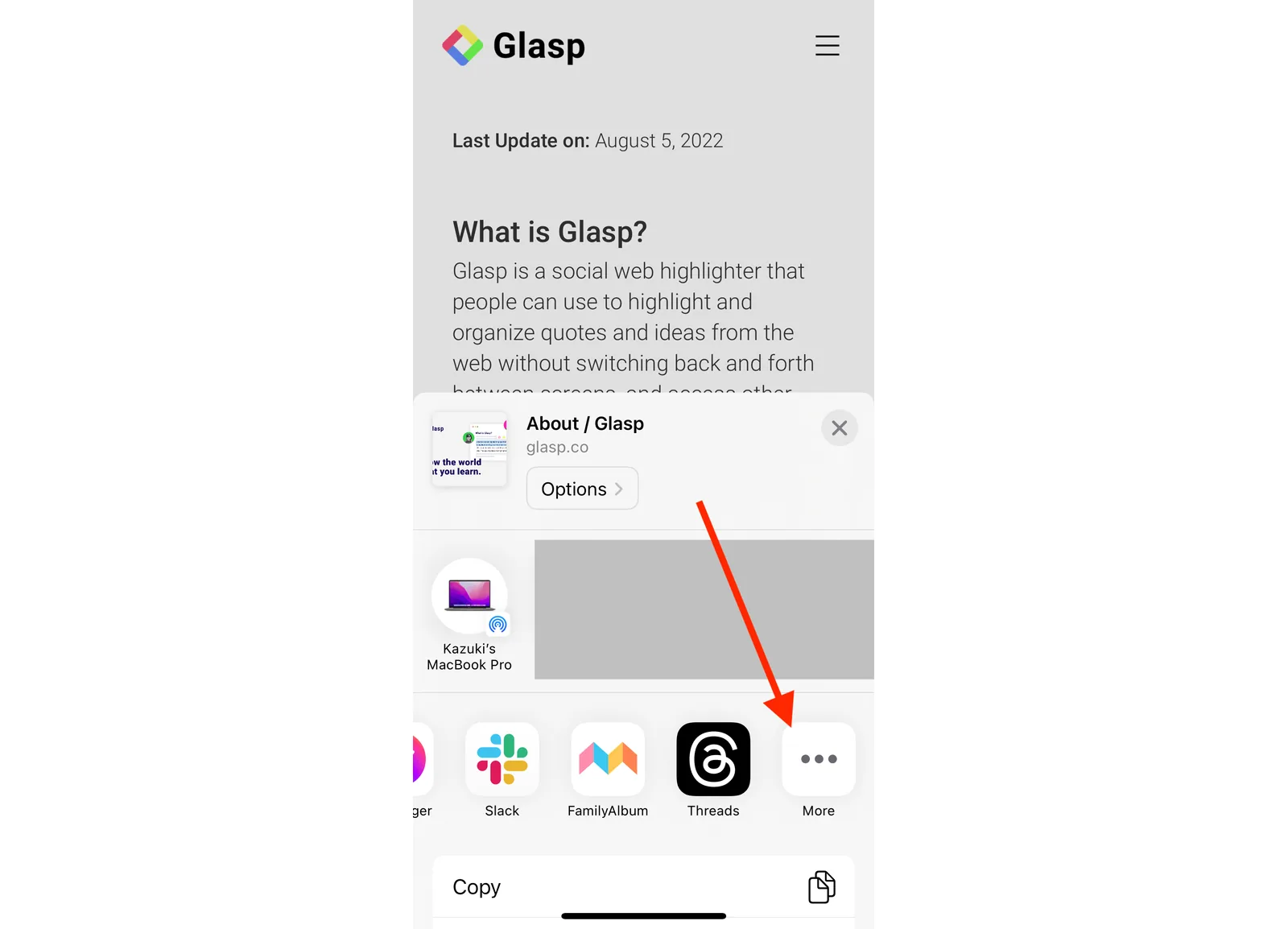
It shows a modal to take action, please scroll to the right and click More.
In this modal, please click on the Edit button at the top right.
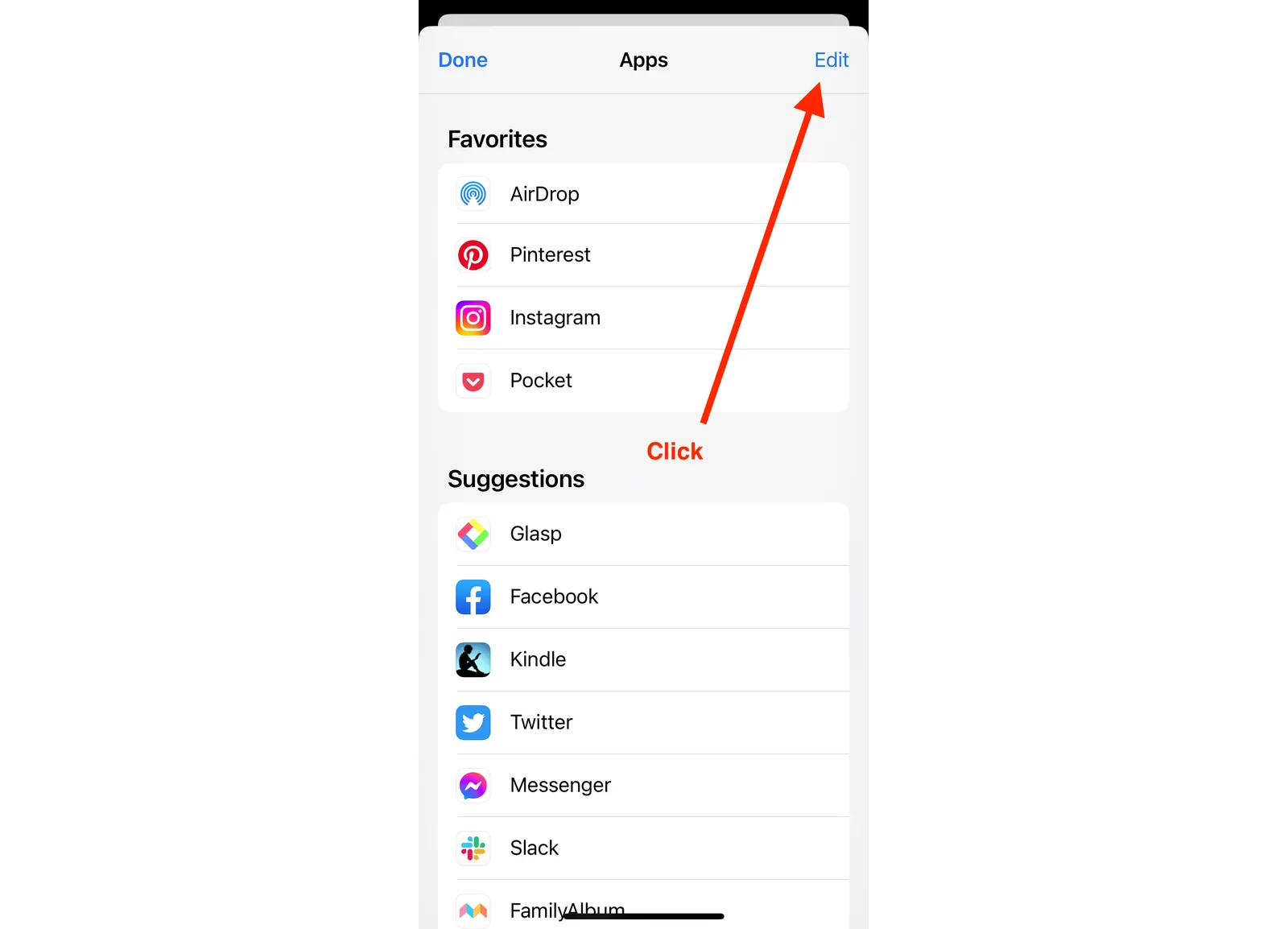
You see suggested apps in the list, so find Glasp and add it.
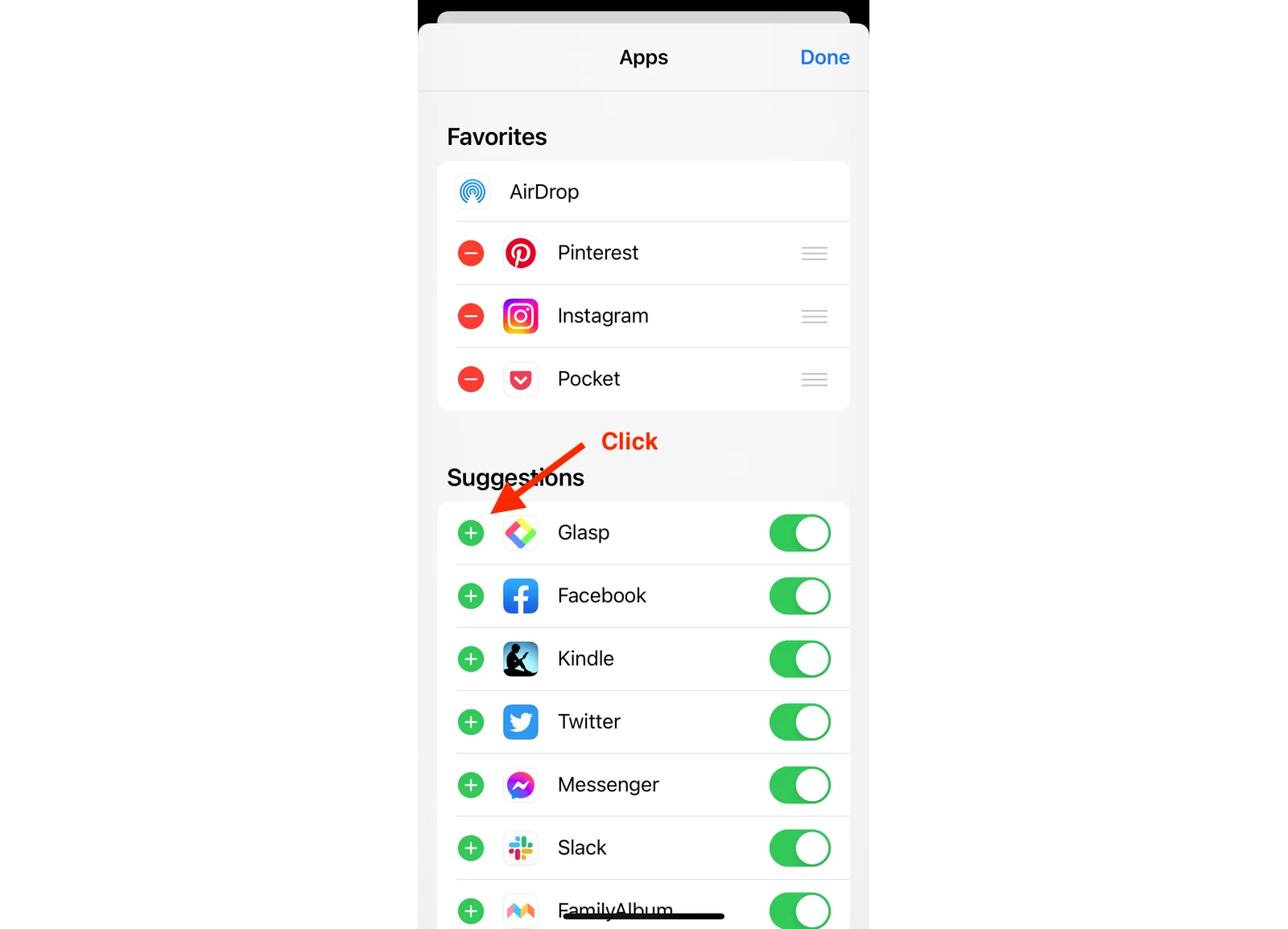
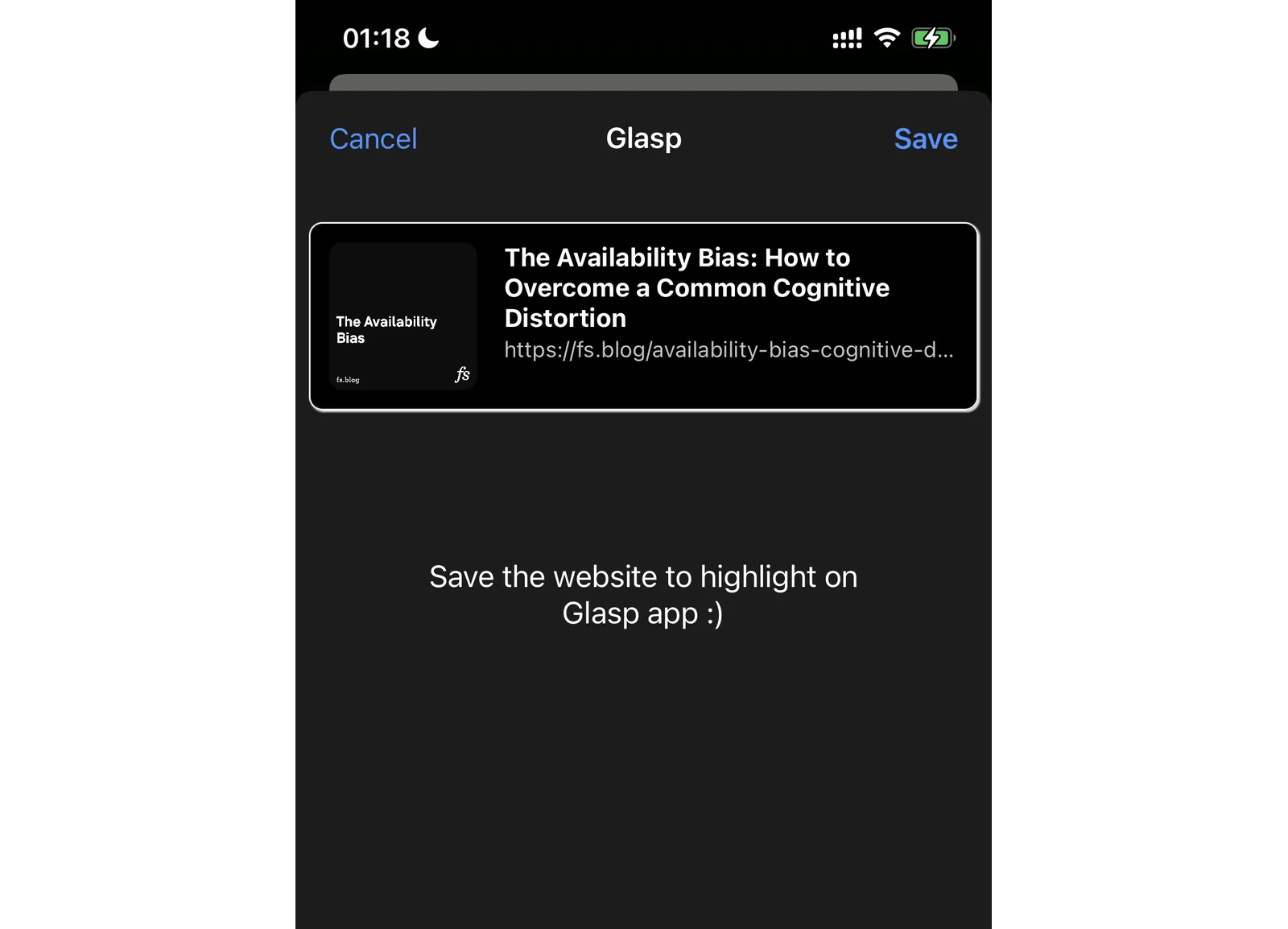
After that, you can see the Glasp app in the modal. So, please click it. It opens a modal to save the article on Glasp. Please click the Save button at the top right.
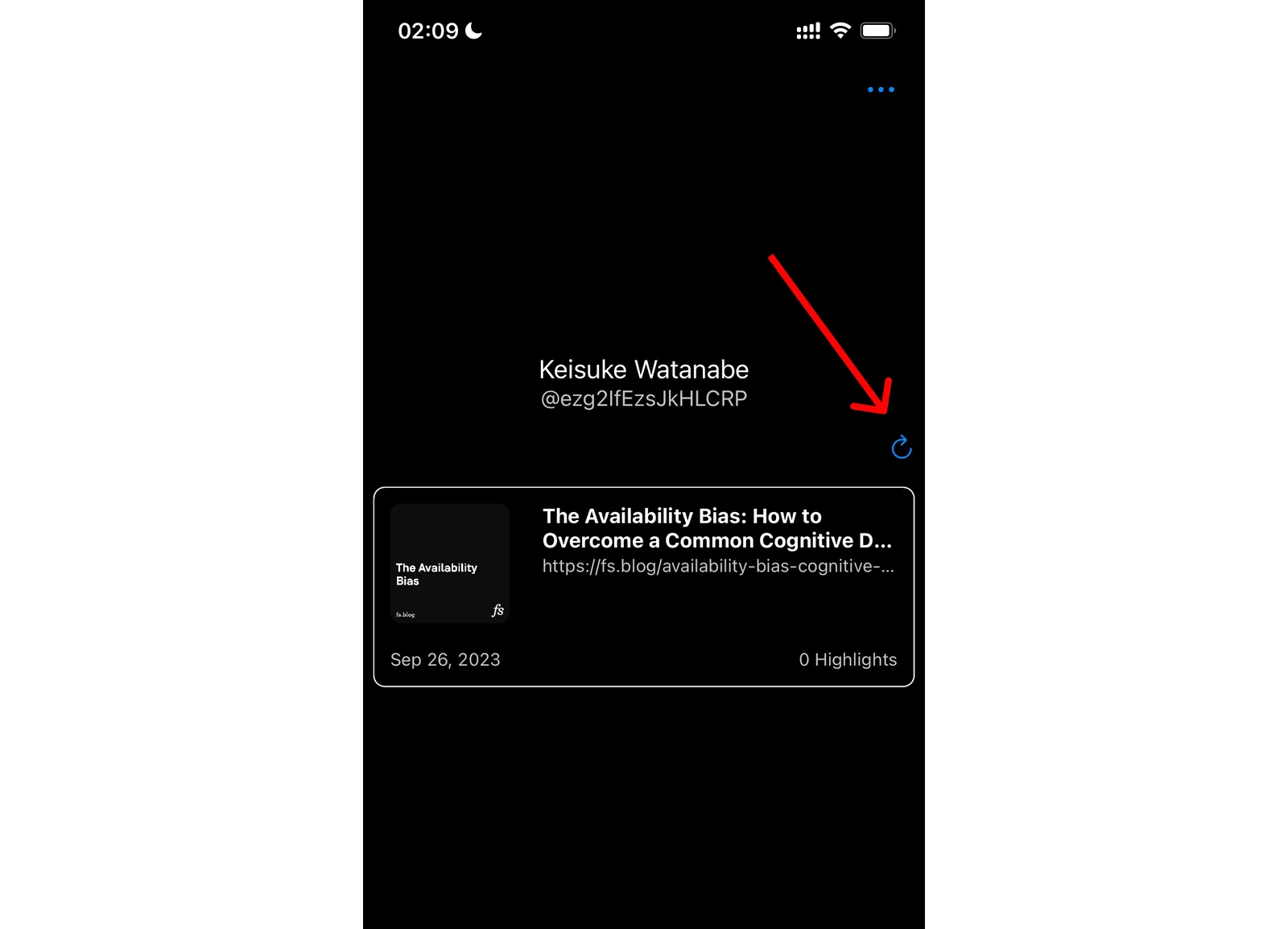
After that, reopen the Glasp mobile app. You can see a refresh button on the right, so please click it. Then, you'll see the saved article showing up.
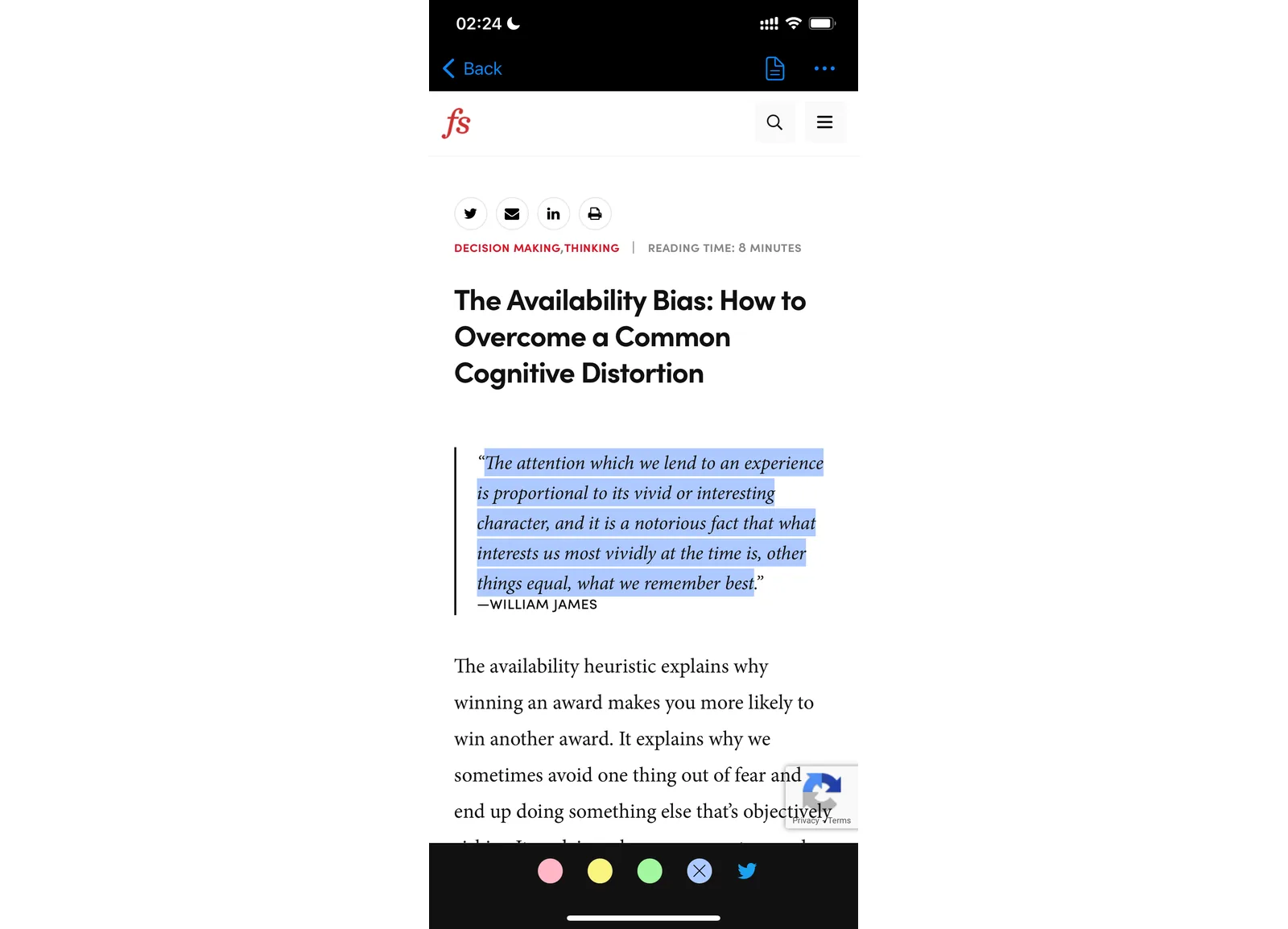
Please click the saved article. It opens the article, and you can see the content.
Select any sentence you like. Then, you can see the color palette with four showing up at the bottom of the screen. Click any color you like, it highlights and saves the selected sentence.
(Optional) Step 4: Highlight web articles with Safari extension on mobile
After you install the Glasp iOS mobile app and update a few settings, you can start highlighting web articles through the Safari extension on a mobile and tablet device. Please see the page below for the tutorial.
👉 How to Use Glasp Safari Extension on Mobile
(Optional) Step 5: Sync highlights on a desktop device
Your highlights sync automatically across the app, the web, and the browser extension, so anything you saved on your phone is already waiting on your desktop. In this step, we'll introduce how to see your highlights on a desktop and unlimited more features such as following like-minded people on Glasp, leaving a page comment, and adding a category tag.
Step 5-1: Log in to Glasp on a desktop browser
Please access glasp.co and log in to your Glasp account on a desktop. Make sure you use the same account you signed up with on the mobile app, whether that is Google or Apple.
Step 5-2: Install the Glasp browser extension
After logging in to the Glasp account, please install the Glasp browser extension. You don't need to install the extension if you don't highlight the web articles on a desktop or import Kindle highlights.
👉 Install the Chrome extension
👉 Install the Safari extension
Step 5-3: View your highlights
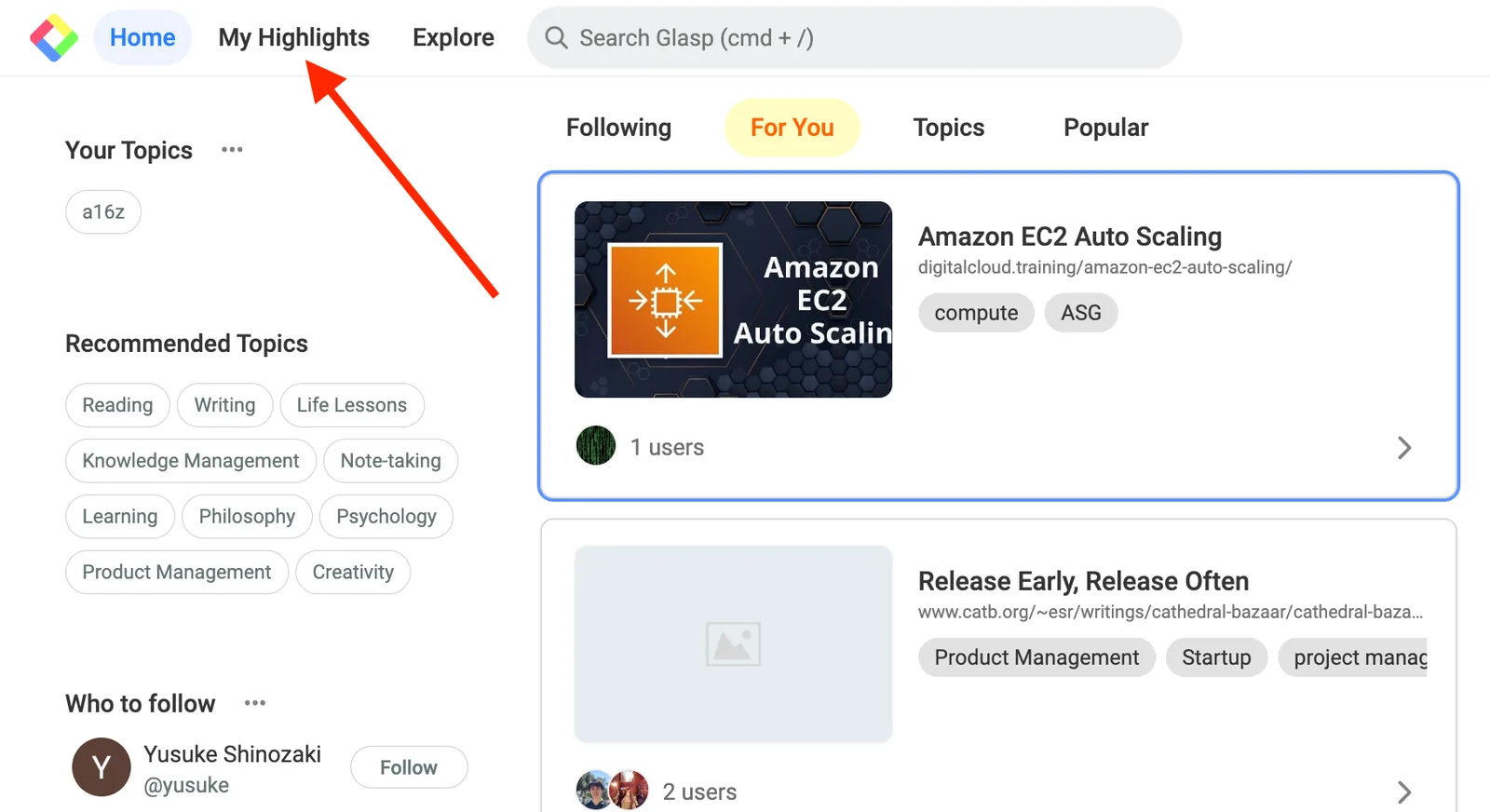
Then, click My Highlights at the top left. It takes you to your Glasp profile page.
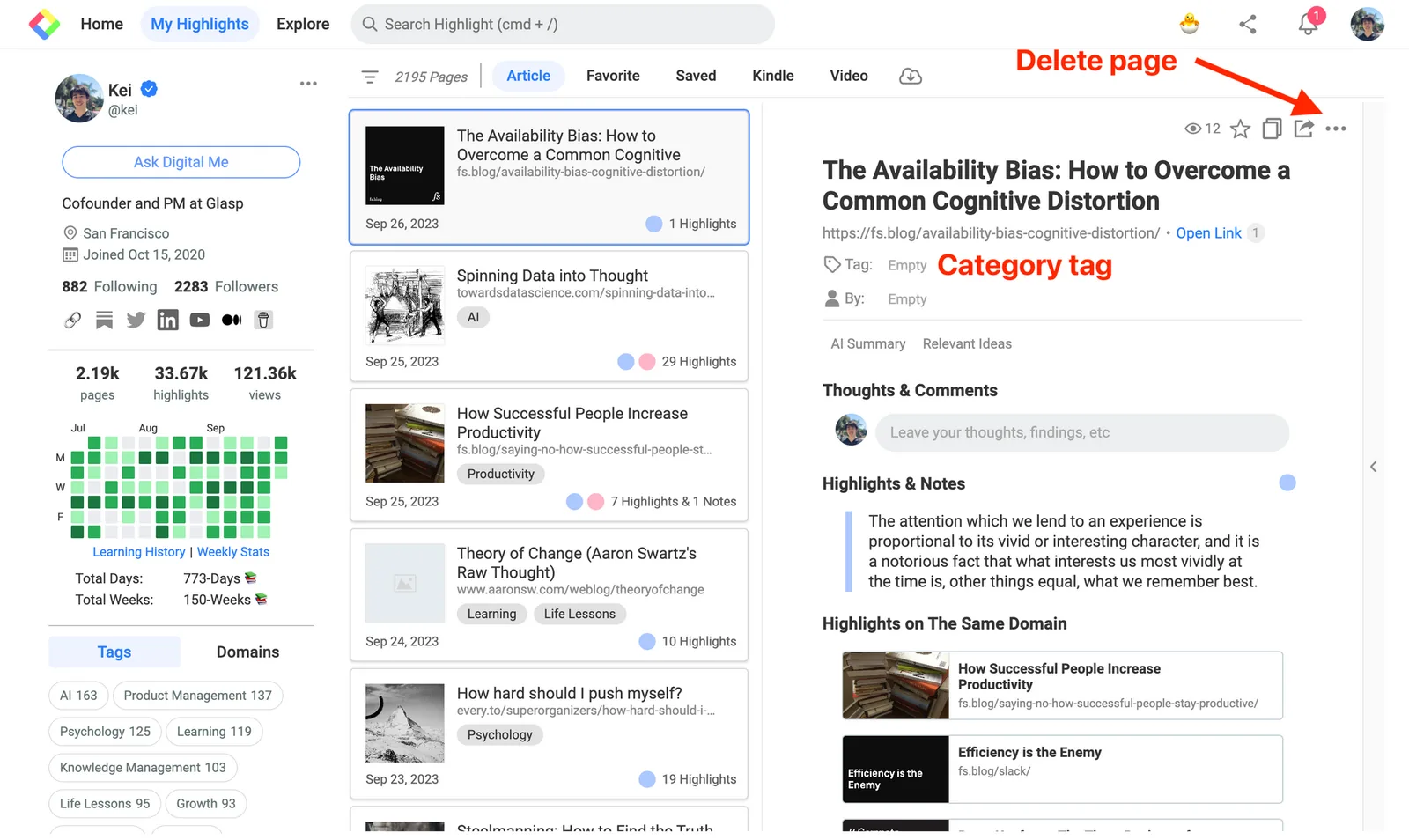
On the My Highlights page, you can see all the highlights you made, add a category tag, and delete the page.
Step 5-4: Leave a page comment
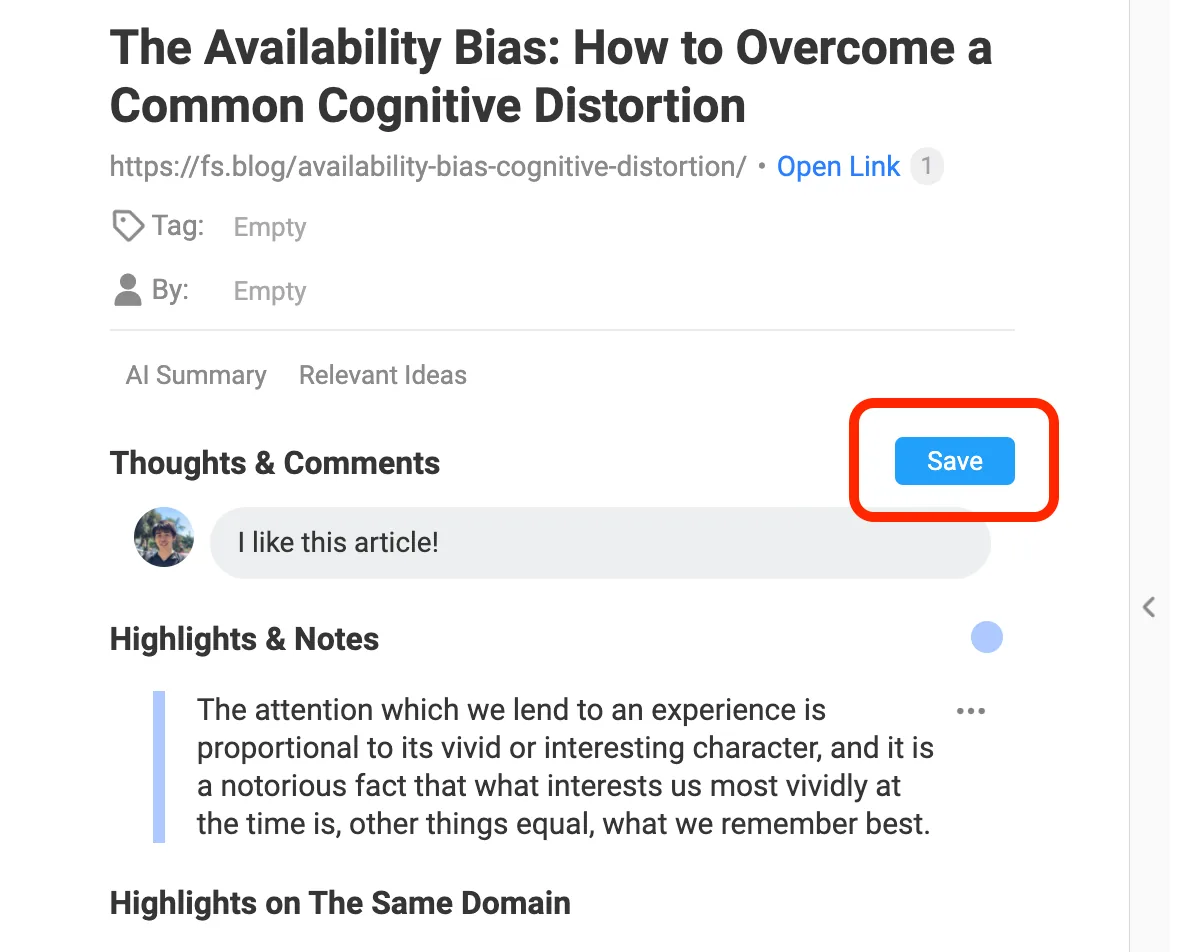
You can leave a page comment. Type whatever you want in a cell and click the Save button.
Step 5-5: Follow like-minded people
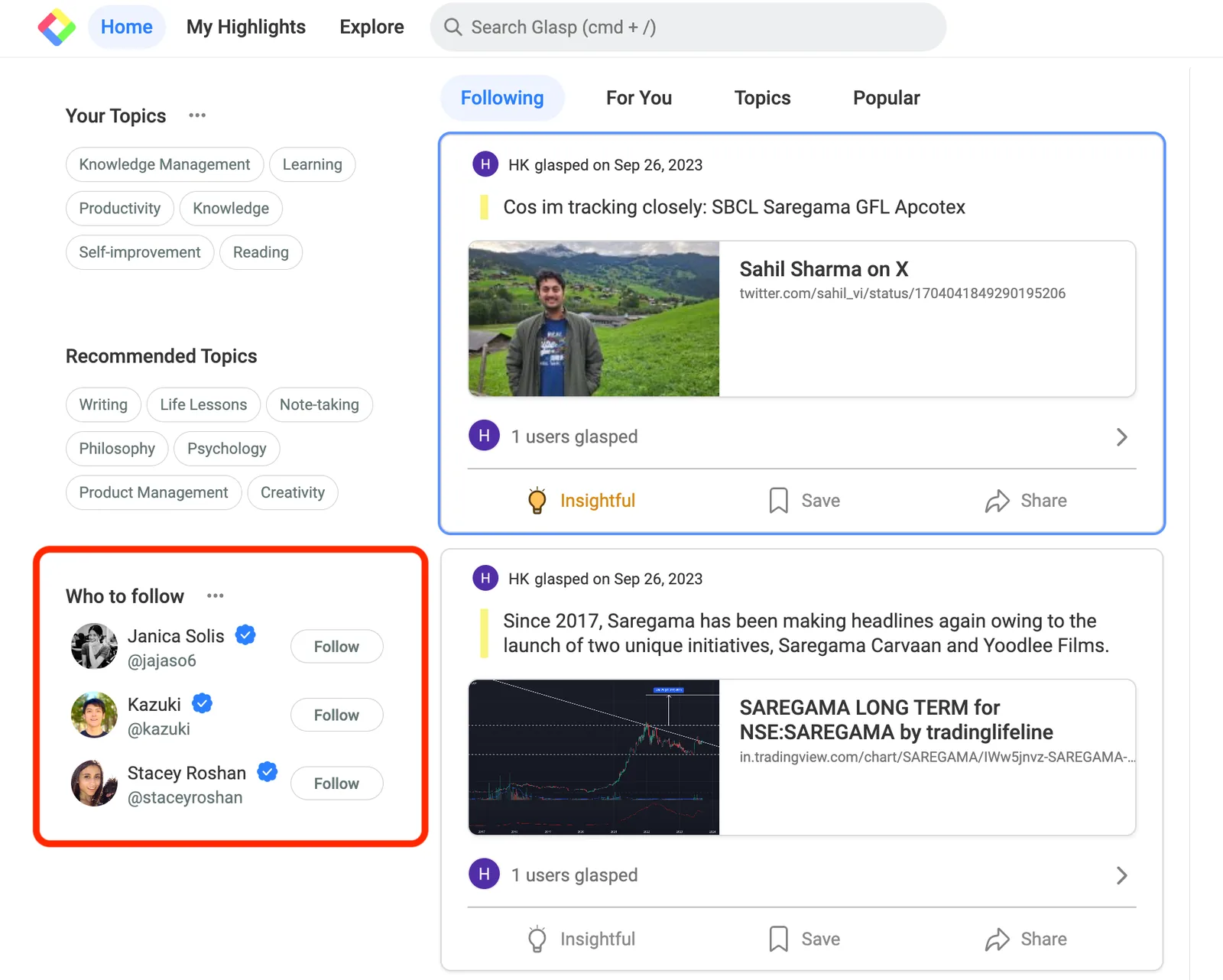
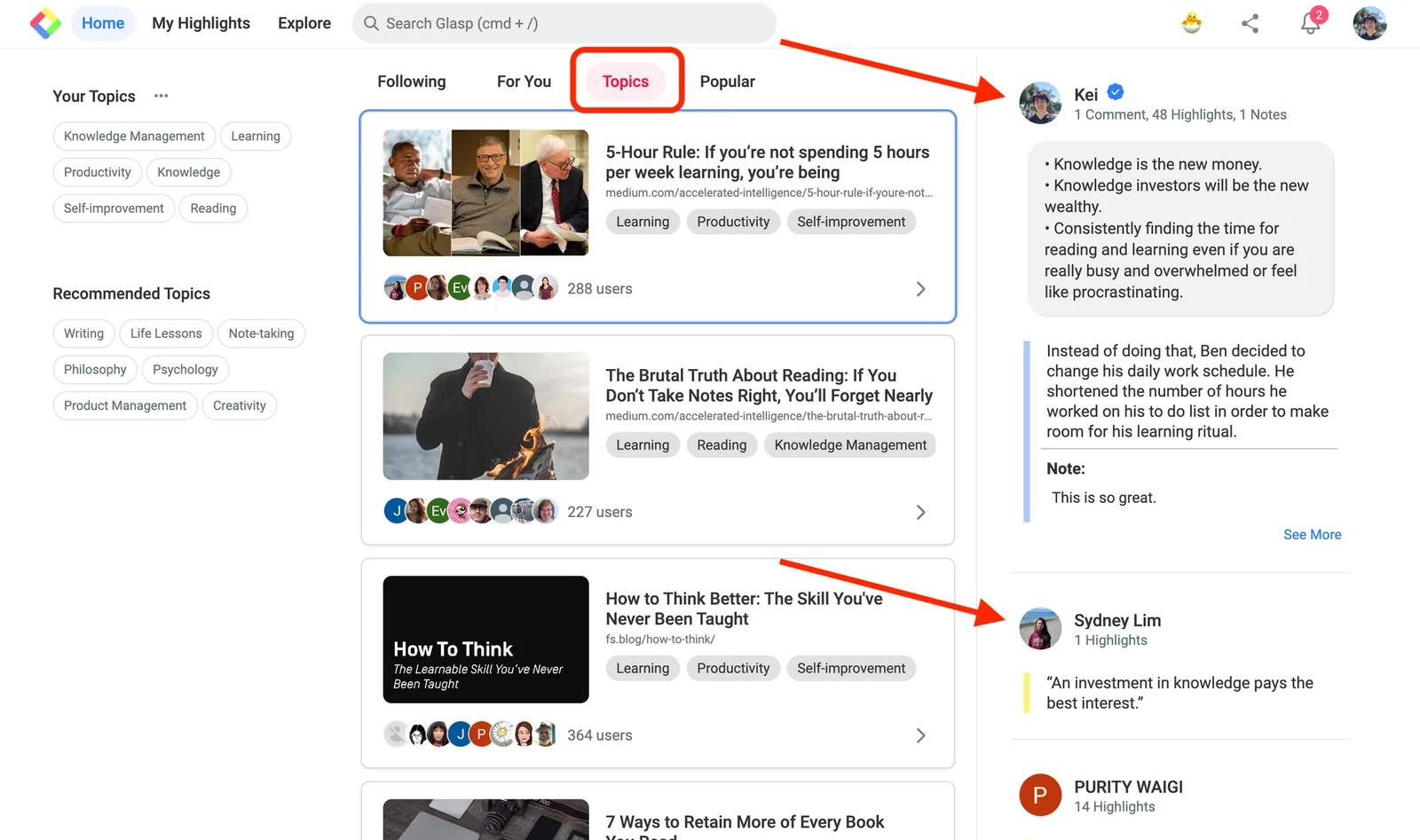
To follow like-minded people, please go to the Home feed by clicking the Glasp icon or Home at the top left.
You can see featured curators on Glasp.
Also, when you click Topic on the Home feed, you can see popular content based on your interest. So, explore other readers and find your learning partner!
Note: The Glasp app keeps getting better. If you hit a bug or want a feature, please tell us here.
🎥 Want to do more with the Glasp app?
👉 How to Use the Glasp Mobile App on iOS, iPad, and Android
👉 How to Summarize YouTube Videos with the Glasp iOS & Android App
👉 How to Get YouTube Transcripts on iPhone with Glasp
Before you leave
If you have any questions, please look at FAQ or message us.
👉 FAQs
👉 X
See you next time,
Glasp team