How to Get YouTube Transcripts on iPhone with Glasp

Aug 28, 2025
4 min read
581 views
Do you want to quickly get YouTube transcripts on iPhone without extra tools or manual typing? With the Glasp iOS app, you can instantly view, copy, and save transcripts from any YouTube video directly on your iPhone.
This is perfect for:
Students reviewing lectures and tutorials
Researchers capturing quotes and insights
Creators and professionals saving transcripts for notes or summaries
In this tutorial, we'll walk you through how to use Glasp on iPhone to access YouTube transcripts with just a few taps.
How to Get YouTube Transcripts on iPhone with Glasp
Step 1: Install the Glasp iOS app
Please open the link below and install the Glasp iOS app.
👉 Glasp: Highlight the Internet
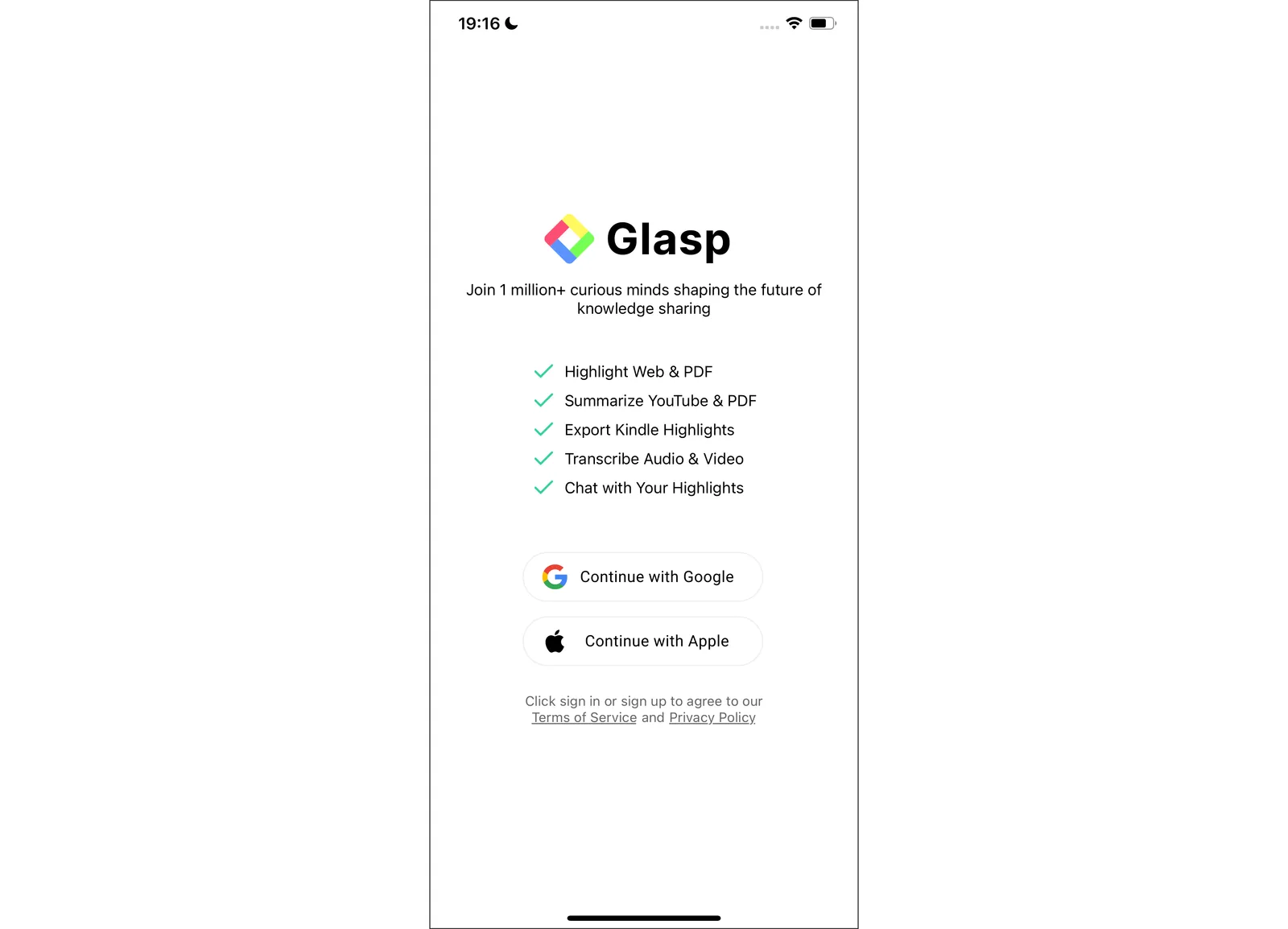
Step 2: Sign up or log in to the Glasp account
After installation of the Glasp iOS app, please click and open it.
If you're new to Glasp, please sign up for Glasp. You can sign up with either Google or Apple.
If you already have a Glasp account, please log in to Glasp with the same account you used to sign up for Glasp. If you aren't sure which account you used to sign up before, please check your email inbox and search for Glasp. You should find the email address from us.
If you're asked to sign in to your Google or Apple account, please do so.
Step 3: Open a YouTube Video Inside the Glasp App
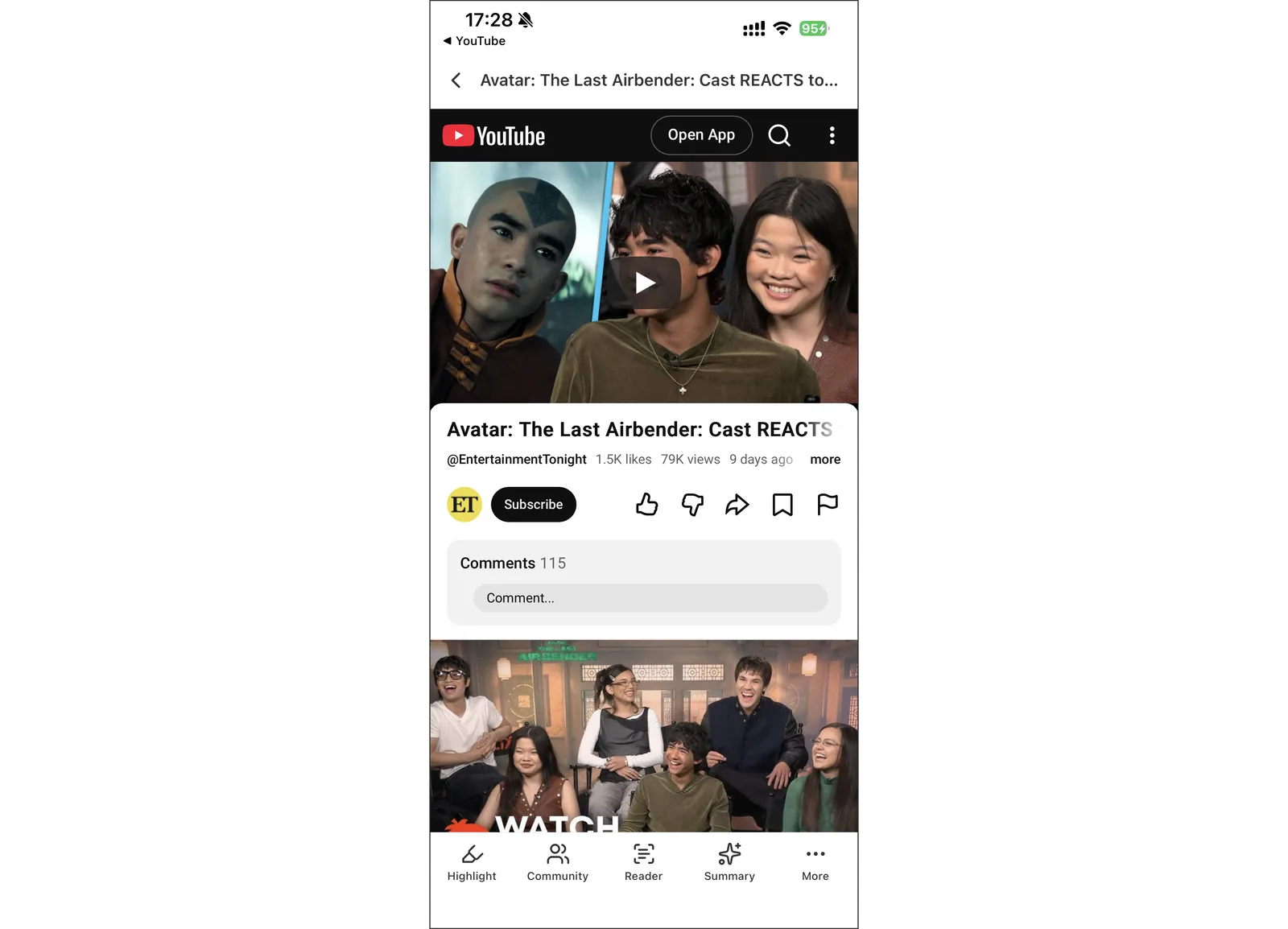
Open the Glasp app and tap "Feed" in the bottom navigation bar. Add the YouTube channel you want to follow, then tap the video you want to get the transcript from. You can also find any video on YouTube with the search bar at the top.
For more details on adding channels and finding videos, please see this tutorial.
👉 How to Summarize YouTube Videos with the Glasp iOS & Android App
Step 4: Get the YouTube Transcript
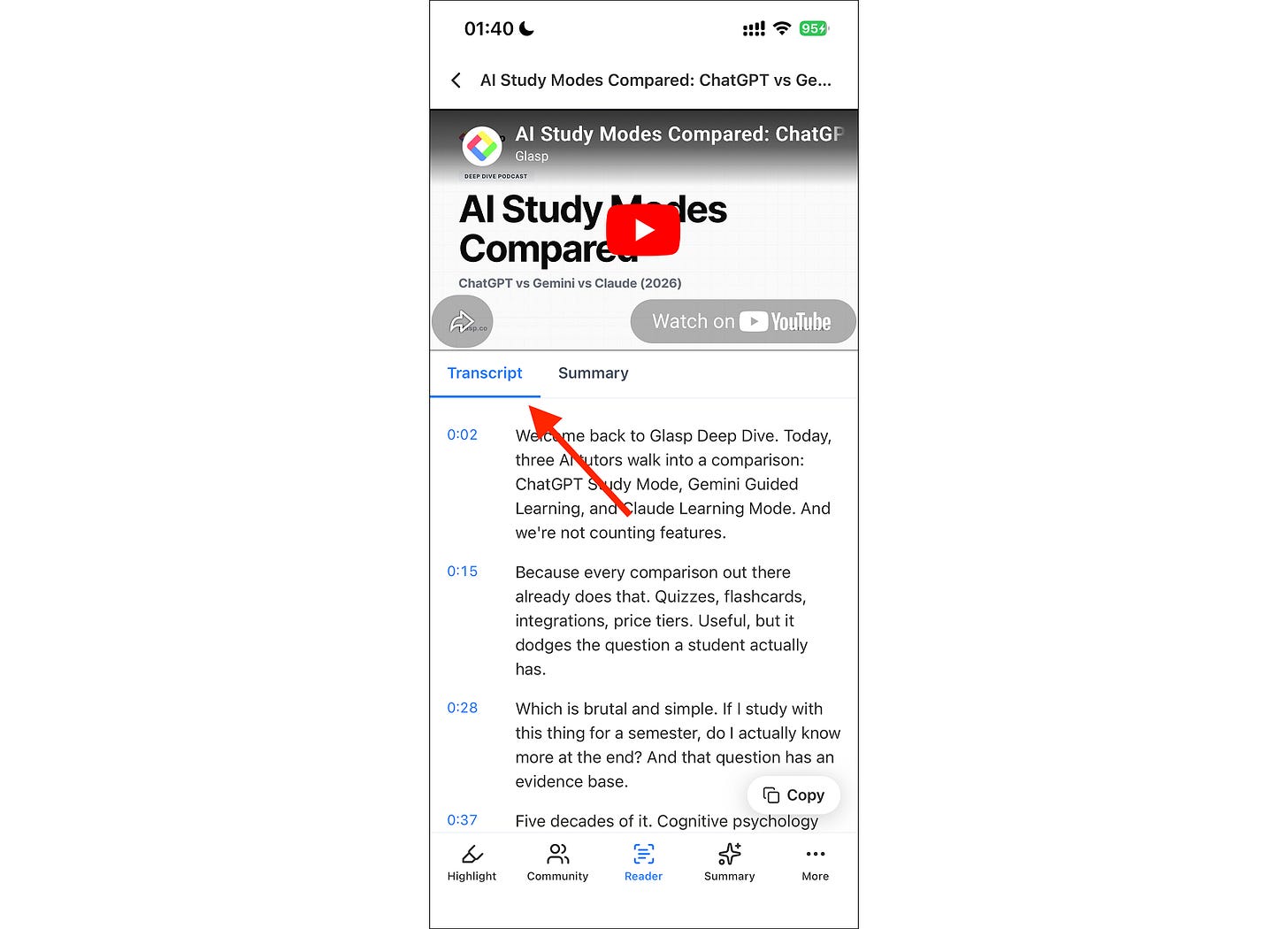
With the video open in Glasp, tap "Summary" in the bottom toolbar. Then switch to the "Transcript" tab to read the full transcript, and copy it from there.
Step 5: Paste the YouTube Transcript
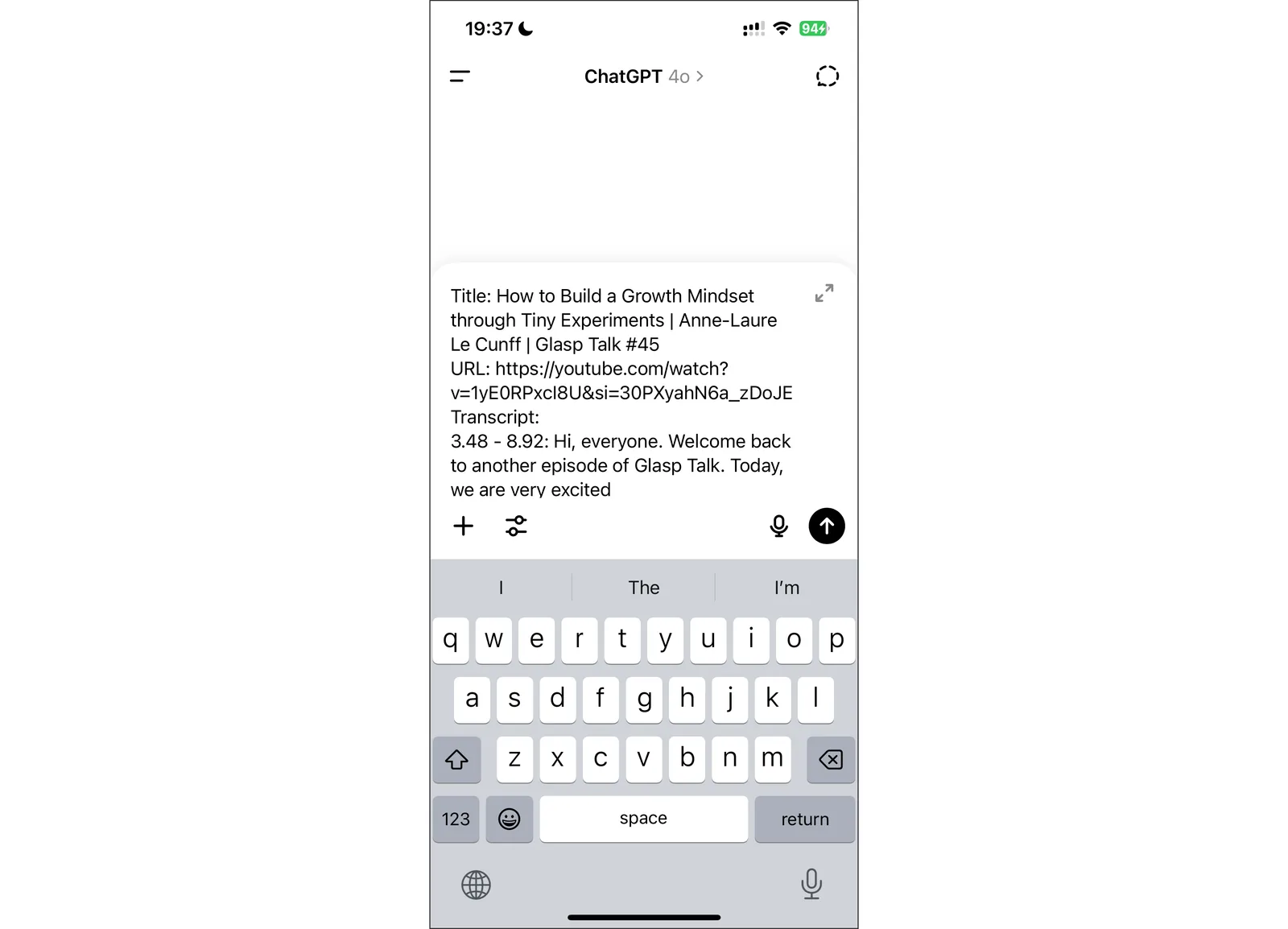
You can paste the copied transcript anywhere. In this tutorial, we use ChatGPT as an example. After pasting, you can put a prompt like "Summarize the transcript."
Alternative: Get the Transcript from the YouTube App
You can also get the transcript by sharing a video from the YouTube app to Glasp.
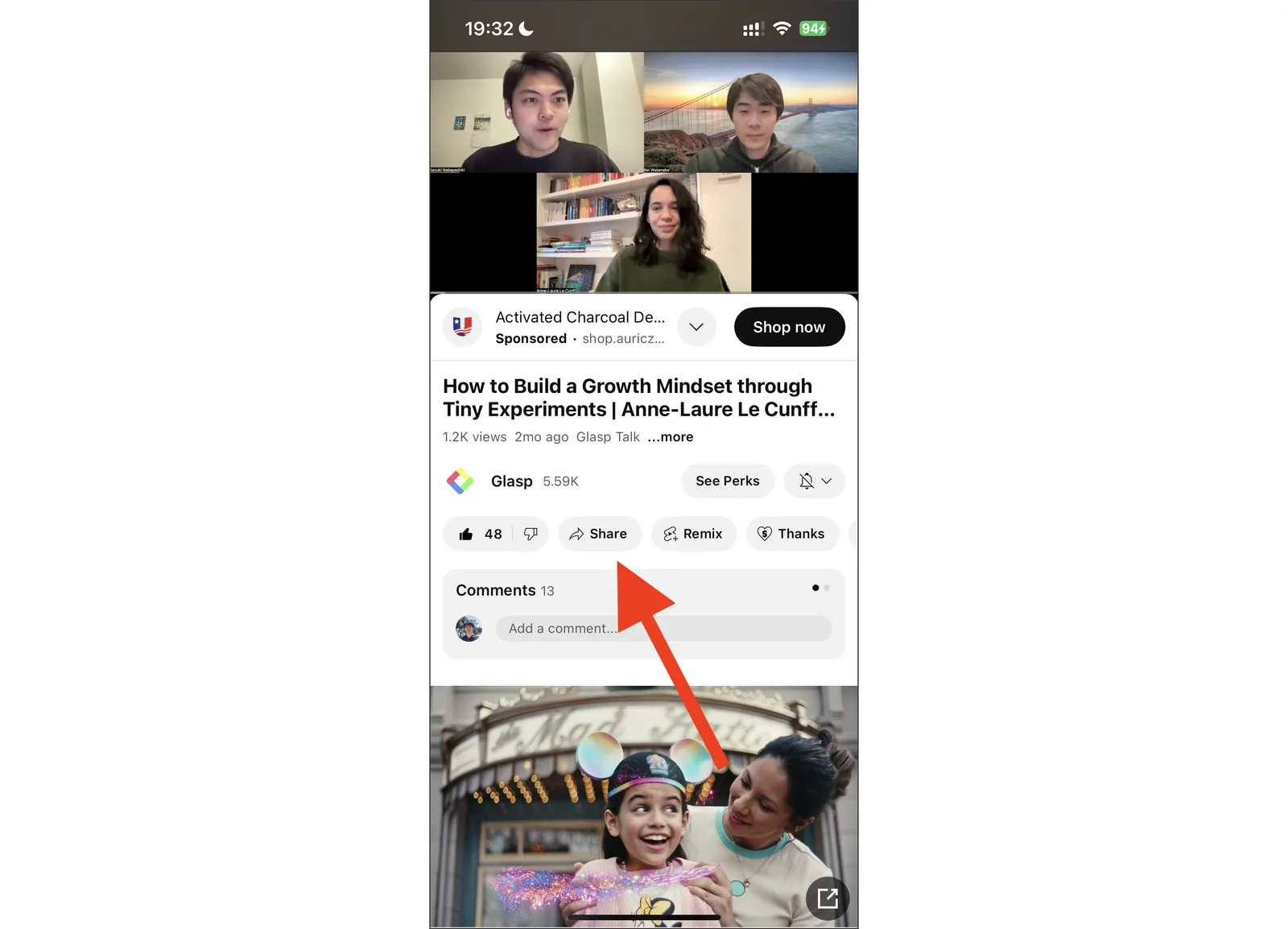
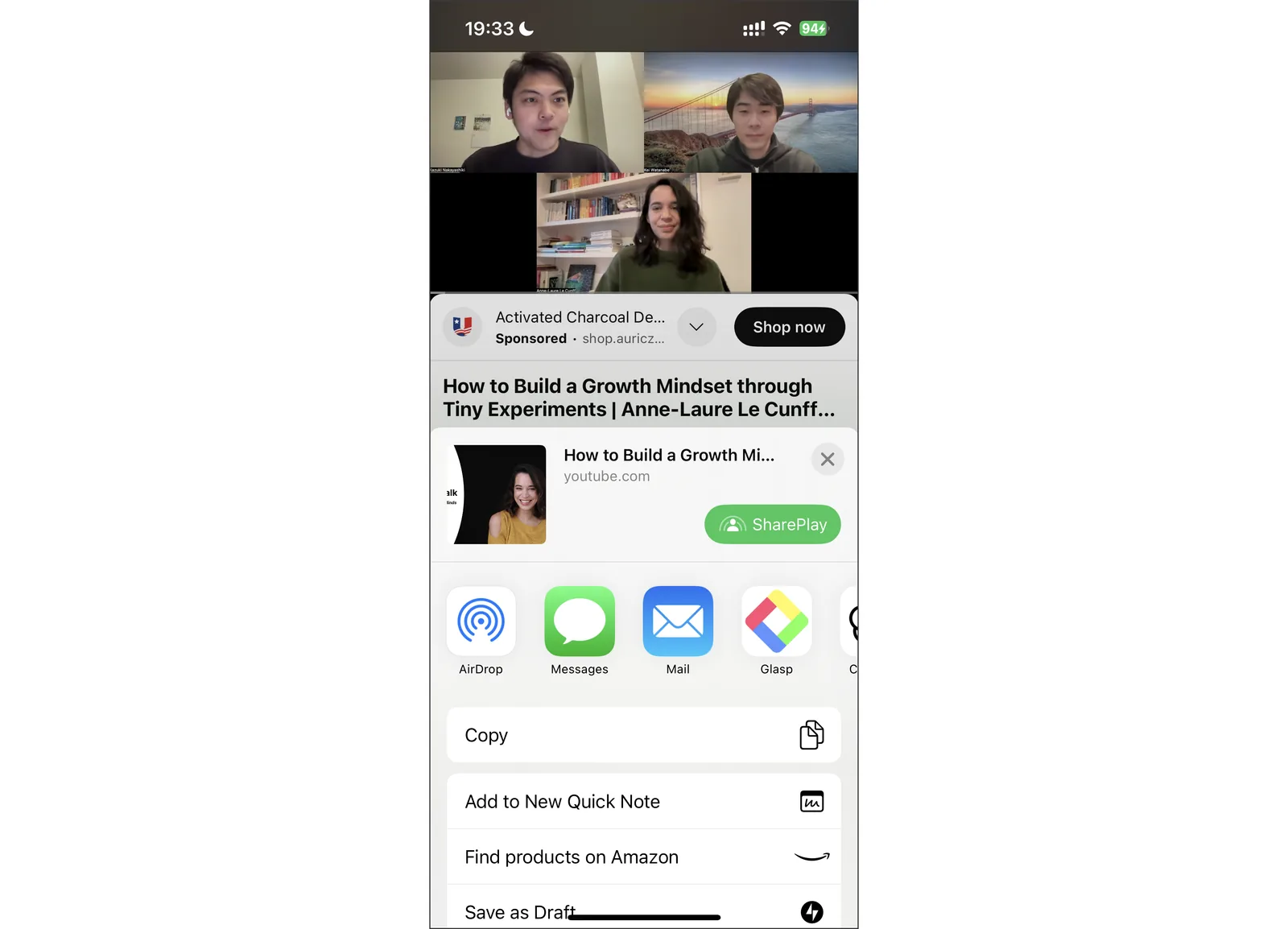
Open the video you want to get the transcript from in the YouTube app. Then, click the Share button.
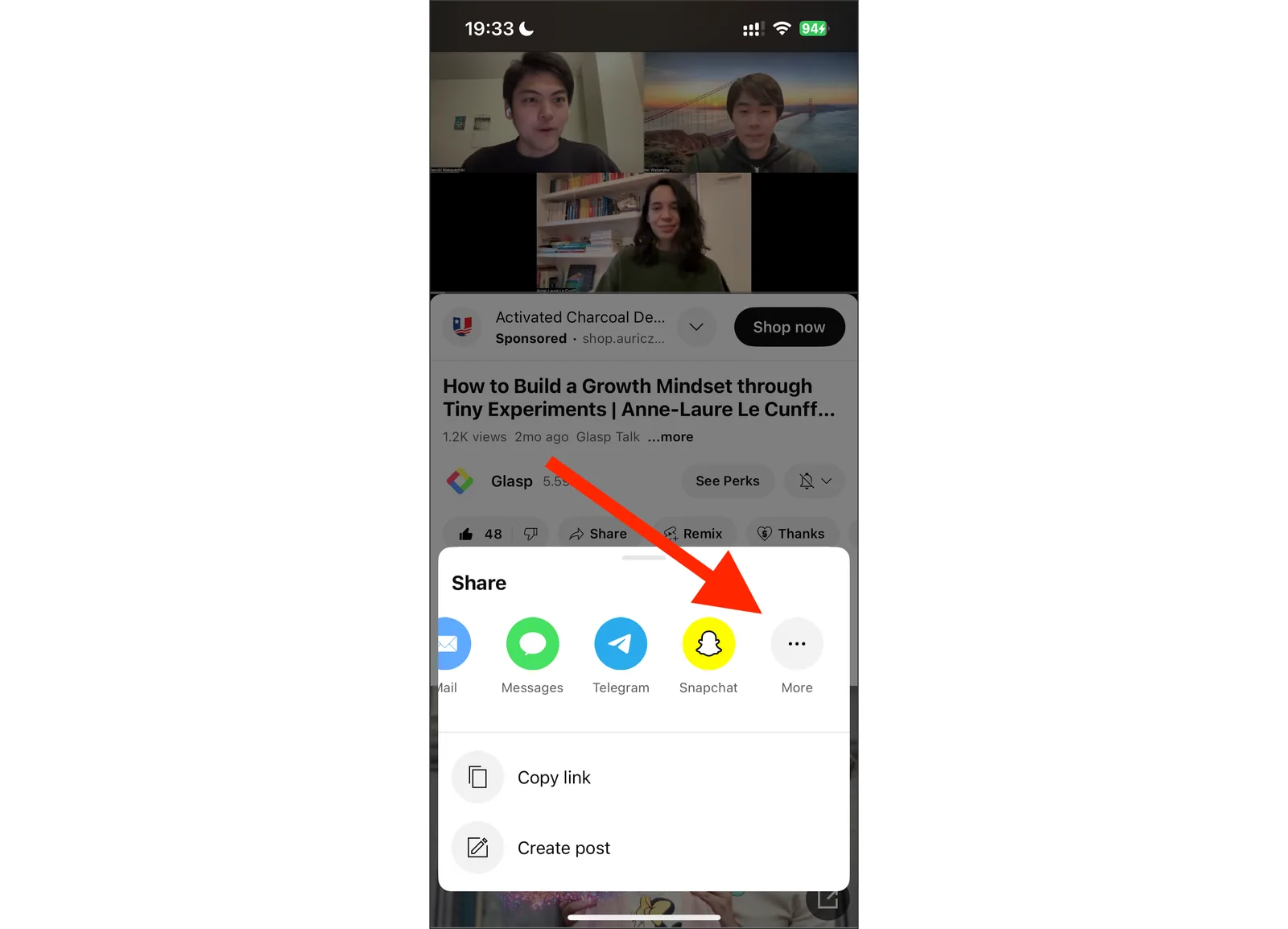
If you can see the Glasp icon, please click it. If you cannot see it, click More.
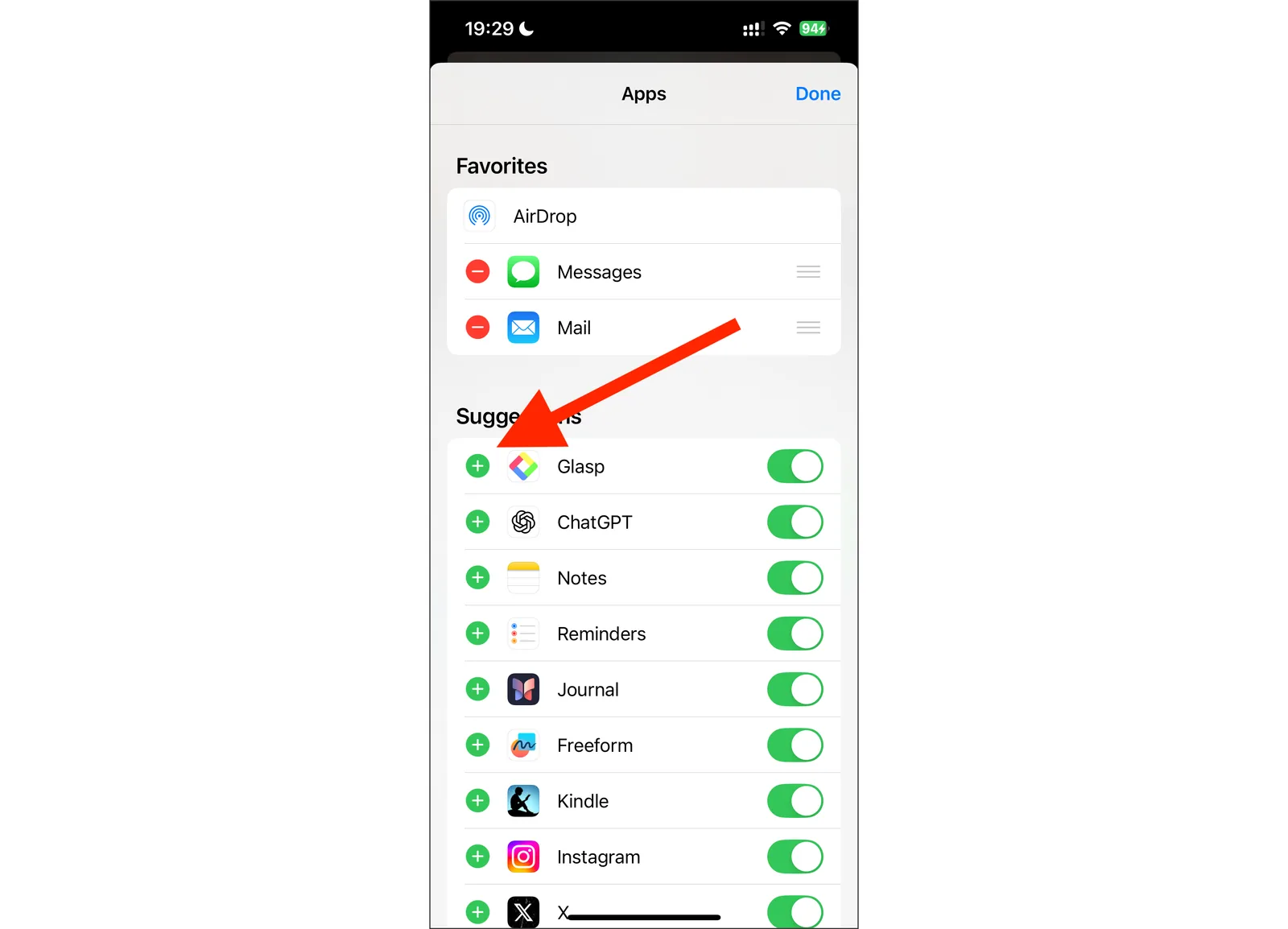
Click + button and add Glasp.
If you can see the Glasp app, please click it.
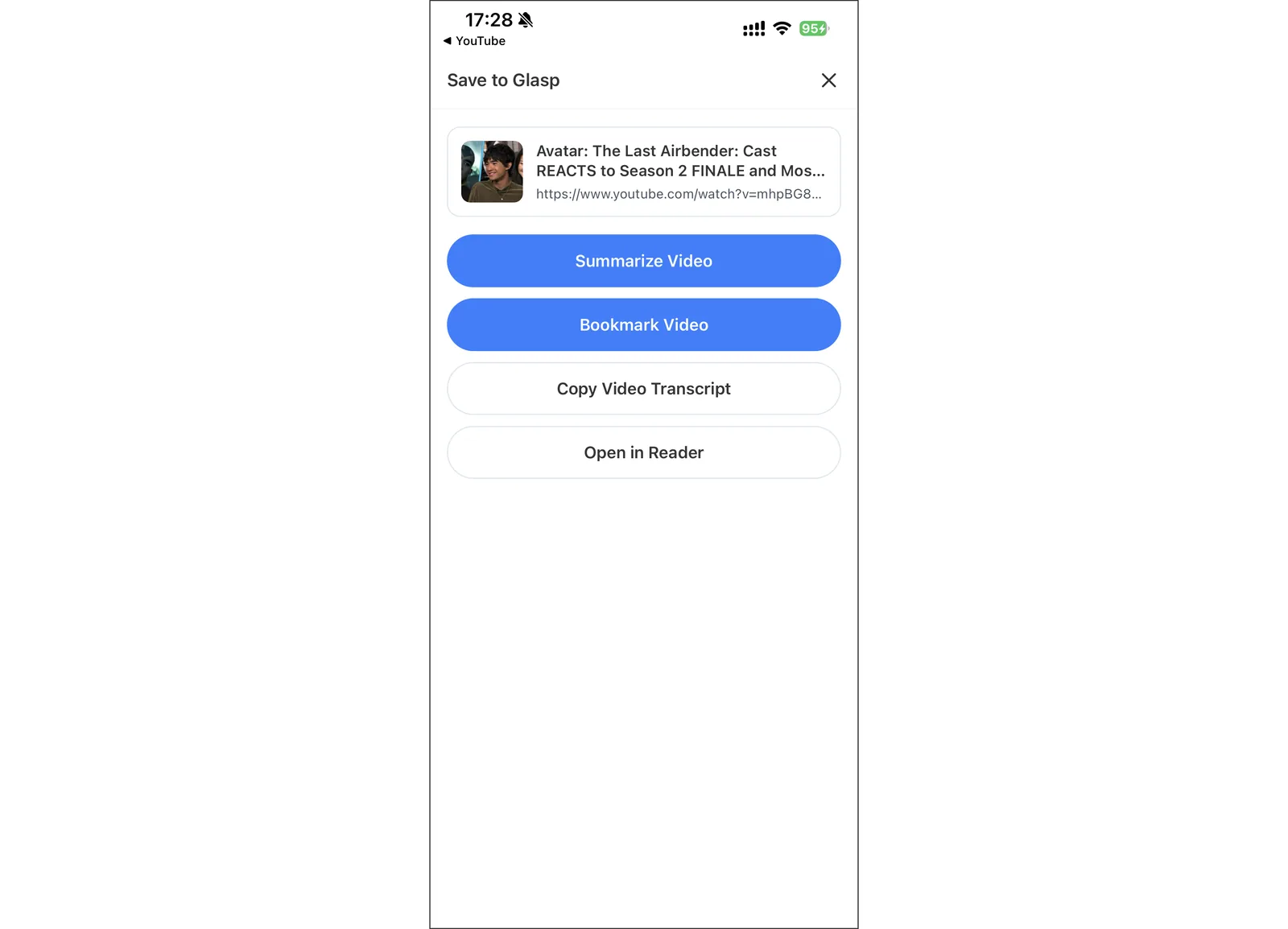
It opens a Save to Glasp modal where you can summarize the video, bookmark it, copy the transcript, or open the video in Glasp. So, click Copy Video Transcript.
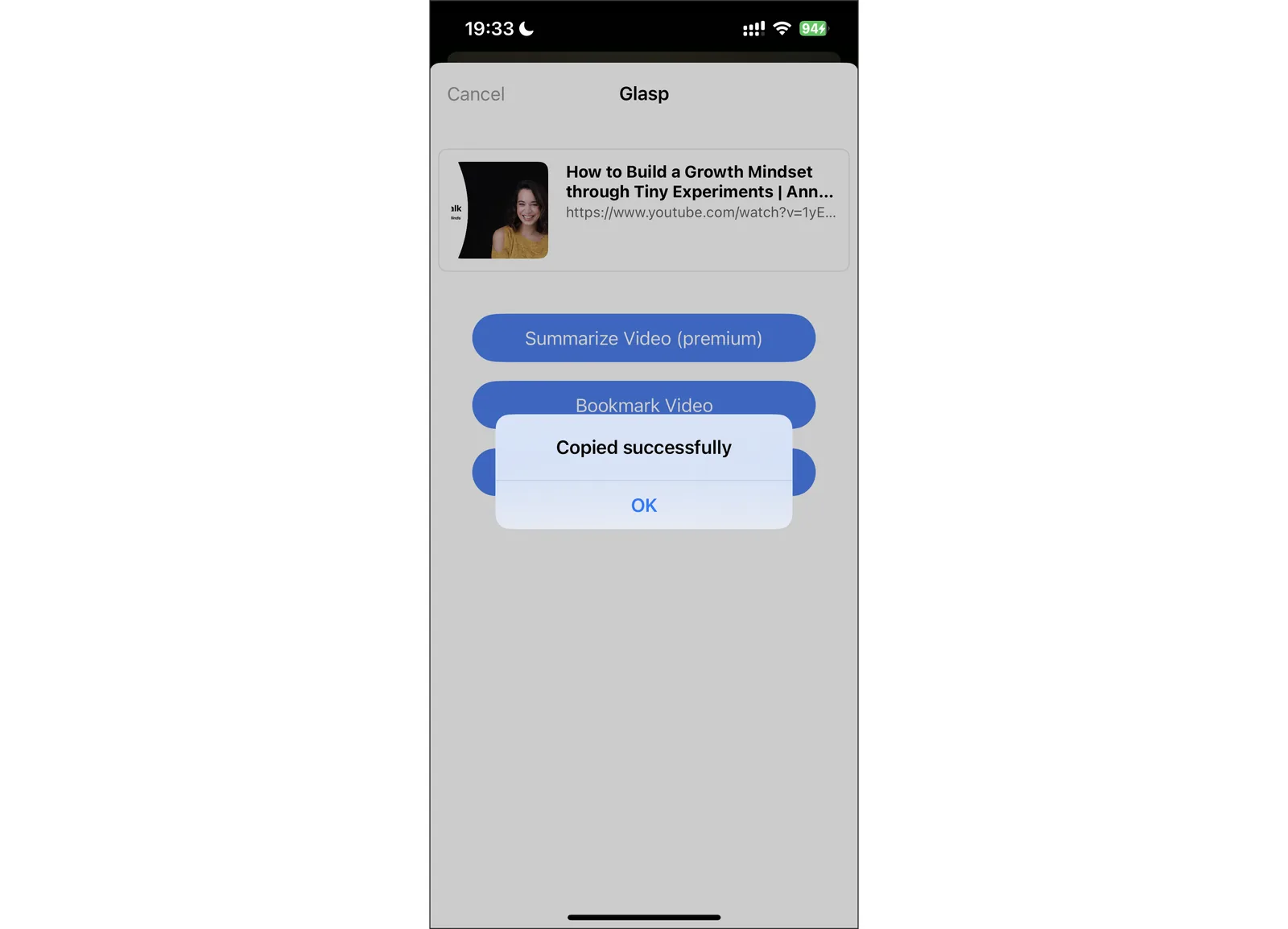
If you can see a modal saying Copied Successfully, the transcript is saved in the clipboard.
It's easy-peasy, right? With the YouTube transcript feature, you can discover key insights in a YouTube video on your iPhone.
If you'd like to summarize YouTube videos on iPhone and iPad, please see this tutorial.
👉 How to Summarize YouTube Videos with the Glasp iOS & Android App
FAQs
Q. Do I need a Glasp account to get YouTube transcripts on iPhone?
Yes. You'll need to sign up (free) or log in to your existing account to use the transcript feature.
Q. Should I sign up with Google or Apple on iOS?
Both work. You can sign in with either Google or Apple on both mobile and desktop.
Q. Where is the transcript saved after I copy it?
The transcript is copied to your clipboard. You can paste it anywhere: Notion, ChatGPT, Notes, Obsidian, or any app.
Q. Does Glasp work with all YouTube videos?
It works with videos that have transcripts available. Some videos (e.g., music videos or recent uploads) may not yet provide transcripts.
Q. Can I highlight YouTube transcripts directly on iPhone?
Yes. You can now highlight a video's transcript right inside the Glasp iOS app, with tap-to-seek timestamps. Your highlights sync to your Glasp profile, the web, and the browser extension. For more, see How to Highlight YouTube Transcript.
Q. Is this feature free?
Yes. The YouTube transcript feature on iOS is 100% free with the Glasp app.
Q. Does Glasp also work on Android?
Yes. Glasp supports both Android and iOS. Check here:
How to Get YouTube Transcripts on Android with Glasp
Q. Is there an API for getting YouTube transcripts?
No. Glasp does not offer an API for YouTube transcripts, and there is no public endpoint for them. Your own YouTube summaries are different: you can get them through the Glasp API, and AI assistants such as Claude and ChatGPT can read them through the Glasp MCP Connector (the list_summaries tool). Glasp does have a REST API for your own highlights and notes, which lets you export and create them programmatically. See the Glasp API documentation.
Before you leave
If you have any questions, please refer to the FAQ or contact us.
See you next time,
Glasp team