How to Use the Glasp Safari Extension on iPhone and iPad

Aug 18, 2026
4 min read
78 views

The Glasp Safari extension lets you highlight web pages directly in Safari on your iPhone or iPad. It ships with the Glasp iOS app, so you install one app and then enable its extension in Safari.
This matters when you find an idea worth keeping while browsing. You can select it and save a highlight without opening the page in another app first. Follow the steps below to set it up and start highlighting.
Step 1: Install the Glasp app
Download Glasp: AI Summary & Highlight from the App Store. The Safari extension comes with the app, so there is no separate extension to download.
Open the Glasp app and sign in with Google or Apple. Your app session is also used by the Safari extension. Once you are signed in, move to Safari to enable the extension.
Step 2: Turn on the extension in Safari
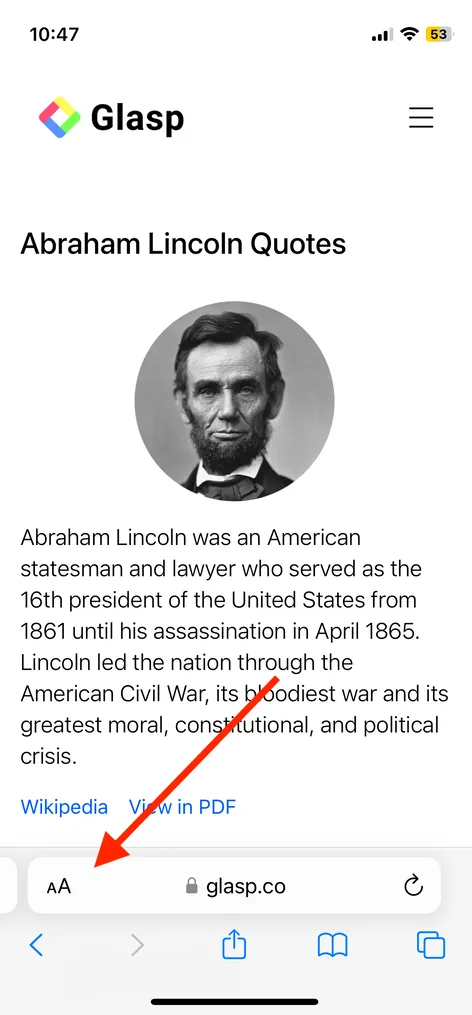
Open Safari and visit any regular web page. Tap the aA button in the address bar to open Safari's page menu.
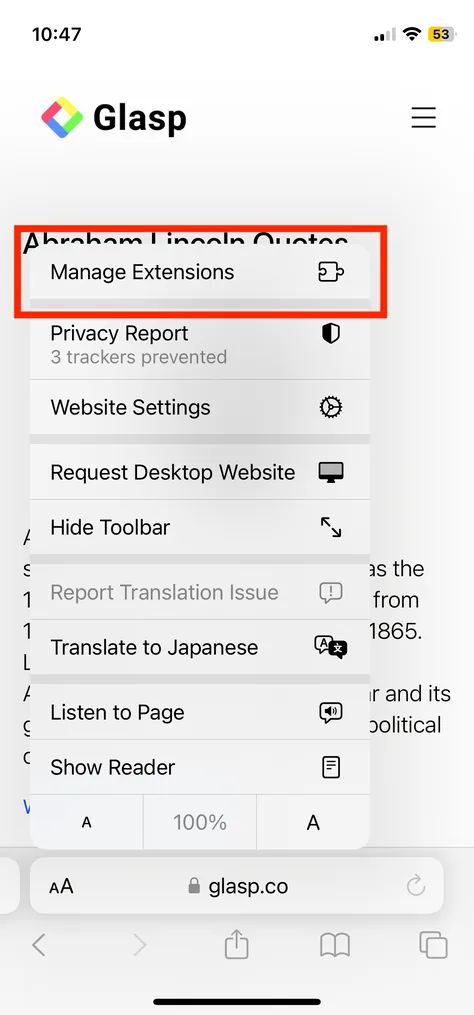
In the menu, tap Manage Extensions.
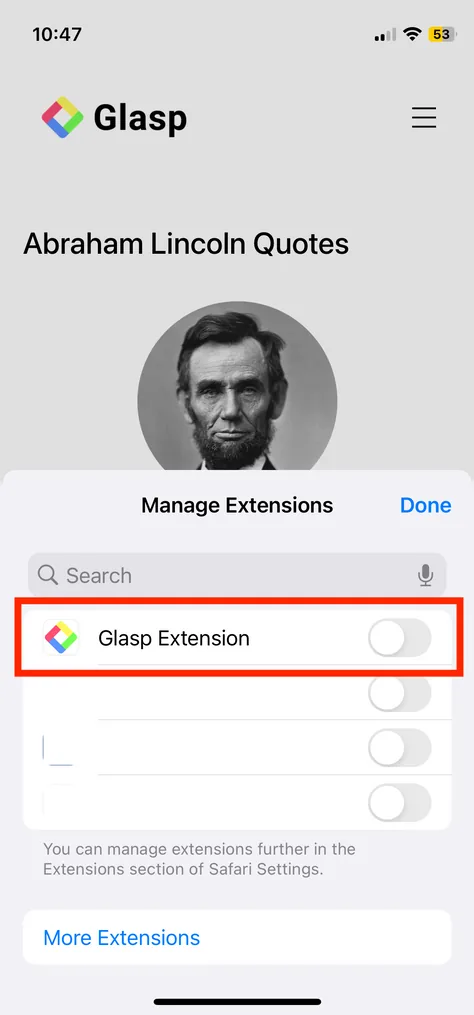
Find Glasp Extension and turn it on. Tap Done to close the extension list and return to the page. You only need to complete this setup once unless you later turn the extension off.
Step 3: Highlight a page
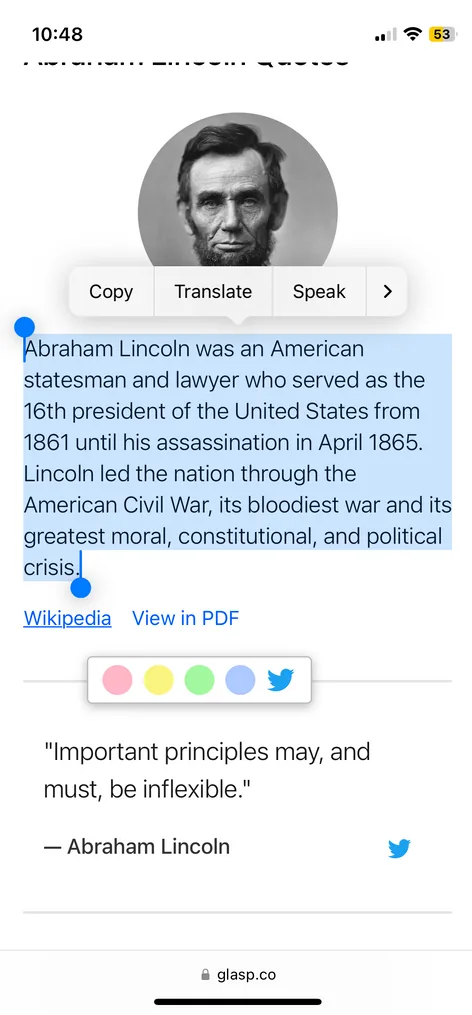
On a web page in Safari, press and drag to select the text you want to keep. The Glasp color palette appears near the selection. Pick a color, and Glasp saves the selected text as a highlight.
To highlight an image, long-press the image and choose the Glasp highlighting action when it appears. You can also add context to a text or image highlight by choosing the pencil or note action and entering your note.
What else the extension does
The extension includes a summary panel on YouTube pages. You can open it while viewing a YouTube video in Safari to see the available summary alongside the page.
Open the gear-shaped Settings menu to find your profile link and quick links. These shortcuts help you move from the page you are reading to related areas of Glasp.
Highlights and notes sync with the Glasp web app and the Glasp desktop browser extension when you use the same account. This keeps your saved material connected across Safari, the web app, and your desktop browser. The Safari extension also supports dark mode, so its controls fit Safari's darker appearance when dark mode is active.
Privacy
Glasp deliberately stays off sensitive sites. This includes banking and finance sites, sign-in and SSO pages, password managers, government and tax sites, health portals, and adult sites. On those pages, the extension does not activate and saves nothing.
On glasp.co, the Safari extension also steps aside because the site provides its own highlighter.
FAQs
Do I need the Glasp app to use the Safari extension?
Yes. The extension ships with the Glasp iOS app and is installed as part of the app.
Is the Glasp Safari extension free?
Yes, you can install the Glasp app and use its Safari extension for free.
Does the extension work on iPad?
Yes. You can install the Glasp app and enable Glasp Extension in Safari on both iPhone and iPad.
Does it sync with the desktop extension and the web?
Yes. Your highlights and notes sync with the Glasp web app and the desktop browser extension when you are signed in to the same account.
Can I highlight images?
Yes. Long-press an image on a supported page, then choose the Glasp highlighting action.
Can I add notes to highlights?
Yes. Use the pencil or note action for a highlight, then type and save your note.
What happens on banking or login pages?
The extension does not activate on banking, login, and other sensitive pages, and it saves nothing from them.
Does signing out of the app sign the extension out?
Yes. Signing out of the Glasp app also signs the Safari extension out.
Which iOS version is required?
You need iOS 15.1 or later to use the Glasp app and its Safari extension.
Can Claude or ChatGPT read my Glasp highlights?
Yes. With the Glasp MCP Connector, AI assistants such as Claude, ChatGPT, and Claude Code can search and read your own highlights, notes, Kindle highlights, and AI summaries, including your YouTube summaries. The connection is private to you and read-only, apart from one permission you can approve: saving a page to your Glasp bookmarks, which are public on your profile. See How to Connect Glasp to Claude, ChatGPT, and Claude Code (MCP Connector).
Want to do more on mobile?
👉 How to Use the Glasp Mobile App on iOS, iPad, and Android
👉 How to Use the Glasp iOS Mobile/Tablet App
Before you leave
Thank you for reading, and we hope this guide helps you start highlighting in Safari.
👉 Download Glasp from the App Store and save your next useful idea as you browse.
See you next time,
Glasp team