How to Highlight X, Facebook, and LinkedIn Posts

Sep 09, 2025
4 min read
278 views

Do you ever come across insightful posts on X (Twitter), Facebook, or LinkedIn and wish you could highlight them like you do with articles or PDFs? With Glasp’s free web highlighter, you can save, organize, and share highlights from social media posts directly in your browser.
This tutorial will show you step by step how to highlight posts on social media platforms, view your saved highlights, and manage them in your Glasp profile.
If you haven't signed up for Glasp or installed the Glasp browser extension, please do so. You can refer to this tutorial.
Step 1: Open social media
In this tutorial, I use X for an example. But the basic is the same for all the social media. Make sure you installed Glasp Chrome extension.
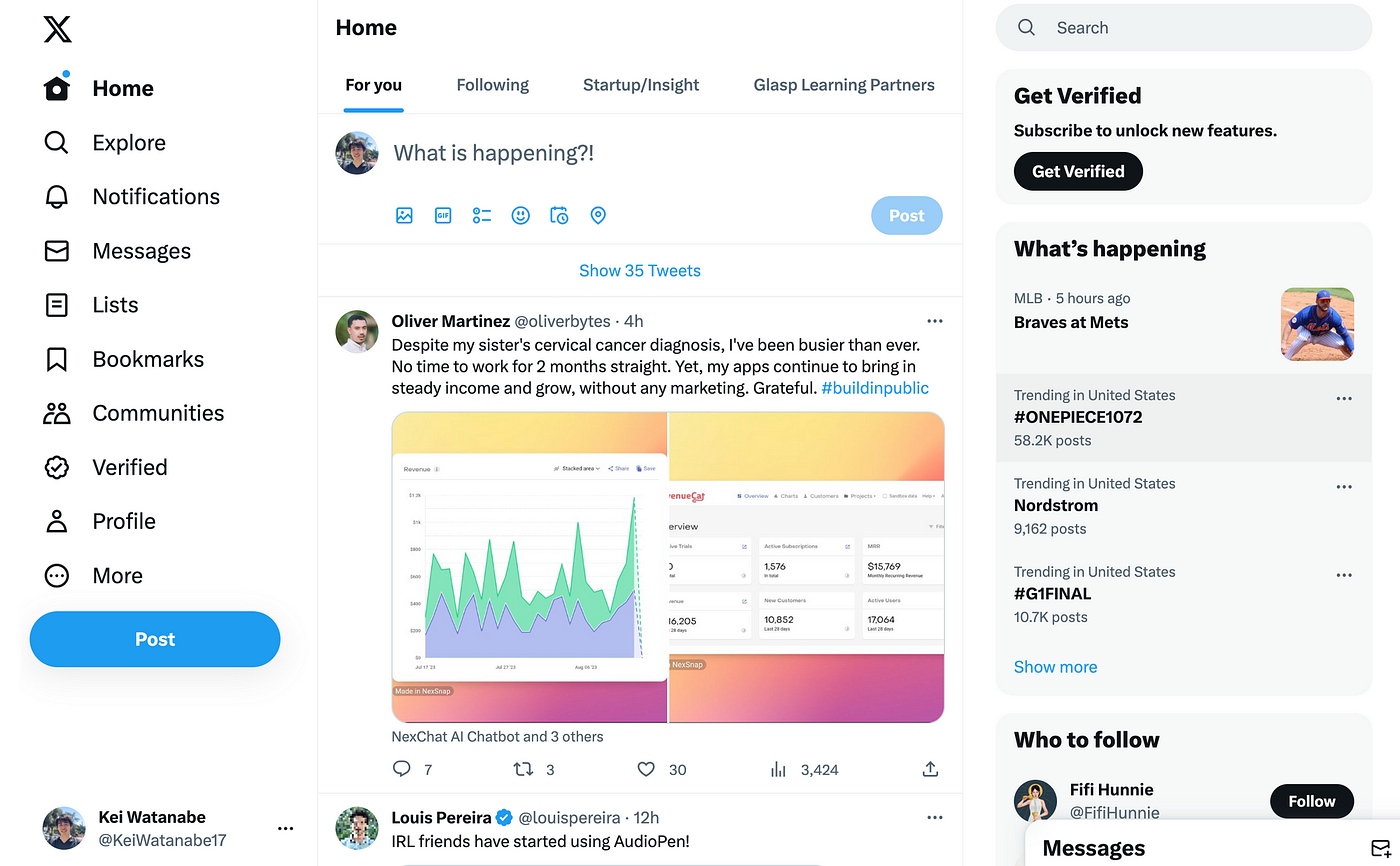
Step 2: Click a post you want to highlight
Please click any post you'd like to highlight with Glasp. If you successfully open a post, the URL changes to a unique link.
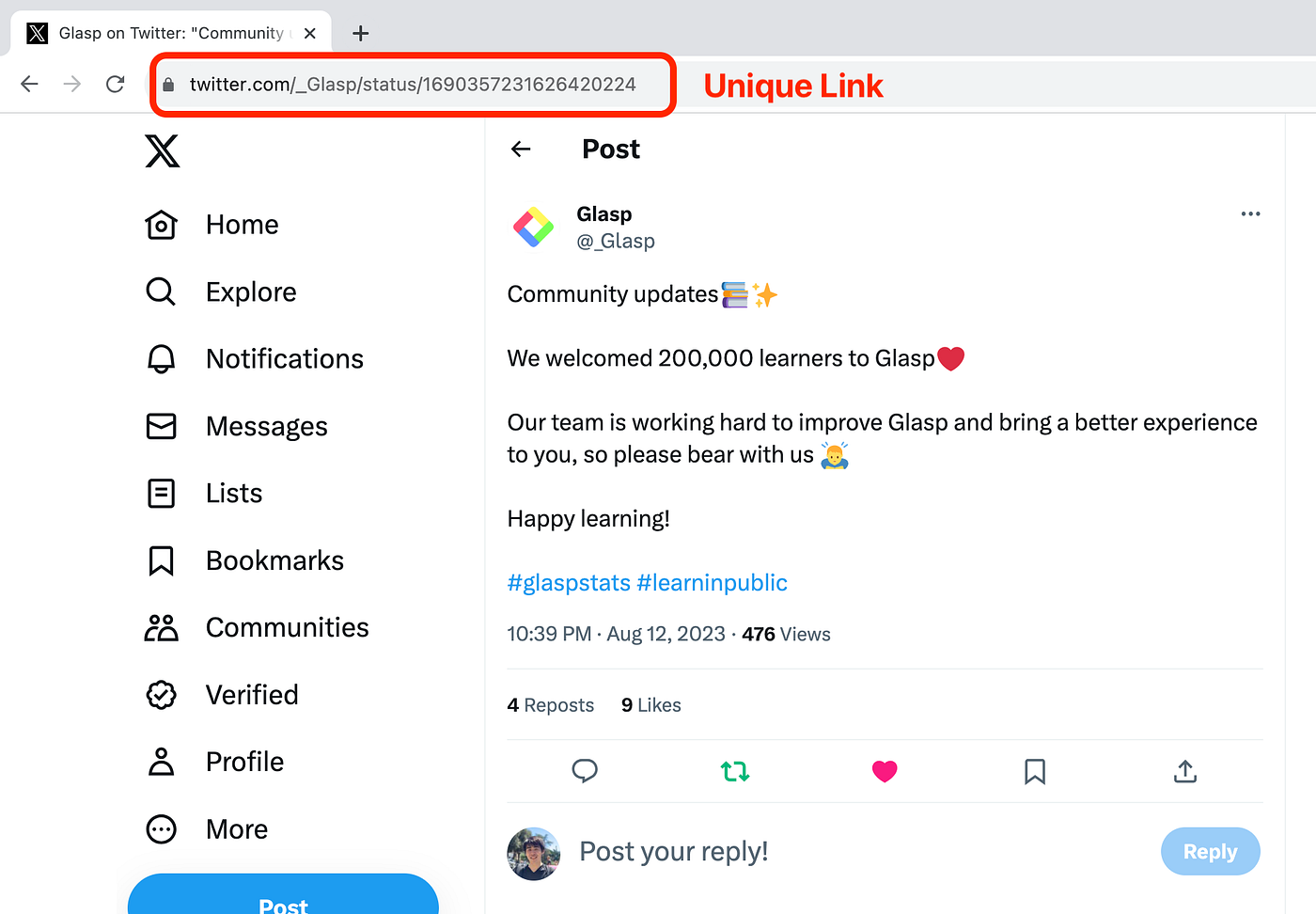
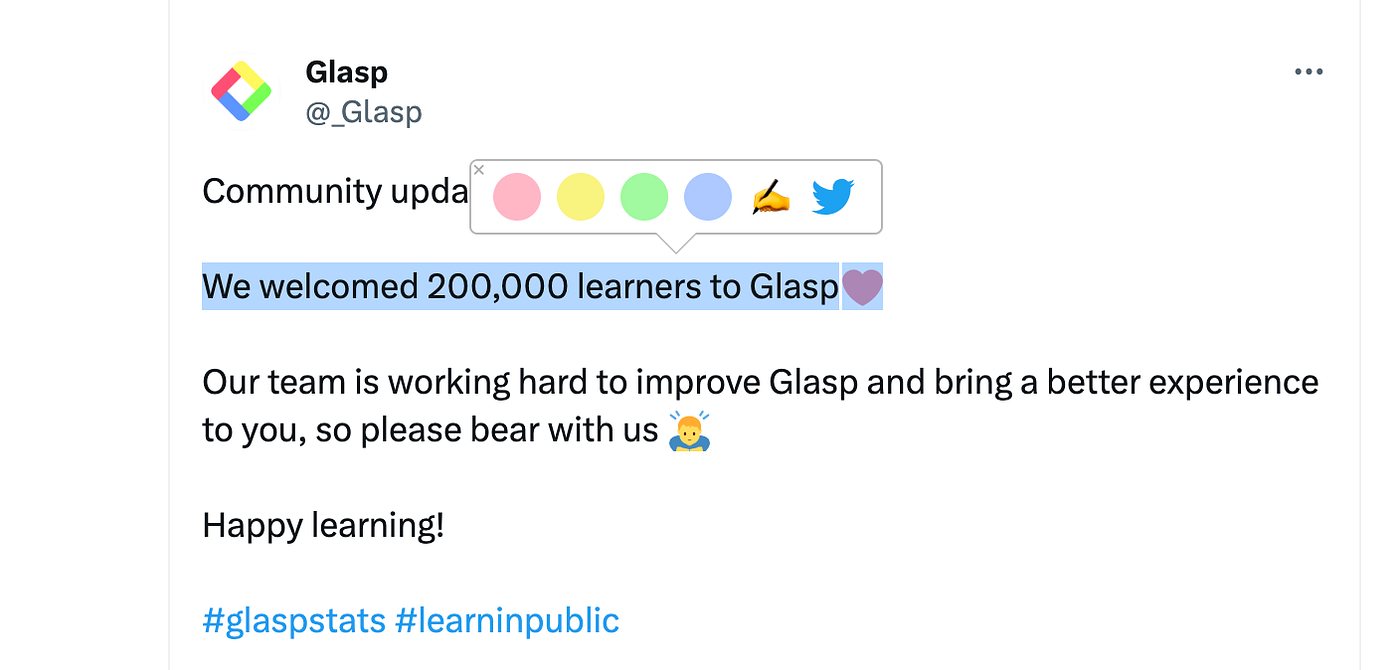
Step 3: Highlight content on social media
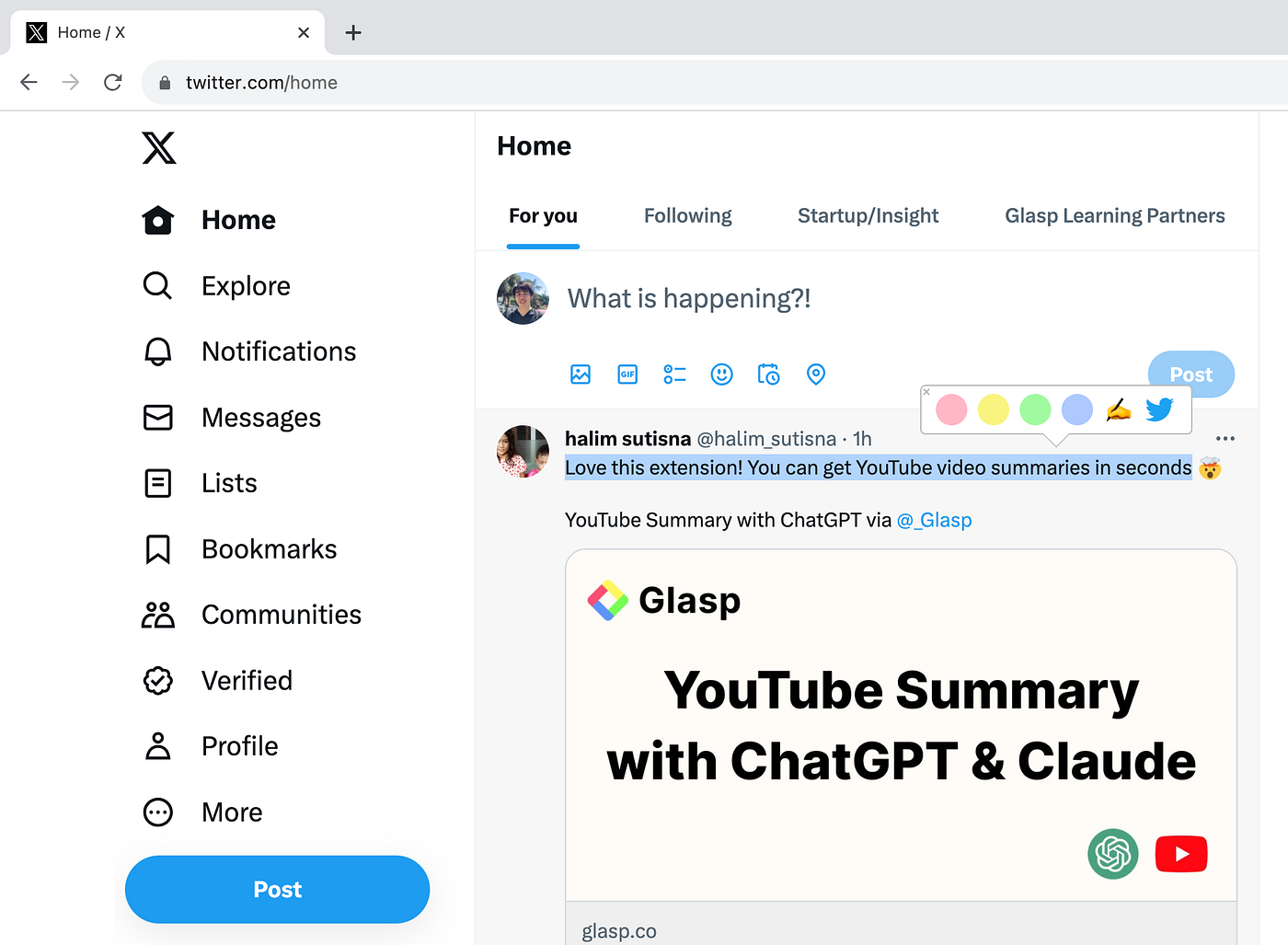
If you select a sentence on social media content, you can see a popup showing up. So, please click any color on the popup.
(Optional) Step 4: View your highlights
In this step, we introduce you to how to see your highlighted content in the list view.
Please click the Glasp icon on the toolbar. It opens the sidebar. Then, click your profile icon at the top right. It takes you to your profile page on Glasp.
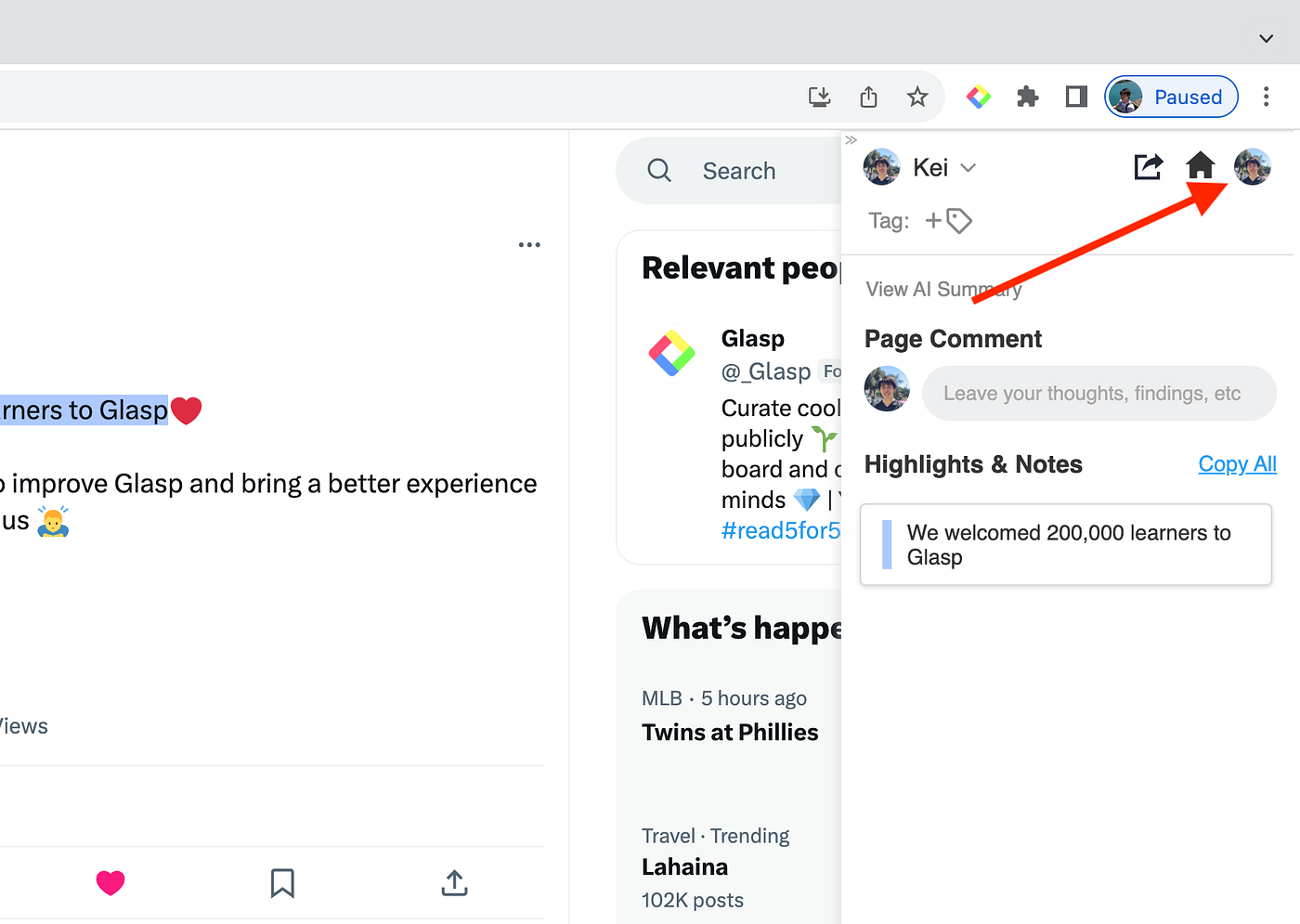
On this page, you can see your highlighted content. If you'd like to delete it, please click three dots at the top right and Delete Page.
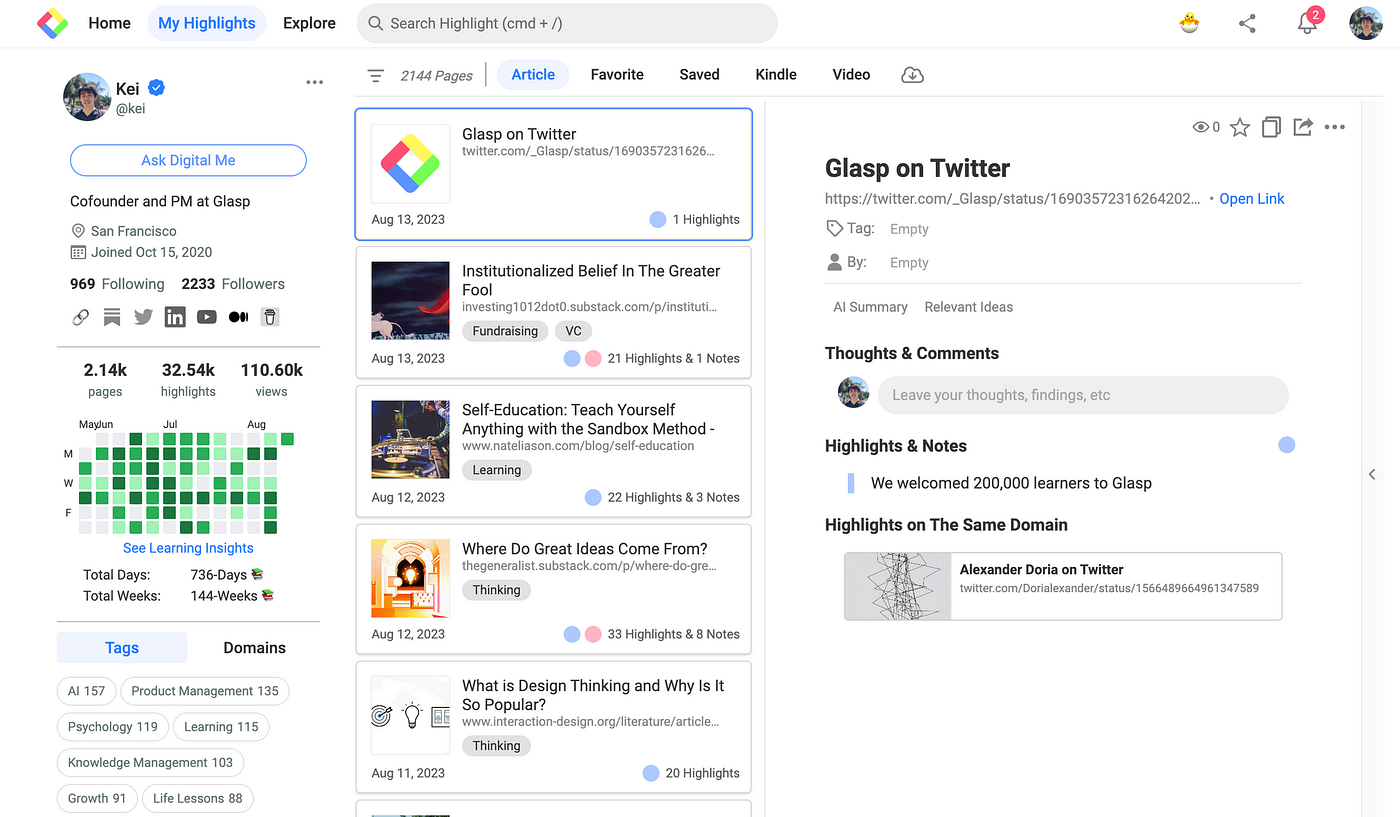
Note: In this way, you can highlight social media content. Please make sure that you're opening and highlighting a page with a unique URL.
Technically, you can highlight content on the Home feed like below. But if you highlight it on the Home feed, the highlight is not displayed when you visit the next time. This is due to our current highlight logic and technical limitation. *The highlights are stored on your profile page, so if you don't mind not showing highlights on the original content, you can highlight it on the Home feed.
Note (October 2026): On X, highlights made on the Home feed are saved under the author's page, not under the post itself. If you look for them later through the Glasp MCP connector or the Glasp API (for example, by asking Claude or ChatGPT to find them), you get the highlighted text and the author, but no link back to the original post. Open the post first, and its link is saved with your highlights.
FAQs
Q. Can I highlight posts on all social media platforms?
Currently, you can highlight posts on X (Twitter), Facebook, and LinkedIn using the Glasp browser extension. Other platforms may also work if the post has a unique URL.
Q. Why don’t highlights appear when I return to the social media post later?
If you highlight from the Home feed (e.g., X timeline), the highlights won’t appear when you revisit. This is due to technical limitations. To make highlights persistent, always open the post’s unique URL before highlighting.
Q. Where can I see all my highlighted posts?
All your highlights are saved on your Glasp profile page. From there, you can organize, copy, export, or delete them anytime.
Q. Can I share my highlights from social media with others?
Yes. Your highlights are saved on your Glasp profile. You can copy the link to the page and share it with others, who can view your highlights even without a Glasp account.
Q. Can I delete a highlight if I make a mistake?
Yes. Go to your profile page, click the three dots on the highlighted post, and select Delete Page to remove it.
Q. Does Glasp work on mobile apps like the X or Facebook app?
Not inside the X or Facebook apps themselves, but you can highlight on your phone. On iPhone and iPad, open the post in Safari and use the Glasp Safari extension, which comes with the Glasp iOS app. On Android, open the post in a browser such as Chrome and share it to the Glasp app to highlight it there. Your highlights sync with your Glasp profile and the desktop extension.
Related tutorials
How to Find an X Post You Saved and Can't Find Again: highlight the line that made you save a post, then ask Claude or ChatGPT to find it later, with the author and a link back to the post.
How to Connect Glasp to Claude, ChatGPT, and Claude Code (MCP Connector): ask your AI assistant to find the posts you highlighted.
Before you leave
If you have any questions, please refer to the FAQ or contact us.
👉 FAQs
👉 X
See you next time,
Glasp team