How to Download Highlights and Notes from Kindle

Feb 18, 2026
7 min read
2660 views
Glasp is a free browser extension that lets you export all your Kindle highlights and notes in one click. No more manual copying and pasting. You can download them as TXT, CSV, or Markdown files, or send them directly to your favorite note-taking apps like Notion, Obsidian, and Evernote. Over 2,000,000 users trust Glasp to manage their reading highlights.
👉 Export Kindle Highlights with Glasp
In this guide, we'll walk you through every method to download and use your Kindle highlights, from basic file exports to AI-powered workflows.
How to Get Started
Before using any of the methods below, you'll need to set up Glasp:
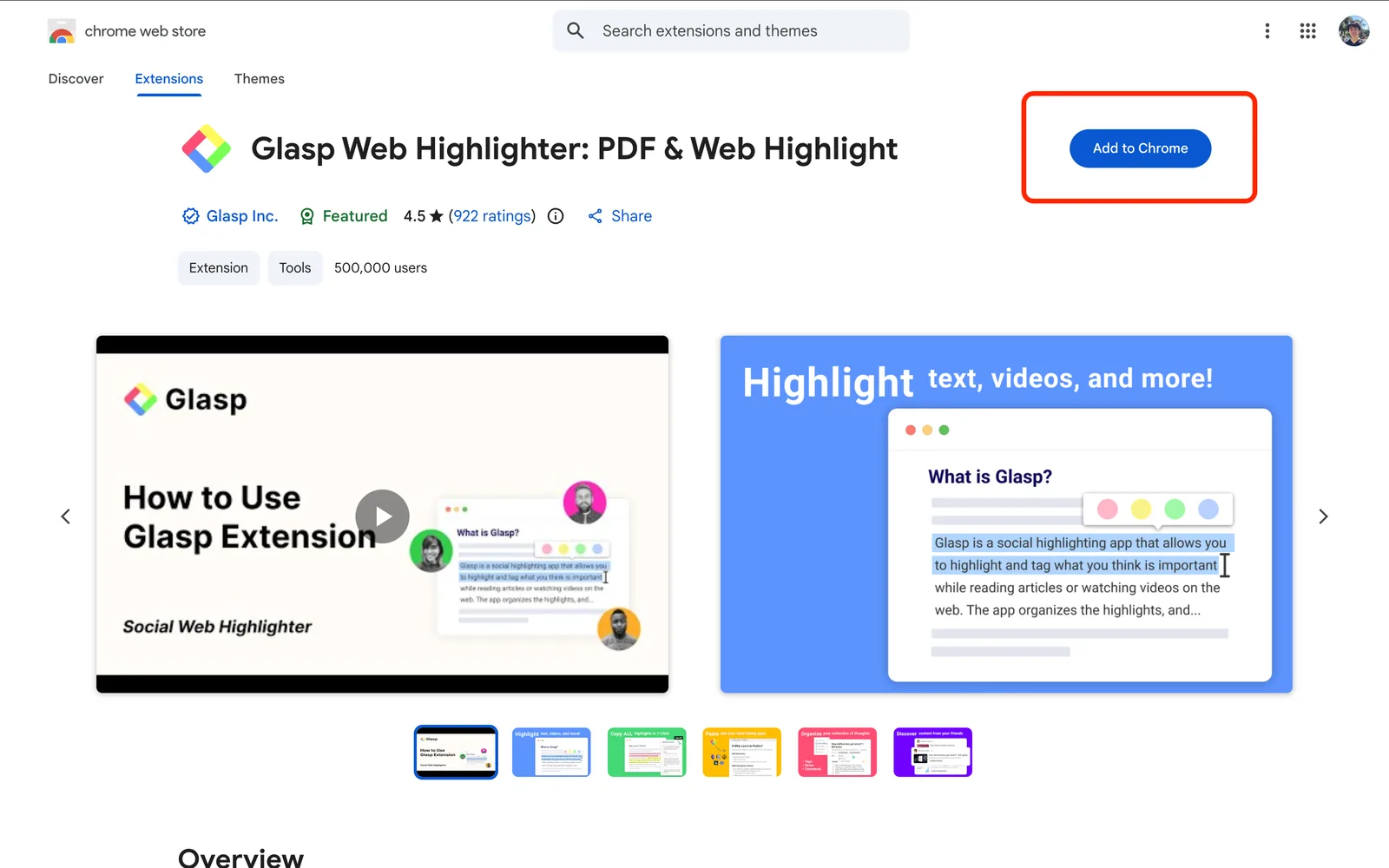
Step 1: Install the Glasp browser extension
Also available on Edge, Brave, Opera, and Firefox.
Step 2: Sign in to Kindle Cloud Reader
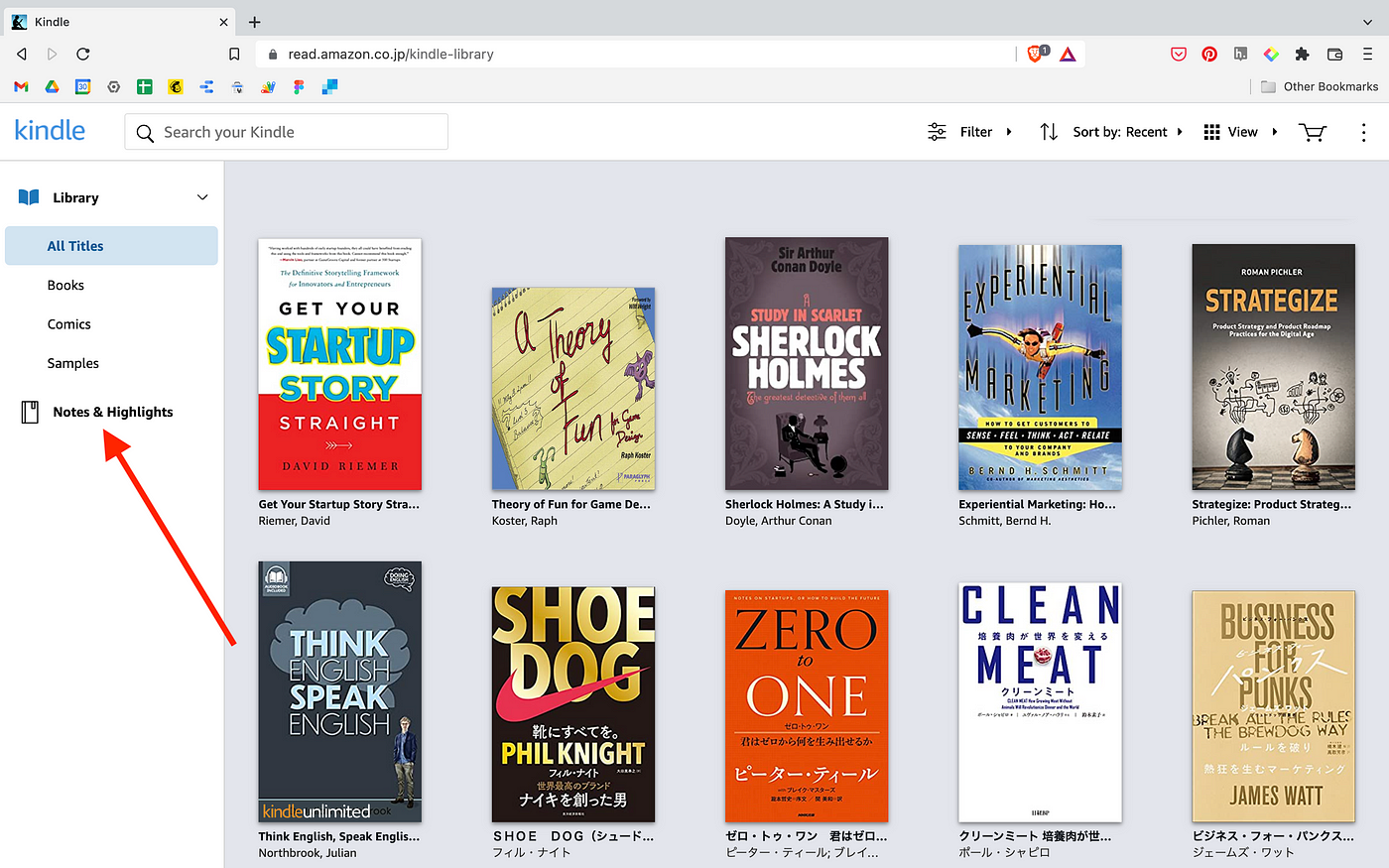
Go to https://read.amazon.com and sign in with your Amazon account. Make sure to select your correct country's Amazon store (e.g., amazon.com, amazon.co.jp, amazon.co.uk).

Once you're logged in, you'll see your Kindle library. Click Notes & Highlights on the left sidebar.
Step 3: Select Kindle books to export
You'll see the "Notes and Highlights" page with all your annotated books listed on the left. The Glasp modal will appear at the top right. Click Select Books.
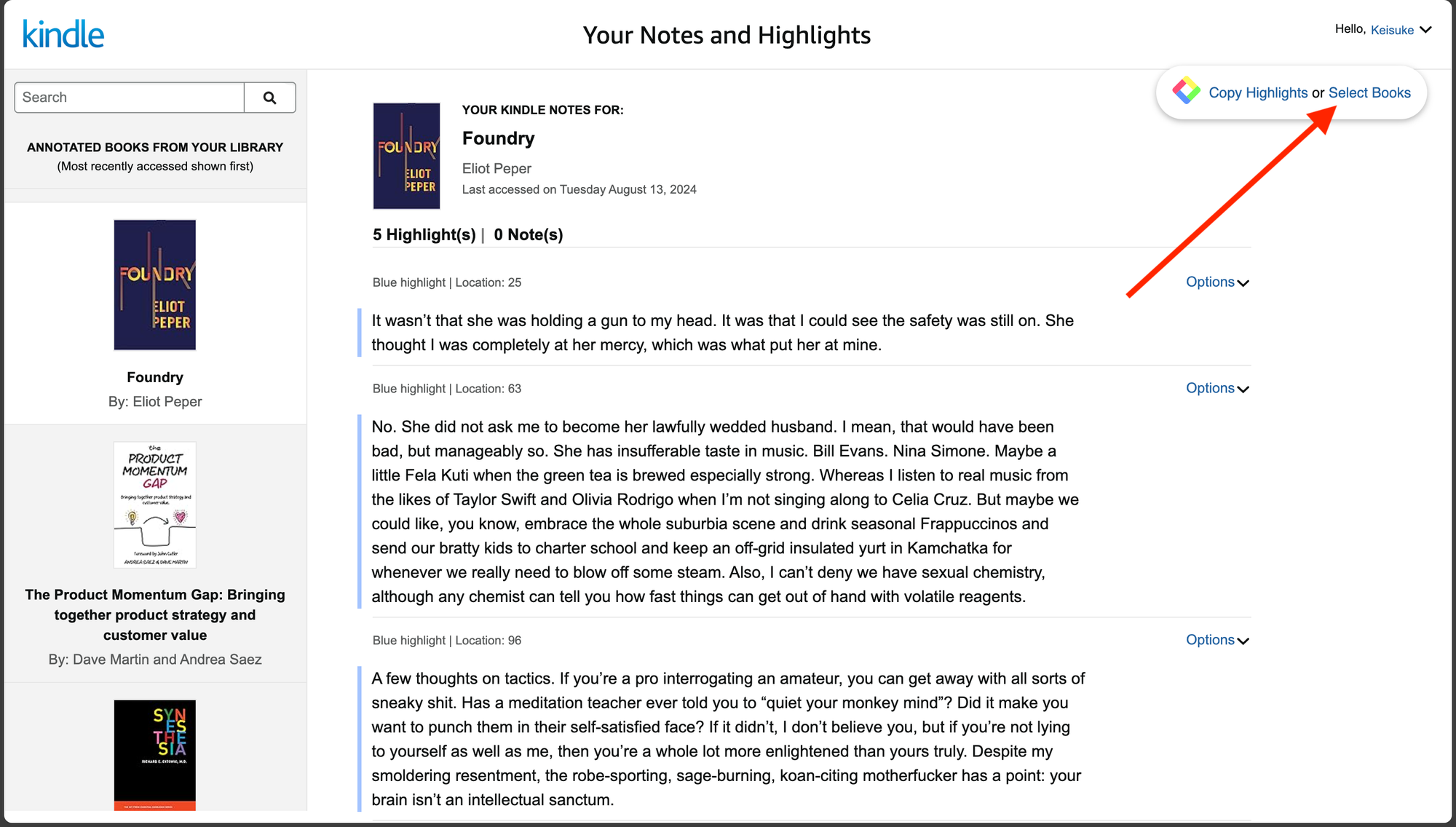
Select the books you'd like to export. From here, you can:
Download as Text, CSV, or MD: see Method 2 below
Import to Glasp: import highlights to your Glasp profile for further export to note-taking apps (Method 4) or AI tools (Method 5)
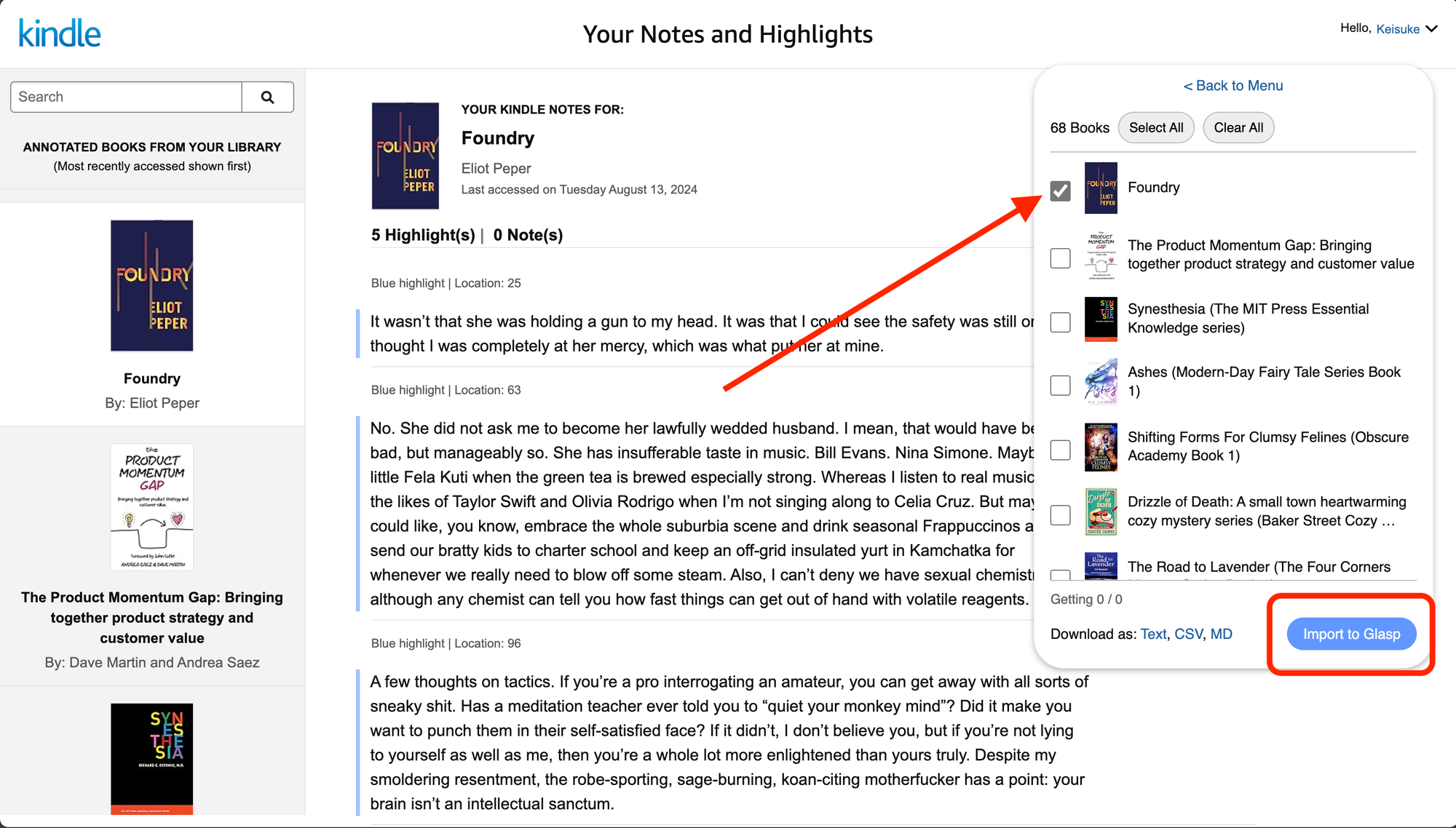
If you don't see the Glasp modal, make sure the Glasp extension is installed and enabled in your browser.
Now choose your preferred export method below.
Method 1: Auto-Sync Kindle Highlights (Recommended, Beta)
Glasp now offers Auto-Sync Kindle Highlights, a free Beta feature that automatically imports new Kindle highlights on a schedule (Daily, Every 3 days, or Weekly). Once enabled, Glasp checks your most-recently annotated Kindle books at the chosen interval and imports any new highlights to your Glasp profile, with no manual export step needed.
To set it up:
Open the Glasp extension settings → Kindle Integration
Select your Amazon region (US, UK, JP, etc.)
Run Test sync (3 books) to verify the connection
Choose your Frequency and Recent books to check count
Toggle Auto-sync to On
For a step-by-step walkthrough, see:
👉 How to Auto-Sync Kindle Highlights with Glasp
If you prefer a one-time manual import, click Sync now instead of toggling Auto-sync on.
Method 2: Download as a File (TXT, CSV, Markdown)
The simplest way to export your Kindle highlights. Select your books in Kindle Cloud Reader, then click "Download" and choose your format:
TXT: Plain text, works everywhere
CSV: Spreadsheet-compatible, great for analysis
Markdown: Perfect for Obsidian, Notion, and other Markdown-based apps
You can export a single book or bulk-export multiple books at once.
For a detailed walkthrough on Markdown export, see: 📖 How to Export Kindle Highlights as Markdown Using Glasp
Method 3: Copy and Paste Beyond Kindle's Export Limits
Amazon limits how much you can copy from Kindle's built-in notebook feature. Glasp bypasses this restriction, letting you copy and paste all your highlights without any export limits.
This is especially useful if you have heavily highlighted books where Kindle's native export only gives you a fraction of your notes.
For step-by-step instructions, see:
📖 How to Copy and Paste Kindle Highlights Beyond the Export Limits
Method 4: Export to Note-taking Apps
Glasp lets you send your Kindle highlights directly to the note-taking app you already use. Choose your app below for a detailed tutorial:
Method 5: Use Kindle Highlights with AI Tools
You can import your Kindle highlights into AI tools to ask questions, generate summaries, or deepen your understanding of what you've read.
Method 6: Daily Kindle Review by Email
Glasp can send you a daily email with random highlights from your Kindle books. This is a simple way to revisit what you've read and reinforce your learning, without opening any app.
To set this up, you'll need a free Glasp account. Once your highlights are imported, Glasp will email you a selection of highlights each day.
For the full setup guide, see:
📖 Daily Kindle Review: How to Turn Your Kindle Highlights Into Lasting Knowledge
Method 7: Export Kindle Highlights via the API (for developers)
Glasp offers a read-only Kindle Highlight Export API that lets you retrieve your Kindle highlights programmatically. You authenticate with an access token and fetch your highlights with cursor-based pagination, ideal for syncing highlights into your own app, database, or automation.
Kindle highlights are read-only through the API. They are sourced from Amazon through the Glasp Kindle Extension or CSV import, so you import them with Method 1–2 first, then read them back out programmatically.
→ For the endpoint, authentication, query parameters, and full code examples (JavaScript and Python), see the Glasp API documentation.
Method 8: Auto-Send Kindle Highlights to 8,000+ Apps with Zapier
Glasp is available on Zapier, which means your Kindle highlights can flow into Slack, Google Sheets, Airtable, Trello, or any of 8,000+ connected apps without you exporting anything by hand.
Set up a Zap with Glasp's New Highlight trigger, and every new highlight that lands in your Glasp account, including the Kindle highlights you import with Method 1, kicks off your workflow. Combine it with Auto-Sync and the whole pipeline runs on its own: highlight on your Kindle, and it shows up wherever your Zap points.
→ How to Auto-Export Glasp Highlights with Zapier
FAQs
Q: Do I need a Kindle device to export highlights?
No. You just need access to Kindle Cloud Reader at read.amazon.com. It works with any Kindle book you've purchased, regardless of whether you read it on a Kindle device, the Kindle app, or in a browser.
Q: Which file formats can I export highlights to?
Glasp supports TXT, CSV, and Markdown. You can also export directly to note-taking apps like Notion, Obsidian, Evernote, and more.
Q: Can I export highlights from multiple Kindle books at once?
Yes. Glasp allows you to select multiple books and bulk-export all highlights at once.
Q: Is there an export limit?
No. Unlike Kindle's built-in export feature, Glasp has no export limits. You can export all your highlights from any book.
Q: Does Glasp support users from multiple countries?
Yes. Glasp works with Amazon stores in the US, UK, Japan, Canada, Germany, France, Italy, Spain, India, Australia, Brazil, Mexico, and more. Simply select your country when signing in to Kindle Cloud Reader.
Q: Can I use these exports in note-taking apps?
Yes. You can directly export to Notion, Obsidian, Evernote, Apple Notes, Google Keep, OneNote, Goodnotes, Notability, Capacities, Joplin, and Zotero. For other apps, download as TXT, CSV, or Markdown and import manually.
Q: Is Glasp free to use for Kindle exports?
Yes. The core Kindle export features are free, including file downloads and direct exports to note-taking apps.
Q: How does Glasp compare to other Kindle export tools?
Unlike tools like Clippings.io or Readwise, Glasp offers unlimited free exports, direct integration with 11+ note-taking apps, daily review emails, and AI-powered features.
Q: Does Glasp have a Kindle highlights API?
A: Yes. Glasp offers a read-only Kindle Highlight Export API at https://api.glasp.co/v1/kindle-highlights/export. You authenticate with a Bearer access token from your Glasp settings and retrieve your highlights with cursor-based pagination.
Q: Can I export Kindle highlights programmatically?
A: Yes. Send a GET request to the Kindle Highlight Export API with your access token, and use the pageCursor parameter to page through results and updatedAfter to fetch only highlights changed since a given date. The API is rate-limited to 100 requests per minute.
Q: Can I edit or add Kindle highlights through the Glasp API?
A: No. Kindle highlights are read-only via the API because they originate from Amazon and are imported through the Glasp Kindle Extension or CSV import. You can read them out programmatically, but you create or update them by importing from Kindle, not through the API.
Before You Leave
If you have any questions, feel free to reach out to us via the FAQ.
Try Glasp today: 👉 Export Kindle Highlights with Glasp
Sign up for a free Glasp account to unlock additional features:
Daily Kindle Review: Receive daily highlight emails to reinforce your reading
Import to your Glasp profile: Build a searchable library of all your highlights
Sync with note-taking apps: Keep your highlights connected to your workflow