How to Save Kindle Highlights to Google Keep with Glasp

Feb 21, 2026
4 min read
104 views
You can save Kindle highlights to Google Keep by exporting them with Glasp and organizing them as searchable notes across all your devices. Kindle is great for reading, but exporting highlights is often limited. With Glasp, you can go beyond Kindle’s export limits and save all your highlights without restrictions.
Google Keep is a simple yet powerful note-taking tool that syncs seamlessly across desktop and mobile. By saving your Kindle highlights to Google Keep, you can organize key passages with labels, search them instantly, and access your reading notes anytime, anywhere.
In this guide, we’ll walk you through step-by-step how to save Kindle highlights to Google Keep using Glasp, so you can build a personal library of notes that stays with you everywhere.
Step 1: Sign up for Glasp
Select a browser: Google Chrome, Brave, Safari, Microsoft Edge, Firefox, etc.
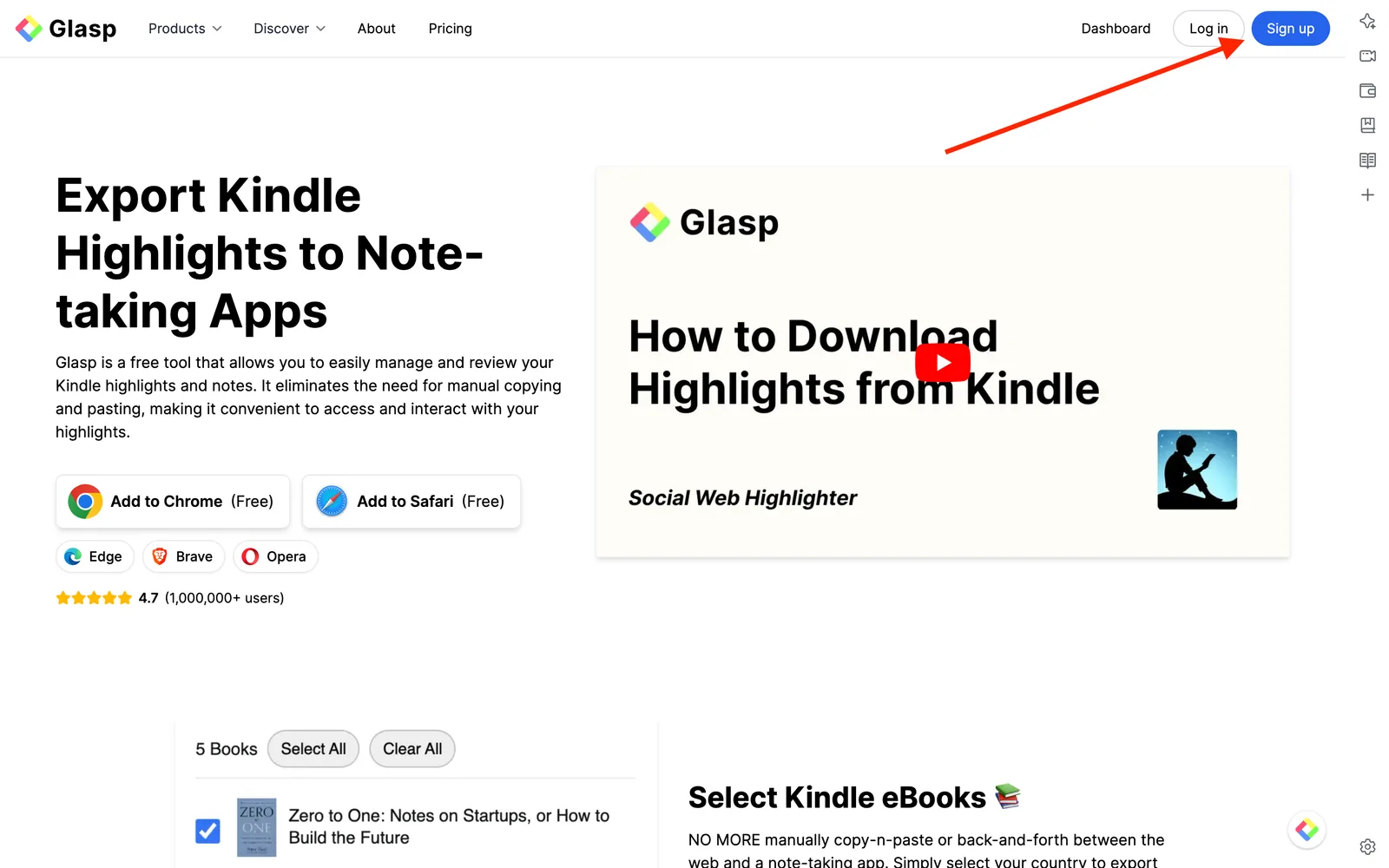
On your search tab, type in “glasp.co” and you will be automatically directed to the page of Glasp. Or access it from the link below.
👉 Glasp — Kindle Highlights Exporter
Upon reaching it click “Sign up” and continue using your Google Account.
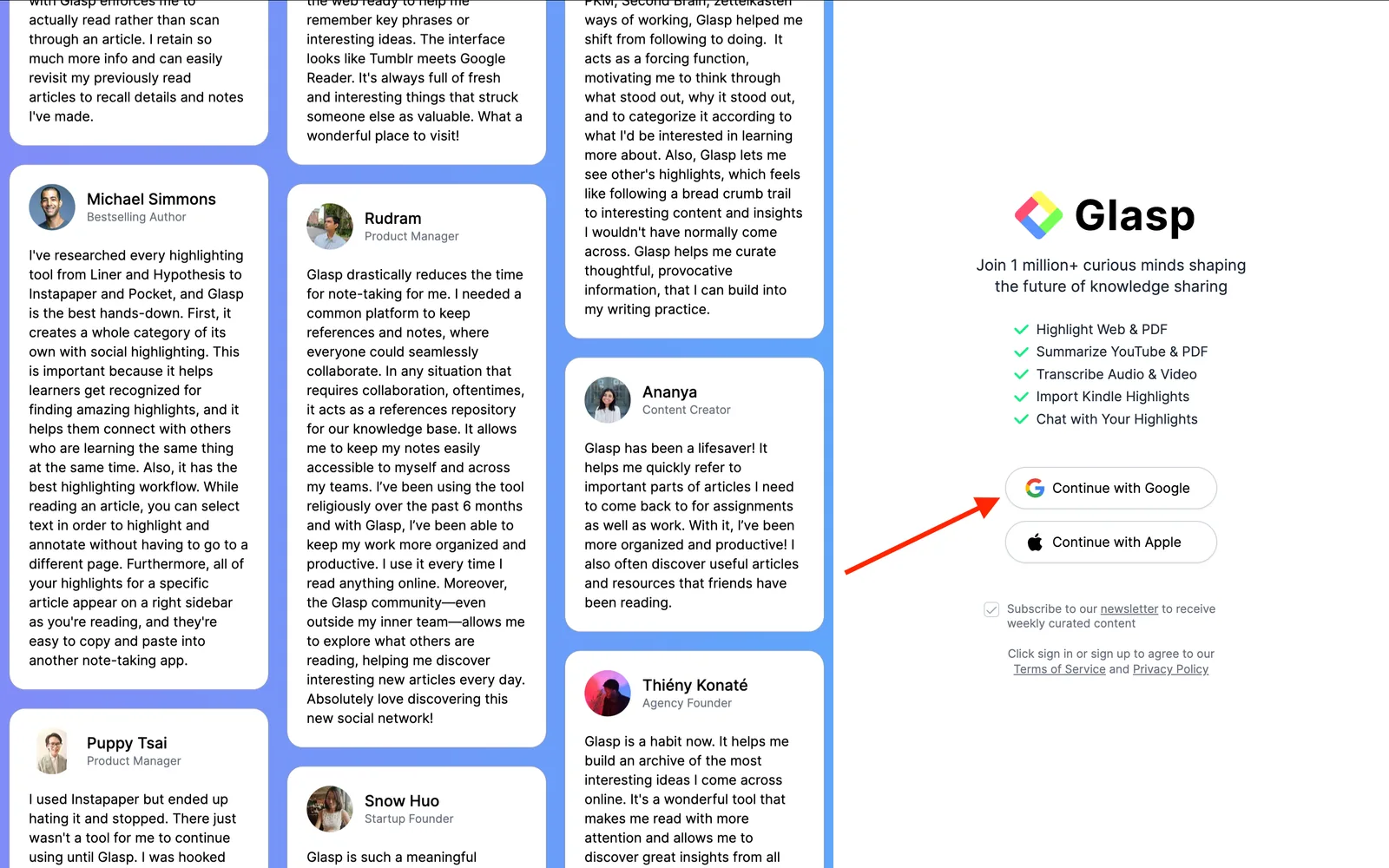
You can sign up for Glasp with either Google Sign-in or Apple Sign-in. If you're not an iPhone/iPad user, we strongly recommend you use Google Sign-in.
After finalizing your account, you will be redirected to the Chrome Web Store.
Step 2: Install the Glasp extension to your browser
Click “Add to Chrome”(Brave, Safari, Edge, or Firefox) and install Glasp to your chosen browser.
After you install the extension, make sure you pin it on the toolbar. It makes it easier to open the Glasp on the sidebar. If you're asked to sign in to Glasp on the sidebar, please do it.

Step 3: Go to the Home page on Glasp
Once you've installed the Glasp extension and signed in to Glasp, please go to the Home page by clicking the Home icon on the sidebar.

On the Home page, you're asked to choose your favorite topics. Choosing your topics could be a leap step as this will help you identify the articles in line with your interests. And you can change your favorite topics anytime.

Step 4: Sign in to Kindle Cloud Reader
After you install Glasp, please visit Kindle Cloud Reader. You can search Kindle Cloud Reader on Google. And the page's URL is like https://read.amazon.com or https://read.amazon.co.jp

Step 5: Select a Kindle book to save highlights on Google Keep
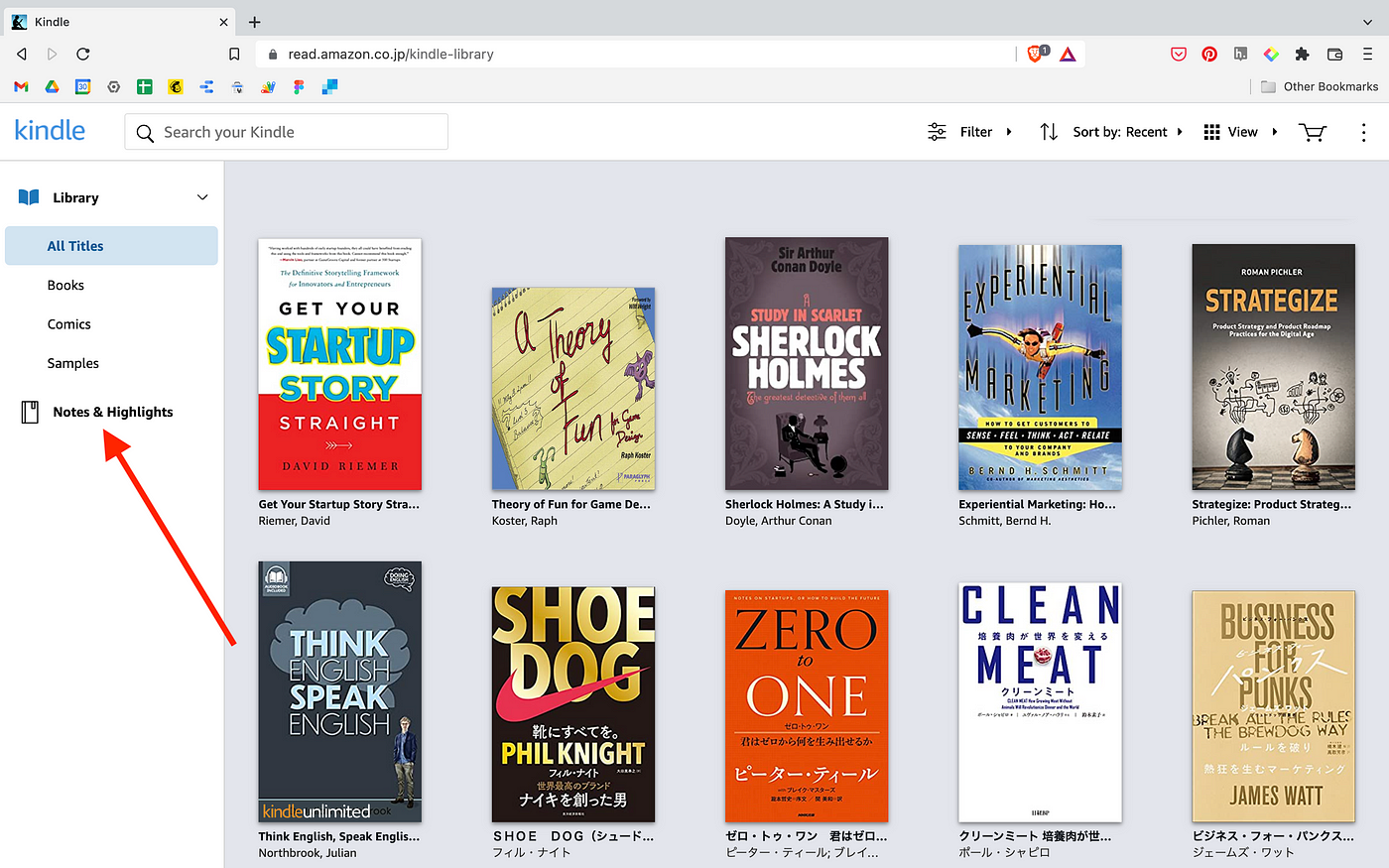
If you can successfully log in to Kindle Cloud Reader, you can see a page like below. So, please click Notes & Highlights on the left.
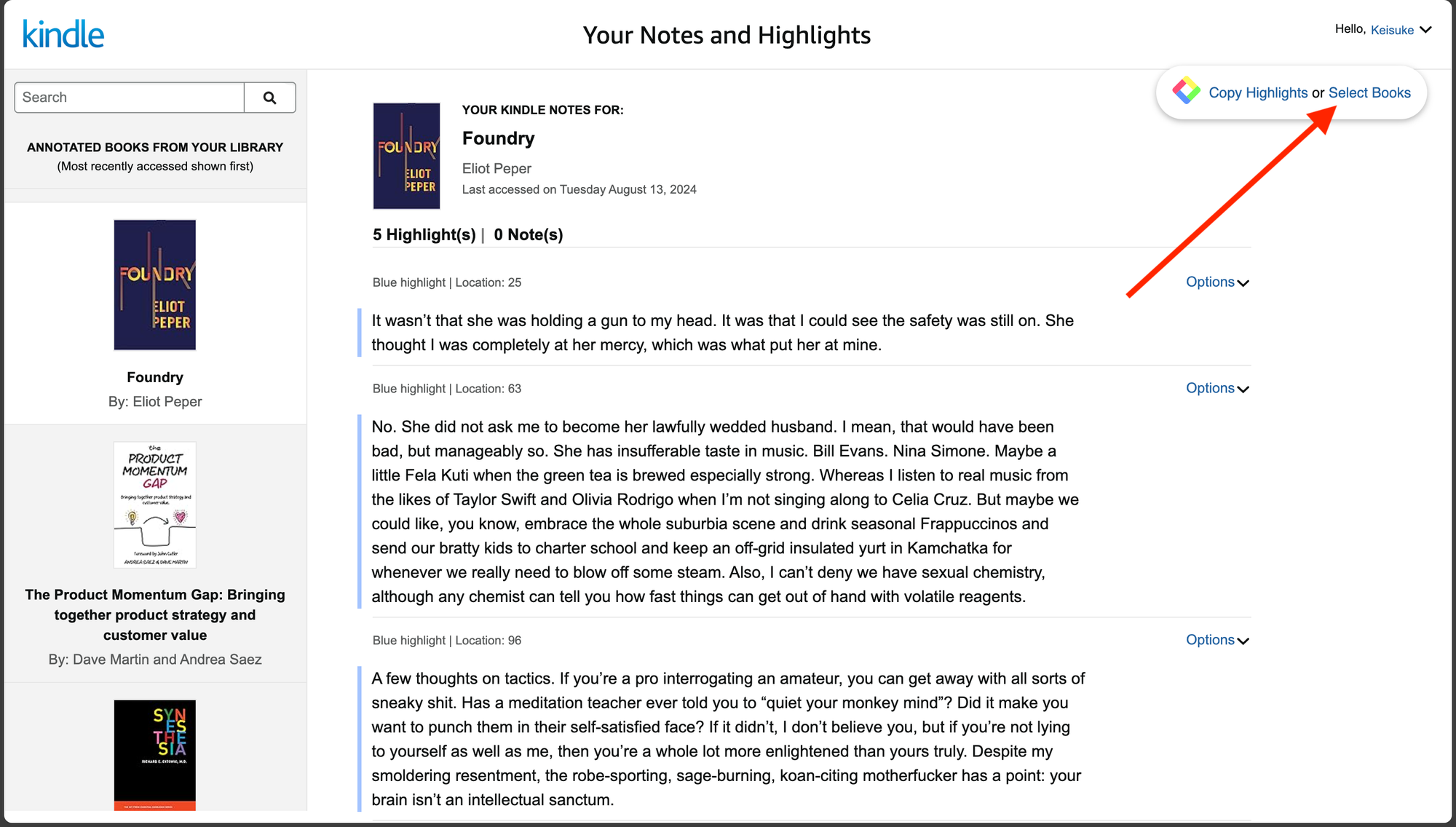
You can see a page below. Select a book to copy highlights on the left. Then, please click Select Books on the Glasp modal at the top right. If you cannot see the modal, so make sure that you've successfully installed it.
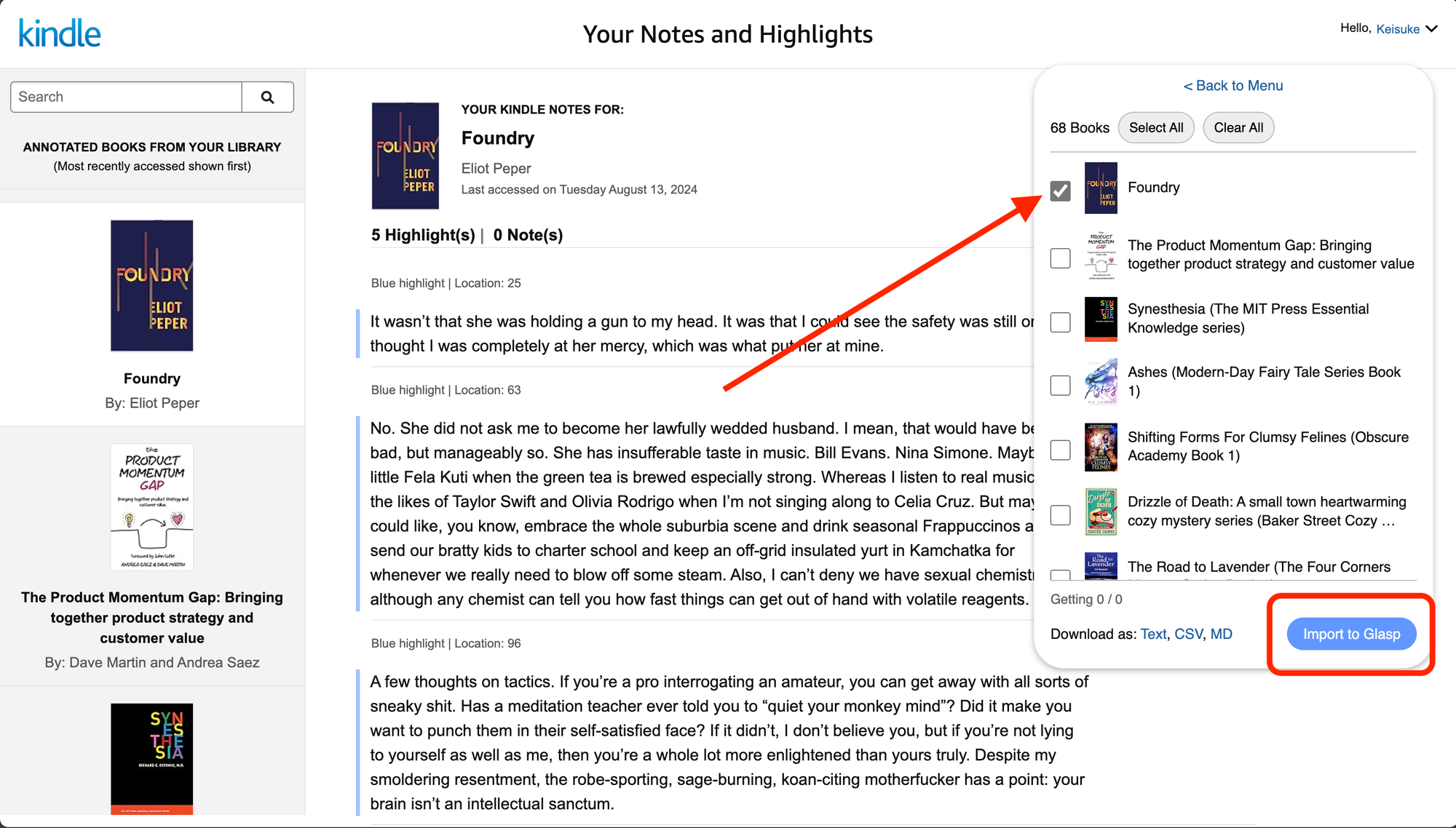
Then, please select books you'd like to save on Google Keep. After selecting books, click Import to Glasp at the bottom right.
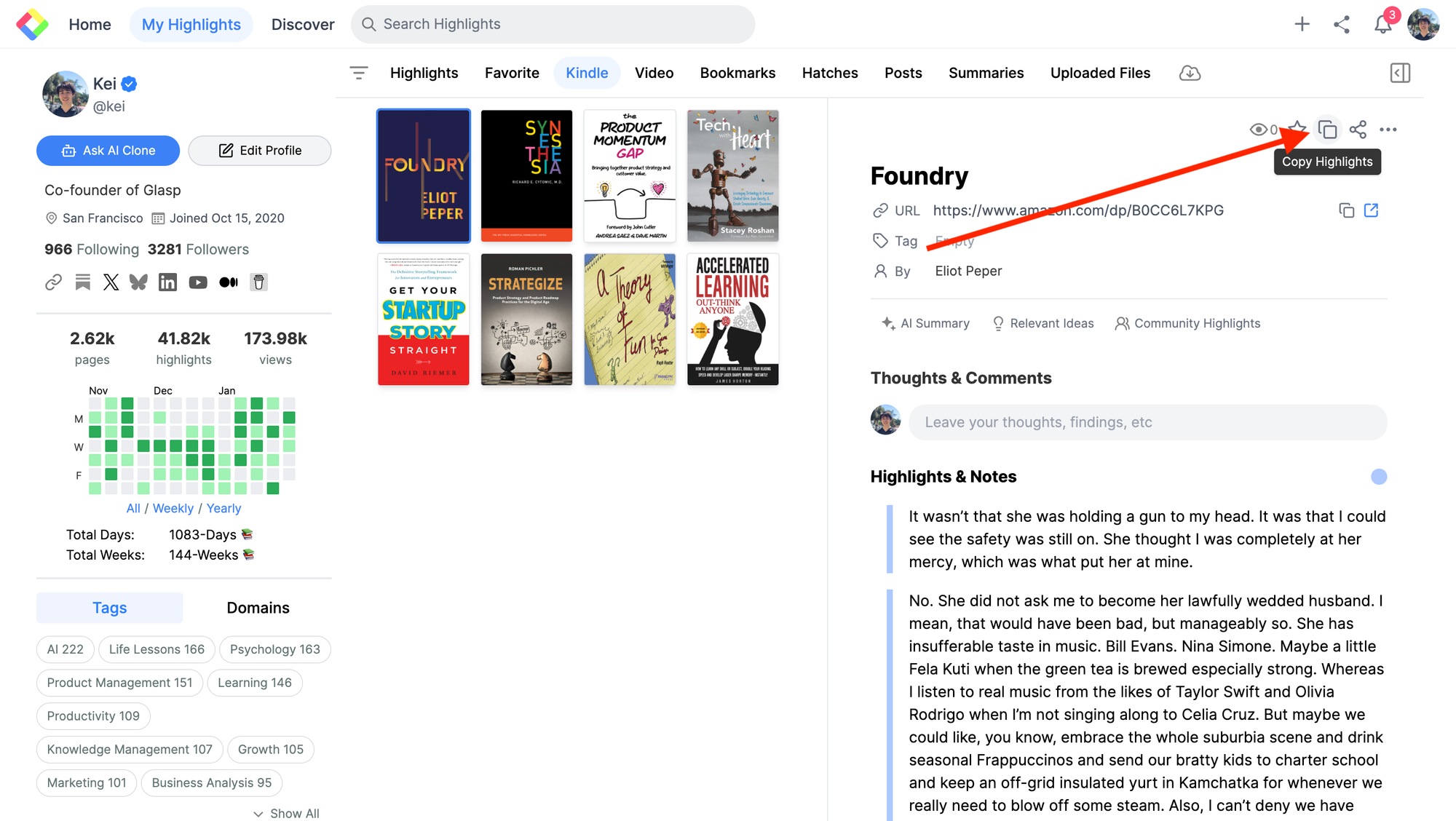
Step 6: Copy Kindle Highlights from Your Profile Page
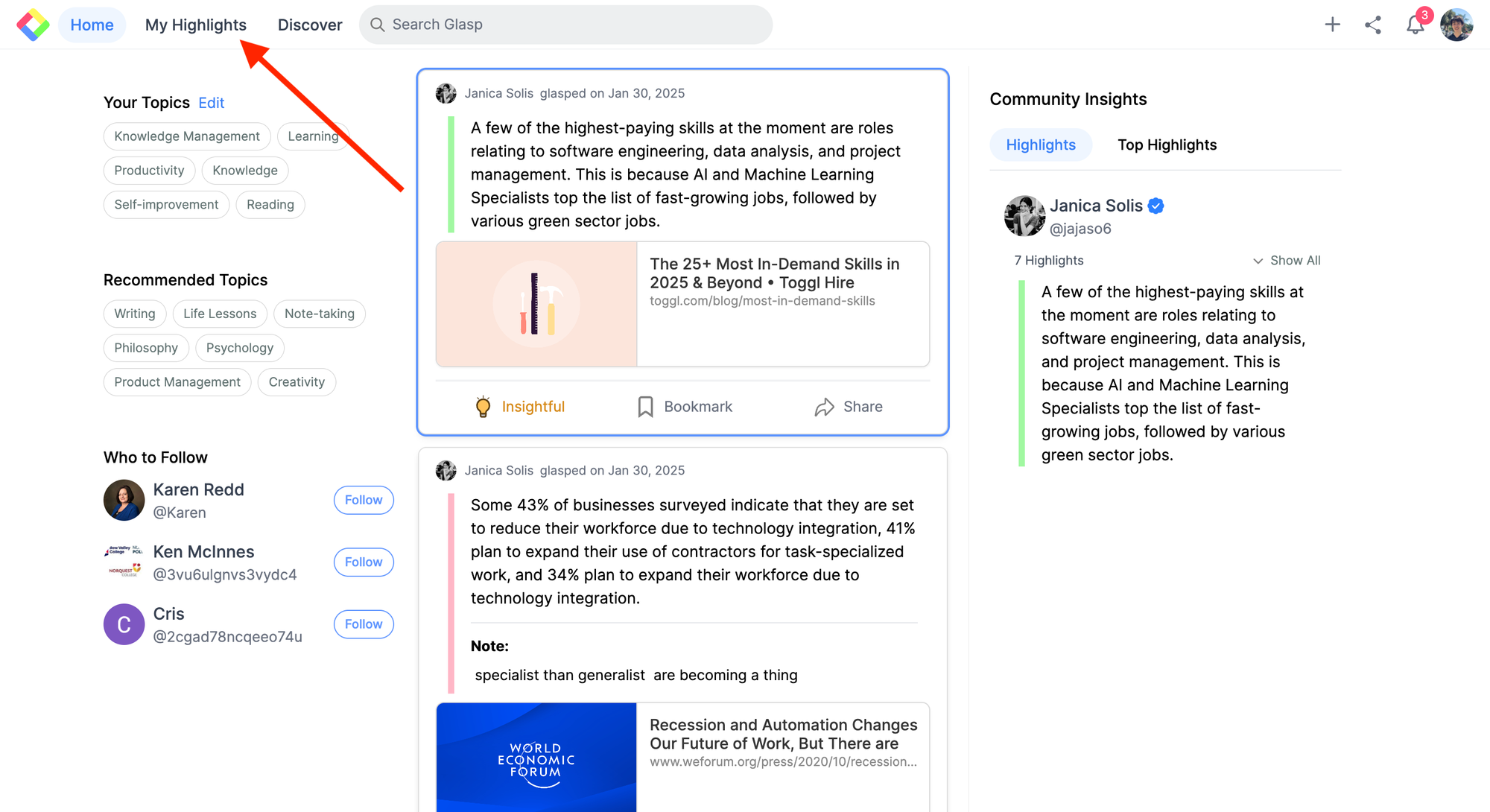
After importing books to Glasp, go to your profile page. If you're on the Home page, you can click Profile in the left sidebar.
On your profile page, click the Kindle tab.
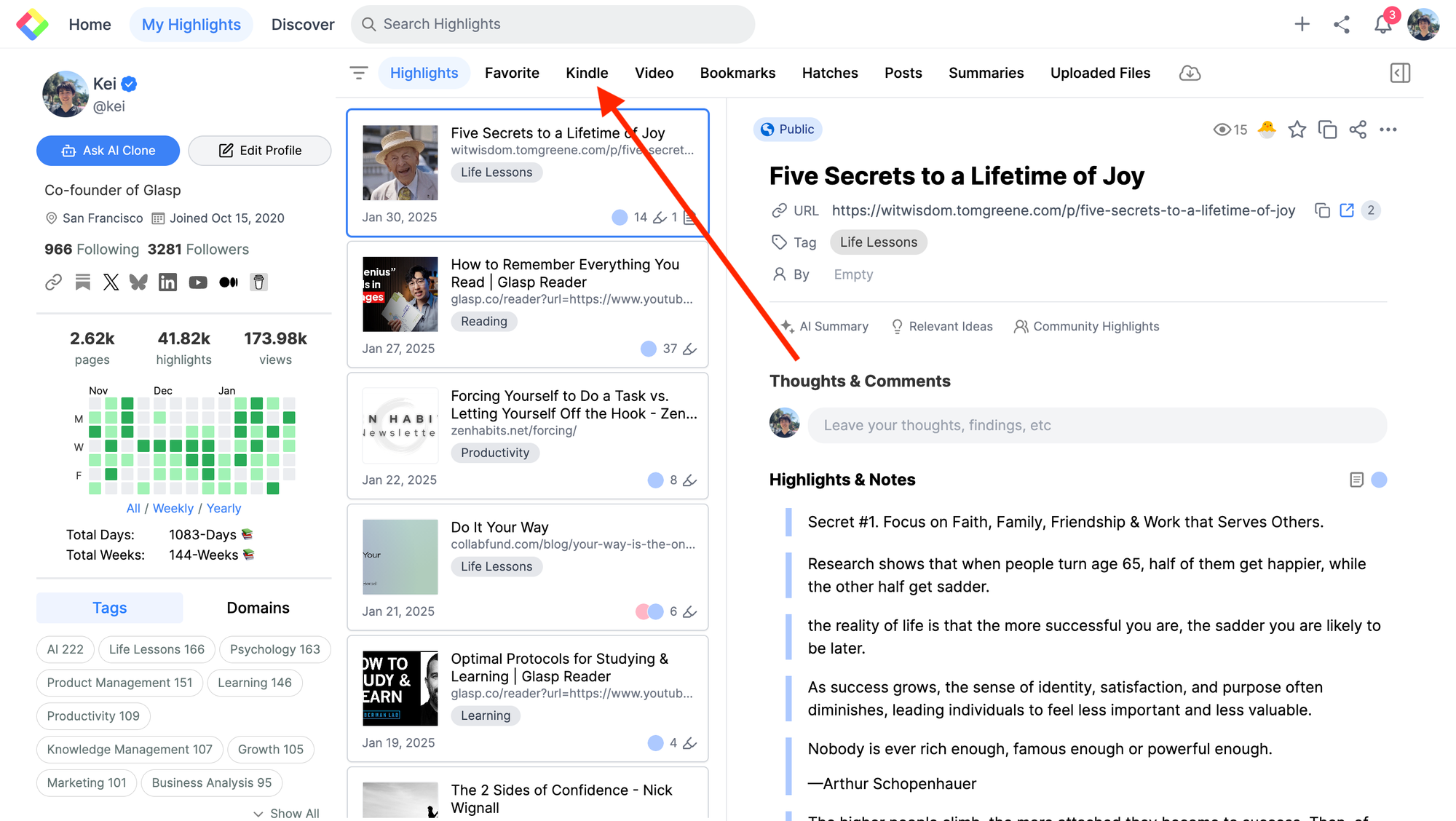
Then, click Copy Highlights at the top right.
Step 7: Paste Kindle Highlights into Google Keep

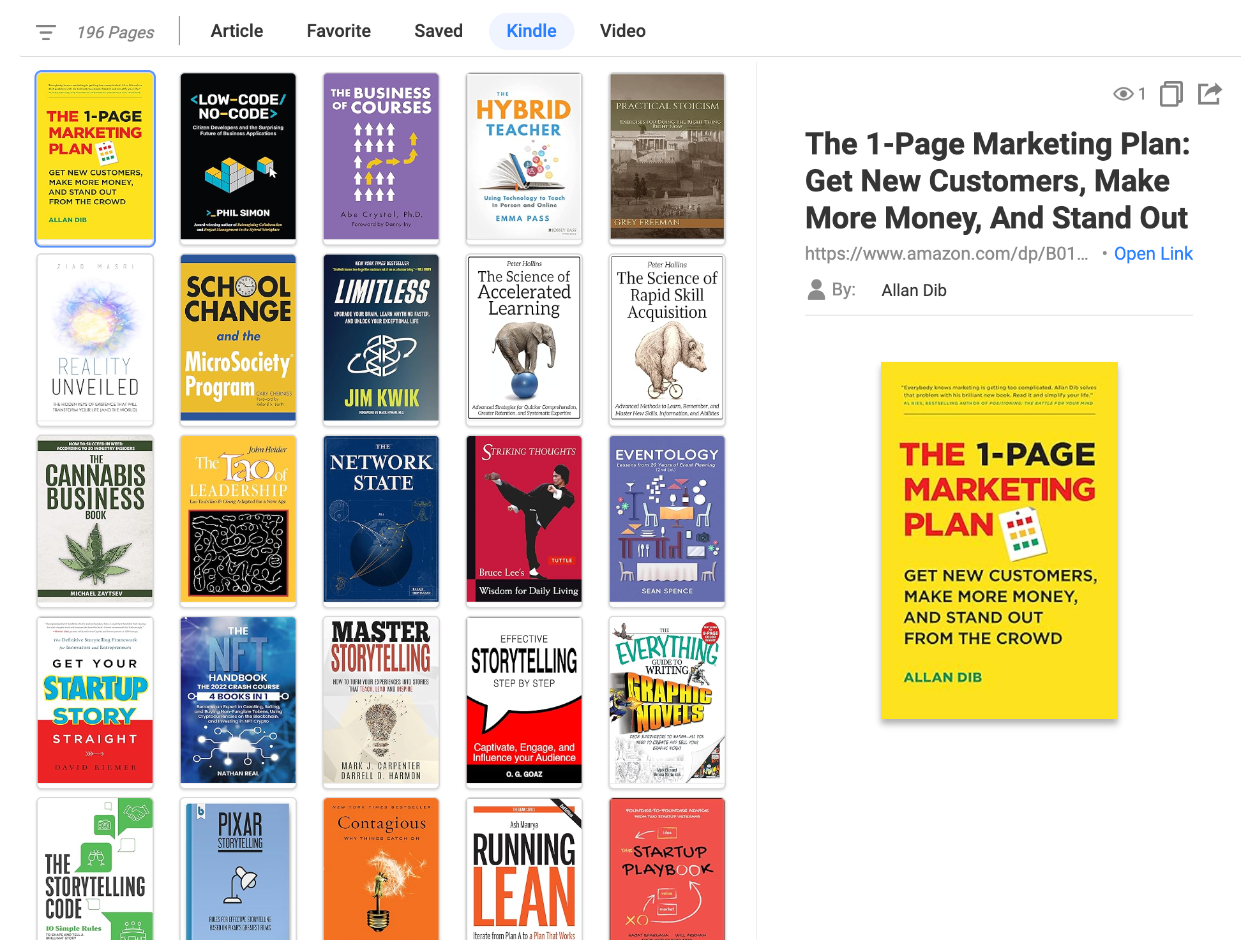
A quick and easy way, isn’t it? You can copy and paste Kindle highlights without any export limits just by clicking a few buttons. If you'd like to build your online bookshelf, please sign up for Glasp.
FAQs
Do I need any paid tools to save Kindle highlights to Google Keep?
No. You can use Glasp for free to collect and save your Kindle highlights. Once they are in Glasp, simply copy and paste them into Google Keep. There’s no need for any premium subscription or third-party paid software.
Can I export Kindle highlights in Markdown format for Google Keep?
Yes. Glasp lets you copy your Kindle highlights in Markdown format. When you paste them into Google Keep, the formatting remains clean and structured, so your notes are readable and easy to scan.
Can I organize Kindle highlights inside Google Keep?
Yes! Once you paste your Kindle highlights into Google Keep, you can organize them with labels, colors, or even pin them for quick access. This makes it easy to manage and review your highlights whenever you want.
📚 Want to do more with your Kindle highlights?
👉 How to Export Kindle Highlights & Notes
👉 Try Kindle Highlights Exporter for free
Can Claude or ChatGPT read my Glasp highlights?
Yes. With the Glasp MCP Connector, AI assistants such as Claude, ChatGPT, and Claude Code can search and read your own highlights, notes, Kindle highlights, and AI summaries, including your YouTube summaries. The connection is read-only and private to you. See How to Connect Glasp to Claude, ChatGPT, and Claude Code (MCP Connector).
Before you leave
Thanks for reading. We hope this tutorial helps you save and organize your Kindle highlights more effectively.
See you next time,
Glasp team
–