How to Review Kindle Highlights Daily with Glasp

Feb 20, 2026
5 min read
268 views
Daily Kindle Review is a free feature by Glasp that automatically sends your Kindle highlights to your inbox every day. To set it up, install the Glasp browser extension, import your Kindle highlights, and enable Daily Kindle Review in Settings. You'll receive 5 random highlights each morning to help you remember and retain what you read.
Why Review Your Kindle Highlights Daily?
Most readers highlight passages on Kindle but never revisit them. Studies on spaced repetition show that reviewing notes regularly is one of the most effective ways to retain knowledge. Daily Kindle Review automates this process — bringing your best highlights back to you without any effort.
This tutorial will show you how to set up Daily Kindle Review step by step.
Step 1: Sign up for Glasp
Select a browser: Google Chrome, Brave, Safari, Microsoft Edge, Firefox, etc.
On your search tab, type in “glasp.co" and you will be automatically directed to the page of Glasp. Or access it from the link below.
👉 Glasp — Kindle Highlights Review
Upon reaching it click “Sign up” and continue using your Google Account.

You can sign up for Glasp with either Google Sign-in or Apple Sign-in. If you’re not an iPhone/iPad user, we strongly recommend you use Google Sign-in.
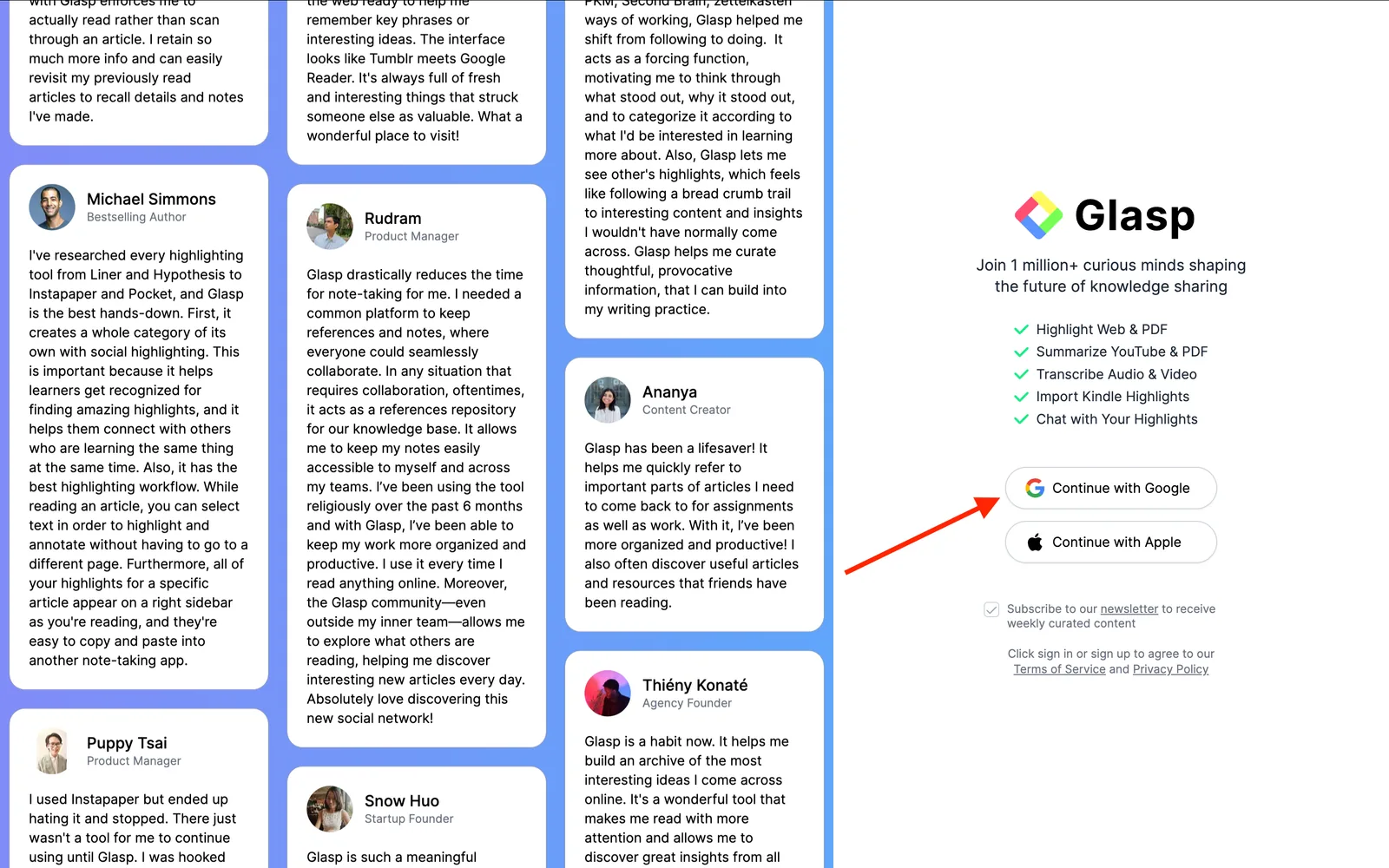
After finalizing your account, you will be redirected to the Chrome Web Store.
Step 2: Install the Glasp extension to your browser
Click Add to Chrome(Brave, Safari, Edge, or Firefox) and install Glasp to your chosen browser.
After you install the extension, make sure you pin it on the toolbar. It makes it easier to open the Glasp on the sidebar. If you're asked to sign in to Glasp on the sidebar, please do it.

Step 3: Go to your Glasp profile page
Once you’ve installed the Glasp extension and signed in, go to your profile page by clicking the Profile icon in the sidebar.
This will take you to your Profile page. Now, click Kindle at the top.
Step 4: Sign in to Kindle Cloud Reader
After you install Glasp, please visit Kindle Cloud Reader. You can search Kindle Cloud Reader on Google. And the page's URL is like https://read.amazon.com or https://read.amazon.co.jp

Step 5: Select a Kindle book to receive Daily Kindle Review
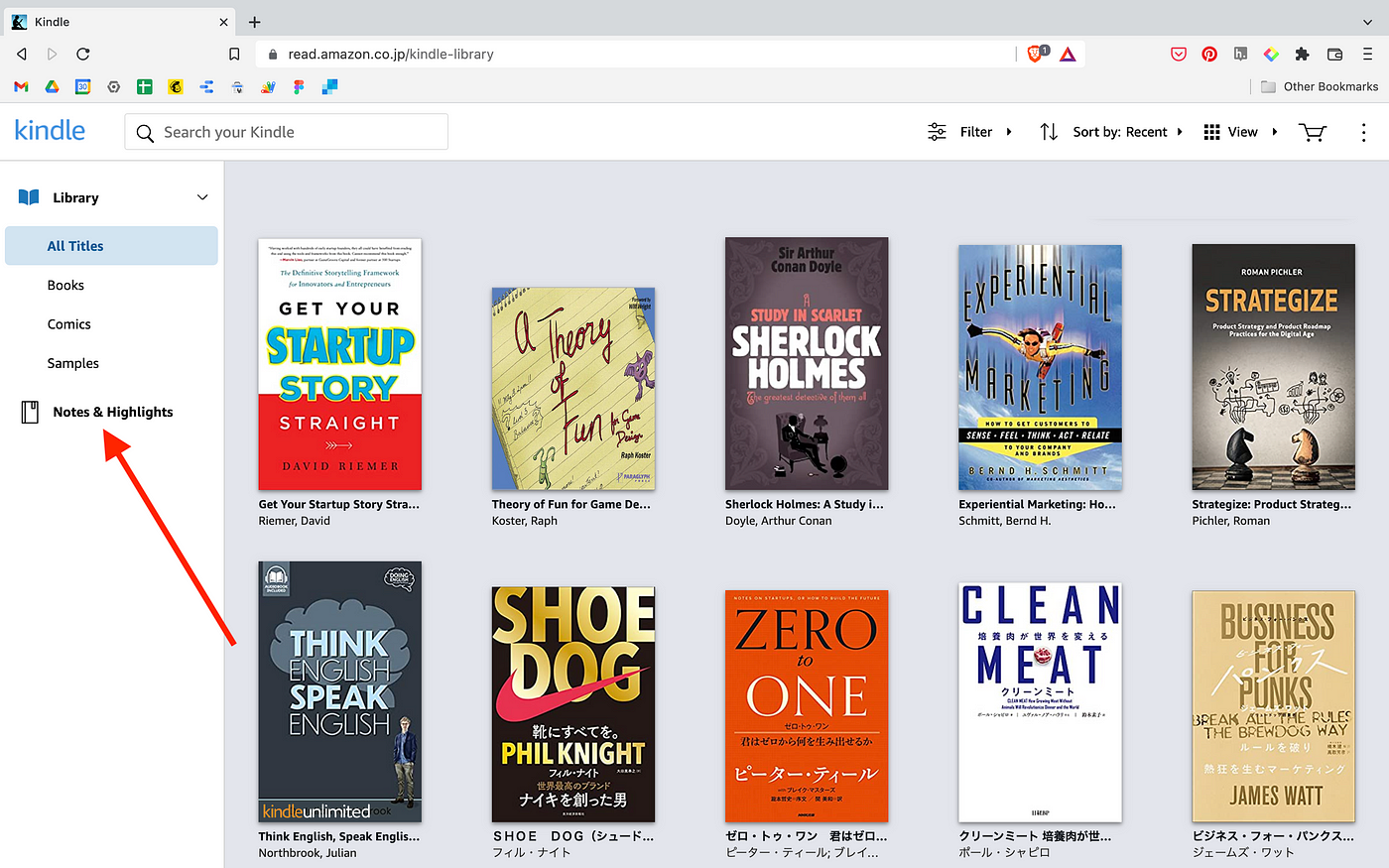
If you can successfully log in to Kindle Cloud Reader, you can see a page like below. So, please click Notes & Highlights on the left.
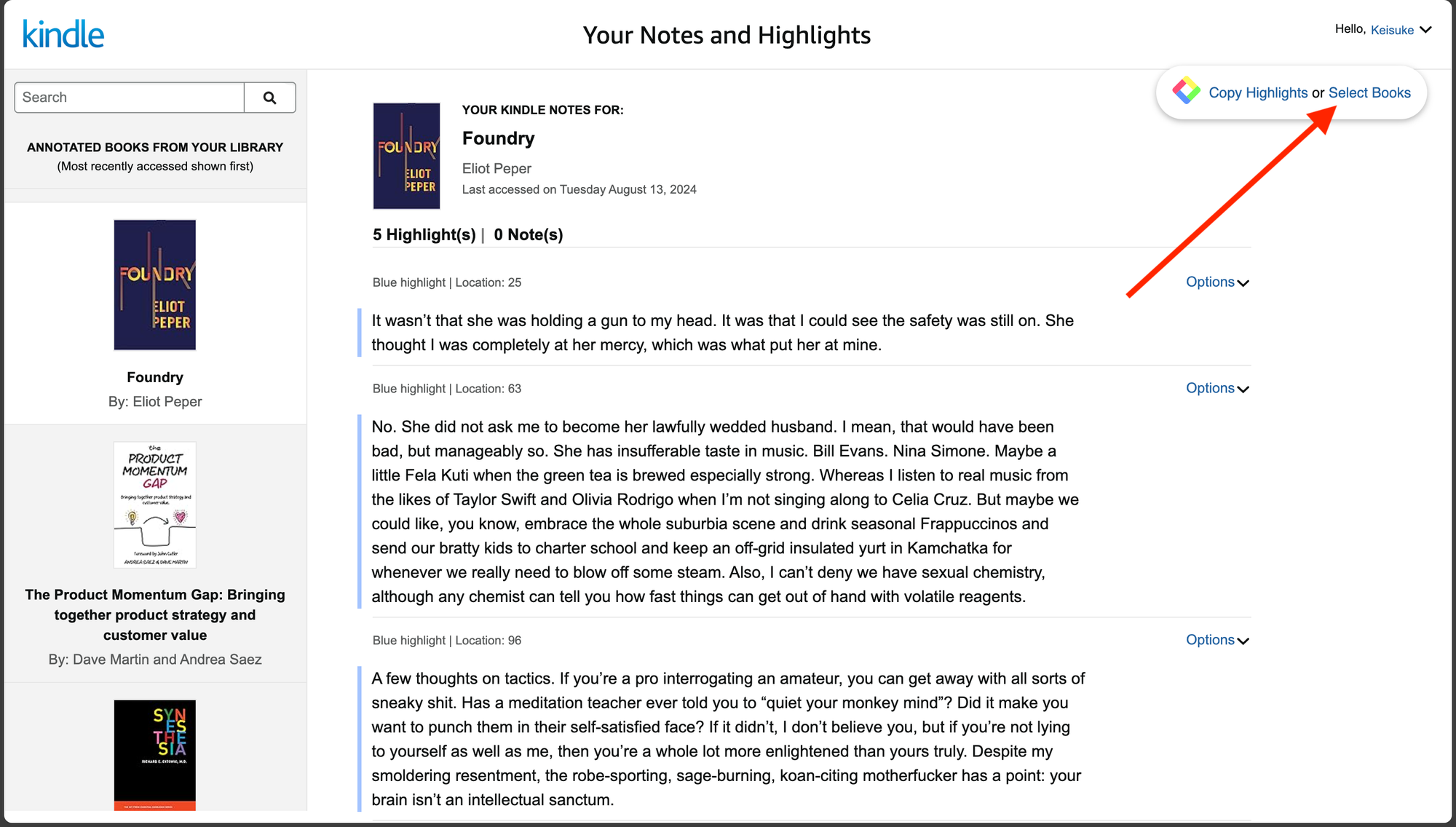
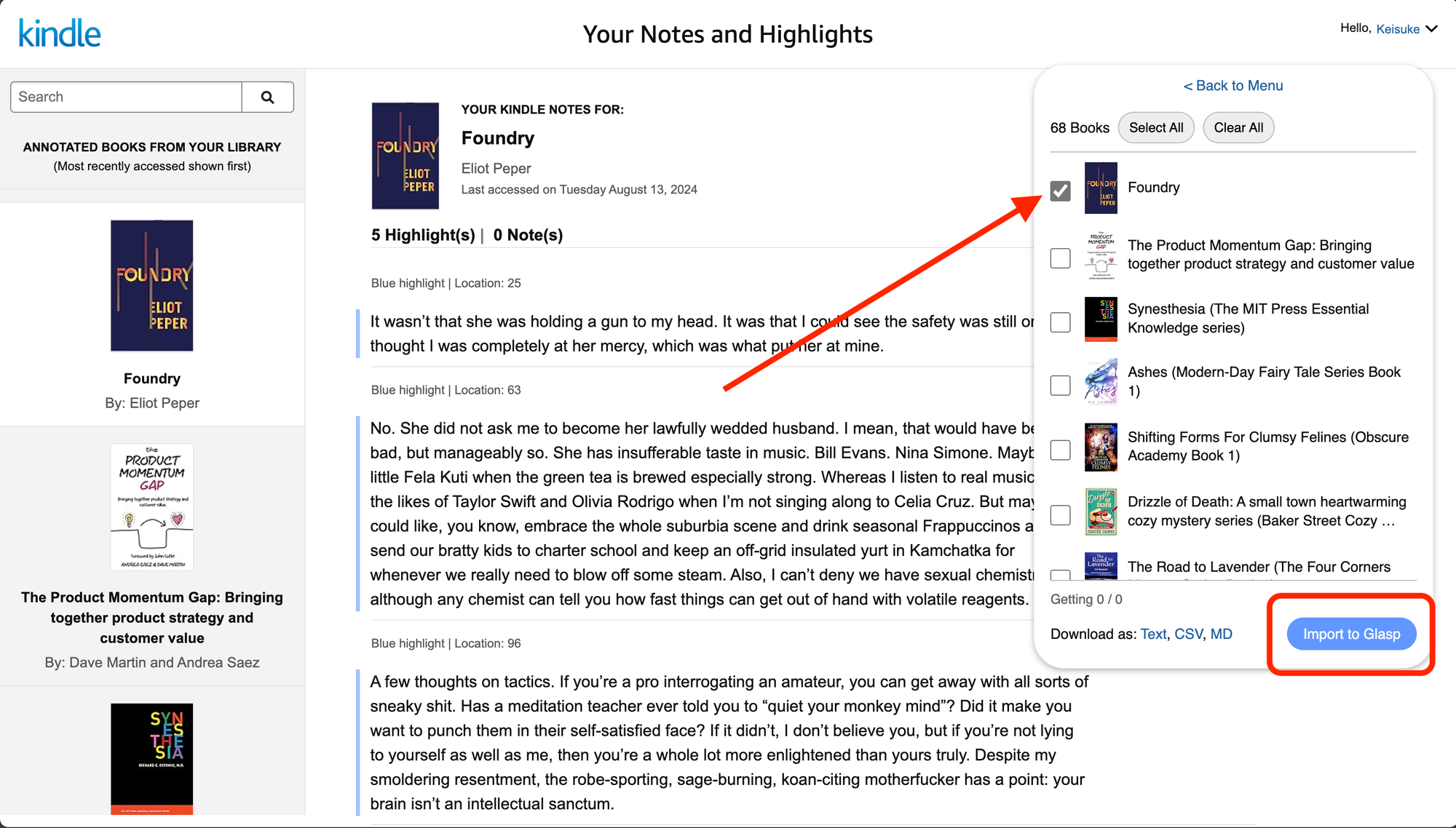
You can see a page below. Select a book to copy highlights on the left. Then, please click Select Books on the Glasp modal at the top right. If you cannot see the modal, so make sure that you've successfully installed it.
Then, please select books you’d like to receive daily review. After selecting books, click Import to Glasp at the bottom right.
Step 6: Go back to your profile page
After importing books, go back to your profile page. In the Kindle section, you’ll see all the Kindle books you’ve imported.
Step 7: Set up Daily Kindle Review
Click the Menu icon at the left. Then, select Settings on the modal.
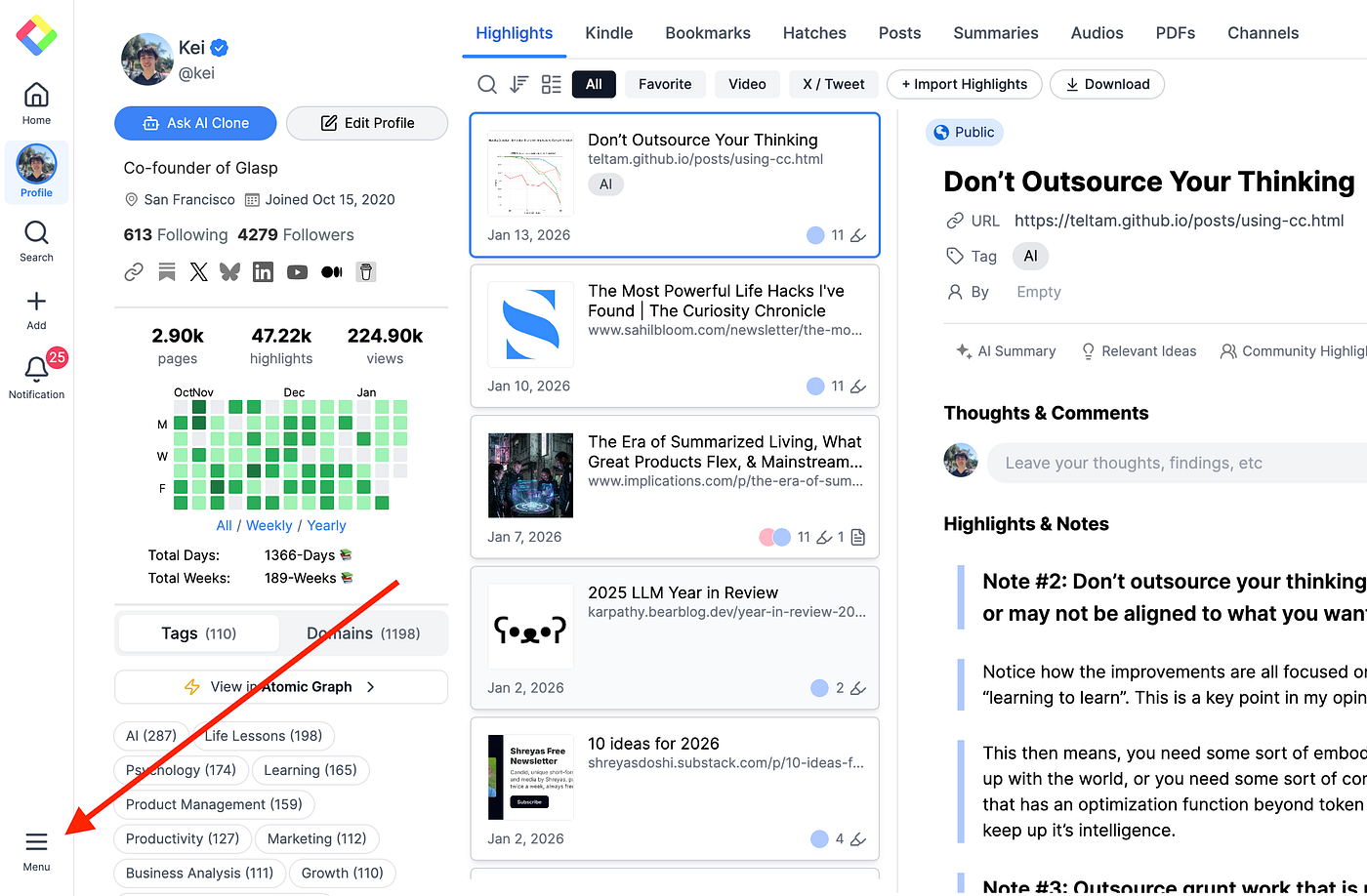
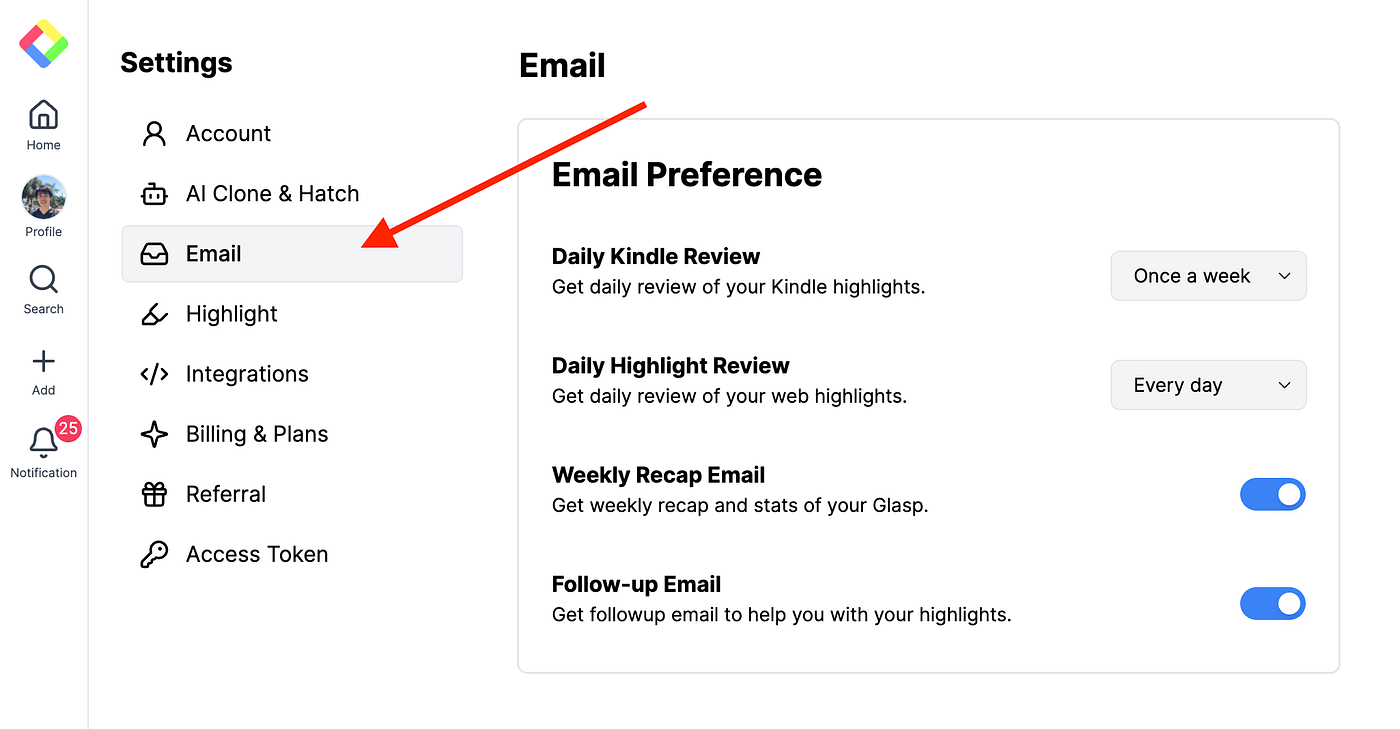
On the Settings page, click the Email section.
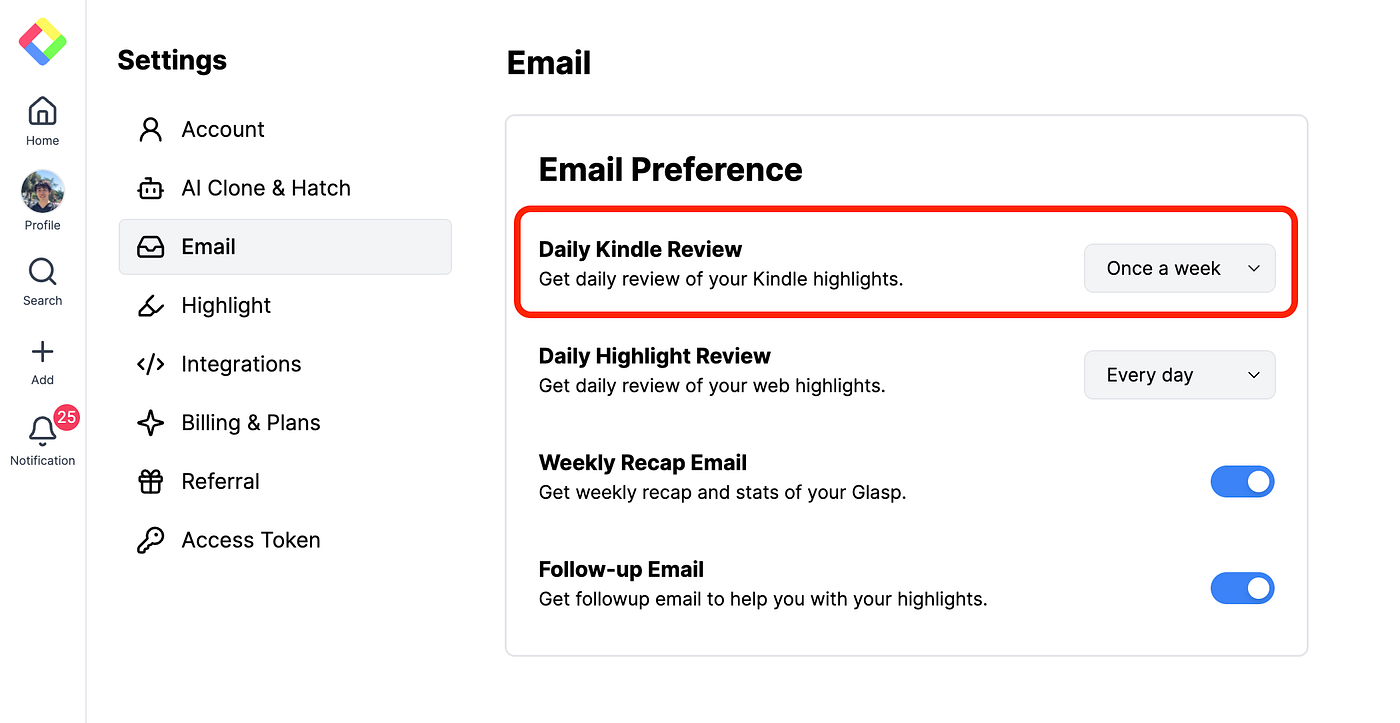
In the Email section, find Daily Kindle Review. Here, you can choose how often you’d like to receive your Kindle highlights.
Step 8: Receive Kindle Review
Once you’ve set it up, you’ll start receiving Daily Kindle Review emails from Glasp.
Here’s the example:
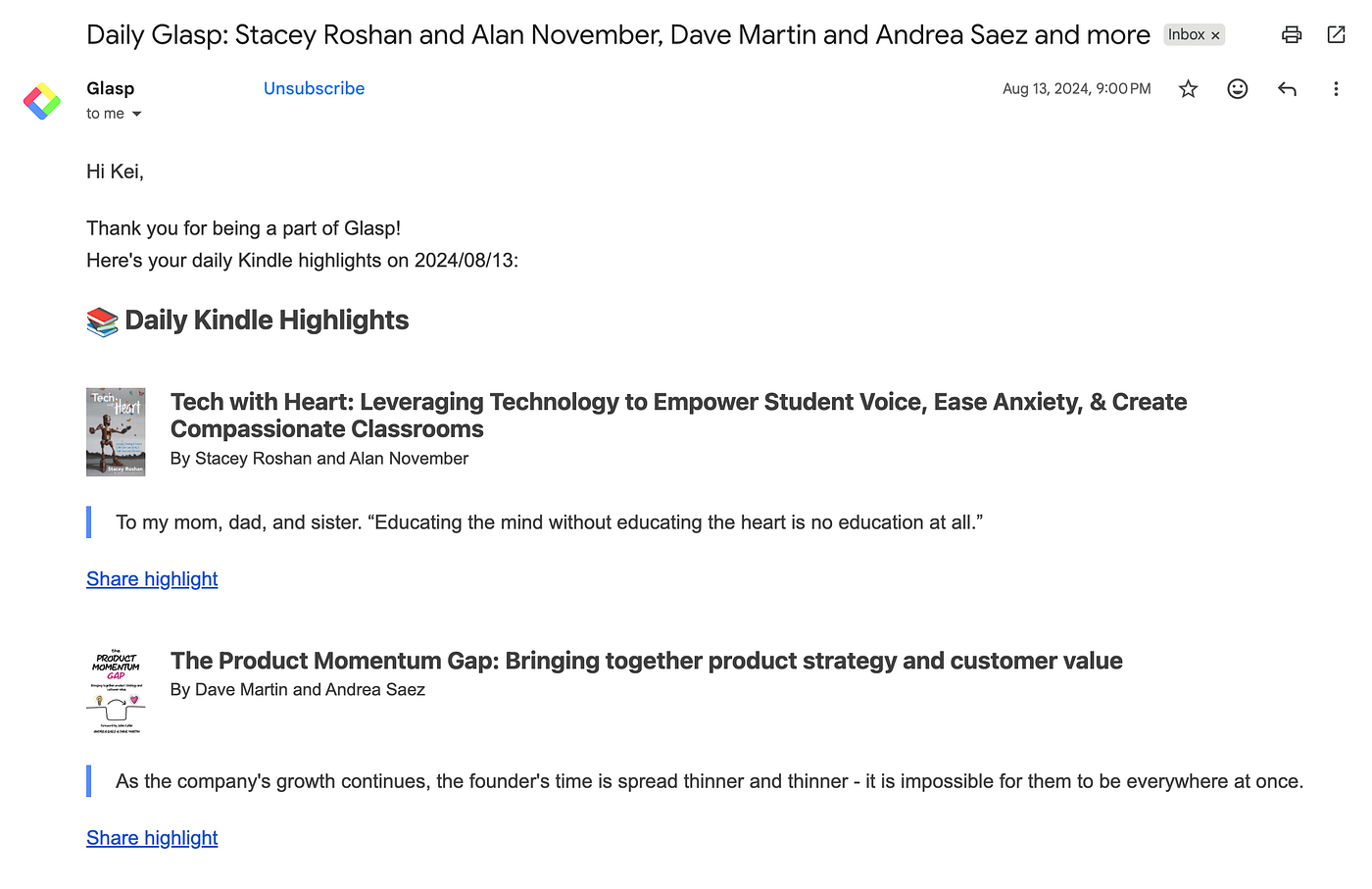
If you click Share highlight in the email, you can share it directly on X (Twitter).
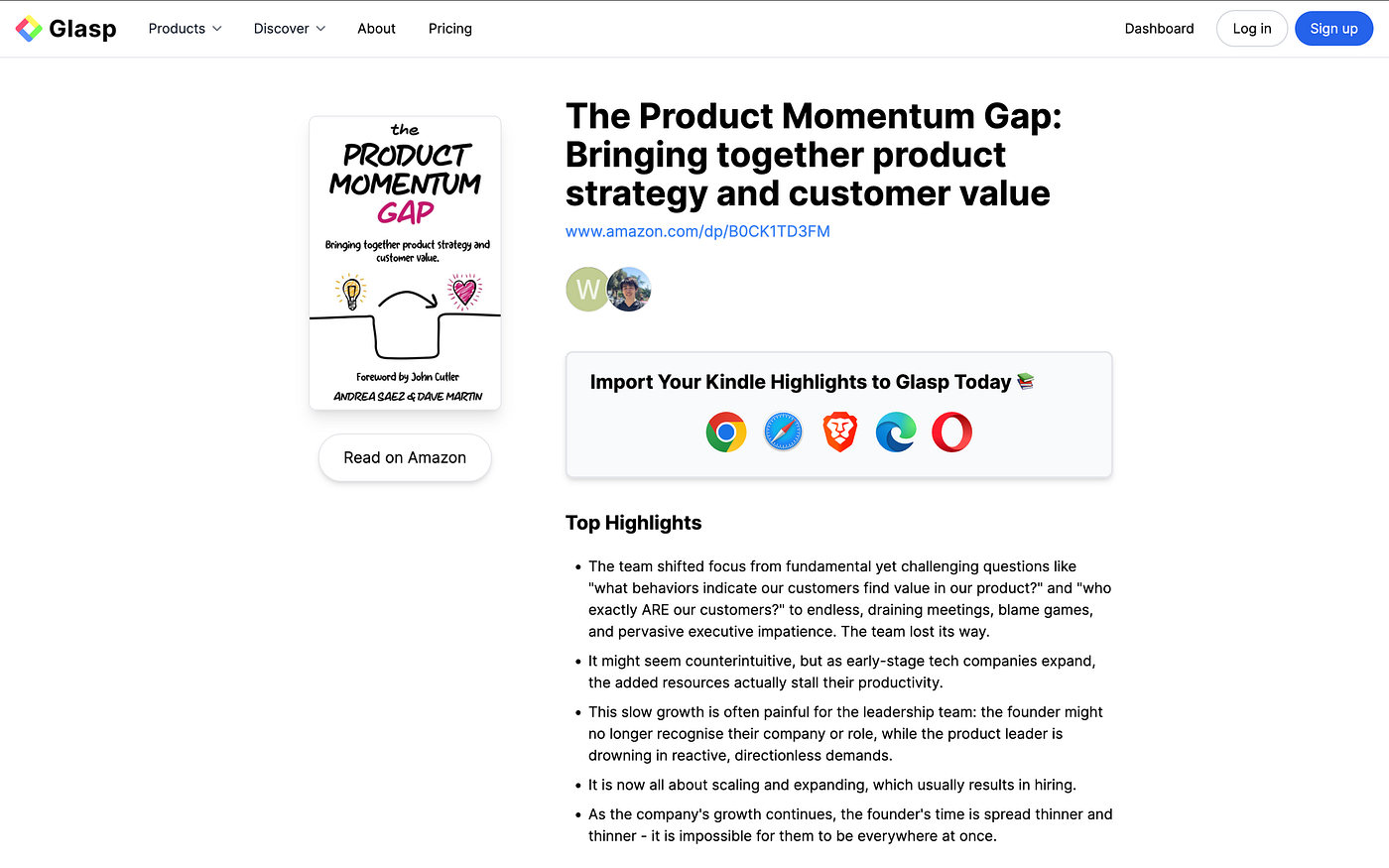
Also, click the book title in the email to open the Top Highlights page.
FAQs
Q: Is Daily Kindle Review free to use?
Yes, Daily Kindle Review is completely free to use with Glasp. You just need to sign up and connect your Kindle highlights.
Q: Can I choose which books to include in my Daily Kindle Review?
Yes, when you import your Kindle highlights into Glasp, you can select specific books. Only the books you choose will be included in your Daily Kindle Review.
Q: How often will I receive Daily Kindle Review emails?
You can adjust the frequency in your Glasp settings. By default, it’s daily, but you can change it to twice a week or once a week.
Q: Can I review my highlights without email?
Yes! In addition to email, you can review your highlights directly inside Glasp on your profile page.
Q: What happens if I stop using Kindle?
You’ll still keep all the highlights you’ve already imported into Glasp, and you can continue reviewing them anytime.
Q: How is this different from other services like Readwise?
Glasp is not just a review tool — it’s also a social platform where you can see what others are reading, share highlights, and connect with like-minded people.
Q: Can I share my highlights with others?
Yes, you can easily share your highlights on X (Twitter) or other platforms directly from your Daily Kindle Review email or from Glasp.
📚 Want to do more with your Kindle highlights?
👉 How to Export Kindle Highlights & Notes
👉 Try Daily Kindle Review for free
Can Claude or ChatGPT read my Glasp highlights?
Yes. With the Glasp MCP Connector, AI assistants such as Claude, ChatGPT, and Claude Code can search and read your own highlights, notes, Kindle highlights, and AI summaries, including your YouTube summaries. The connection is read-only and private to you. See How to Connect Glasp to Claude, ChatGPT, and Claude Code (MCP Connector).
Before you leave
Thanks for reading. We hope this tutorial helps you save and organize your Kindle highlights more effectively.
See you next time,
Glasp team
–