How to Copy and Paste Kindle Highlights Beyond the Export Limits

Feb 20, 2026
4 min read
1068 views
You can copy and paste Kindle highlights into note-taking apps like Notion by exporting them with Glasp and keeping them fully searchable. Your highlights are valuable learning assets, and saving them outside Kindle helps you revisit and remember what you read anytime.
However, Kindle has strict copy-and-paste limits. Unless you use specific Kindle devices, you may not be able to export all your highlights to your computer, and many readers struggle with limits such as 1% or 3% export restrictions.
In this article, you’ll learn how to copy and paste Kindle highlights beyond export limits using Glasp. With Glasp, you can copy, paste, and export all your Kindle highlights as CSV, Markdown (MD), or TXT files without worrying about limits.
How to Download Highlights & Notes from Kindle
Step 1: Install the Glasp browser extension
To copy all the Kindle highlights with one click, you need to have the Glasp browser extension. It works on Chrome, Brave, Edge, Safari, and Firefox. Please install the extension accordingly.
👉 Safari
Step 2: Sign in to Kindle Cloud Reader
After you install Glasp, please visit Kindle Cloud Reader. You can search Kindle Cloud Reader on Google. And the page's URL is like https://read.amazon.com or https://read.amazon.co.jp

Step 3: Select a Kindle book to copy highlights
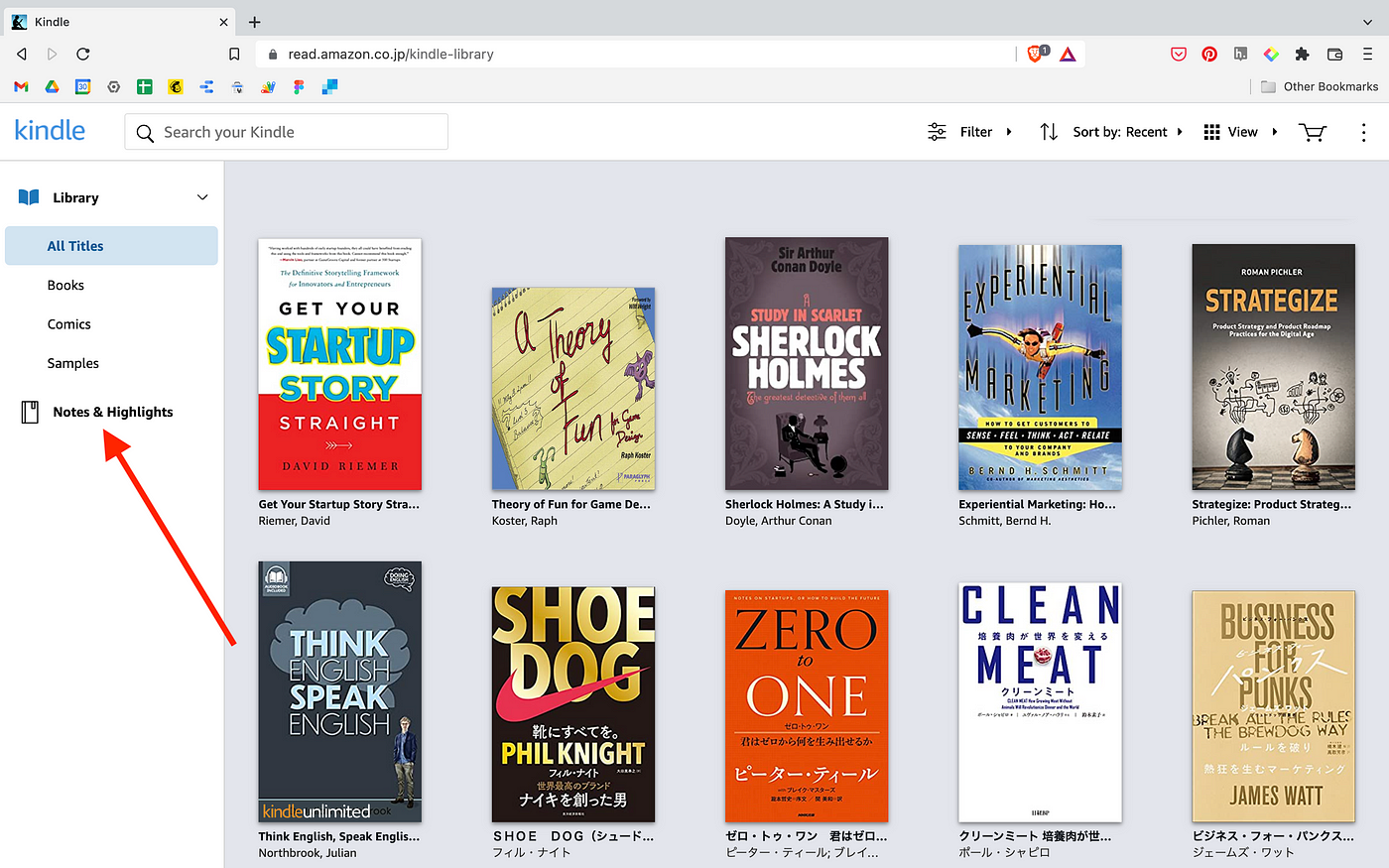
If you can successfully log in to Kindle Cloud Reader, you can see a page like below. So, please click Notes & Highlights on the left.
You can see a page below. Select a book to copy highlights on the left. Then, please click Copy Highlights on the Glasp modal at the top right. If you cannot see the modal, so make sure that you've successfully installed it.
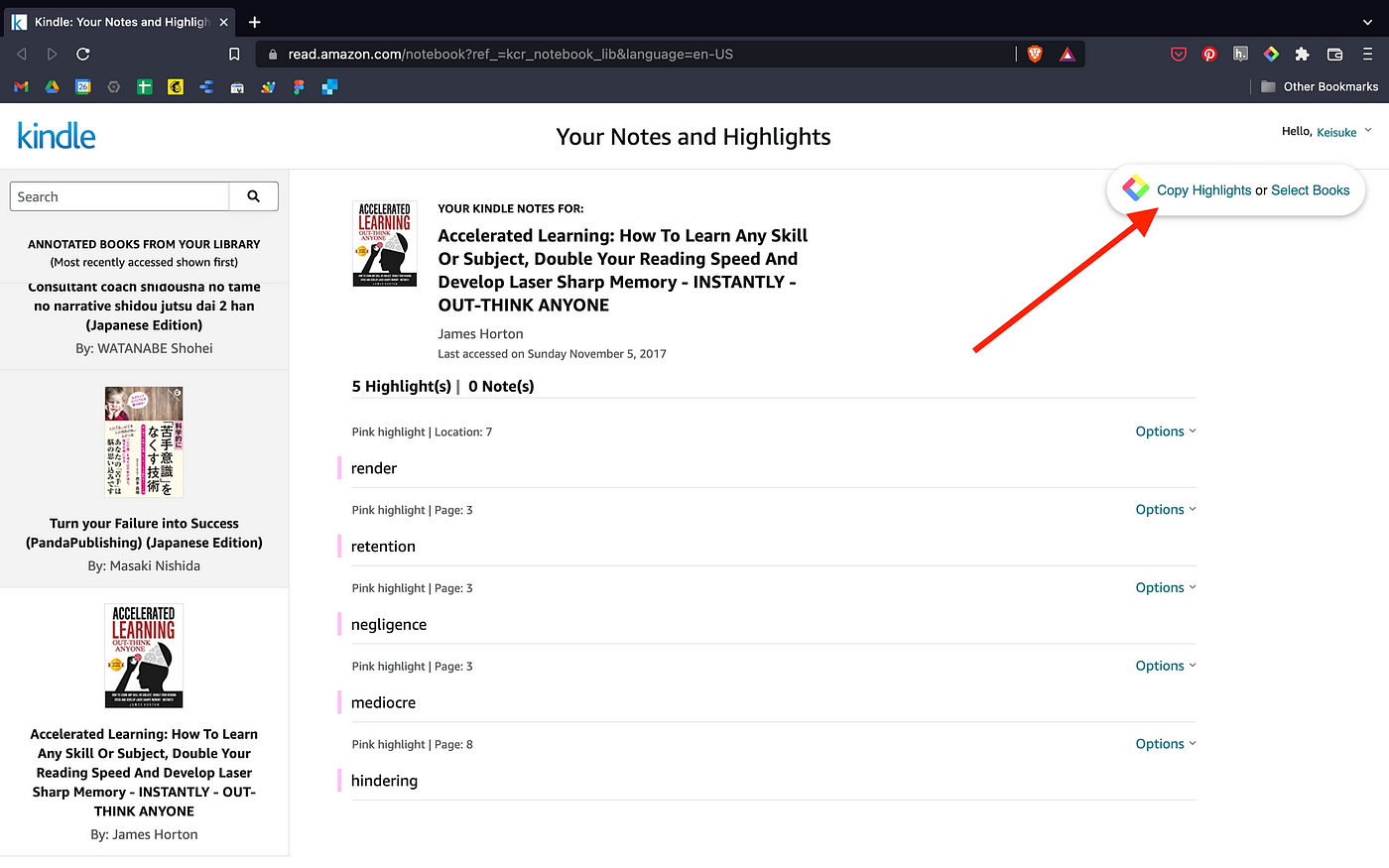
It's a bulk copy-and-paste feature, so you can capture all the highlights from that Kindle book.
Step 4: Paste Kindle highlights into a note-taking app
If you click "Copy Highlights," all the highlights are copied and are in the clipboard. So, open any note-taking app you'd like to paste the highlights.
We'll take Notion as an example in this tutorial. If you open an empty page on Notion and paste the highlights, you can see a page like below.
Not only the highlights but also metadata such as a title, a thumbnail image, the author of the book, and a link to the book are included. Please omit them if you don't need them.
(Optional) Step 5: Export Kindle highlights as a file
If you'd like to export Kindle highlights as a file(TXT, CSV, or MD), go back to the Kindle Cloud Reader page and click Select Books on the Glasp modal at the top right.

Next, choose as many books as you'd like to download. Click either Text, CSV, or MD at the bottom of the pop-up. It starts downloading.

Please name the file as you want. If you choose multiple books, they are downloaded as a folder.
A quick and easy way, isn’t it? You can copy and paste Kindle highlights without any export limits just by clicking a few buttons. If you'd like to build your online bookshelf, please sign up for Glasp.
FAQs
Q. Why does Kindle limit copy and paste of highlights?
Amazon restricts copy-paste to 1–3% of a book for copyright reasons. Glasp works around this by letting you bulk copy and export your highlights via Kindle Cloud Reader.
Q. Do I need a Kindle device to copy highlights with Glasp?
No. You only need access to Kindle Cloud Reader (https://read.amazon.com or https://read.amazon.co.jp) on your browser.
Q. Which formats can I export my Kindle highlights in?
Glasp supports TXT, CSV, and Markdown (MD) file formats for easy use in note-taking apps.
Q. Can I copy highlights from multiple books at once?
Yes. You can select multiple Kindle books inside the Glasp modal and export them all at once.
Q. Do copied highlights include metadata like book title and author?
Yes. When you paste into Notion or another app, your highlights come with title, author, book link, and thumbnail image (which you can delete if unnecessary).
Q. Is Glasp free to use for Kindle highlights?
Yes. Copy-paste and export features are free. Some advanced options (like private storage or premium integrations) may require an upgrade.
📚 Want to do more with your Kindle highlights?
👉 How to Export Kindle Highlights & Notes
👉 Try Kindle Highlights Exporter for free
Can Claude or ChatGPT read my Glasp highlights?
Yes. With the Glasp MCP Connector, AI assistants such as Claude, ChatGPT, and Claude Code can search and read your own highlights, notes, Kindle highlights, and AI summaries, including your YouTube summaries. The connection is read-only and private to you. See How to Connect Glasp to Claude, ChatGPT, and Claude Code (MCP Connector).
Before you leave
Thanks for reading. We hope this tutorial helps you save and organize your Kindle highlights more effectively.
See you next time,
Glasp team
–