How to Save Kindle Highlights to Notability with Glasp

Jan 31, 2026
5 min read
43 views
Do you want to save your Kindle highlights to Notability so you can organize your reading notes alongside your other work and ideas? While Kindle is great for reading, it doesn’t provide a simple way to move highlights into Notability for long-term note-taking.
With Glasp, you can easily export your Kindle highlights from Kindle Cloud Reader and copy them into Notability in just a few steps. Glasp removes Kindle’s export limits and lets you collect all your highlights in one place, making them easy to reuse across your workflow.
In this tutorial, you’ll learn how to save Kindle highlights to Notability using Glasp, step by step. By the end, you’ll be able to turn your Kindle highlights into organized Notability pages you can edit, annotate, and revisit anytime.
Step 1: Sign up for Glasp
Select a browser: Google Chrome, Brave, Safari, Microsoft Edge, Firefox, etc.
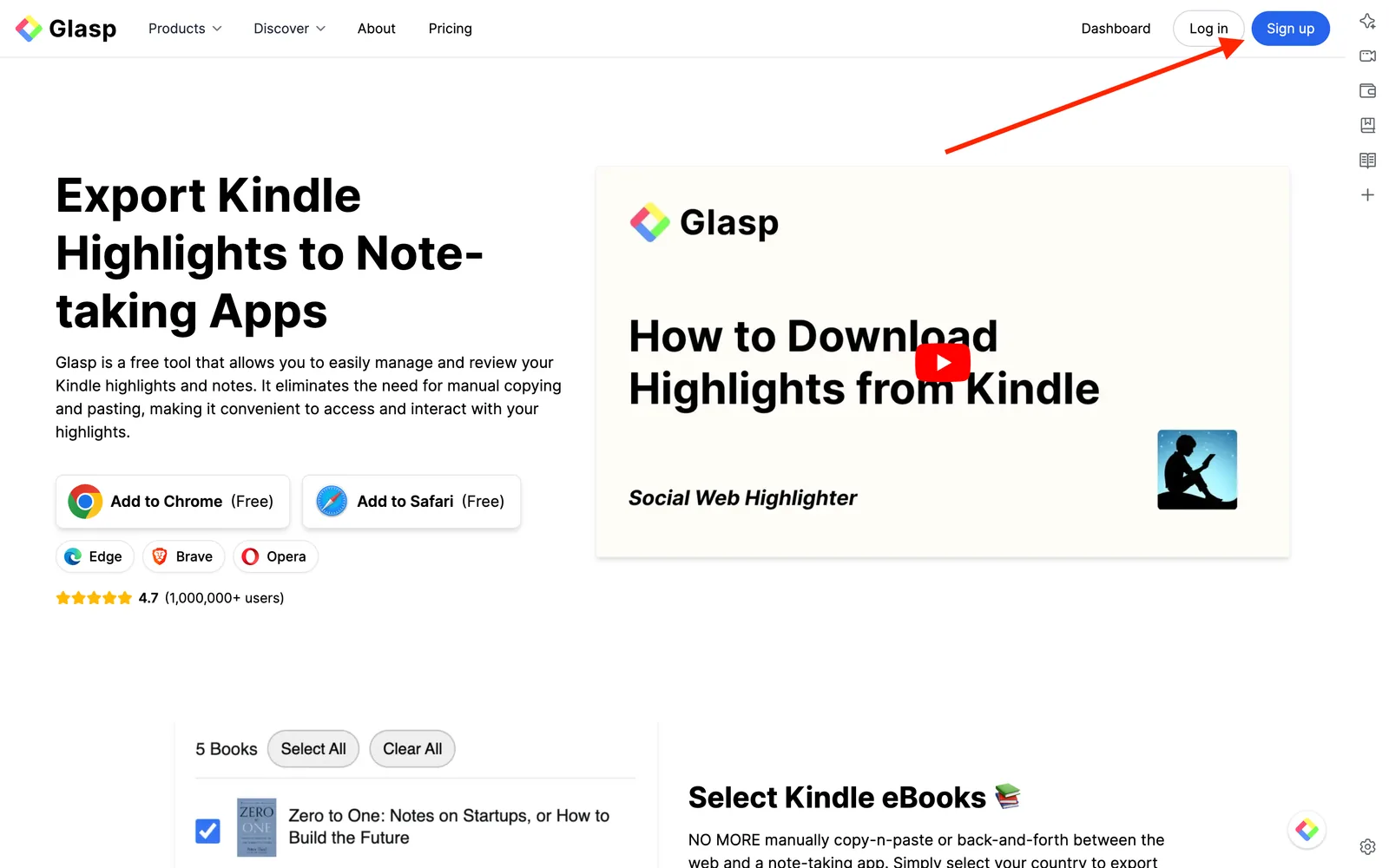
On your search tab, type in “glasp.co” and you will be automatically directed to the page of Glasp. Or access it from the link below.
👉 Glasp — Kindle Highlights Exporter
Upon reaching it click “Sign up” and continue using your Google Account.
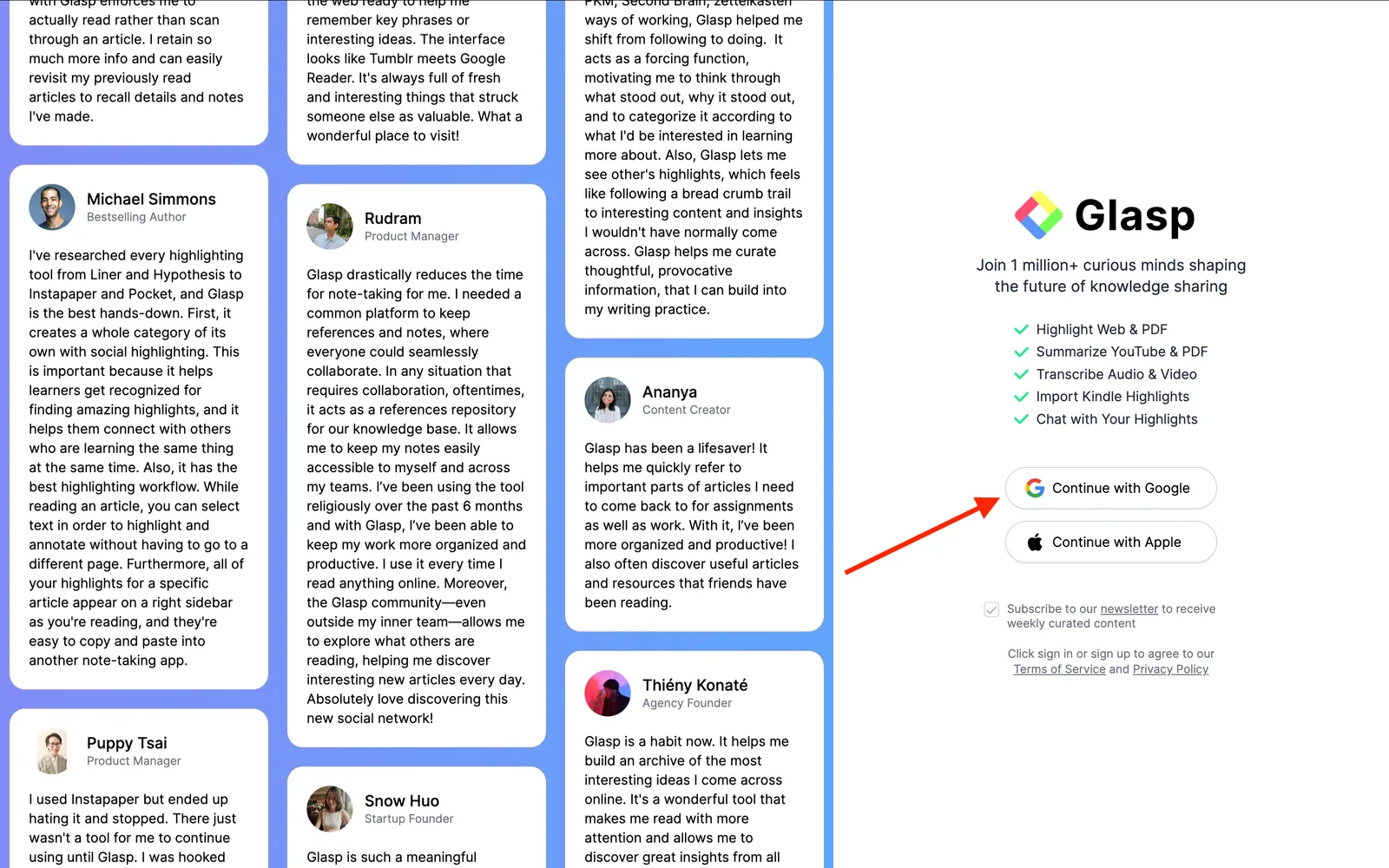
You can sign up for Glasp with either Google Sign-in or Apple Sign-in. If you're not an iPhone/iPad user, we strongly recommend you use Google Sign-in.
After finalizing your account, you will be redirected to the Chrome Web Store.
Step 2: Install the Glasp extension to your browser
Click Add to Chrome(Brave, Safari, Edge, or Firefox) and install Glasp to your chosen browser.
After you install the extension, make sure you pin it on the toolbar. It makes it easier to open the Glasp on the sidebar. If you're asked to sign in to Glasp on the sidebar, please do it.

Step 3: Go to your Glasp profile page
Once you’ve installed the Glasp extension and signed in, go to your profile page by clicking the Profile icon in the sidebar.
This will take you to your Profile page. Now, click Kindle at the top.
Step 4: Sign in to Kindle Cloud Reader
After you install Glasp, please visit Kindle Cloud Reader. You can search Kindle Cloud Reader on Google. And the page's URL is like https://read.amazon.com or https://read.amazon.co.jp

Step 5: Select a Kindle book to import to Notability
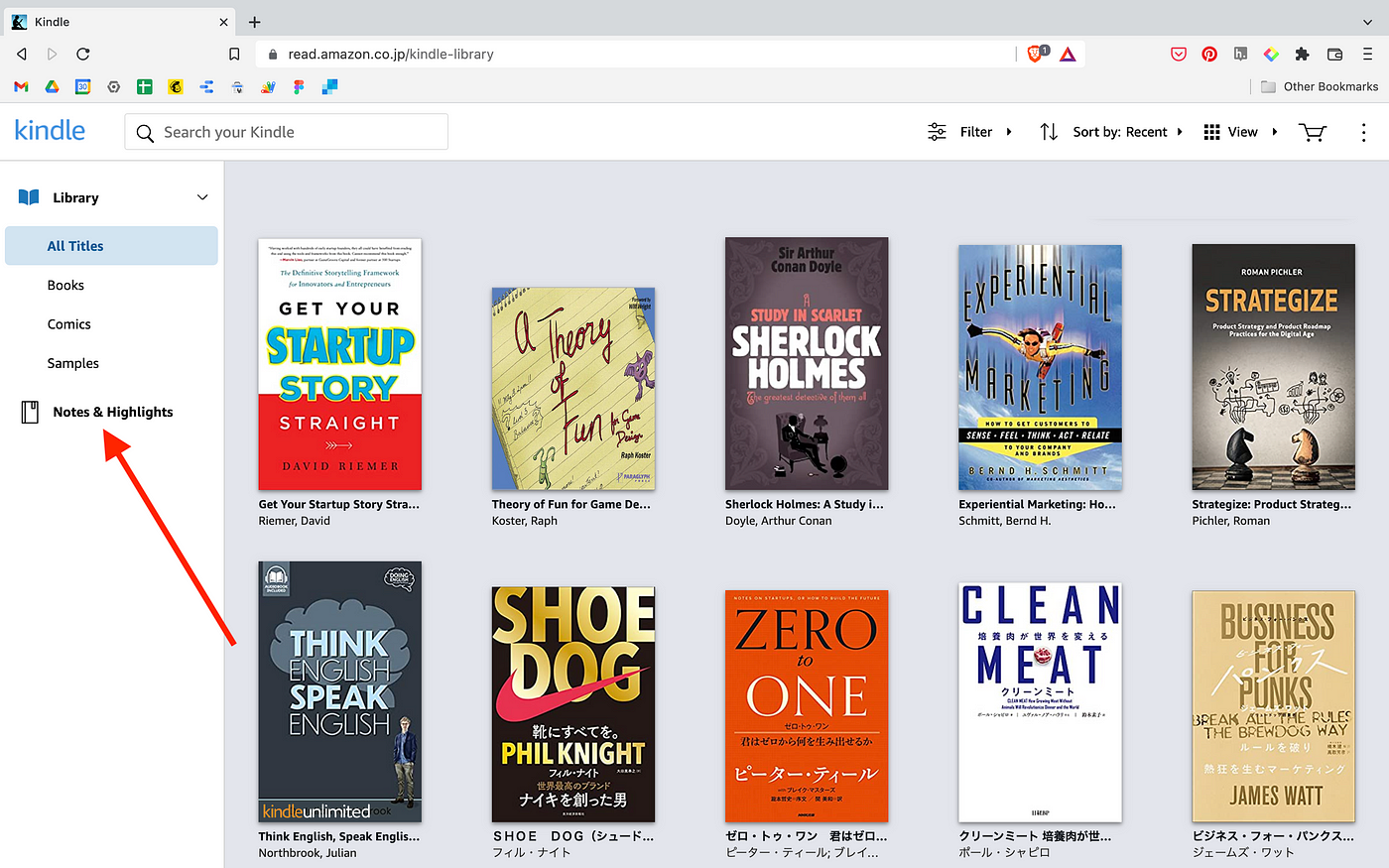
If you can successfully log in to Kindle Cloud Reader, you can see a page like below. So, please click Notes & Highlights on the left.
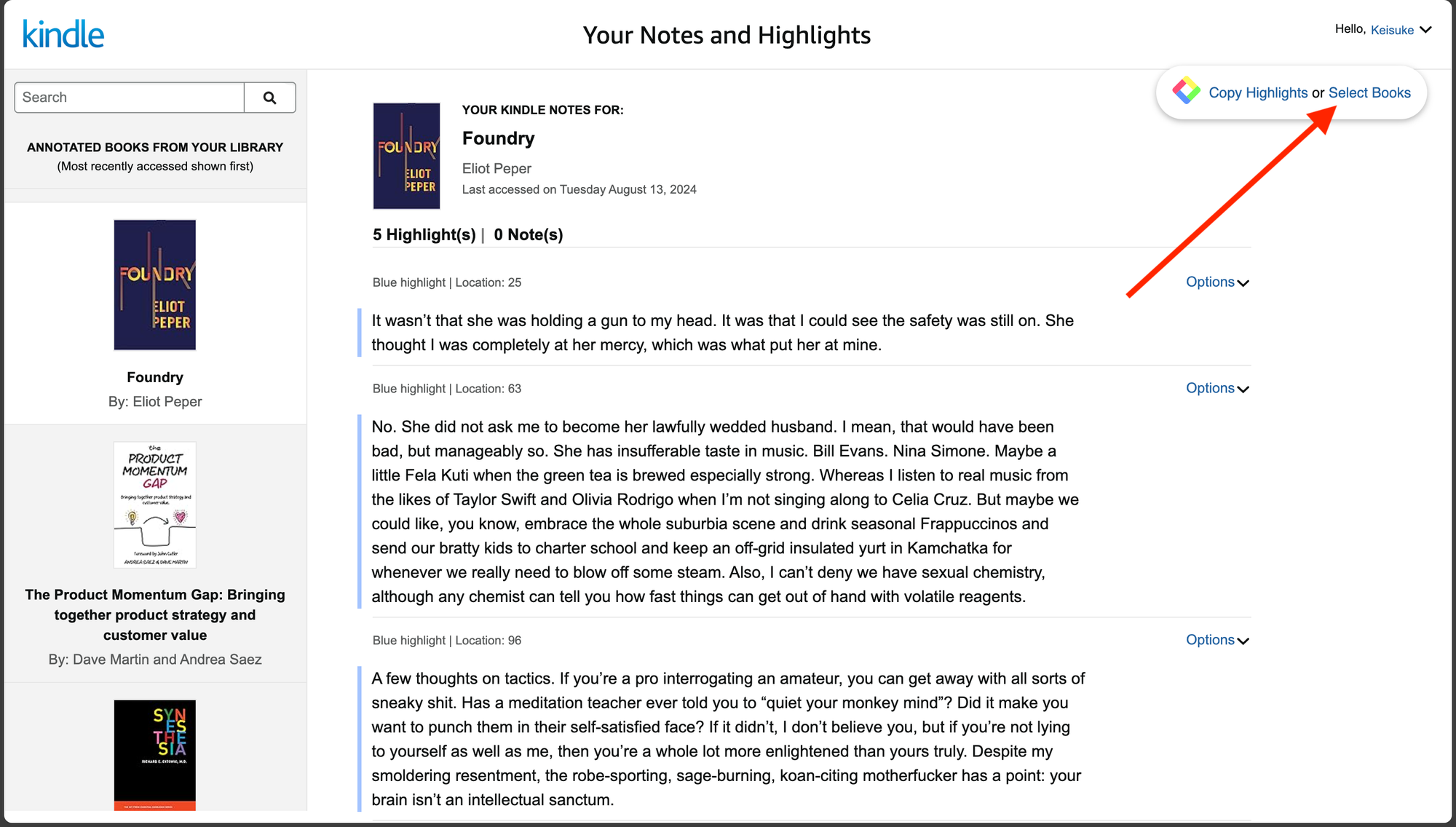
You can see a page below. Select a book to copy highlights on the left. Then, please click Select Books on the Glasp modal at the top right. If you cannot see the modal, so make sure that you've successfully installed it.
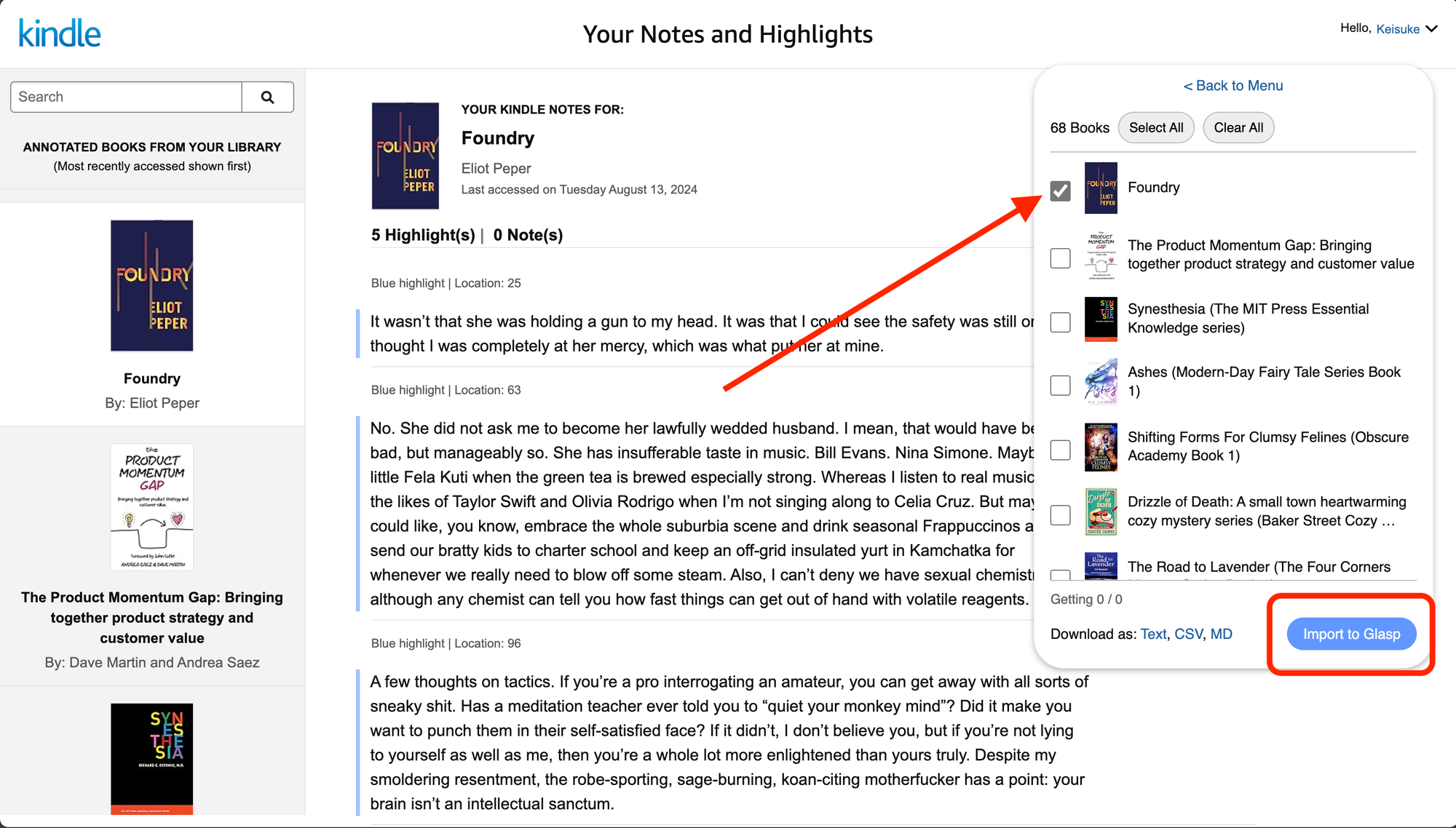
Then, please select books you'd like to import to Notability. After selecting books, click Import to Glasp at the bottom right.
Step 6: Copy Kindle Highlights from Your Profile Page
Go back to your Glasp profile page and refresh it. You should see the Kindle highlights you imported.
Then, click Copy Highlights at the top right.

Step 7: Paste Kindle highlights to Notability
Open Notability and paste the Kindle highlights you copied.
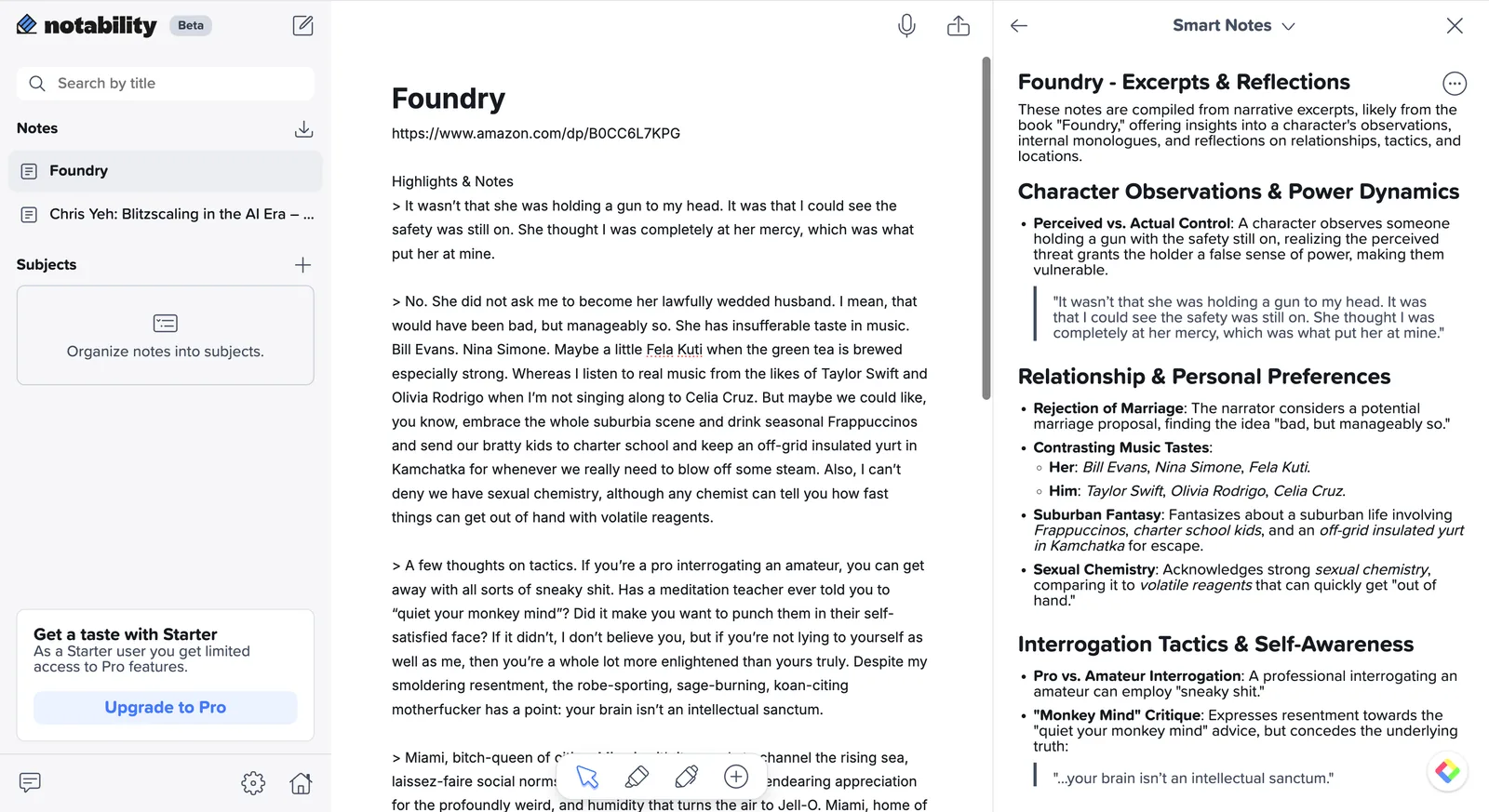
With Glasp, your Kindle highlights don’t just get exported—they become reusable building blocks you can link, revisit, and expand inside your notes. This makes it easier to move from reading to thinking, connecting, and creating.
FAQs
Can I save Kindle highlights directly to Notability?
Kindle doesn’t support direct export to Notability. With Glasp, you can copy your Kindle highlights and paste them into Notability easily, making it a simple workaround.
Do I need a paid Glasp account to export Kindle highlights?
No. You can export and copy Kindle highlights using Glasp’s free features without any export limits.
Does this work with all Kindle books?
It works with most Kindle books that allow highlighting in Kindle Cloud Reader. Some books may restrict highlighting due to publisher settings.
Can I organize Kindle highlights after pasting them into Notability?
Yes. Once pasted into Notability, you can edit, format, tag, and organize highlights into pages, sections, or notebooks.
Do I need to install the Glasp browser extension?
Yes. The Glasp browser extension is required to import Kindle highlights from Kindle Cloud Reader and access them from your Glasp profile.
Can I export highlights from multiple Kindle books at once?
Yes. Glasp allows you to select and import highlights from multiple Kindle books in one session.
Will my Kindle highlights stay private?
Not by default. Like all Glasp highlights, your Kindle highlights are public on your Glasp profile. To keep them private, switch to private mode, which requires a Pro or Unlimited plan.
Why use Glasp instead of manually copying highlights from Kindle?
Glasp helps you collect and manage all your highlights in one place, making it easier to reuse them across tools like Notability without repetitive manual copying.
📚 Want to do more with your Kindle highlights?
👉 How to Export Kindle Highlights & Notes
👉 Try Kindle Highlights Exporter for free
Can Claude or ChatGPT read my Glasp highlights?
Yes. With the Glasp MCP Connector, AI assistants such as Claude, ChatGPT, and Claude Code can search and read your own highlights, notes, Kindle highlights, and AI summaries, including your YouTube summaries. The connection is read-only and private to you. See How to Connect Glasp to Claude, ChatGPT, and Claude Code (MCP Connector).
Before you leave
Before you leave, remember that Kindle highlights become much more useful when they’re integrated into your everyday note-taking system. By saving your highlights to Notability, you can keep your reading notes alongside meeting notes, ideas, and research in one familiar place.
With Glasp, moving highlights from Kindle to Notability is simple and flexible, helping you turn reading into actionable notes instead of isolated quotes.
We hope this guide helps you build a smoother reading and note-taking workflow with Kindle, Glasp, and Notability.
Glasp team
–