How to Auto-Sync Kindle Highlights with Glasp

Apr 28, 2026
5 min read
165 views
Auto-Sync Kindle Highlights is a free Glasp feature (currently in Beta) that automatically imports new Kindle highlights on a schedule: daily, every 3 days, or weekly. To enable it, install the Glasp extension, sign in to your Kindle Cloud Reader, open the Glasp extension settings, go to Kindle Integration, and toggle Auto-sync to On.
Before You Begin
A free Glasp account Sign up here
Glasp browser extension (Chrome / Brave / Edge / Safari / Firefox)
Signed in to your Kindle Cloud Reader (read.amazon.com or your regional equivalent)
💡 If you haven't installed Glasp yet, see How to Download Highlights and Notes from Kindle for the setup walkthrough.
Step 1: Open Glasp Extension Settings
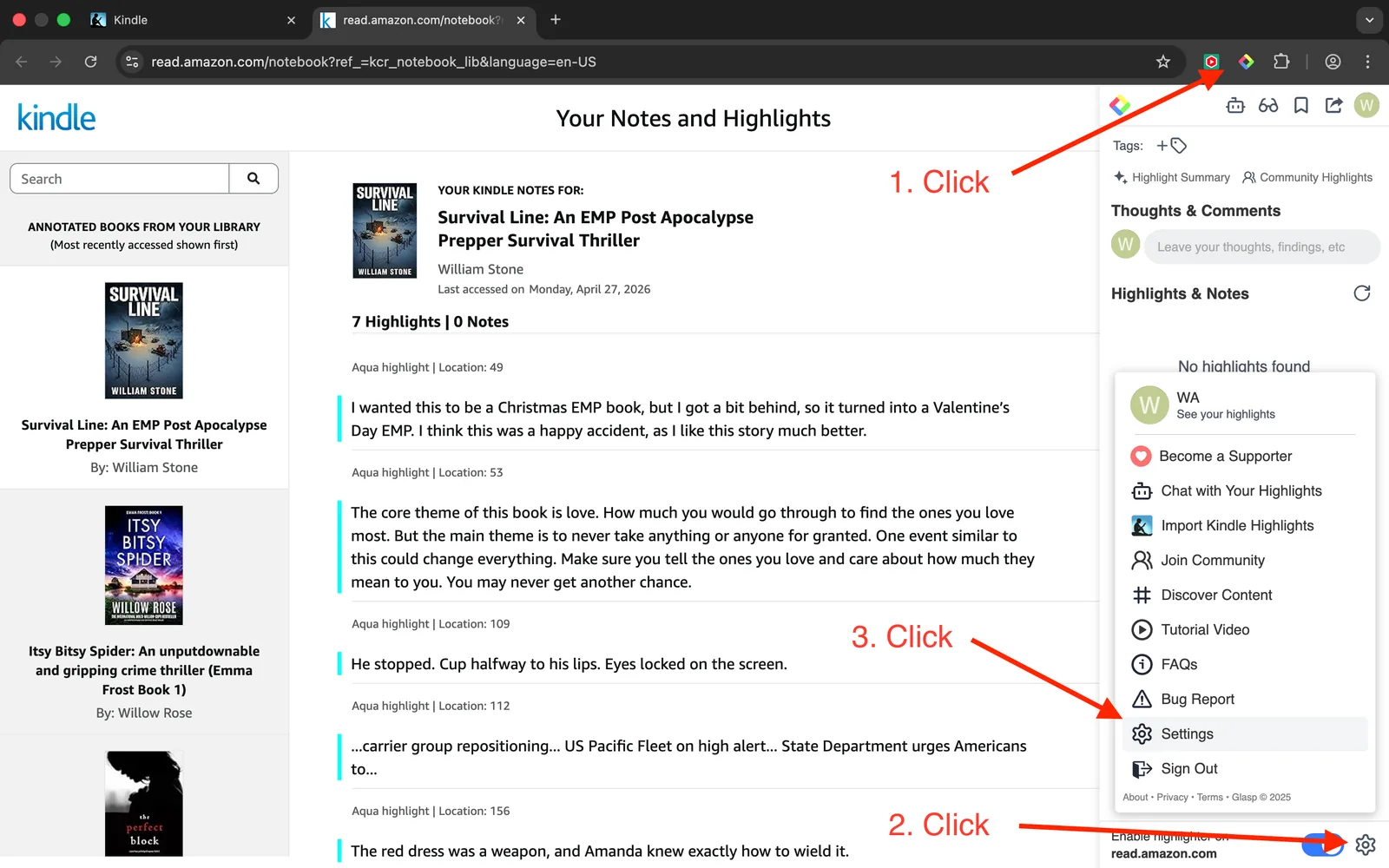
Click the Glasp icon in your browser toolbar and open Settings.
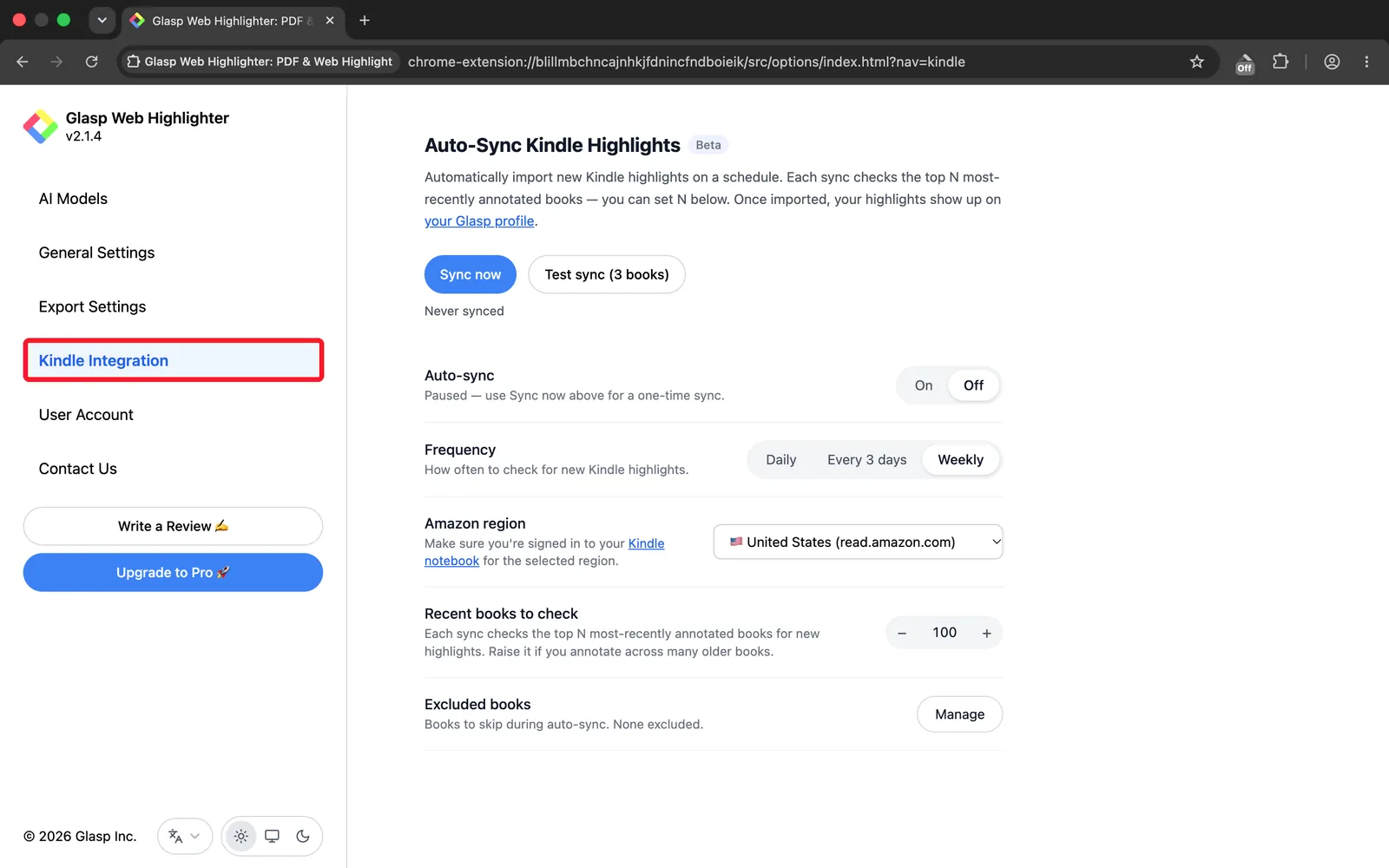
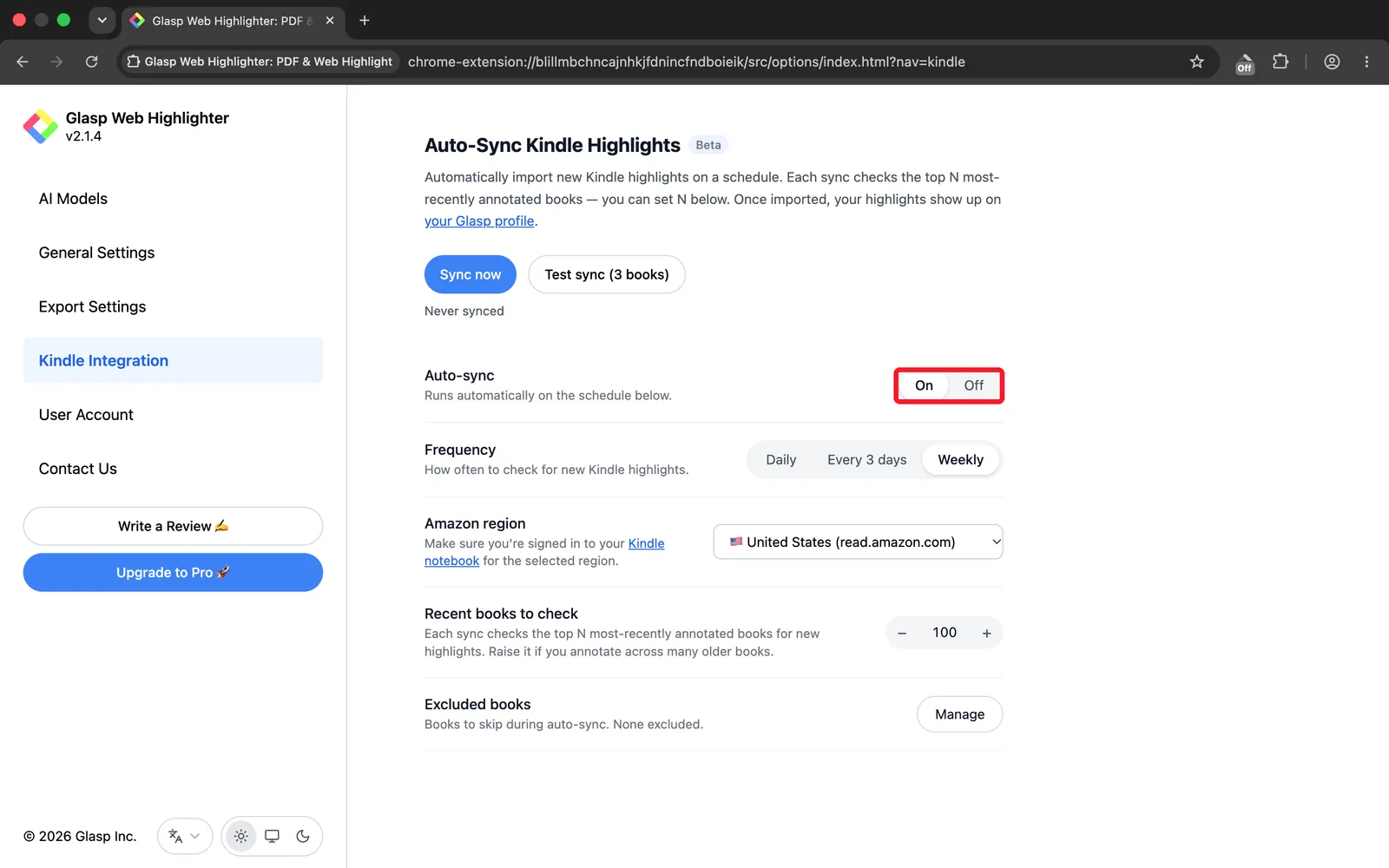
On the Settings page, select Kindle Integration. Everything below lives on this one page: the sync buttons and the Auto-sync toggle sit at the top, and the settings they use are underneath.
Step 2: Select Your Amazon Region
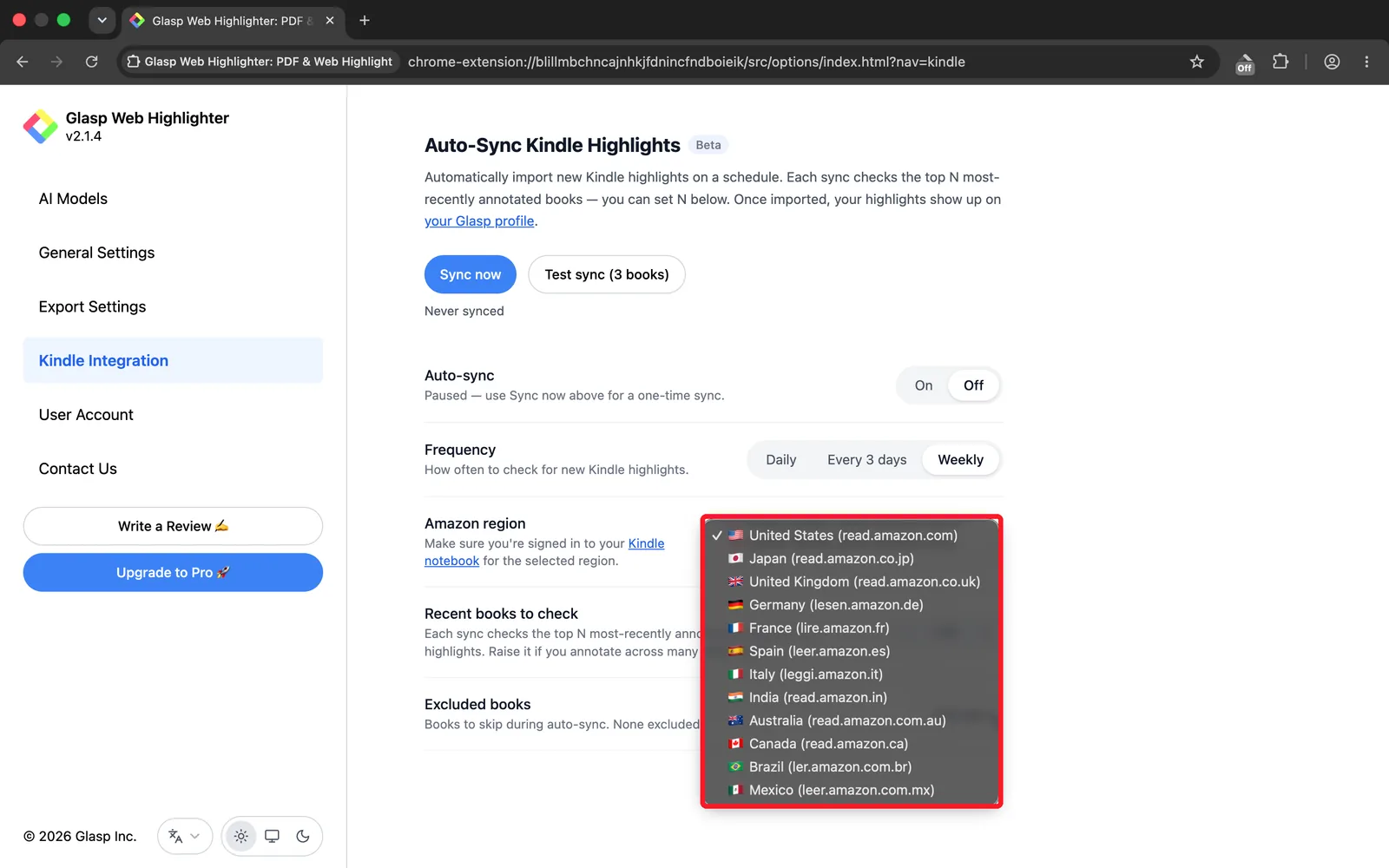
Scroll to Amazon region and choose the Kindle store you actually buy from. Twelve regions are available, and several of them do not use the read. prefix, so pick from the list rather than guessing:
United States: read.amazon.com
Japan: read.amazon.co.jp
United Kingdom: read.amazon.co.uk
Germany: lesen.amazon.de
France: lire.amazon.fr
Spain: leer.amazon.es
Italy: leggi.amazon.it
India: read.amazon.in
Australia: read.amazon.com.au
Canada: read.amazon.ca
Brazil: ler.amazon.com.br
Mexico: leer.amazon.com.mx
Make sure you're signed in to your Kindle notebook for the region you select. If you are signed in to a different store, the sync will run and find nothing.
Step 3: Run a Test Sync (Optional but Recommended)
Before your first run the status line under the buttons reads Never synced. Click Test sync (3 books) to verify the connection. This checks your 3 most-recently annotated books and imports highlights from them. Use this to confirm everything is working before enabling full auto-sync.
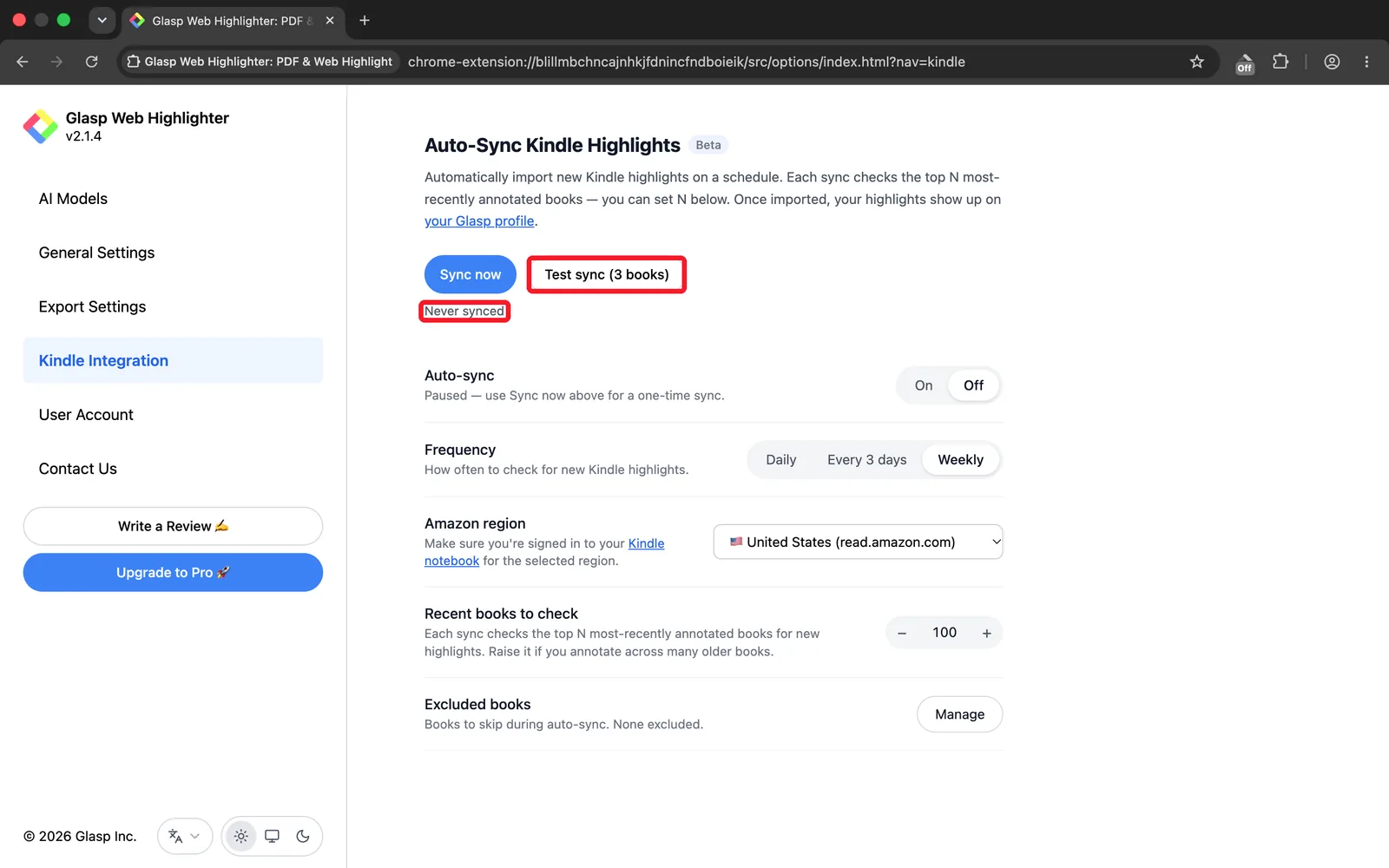
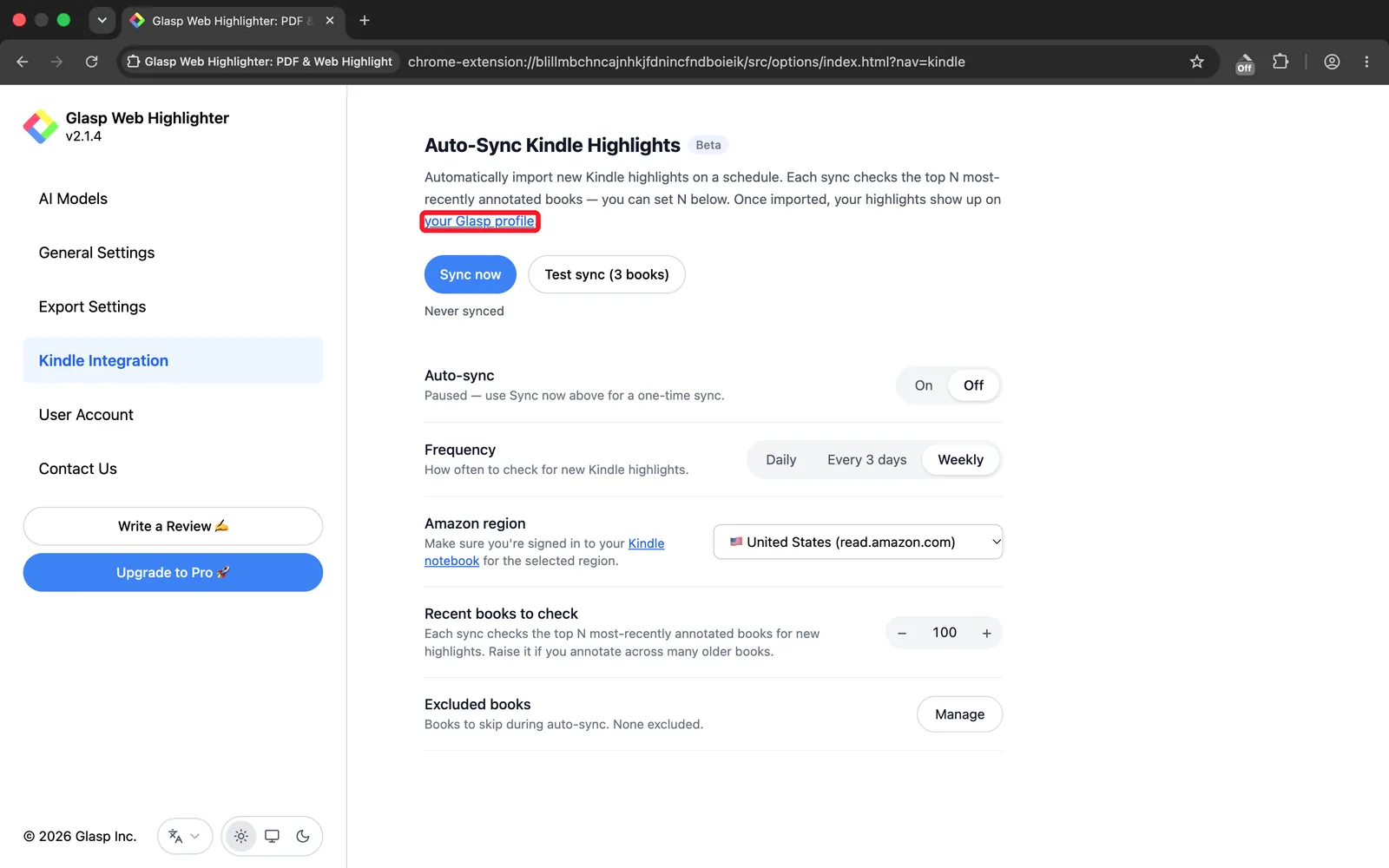
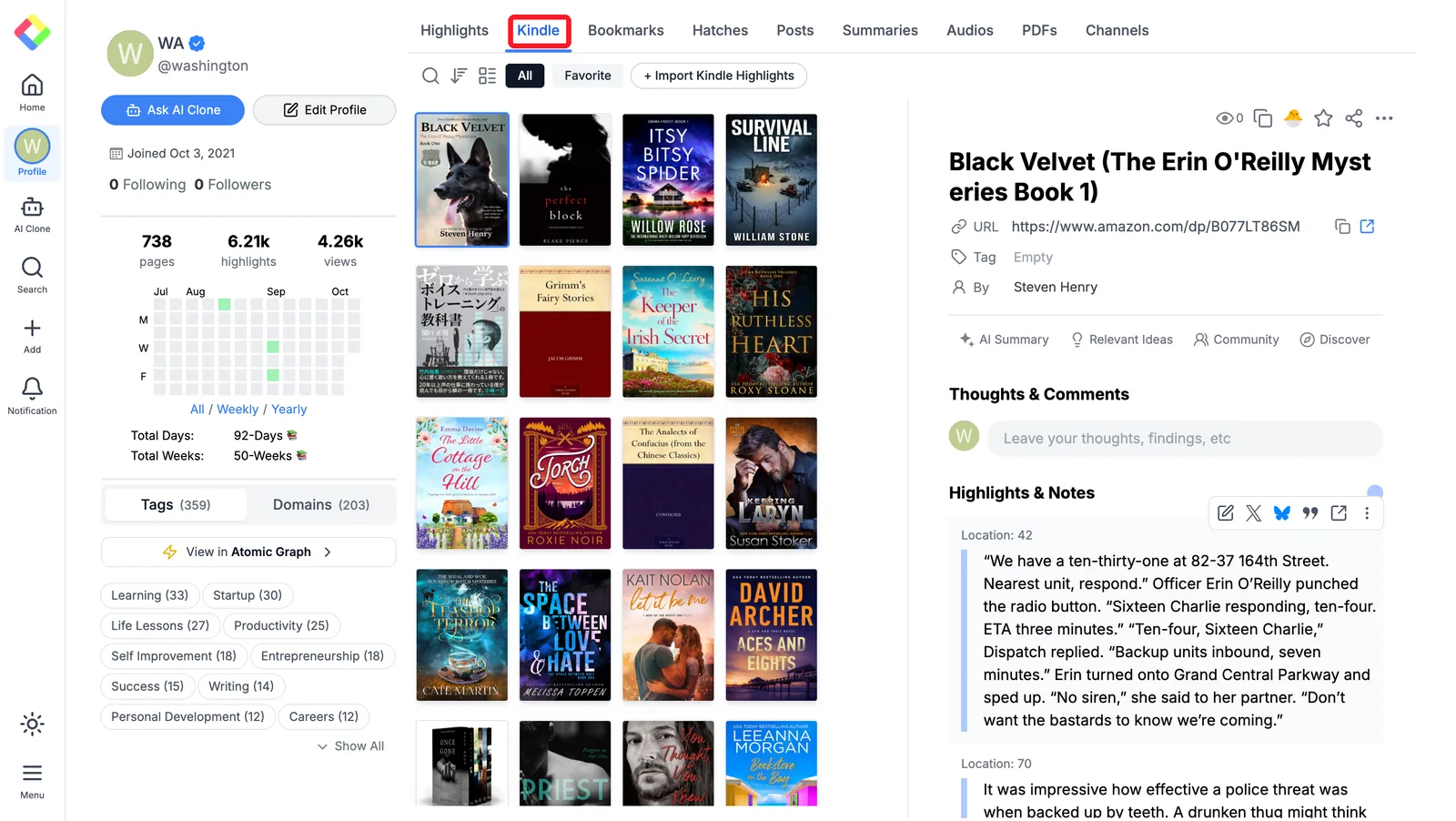
After it runs, a status line appears below the buttons, for example Last synced: just now (2 books, 47 highlights, 1 skipped). To confirm the highlights imported correctly, click the your Glasp profile link in the description above the buttons (or open your Glasp profile in a new tab).
If your highlights appear under the Kindle tab, you're ready to enable full auto-sync.
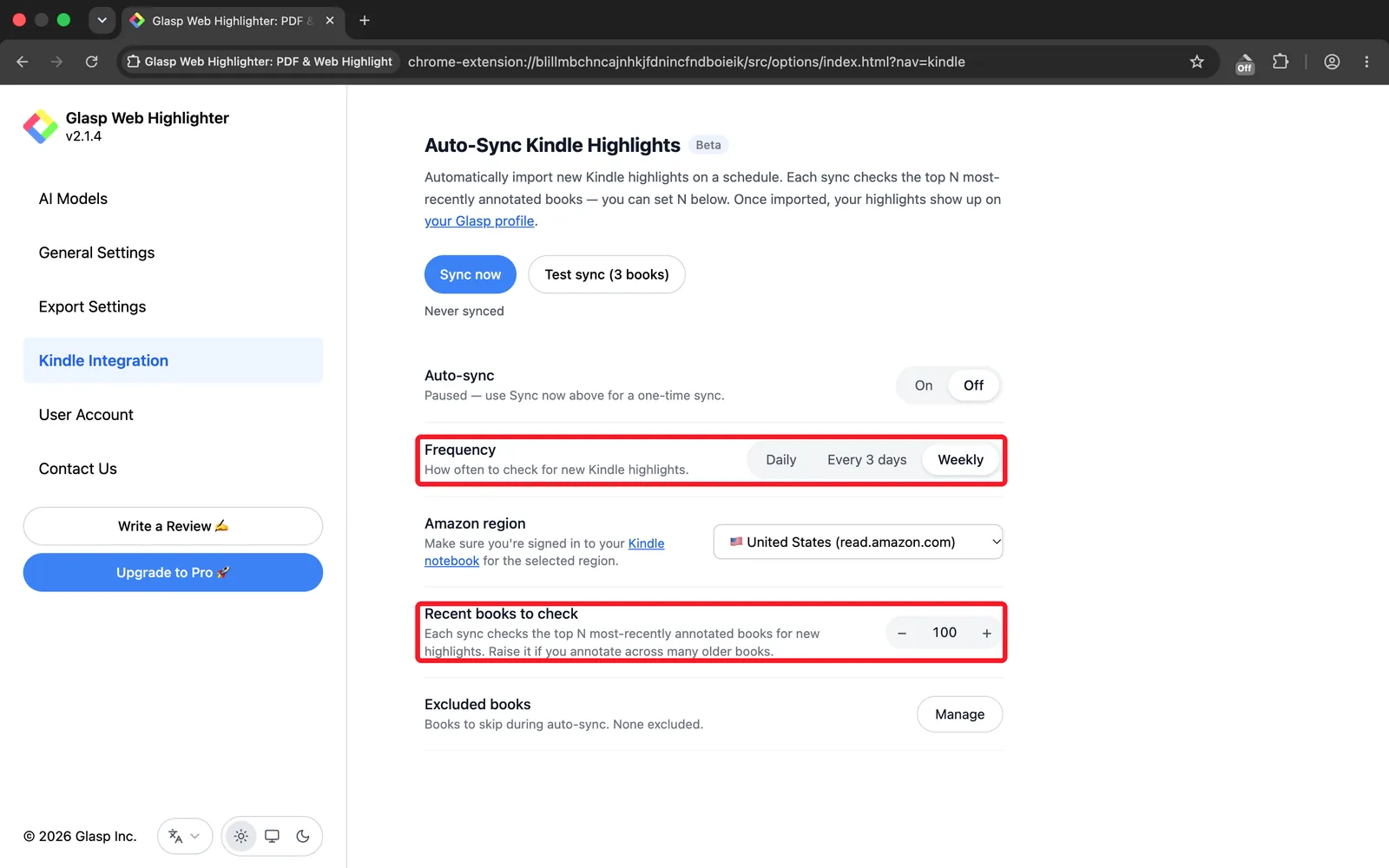
Step 4: Configure Sync Frequency and Range
Frequency: choose Daily, Every 3 days, or Weekly based on how often you read.
Recent books to check: set how many of your most-recently annotated books each sync looks at (default: 100). Increase this if you frequently revisit older books.
Step 5: Manage Excluded Books (Optional)
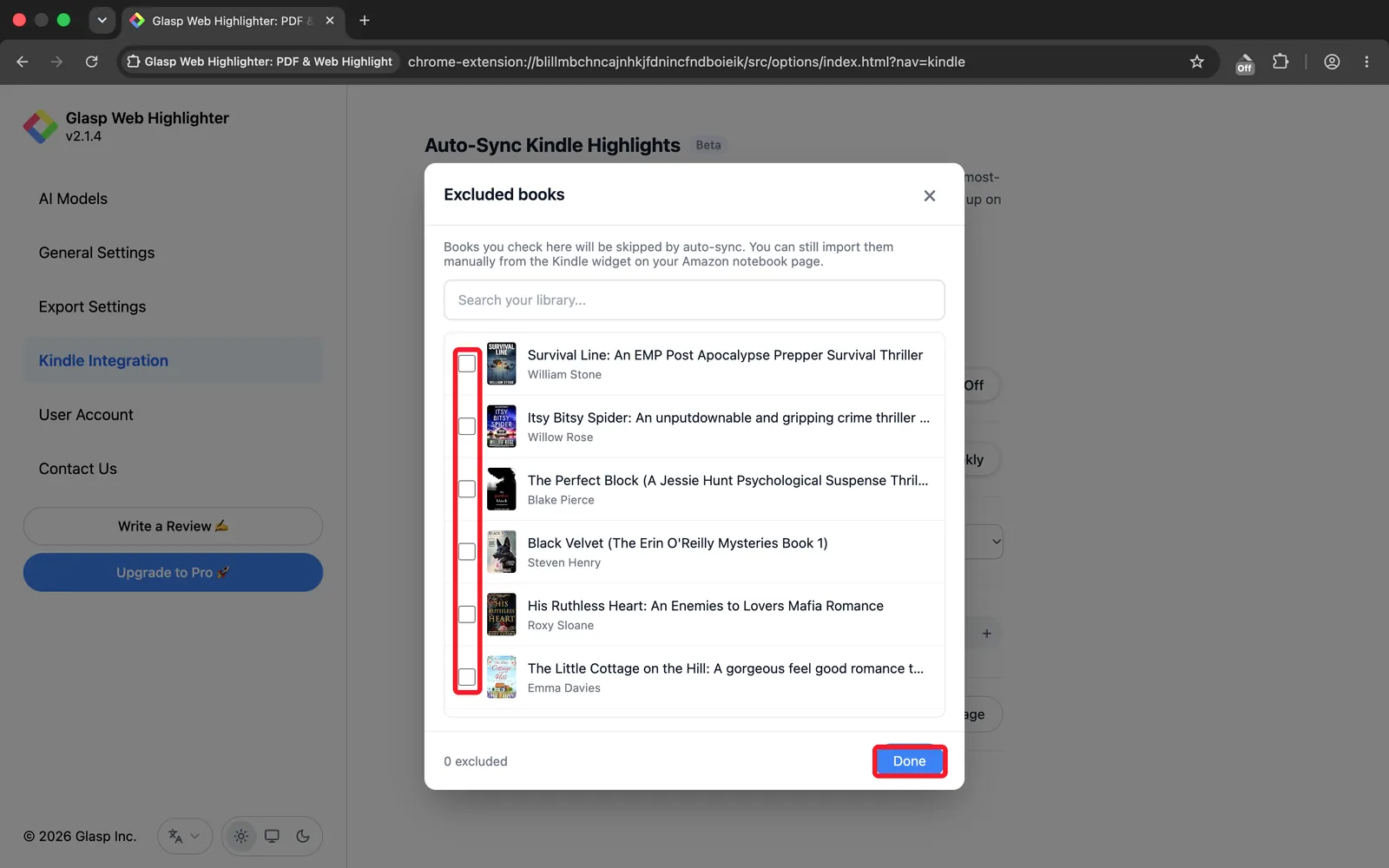
Click Manage under Excluded books to skip specific titles during auto-sync. A dialog opens with your Kindle library: search it, tick the books you want left out, and click Done. The counter at the bottom shows how many are excluded.
Excluding a book is not the same as losing it. You can still import an excluded book by hand at any time, using the Kindle widget on your Amazon notebook page. This is useful for references you already exported somewhere else, or for books you would rather keep out of your library.
Step 6: Toggle Auto-Sync On
Switch the Auto-sync toggle to On. Glasp will now check for new Kindle highlights on your chosen schedule and import them to your Glasp profile automatically.
Once it is on, the line under the toggle reads Runs automatically on the schedule below. While it is off, the same line reads Paused, and Sync now still works for a one-time import whenever you want one.
Frequently Asked Questions
Q: Is Auto-Sync Kindle Highlights free?
A: Yes. Auto-Sync is a free feature available to all Glasp users. It is currently in Beta.
Q: How often does Auto-Sync run?
A: You can choose Daily, Every 3 days, or Weekly. Glasp checks for new highlights at the chosen interval and imports any new ones it finds.
Q: Which Amazon regions are supported?
A: Auto-Sync supports all major Kindle regions, including the United States (read.amazon.com), United Kingdom (read.amazon.co.uk), Japan (read.amazon.co.jp), and others. Select your region in the Amazon region dropdown.
Q: What's the difference between "Sync now" and "Test sync (3 books)"?
A: Sync now runs a full one-time sync using your current settings. Test sync (3 books) is a lightweight check that imports highlights from only your 3 most-recently annotated books, useful for verifying the connection before enabling auto-sync.
Q: Can I exclude specific books from Auto-Sync?
A: Yes. Click Manage under Excluded books to add titles you want to skip. Excluded books will be ignored on every auto-sync run.
Q: Do I still need to be signed in to my Kindle account?
A: Yes. Auto-Sync uses your active Kindle Cloud Reader session, so you must remain signed in to read.amazon.com (or your regional equivalent) for syncs to succeed.
Q: Where do my synced highlights appear?
A: Imported highlights appear on your Glasp profile under the corresponding book, alongside any highlights you've imported manually.
Related Tutorials
How to Download Highlights and Notes from Kindle, a full overview of every Kindle export method
For all export methods, see How to Download Highlights and Notes from Kindle.
Can Claude or ChatGPT read my Glasp highlights?
Yes. With the Glasp MCP Connector, AI assistants such as Claude, ChatGPT, and Claude Code can search and read your own highlights, notes, Kindle highlights, and AI summaries, including your YouTube summaries. The connection is private to you and read-only, apart from one permission you can approve: saving a page to your Glasp bookmarks, which are public on your profile. See How to Connect Glasp to Claude, ChatGPT, and Claude Code (MCP Connector).
Can I use Glasp on my phone?
Yes. Glasp has native apps for iPhone, iPad, and Android, and the Glasp Safari extension for iPhone and iPad comes with the iOS app. Your highlights sync between the apps, the web, and the desktop extension. See How to Use the Glasp Mobile App on iOS, iPad, and Android.
Before You Leave
Auto-Sync is the easiest way to keep your Glasp library in sync with your Kindle reading: set it once and your new highlights show up automatically.