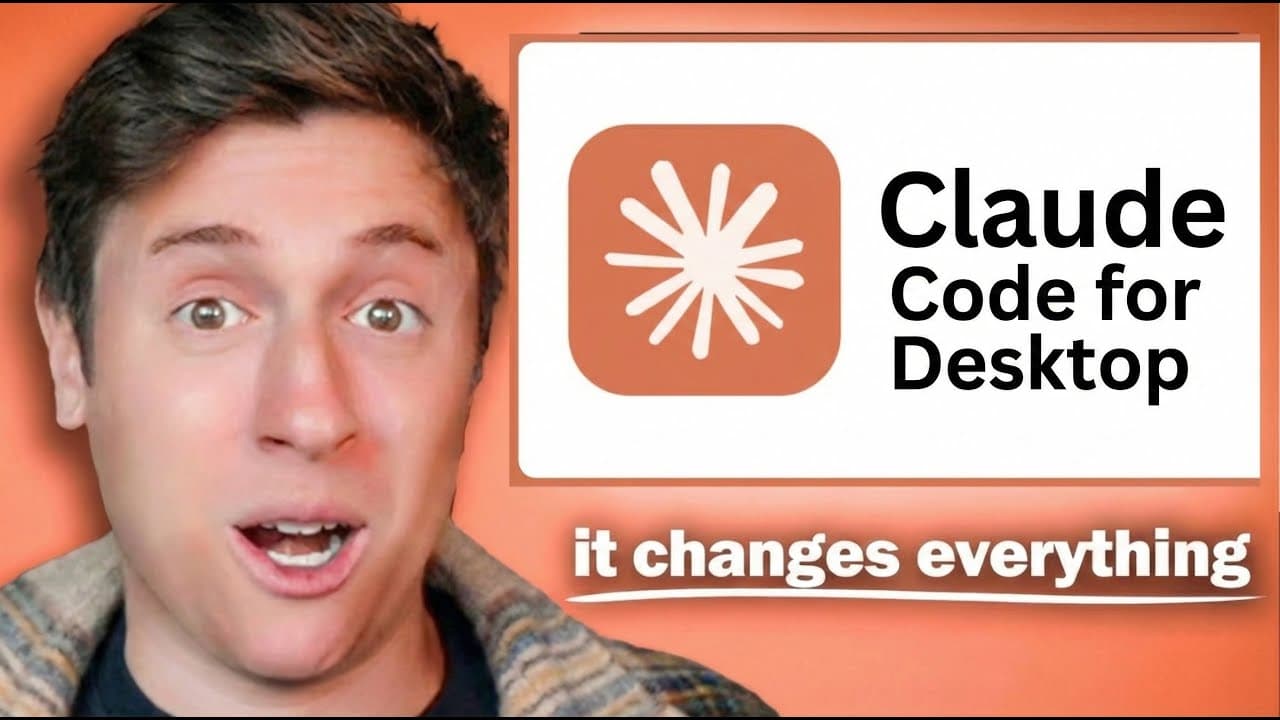
How to Build AI Apps with Claude Code Desktop
TL;DR
Build an app by starting locally in Claude Code Desktop, using the terminal workaround for plan mode, and keeping a separate Claude chat as a product-focused copilot. Push the project to a private GitHub repository so cloud agents can implement one feature while a local agent handles another, then test and combine the resulting work.
Transcript
The Claude Code Desktop app is the absolute best way to build apps with AI ever, but only if you use it the right way. In this video, I'll cover the entire Claude Code Desktop app, give you a master workflow that will 10x the speed you produce apps with AI, even if you've never coded a day in your life. Let's get into it. So, this is the Claude Cod... Read More
Key Insights
- Claude Code Desktop is presented as a graphical wrapper around terminal-based Claude Code, so local commands still run through the terminal while users interact with a more approachable desktop interface.
- The initial app prompt is most useful when it specifies the product, core capabilities, preferred framework, storage method, and a request for library recommendations before implementation begins.
- Plan mode is accessed in the demonstrated version by opening the command-line interface, pressing Shift+Tab twice, enabling thinking mode with Tab, and explicitly requesting an implementation plan.
- The infinite canvas prototype is built with Next.js and local storage, with planned capabilities that include mouse drawing, text, shapes, color controls, image uploads, state management, and a toolbar.
- A separate Claude chat can act as a copilot CEO by evaluating the product idea, identifying differentiation, and proposing features while Claude Code remains focused on implementation.
- An AI-native canvas is proposed as the product angle, with an AI button that uses Nano Banana to generate images and place them directly onto the canvas.
- Cloud agents require the demonstrated project code to be placed in a GitHub repository, after which the cloud environment can select that repository and receive an independent feature assignment.
- Parallel development works by giving cloud agents one feature, such as AI image generation, while the local Claude Code session implements another feature, such as exporting the canvas to PNG.
Install to Summarize YouTube Videos and Get Transcripts
Explore YouTube Video Summarizer or Get YouTube Transcript Extractor
Questions & Answers
Q: How do you start an app in Claude Code Desktop?
Start by opening the Claude Code section, selecting a new local folder, and describing the app in plain language. The example requests an infinite canvas that supports mouse drawing, text, shapes, color changes, and images. It also specifies Next.js and local storage, then asks Claude to recommend appropriate libraries before beginning implementation.
Q: How do you use plan mode in Claude Code Desktop?
In the demonstrated desktop version, open the command-line interface from Claude Code Desktop because native plan mode is not yet available there. Press Shift+Tab twice to enter plan mode, press Tab to enable thinking mode, and ask Claude to create a plan. Review the proposed work, accept it, and then return to the desktop interface for implementation.
Q: What should an initial Claude Code app prompt include?
An effective initial prompt should identify the product, list its required user-facing capabilities, name any preferred technologies, explain how data should be stored, and ask which supporting libraries are appropriate. The example describes an infinite creative canvas, requests drawing, text, shapes, colors, and images, specifies Next.js and local storage, and asks Claude to recommend other libraries.
Q: How can Claude chat help while Claude Code builds an app?
Claude chat can serve as a product-focused copilot while Claude Code handles implementation. Give the chat the original app prompt, ask it to act as a copilot CEO, and request feedback on the idea and possible features. In the example, this conversation identifies the need for a distinctive angle and proposes AI image generation and PNG export.
Q: How do you enable cloud agents for a Claude Code project?
Put the local project into a GitHub repository first. The demonstration creates a private repository, gives Claude Code its URL, and asks Claude to commit the code. After that, switch from the local work tree to the default cloud environment, select the new repository, and send a specific implementation task to an agent running on Claude's servers.
Q: How can local and cloud agents work on separate features?
Assign one clearly defined feature to the cloud environment and a different feature to the local Claude Code session. The example sends AI image generation with Nano Banana to a cloud agent, then returns to the local session and requests a PNG export button. This arrangement allows both features to be developed while the product-focused Claude chat continues suggesting ideas.
Q: What features are included in the infinite canvas example?
The requested canvas supports drawing with a mouse, adding text, inserting different shapes, changing colors, uploading images, and working across an infinite creative space. The generated first version demonstrates drawing and rectangle creation. Additional ideas include generating images directly on the canvas with Nano Banana and exporting the completed canvas as a PNG file.
Q: Why is GitHub part of the Claude Code Desktop workflow?
GitHub provides the repository that the demonstrated cloud environment needs before cloud agents can work on the project. Claude Code commits the locally generated canvas code to a private repository. The user can then select that repository from the cloud environment and assign an implementation task, while the original local session continues working on a separate feature.
Summary & Key Takeaways
-
Claude Code Desktop lets users select a local project folder, describe an app in plain language, review suggested libraries, and ask the coding model to create an implementation plan. The demonstration uses Next.js, local storage, and other selected libraries to build an infinite canvas with drawing, text, shapes, colors, and image support.
-
Because native plan mode was unavailable in the demonstrated desktop version, the workflow opens the underlying command-line interface and uses Shift+Tab twice to enter plan mode. Thinking mode can then be enabled with Tab. After reviewing and accepting the generated plan, development continues through the desktop interface with automatic acceptance enabled.
-
The broader workflow combines three roles inside Claude Desktop: Claude chat generates product ideas as a copilot CEO, local Claude Code implements one feature, and cloud agents implement another through a GitHub-hosted repository. The example assigns AI image generation to a cloud agent while local work adds canvas export to PNG.
Read in Other Languages (beta)
Share This Summary 📚
Summarize YouTube Videos and Get Video Transcripts with 1-Click
Try YouTube Summary with ChatGPT & Claude or YouTube Transcript Generator
Explore More Summaries from Alex Finn 📚



Summarize YouTube Videos and Get Video Transcripts with 1-Click
Try YouTube Summary with ChatGPT & Claude or YouTube Transcript Generator