How to Remove Bloatware from Windows 11 Installation?
TL;DR
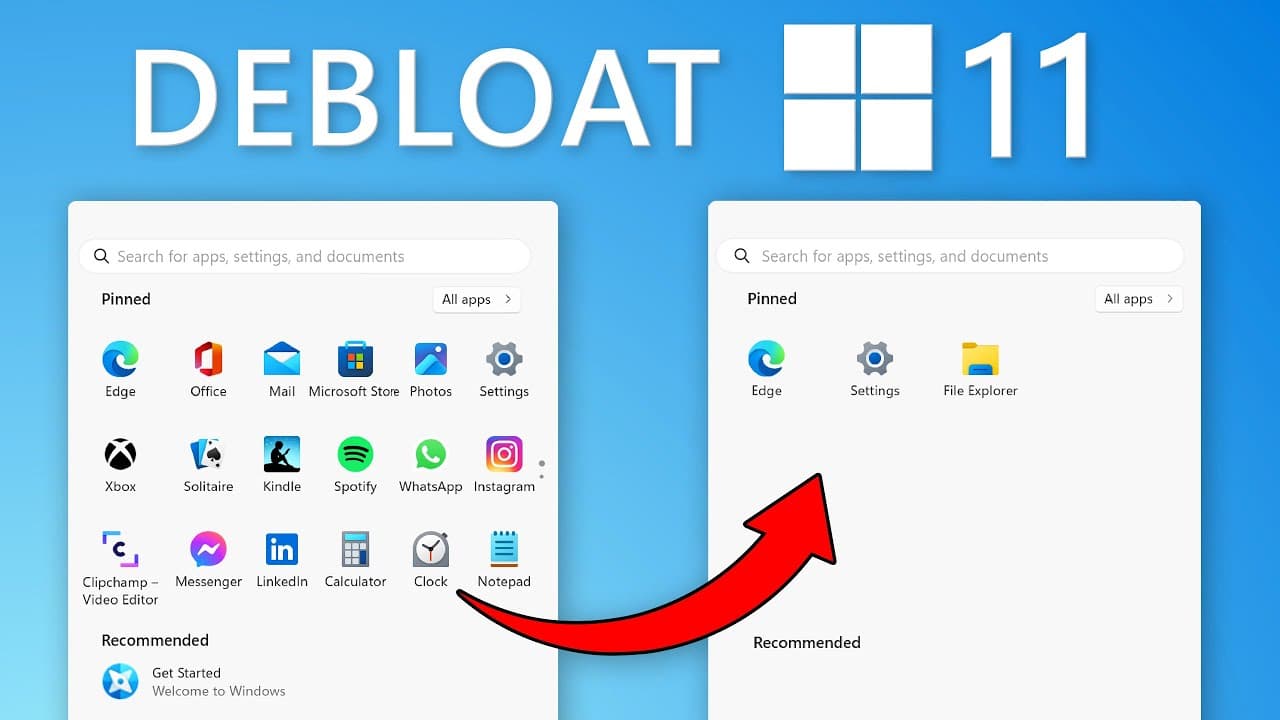
To remove bloatware during a clean install of Windows 11, set the region and currency to 'English (World)'. This prevents region-specific third-party apps from showing up in the start menu, though default Microsoft apps will still be installed. After installation, you can ignore the 'OOBEREGION' error message, and any remaining unwanted apps can be uninstalled manually or via PowerShell.
Transcript
You know all that bloatware that appears in the start menu on even a clean install of Windows 11? Well, what if I told you, you could install Windows without all that bloatware with just two clicks? I made a tweet about this and it went kind of viral, got over a million views. So I figured I'd make a video with a bit more details about it... Read More
Key Insights
- 💱 Changing the region and currency settings during a clean installation of Windows 11 helps eliminate third-party bloatware from the start menu.
- 🙈 The "OOBEREGION" error message can be safely ignored after changing the region settings.
- 😀 While default Microsoft apps remain installed, third-party apps considered bloatware are no longer visible in the start menu.
- 😀 Manually uninstalling Microsoft apps through the start menu is an alternative method to remove bloatware.
- 😀 A PowerShell script is available for advanced users to uninstall apps that cannot be uninstalled through the start menu.
- 💀 Alternative tools like Tiny11 and custom-made ISOs offer different solutions for de-bloating Windows 11, although they are third-party options.
- 😫 The "English (World)" setting trick may also work for Windows 10.
Install to Summarize YouTube Videos and Get Transcripts
Explore YouTube Video Summarizer or Get YouTube Transcript Extractor
Questions & Answers
Q: How can I remove bloatware from the start menu during a clean install of Windows 11?
You can remove bloatware by changing the region and currency settings to "English (World)" during the installation process. This prevents region-specific apps from being installed.
Q: What should I do if I encounter an error labeled "OOBEREGION" after the installation?
You can simply skip the error message, as it only occurs because the system doesn't recognize the region due to the "English (World)" setting. It has no significant impact.
Q: Does changing the region and currency settings to "English (World)" remove all Microsoft bloatware?
No, only third-party apps that are considered bloatware are removed from the start menu. Default Microsoft apps are still installed but can be manually uninstalled.
Q: Is it possible to uninstall Microsoft apps that don't have an option to uninstall through the start menu?
Yes, there is a PowerShell script available on GitHub that allows you to uninstall even the apps that don't have a right-click option for uninstallation. However, caution must be exercised to avoid removing critical system packages.
Key Insights:
- Changing the region and currency settings during a clean installation of Windows 11 helps eliminate third-party bloatware from the start menu.
- The "OOBEREGION" error message can be safely ignored after changing the region settings.
- While default Microsoft apps remain installed, third-party apps considered bloatware are no longer visible in the start menu.
- Manually uninstalling Microsoft apps through the start menu is an alternative method to remove bloatware.
- A PowerShell script is available for advanced users to uninstall apps that cannot be uninstalled through the start menu.
- Alternative tools like Tiny11 and custom-made ISOs offer different solutions for de-bloating Windows 11, although they are third-party options.
- The "English (World)" setting trick may also work for Windows 10.
- The origin of this de-bloating method has been discovered from various blogs, and it gained popularity after going viral on social media.
Summary & Key Takeaways
-
Changing the region and currency settings to "English (World)" during the clean installation of Windows 11 helps remove bloatware from the start menu.
-
After the installation, an error message labeled "OOBEREGION" may appear, but it can be skipped as it is not significant.
-
Although default Microsoft apps are still installed, third-party apps that are often considered bloatware no longer appear in the start menu.
Read in Other Languages (beta)
Share This Summary 📚
Summarize YouTube Videos and Get Video Transcripts with 1-Click
Try YouTube Summary with ChatGPT & Claude or YouTube Transcript Generator
Explore More Summaries from ThioJoe 📚
Summarize YouTube Videos and Get Video Transcripts with 1-Click
Try YouTube Summary with ChatGPT & Claude or YouTube Transcript Generator