Essential Windows Keyboard Shortcuts You Need
TL;DR
Discover essential keyboard shortcuts to boost your productivity on Windows, many of which also apply to Mac and Linux. Learn about common shortcuts like copy-paste and advanced features like Clipboard History and Task Manager access. These shortcuts can save time and improve efficiency across various tasks and applications.
Transcript
Yes I know I know, the title is just a joke don’t worry, I don't think you're actually stupid. But the fact is there are plenty of keyboard shortcuts in Windows you probably don’t know, but really should, and some of them are so useful that you might kick yourself for not knowing before. And also even though this video focuses on Windows, many of t... Read More
Key Insights
- Copy and paste are fundamental shortcuts: Ctrl + C to copy and Ctrl + V to paste.
- Clipboard History can be accessed with Win+V, allowing you to paste previously copied items.
- Ctrl + Shift + V pastes text as plain text, removing any formatting.
- Ctrl + S universally saves documents in most applications.
- Alt + F4 closes the current active window, a common prank shortcut.
- Ctrl + Shift + Esc directly opens Task Manager, bypassing the Ctrl + Alt + Delete screen.
- Win + L locks your computer, securing it when you step away.
- Win + Arrow keys snap windows to different parts of the screen for multitasking.
Install to Summarize YouTube Videos and Get Transcripts
Explore YouTube Video Summarizer or Get YouTube Transcript Extractor
Questions & Answers
Q: How to access Clipboard History on Windows?
To access Clipboard History on Windows, press Win+V. This feature allows you to view and paste from a list of items you've previously copied. Note that Clipboard History must be enabled in your system settings. This functionality enhances productivity by storing multiple copied items for easy retrieval.
Q: What is the shortcut to lock a Windows computer?
The shortcut to lock a Windows computer is Win + L. This command immediately locks your system, requiring a password or other authentication method to log back in. It's particularly useful in shared or office environments to protect your information when away from your desk.
Q: How do you open Task Manager directly with a shortcut?
To open Task Manager directly, use the shortcut Ctrl + Shift + Esc. This bypasses the Ctrl + Alt + Delete screen, providing immediate access to Task Manager. It's a quick way to manage running applications and processes, especially when troubleshooting system performance issues.
Q: What shortcut allows you to snap windows on the screen?
The Win + Arrow keys shortcut allows you to snap windows to different parts of the screen. Press Win + Left or Right to snap a window to the respective half, and Win + Up or Down to move it into corners or maximize/minimize the window. This feature enhances multitasking by organizing open applications efficiently.
Q: How to restore closed tabs in a web browser?
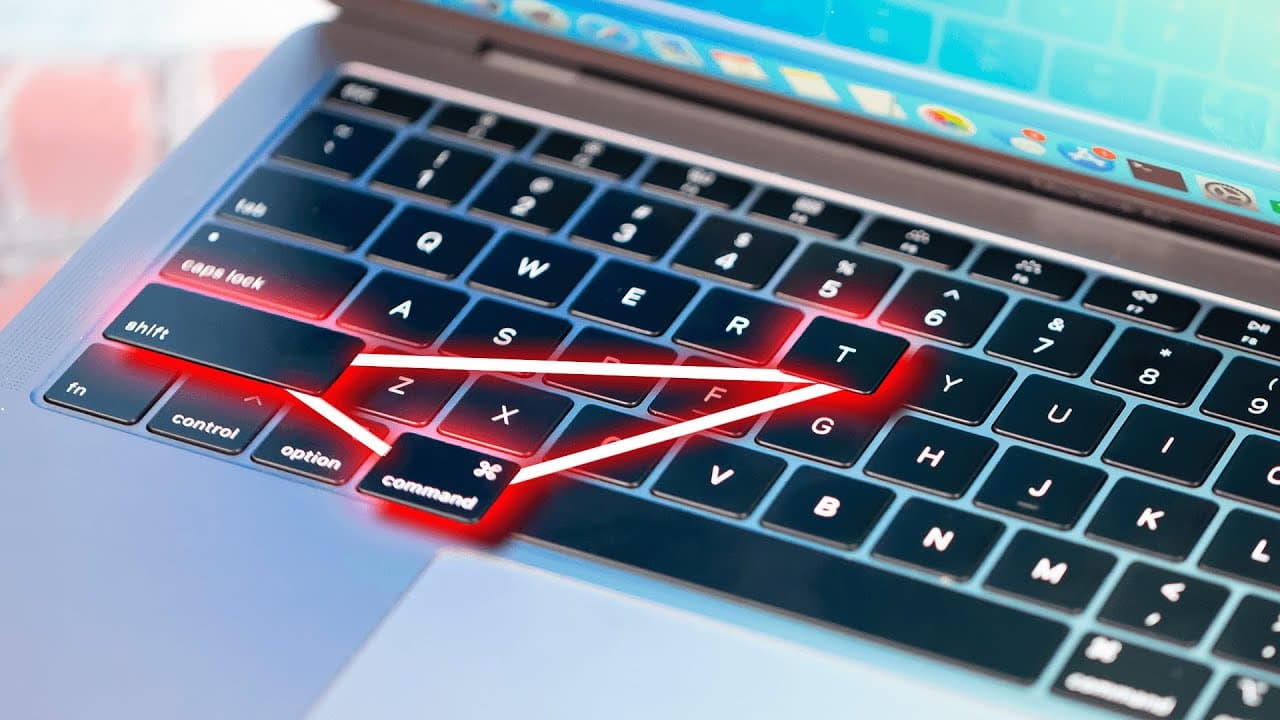
To restore closed tabs in a web browser, use the shortcut Ctrl + Shift + T. This command reopens the last closed tab, and can be repeated to recover multiple tabs in the order they were closed. It's a lifesaver for accidental tab closures, ensuring you can quickly return to your previous browsing session.
Q: What is the function of Ctrl + Shift + V?
The Ctrl + Shift + V shortcut pastes text as plain text, removing any formatting. This is useful when you want to insert copied content without carrying over fonts, colors, or other styles. It's a handy tool for maintaining consistency in documents or when working with text from varied sources.
Q: How to toggle full screen mode in browsers?
The F11 key toggles full screen mode in web browsers. Pressing it will expand the browser window to fill the entire screen, hiding toolbars and tabs for an immersive view. Press F11 again to exit full screen. This feature is useful for presentations or when you want a distraction-free browsing experience.
Q: What shortcut opens the emoji panel on Windows?
The Win + Semicolon shortcut opens the emoji panel on Windows. This feature allows you to quickly insert emojis into your text, enhancing communication with visual elements. It's a convenient tool for adding personality to messages and documents, accessible across most applications where text input is supported.
Summary & Key Takeaways
-
Learn essential keyboard shortcuts to enhance your Windows experience. Master common actions like copy-paste with Ctrl + C and Ctrl + V, and explore advanced features like Clipboard History with Win+V. These shortcuts are designed to boost productivity and are often applicable across different operating systems.
-
Discover shortcuts beyond the basics, such as Ctrl + Shift + V for pasting plain text, and Win + L to lock your computer. These tools are crucial for efficiency, whether you're working on documents or managing multiple windows.
-
Explore shortcuts specific to web browsers, like Ctrl + Shift + T to restore closed tabs, and F11 for toggling full screen mode. These functions are universal across browsers, enhancing your browsing and presentation capabilities.
Read in Other Languages (beta)
Share This Summary 📚
Summarize YouTube Videos and Get Video Transcripts with 1-Click
Try YouTube Summary with ChatGPT & Claude or YouTube Transcript Generator
Explore More Summaries from ThioJoe 📚




Summarize YouTube Videos and Get Video Transcripts with 1-Click
Try YouTube Summary with ChatGPT & Claude or YouTube Transcript Generator