How to Reveal Hidden Windows Power Performance Settings
TL;DR
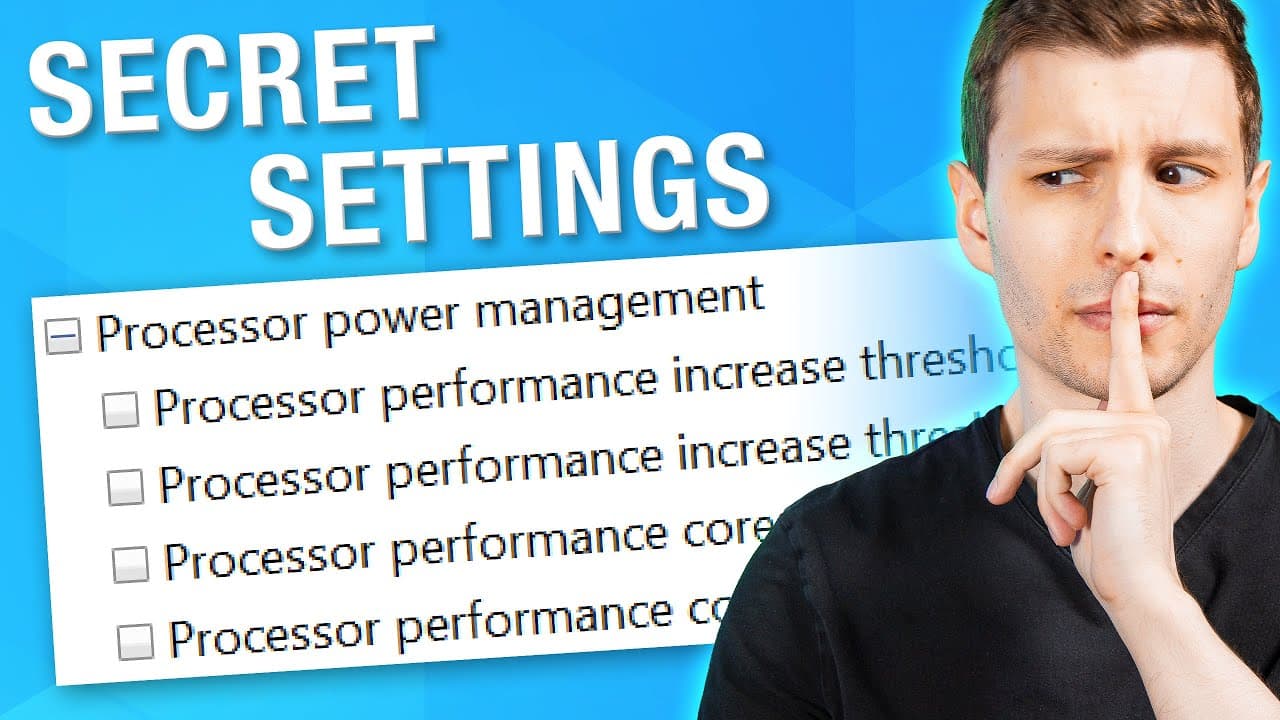
Windows hides over 100 advanced power settings that never appear in the Control Panel by default. Running 'powercfg /Qh' in Command Prompt lists all of them, including hidden groups like Idle Resiliency and Interrupt Steering. On one PC, only 28 settings were visible by default while 132 existed in total, though most users should never change them.
Transcript
What if I told you there are legitimately secret hidden performance settings in Windows that can only be revealed using commands in the command prompt. It's true, here are all the visible power and performance settings in Windows by default, and here are all the possible ones, there are SO many more, including all these processor performa... Read More
Key Insights
- Windows power plans hide the majority of their advanced settings by default; on the presenter's machine 28 settings were visible but 132 existed in total, including entirely new groups not shown in the standard GUI.
- The 'powercfg /Q' command lists current power settings, but only those already visible in the GUI, showing possible values and current settings for both plugged-in and battery states.
- The 'powercfg /Qh' command is itself hidden, not even appearing in the list of commands, and it reveals all settings including the hidden ones, though it only displays them and does not enable them.
- Hidden settings can be output to a text file by adding a greater-than sign and a file path after the powercfg command, saving the full list to the desktop for later reference.
- Unhiding a single setting uses 'Powercfg -attributes' followed by the subgroup alias or GUID, the individual setting GUID, and '-ATTRIB_HIDE' to reveal it or '+ATTRIB_HIDE' to re-hide it.
- Running a script that unhides every setting is risky because it cannot be cleanly reversed; reversing it would re-hide all settings, including ones that were originally visible, forcing you to unhide everything again.
- Core Parking settings control cores entering a sleep-like mode, but for maximum performance regardless of power use, disabling C-States in the BIOS is an alternative; LinusTechTips fixed weird computer issues by disabling C-States.
- The High Performance plan sets both minimum and maximum processor state to 100%, keeping the CPU at full frequency, and appears to max out anything important without needing to touch the hidden settings.
Install to Summarize YouTube Videos and Get Transcripts
Explore YouTube Video Summarizer or Get YouTube Transcript Extractor
Questions & Answers
Q: How do I see all hidden power settings in Windows?
Open the Command Prompt and run the 'powercfg /Qh' command. The standard '/Q' or '/Query' parameter only shows settings already viewable in the GUI, but '/Qh' is an even more hidden command that is not even listed among the available commands. It displays all settings, including hidden ones, showing possible values and current settings for both plugged-in and battery states, though it only displays them rather than enabling them.
Q: Why are these performance settings hidden by default in Windows?
They are hidden because, realistically, most people should not mess with many of them. Since roughly 99.99% of people have no idea what settings like 'Processor Idle Resiliency Timer Resolution' even do, let alone how to optimize them, and because changing them could really throw off a computer's performance, it makes sense that Windows tucks them away. The presenter still recommends advanced users know they exist, in case an obscure future problem calls for one.
Q: How do I unhide a single power setting instead of all of them?
Use the command 'Powercfg -attributes' followed by the alias of the subgroup or the subgroup's GUID (the long string of letters and numbers), then the GUID of the individual setting, and finally '-ATTRIB_HIDE' to unhide it. To re-hide that same setting, you replace the minus with a plus, writing '+ATTRIB_HIDE'. This lets you enable only the specific settings you actually need rather than cluttering the window with over a hundred.
Q: Is it safe to run a script that unhides every power setting?
The presenter would not recommend it for most people because it cannot simply be reversed. The script runs the unhide command on all settings, whether they were already visible or not. If you tried to reverse it by switching all commands to re-hide, you would literally hide every single power setting, including ones that were visible before, leaving your only option to unhide everything again. A demonstration in the video showed all settings disappearing this way.
Q: What is Core Parking and should I change it?
Core Parking is found under the Processor Power Management group, where certain CPU cores go into a sort of sleep mode. The presenter would not even mess with these settings. If you truly want maximum performance and do not care about power consumption, a better approach is to go into your BIOS and disable C-States altogether, which are lower power states for cores including parking. LinusTechTips fixed weird computer issues by disabling C-States.
Q: How do I set my CPU to always run at full performance?
The simplest method is to use the High Performance power plan, which sets both the minimum processor state and maximum processor state to 100%. This keeps your CPU always running at full frequency if you do not care about power usage or battery life. The Processor Power Management group has many hidden settings, but the High Performance plan seems to max out anything important anyway, so there is no need to touch the obscure hidden options.
Q: What are the new hidden settings groups revealed by powercfg?
Revealing hidden settings exposes entirely new groups not shown by default, including Idle Resiliency, Interrupt Steering Settings, Graphics Settings, and Presence Aware Power Behavior. Idle Resiliency relates to standby modes and power requests from programs. Interrupt Steering is barely documented, with an Intel developer paper advising you to let Windows handle it. Presence Aware Power Behavior handles power-saving actions based on whether you are in front of the computer, mostly relevant to laptops with a presence sensor.
Q: How can I save the list of hidden power settings to a file?
Instead of just showing the results in the terminal window, you can add a greater-than sign after the powercfg command along with the path of the file you want to save into. Writing the command this way saves the output onto the desktop as a text file. The presenter recommends keeping this text file with all the settings so that if you ever need to change one, you can enable only that specific setting rather than unhiding everything at once.
Summary & Key Takeaways
-
Windows power plans such as Balanced, High Performance, and Power Saver expose only a fraction of their advanced options. Accessed through Control Panel, System and Security, Power Options, Change Plan Settings, then Change Advanced Power Settings, one machine showed 28 default settings while 132 existed once hidden ones were included.
-
The settings are hidden because most users would not know what they do, and changing them could throw off performance. New hidden groups include Idle Resiliency, Interrupt Steering Settings, Graphics Settings, and Presence Aware Power Behavior. Some appear only on certain hardware, like Intel Graphics settings on Intel CPUs with integrated graphics.
-
Using 'powercfg /Qh' reveals every setting, and individual ones can be unhidden with the -attributes command using subgroup and setting GUIDs. A PowerShell script can unhide everything but cannot be safely reversed, so the presenter recommends saving a text file and enabling only specific settings when actually needed.
Read in Other Languages (beta)
Share This Summary 📚
Summarize YouTube Videos and Get Video Transcripts with 1-Click
Try YouTube Summary with ChatGPT & Claude or YouTube Transcript Generator
Explore More Summaries from ThioJoe 📚






Summarize YouTube Videos and Get Video Transcripts with 1-Click
Try YouTube Summary with ChatGPT & Claude or YouTube Transcript Generator