How to Automate Tasks With ChatGPT Work
TL;DR
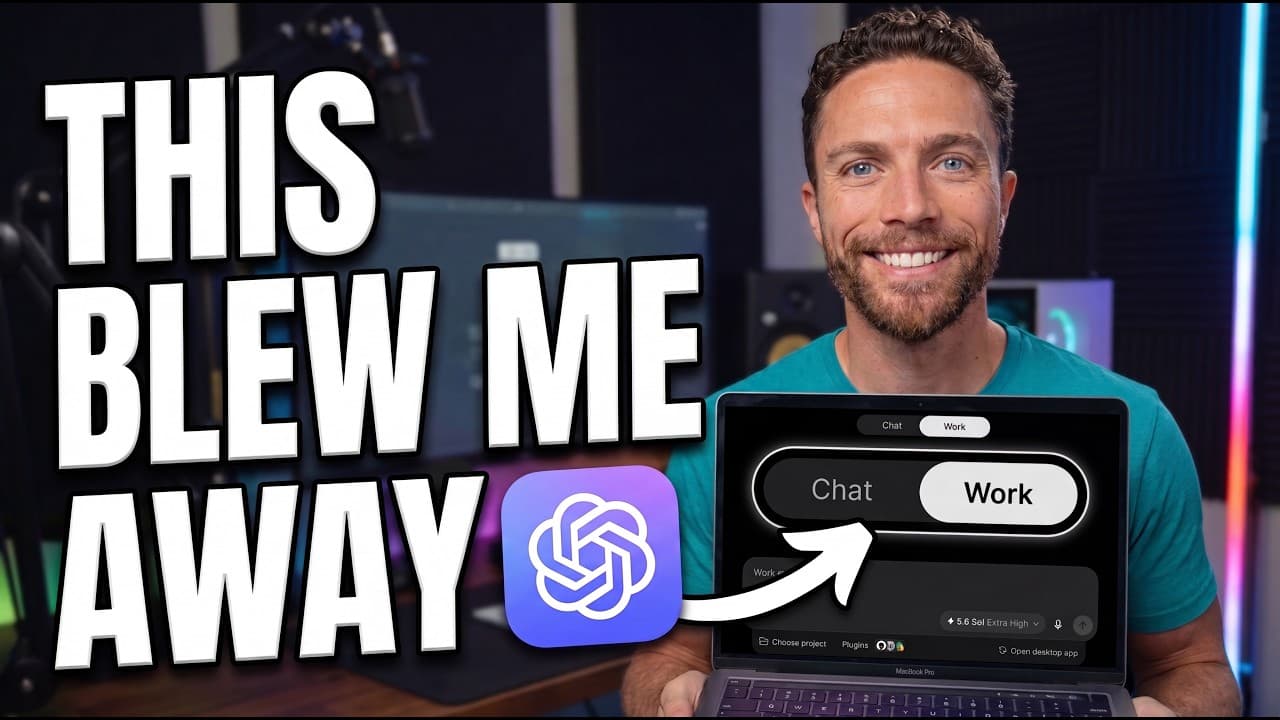
Start by installing the desktop app, selecting ChatGPT Work, and keeping permissions on “ask for approval” while you become familiar with its actions. You can then organize tasks around local folders, create files, connect third-party tools through plugins, schedule recurring workflows, save preferred processes as skills, and conduct research in the built-in browser.
Transcript
This is the new chat GPT work. It is the most powerful tool for non-technical people that OpenAI has ever created. You can use it to automatically draft replies to emails, manage your calendar, and autonomously handle your work in a way that no other chat GBT tool ever could in the past. But I think a lot of people are going to open this, try it on... Read More
Key Insights
- ChatGPT Work is designed to handle multi-step work involving files, connected services, schedules, and browser research. The desktop app provides the fullest experience described in the tutorial, while access is also available through the web app and a phone.
- Permission settings determine when ChatGPT Work must request authorization. “Ask for approval” requires permission before editing external files or using the internet, “approve for me” limits prompts to actions detected as potentially unsafe, and full access permits unrestricted internet and computer-file access.
- The model slider controls the tradeoff between speed, usage credits, and intelligence. Moving left produces faster, less expensive operation with lower intelligence, while moving right selects more capable options. The presenter keeps the slider in the middle at 5.6 sole medium.
- Projects are both organizational containers and links to folders on a computer. Tasks created within a project appear together, and the project can access files stored inside its linked folder, making it possible to find previous tasks and perform work using local information.
- ChatGPT Work can read, edit, and create local files inside an authorized project folder. In the budgeting example, it reads several financial files, produces an Excel spending report, and creates a PowerPoint that visualizes budgets, spending, and expenses.
- Plugins are connections between ChatGPT Work and third-party tools. Their available permissions and actions vary, but examples in the tutorial include QuickBooks, Gmail, Google Drive, and Notion. The Gmail example reviews an inbox and creates draft replies without sending them.
- Scheduled tasks repeat a workflow at a specified time. The Gmail triage example is scheduled for every morning at 8:00 a.m., but the computer must remain on and the ChatGPT desktop app must be open for the scheduled workflow to operate.
- Skills are reusable workflows created from prompts or outputs that should be repeated consistently. The presentation example becomes a skill called Clean Blue Presentation, preserving its visual style, text treatment, and colors for future presentation requests invoked through the slash menu.
Install to Summarize YouTube Videos and Get Transcripts
Explore YouTube Video Summarizer or Get YouTube Transcript Extractor
Questions & Answers
Q: How do you get started with ChatGPT Work?
Download the desktop app from the provided ChatGPT download page, sign in, and use the dropdown at the top left to select ChatGPT Work instead of Codex. Before submitting a task, review the permission setting, model slider, and project selector. The tutorial recommends beginning with “ask for approval” so internet use and external file edits require your authorization.
Q: What permission setting should beginners use in ChatGPT Work?
Beginners should use “ask for approval,” which makes ChatGPT Work request permission whenever it wants to edit external files or use the internet. These guardrails help prevent actions the user does not want. After gaining confidence, users can choose “approve for me,” while full access should be used cautiously because it provides unrestricted access to the internet and computer files.
Q: How do projects work in ChatGPT Work?
Projects serve two purposes: they group related tasks for easier retrieval, and they connect ChatGPT Work to a folder on the computer. When an existing folder becomes a project, tasks within that project can access files stored there. This allows Work to analyze those files, produce reports, edit content, and save newly created outputs back into the same folder.
Q: What files can ChatGPT Work create from local data?
ChatGPT Work can use files in an authorized local project folder to create sites, spreadsheets, PDFs, documents, and presentations. In the tutorial, several budget files are used to produce an Excel spending report and a PowerPoint that visualizes budget and expense information. The completed output can be previewed in the app or opened directly from the connected computer folder.
Q: How do plugins extend ChatGPT Work?
Plugins give ChatGPT Work access to information and actions in third-party tools rather than limiting it to local computer files. Examples shown or named include QuickBooks, Gmail, Google Drive, and Notion. Each plugin has different capabilities, potentially including viewing information or making changes. Users can find them through the plugins menu and browse the available connections.
Q: How can ChatGPT Work automate email triage?
After connecting the Gmail plugin, a user can ask ChatGPT Work to inspect the inbox, identify messages that require replies, and draft responses. In the demonstrated task, it creates the replies directly as Gmail drafts but does not send them. The user can open Gmail, review each draft, and send only the responses they consider appropriate.
Q: How do scheduled tasks work in ChatGPT Work?
A completed workflow can be repeated by giving ChatGPT Work a schedule, such as performing Gmail triage every morning at 8:00 a.m. Scheduled workflows appear in the Scheduled section of the desktop app. For them to run, the computer must be turned on and the ChatGPT app must remain open, according to the limitation stated in the tutorial.
Q: What is a skill in ChatGPT Work?
A skill is a repeatable workflow for tasks or outputs that a user wants to recreate. The tutorial converts a preferred PowerPoint design into a skill called Clean Blue Presentation, retaining the same style, text treatment, and colors. Later, the user can invoke that skill from the slash menu and apply it to the current discussion or supplied prompt content.
Summary & Key Takeaways
-
ChatGPT Work is available through the web, mobile, and desktop apps, but the tutorial favors the desktop app for accessing its broader toolset. Initial setup involves selecting Work instead of Codex, choosing an appropriate model and effort level, selecting a project when needed, and setting permissions that control internet and file access.
-
Projects organize related tasks and connect them to folders on the computer. Once a folder is selected, ChatGPT Work can read its contained files and use them to create or edit spreadsheets, presentations, PDFs, documents, and sites. Generated files can be previewed inside the app or opened from the connected folder.
-
Plugins connect ChatGPT Work to third-party tools such as Gmail, Google Drive, Notion, and QuickBooks, although each plugin has different capabilities. Workflows can run on schedules, and successful processes can become reusable skills. The desktop app also includes task notifications, a browser for autonomous research, and access to regular ChatGPT conversations.
Read in Other Languages (beta)
Share This Summary 📚
Summarize YouTube Videos and Get Video Transcripts with 1-Click
Try YouTube Summary with ChatGPT & Claude or YouTube Transcript Generator
Explore More Summaries from Paul J Lipsky 📚




Summarize YouTube Videos and Get Video Transcripts with 1-Click
Try YouTube Summary with ChatGPT & Claude or YouTube Transcript Generator