How to Turn a Raspberry Pi 2 into a Desktop Computer
TL;DR
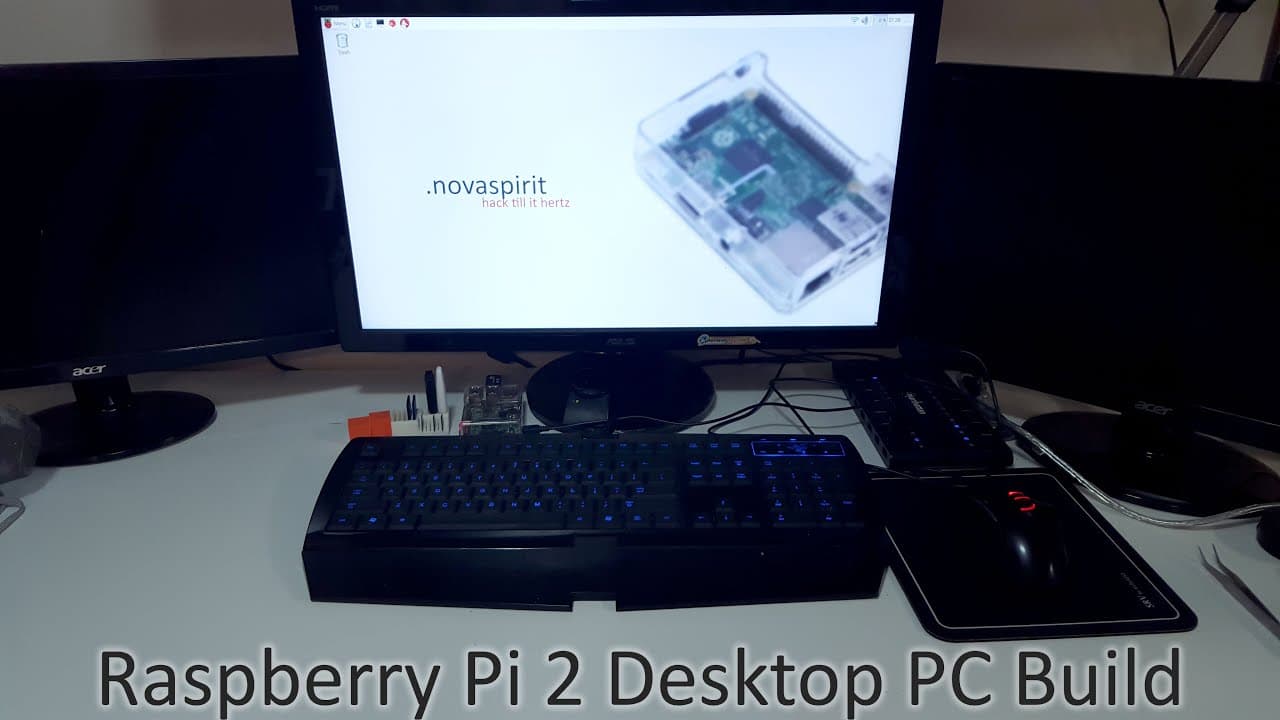
To convert a Raspberry Pi 2 into a functional desktop, install the latest Raspbian OS using Win32DiskImager, and follow steps to expand the filesystem and set boot preferences. The new Raspbian includes pre-installed software like LibreOffice, enhancing usability, while features like the configuration GUI make the setup process user-friendly.
Transcript
what's going on YouTube it's down here from Nova spirit and today we are going to be taking a Raspberry Pi 2 and turning into a desktop PC and doing a quick review on the latest raspbian image that just launched a few days ago so let's get started alright guys to get started we're going to need a couple of things which is the raspberry image itself... Read More
Key Insights
- 📰 The new Raspbian release significantly enhances the desktop experience by pre-installing essential software, making it suitable for everyday use.
- 👻 The inclusion of user-friendly features like the Raspberry Pi configuration GUI allows for easier system management and customization.
- 🧑🤝🧑 Improved performance of the Raspberry Pi 2, coupled with a quad-core processor, delivers a more responsive computing experience compared to older models.
- 👤 The installation process for applications has become intuitive, giving users direct access to the vast repositories of Debian.
- 🫥 Changes to boot preferences mean users no longer have to navigate through command lines to reach the desktop interface, enhancing accessibility.
- 🪜 Raspbian now features added functionality for managing USB devices through a dedicated taskbar icon, streamlining workflow.
- 👨💻 The inclusion of educational programming tools such as Greenfoot and BlueJ caters to users interested in learning coding within a desktop environment.
Install to Summarize YouTube Videos and Get Transcripts
Explore YouTube Video Summarizer or Get YouTube Transcript Extractor
Questions & Answers
Q: What is the main purpose of the video?
The main purpose of the video is to show how to convert a Raspberry Pi 2 into a functional desktop PC using the latest version of the Raspbian operating system. The content is targeted towards viewers looking for budget-friendly computing solutions.
Q: What key software is used to write the Raspbian image onto the SD card?
The key software used is Win32DiskImager, which is a tool that enables users to write disk images to removable storage devices, like SD cards. The video suggests downloading the latest Raspbian image and using this program to install it on the SD card.
Q: What are some of the new applications included in the updated Raspbian?
The updated Raspbian includes several new applications such as LibreOffice for document editing, Claw Mail for lightweight email management, and tools like Greenfoot and BlueJ for Java programming. These applications enhance the desktop environment's utility, making it more functional for users.
Q: How does the video address the issue of booting preferences in Raspberry Pi?
The video explains that, in the new Raspbian version, the system is set to boot directly into a graphical user interface (GUI) by default. This change allows users to access the desktop environment without needing to configure this setting manually, streamlining the user experience.
Q: What should users do to install additional applications on the Raspberry Pi?
Users can install additional applications using the terminal command “sudo apt-get install [application_name]”. The video specifically demonstrates installing Iceweasel (a Firefox variant) and highlights the ease of software installation in the Debian-based system.
Q: What are some performance improvements mentioned for the Raspberry Pi 2?
The video notes that the Raspberry Pi 2 sees performance boosts owing to prior updates in Raspbian, including speed improvements and bug fixes. Additionally, the quad-core capabilities of the Raspberry Pi 2 allow for better multitasking and overall performance enhancements compared to previous versions.
Q: How does the new Raspbian improve the experience with GPIO pins?
The updated Raspbian includes a configuration that allows users to control the GPIO pins without needing to use the 'sudo' command, simplifying project development. This change makes it easier to program and interact with hardware components directly from the desktop environment.
Summary & Key Takeaways
-
The video guides viewers through the process of converting a Raspberry Pi 2 into a desktop computer, using the new Raspbian operating system. It covers downloading necessary tools and software, particularly focusing on Win32DiskImager.
-
It highlights the updates introduced in the Raspbian Jessie's release, including the pre-installed applications like LibreOffice, Claw Mail, and the improved browser functionalities, which enhance user experience considerably.
-
The tutorial also outlines configuration steps, such as expanding the filesystem, setting up boot preferences, and installing additional software, making the Raspberry Pi more user-friendly and capable of serving as a complete desktop solution.
Read in Other Languages (beta)
Share This Summary 📚
Summarize YouTube Videos and Get Video Transcripts with 1-Click
Try YouTube Summary with ChatGPT & Claude or YouTube Transcript Generator
Explore More Summaries from Novaspirit Tech 📚





Summarize YouTube Videos and Get Video Transcripts with 1-Click
Try YouTube Summary with ChatGPT & Claude or YouTube Transcript Generator