How to Run n8n Locally with Free AI and Memory
TL;DR
Run n8n for free in Docker Desktop, connect it to a locally installed Ollama model, and use PostgreSQL chat memory to preserve conversations across container restarts. Mount local folders for persistent data, connect containers through host.docker.internal, and optionally build a knowledge base from Google Drive documents or expose n8n publicly with NGROK.
Transcript
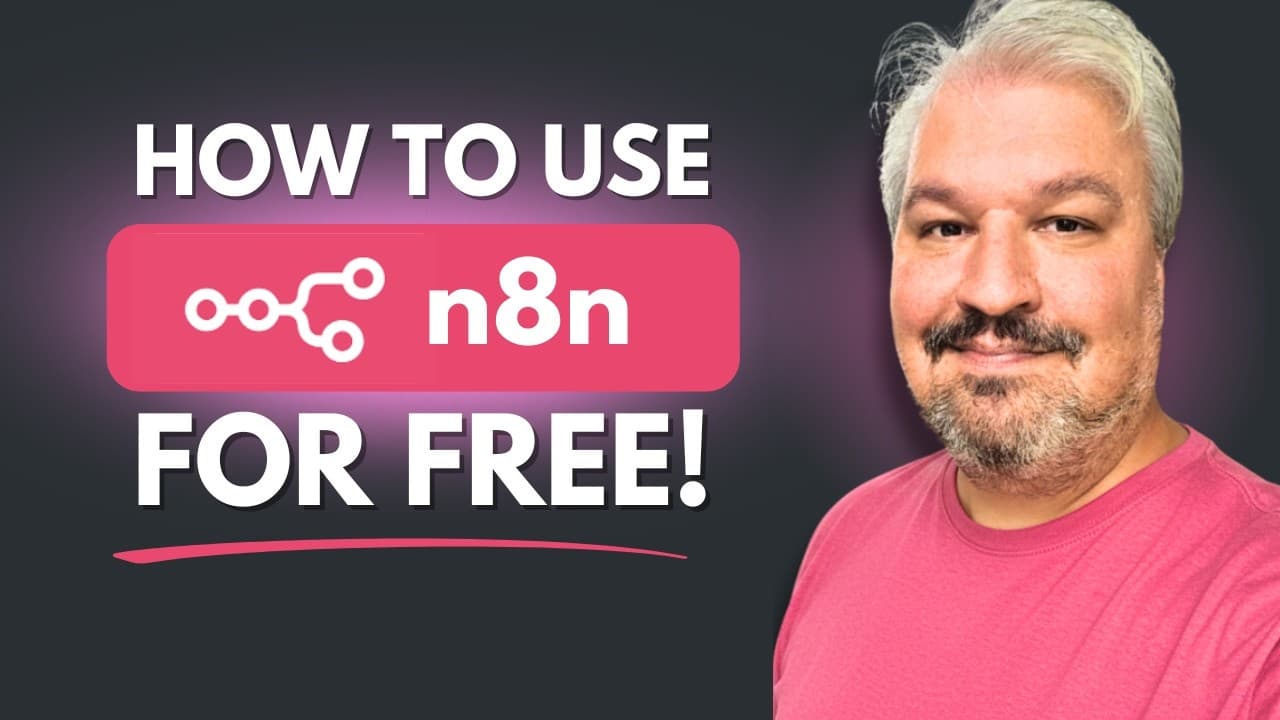
In this video, I'll show you how to use N8N for free. Not just that, we'll also have a look at using free AI models and a free database for storing our knowledge base and conversation history. And then finally, I'll show you how to use Enro to expose N8N on a public URL. This means you can access N8N from anywhere and integrate it into things like ... Read More
Key Insights
- Docker Desktop is the easiest foundation presented for running n8n, a local AI model, and a persistent database without subscription costs. Windows users may be asked to enable WSL by copying the command provided by Docker Desktop and running it in PowerShell.
- The n8n container is accessible through a chosen host port, typically 5678 in the tutorial. Mounting a local data folder at /home/node/N8N gives n8n the container path it uses for storing its data by default.
- Every n8n workflow starts with a trigger, which can respond to manual actions, schedules, webhooks, forms, other workflows, external application events, or incoming chat messages. The tutorial uses the On Chat Message trigger as the entry point for an AI assistant.
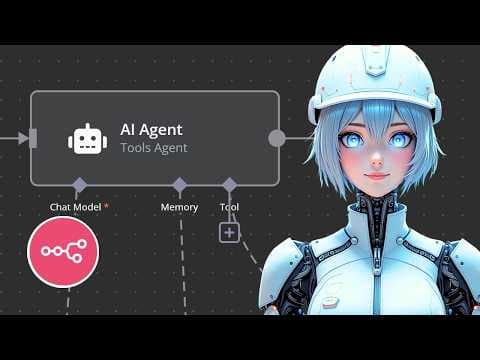
- The AI Agent node is assembled from a chat model, memory, and optional tools. The chat model acts as the agent's AI brain, while memory supplies prior messages that would otherwise be absent because each incoming message is treated as a standalone request.
- Ollama is a tool for downloading and running open-source models on a local computer. The tutorial selects an OpenAI open-source 20 billion parameter model, while noting that Ollama offers models ranging from 1.5 billion to 671 billion parameters.
- The Ollama connection from n8n requires host.docker.internal instead of localhost because n8n is running inside a Docker container. After saving the credential and refreshing n8n if necessary, the workflow can display and select models already downloaded through Ollama.
- Simple Memory is temporary because its stored conversation disappears when the n8n instance restarts. Setting its context length to 20 messages lets the agent remember recent details during the current runtime, but it does not provide durable storage.
- PostgreSQL Chat Memory is persistent because it retrieves messages from the database before model generation and appends new messages afterward. Running PGVector on port 5432 with a mounted data directory allows conversations to survive restarts of both n8n and the database container.
Install to Summarize YouTube Videos and Get Transcripts
Explore YouTube Video Summarizer or Get YouTube Transcript Extractor
Questions & Answers
Q: How do you run n8n locally for free with Docker Desktop?
Install Docker Desktop, enable WSL if prompted on Windows, and pull the official n8n image from Docker Desktop. Run the image as a container, give the container a name, and select an unused host port, typically 5678. Mount a local folder to /home/node/N8N, then start the container and open the URL shown in its logs or container controls.
Q: How do you preserve n8n data when running it in Docker?
Create a folder on the local device and attach it as a Docker volume when starting the n8n container. The container path must be /home/node/N8N, which the tutorial identifies as the default place where n8n stores its data. This volume gives the container a designated local storage location instead of relying only on its internal filesystem.
Q: How do you create an AI chat workflow in n8n?
Create and rename a workflow, add the On Chat Message trigger, and connect it to an AI Agent node. The trigger opens a chat interface and passes incoming messages into the workflow. The AI Agent then needs a chat model to generate responses. Memory can also be attached so previous messages accompany later prompts, while tools can provide additional agent capabilities.
Q: How do you connect a local Ollama model to n8n?
Install Ollama, choose a model from its models page, and run the supplied download command in a command prompt or terminal. In n8n, attach an Ollama Chat Model to the AI Agent and create a credential. Replace localhost in the base URL with host.docker.internal because n8n runs inside Docker, save the credential, and select the downloaded model.
Q: Why does an n8n AI agent forget earlier chat messages?
The agent forgets because each incoming message is treated as a standalone message unless conversation history is explicitly passed with the prompt. Without a memory node, telling the agent a name in one message does not make that information available in the next request. Attaching memory supplies earlier messages as context, allowing the model to answer questions about the preceding conversation.
Q: What is the difference between Simple Memory and PostgreSQL Chat Memory in n8n?
Simple Memory can place a chosen number of recent messages into the model context, and the tutorial configures it for the last 20 messages. However, that conversation history is held only in memory and is lost when the n8n instance restarts. PostgreSQL Chat Memory stores the conversation in a persistent database, so details can still be recalled after container restarts.
Q: How do you configure PostgreSQL chat memory for n8n?
Pull and run a PGVector image in Docker Desktop, assign host port 5432, and mount a local folder at /var/lib/postgresql/data. Add environment variables for the PostgreSQL username, password, and database name. In n8n, create PostgreSQL Chat Memory credentials using host.docker.internal, the configured database details, and port 5432, then save the connection and choose the message context length.
Q: How can n8n use stored documents as an AI knowledge base?
The PostgreSQL database can store a custom knowledge base as well as conversation history. The tutorial introduces a Google Drive folder containing invoices and proposes triggering a workflow whenever new invoices are uploaded. That stored document data can support a Q&A agent that answers questions from the user's own files, while the video description identifies Google Drive documents as the knowledge source.
Summary & Key Takeaways
-
Docker Desktop provides the foundation for running n8n locally. Pull the official n8n image, assign an available host port such as 5678, and mount a local folder at /home/node/N8N so application data has a persistent location. Windows users may also need to enable WSL using the command supplied by Docker Desktop.
-
An AI workflow begins with a trigger, such as the On Chat Message node, connected to an AI Agent. Ollama supplies free open-source chat models running on the same computer. Because n8n runs inside Docker, its Ollama credential must replace localhost with host.docker.internal before a downloaded model can be selected and tested.
-
Simple Memory can include recent messages in the agent context, but its conversation history disappears when the n8n instance restarts. PostgreSQL Chat Memory provides persistence instead. A PGVector container, mounted data folder, database credentials, port 5432, and a 20-message context allow the agent to recall stored details after both containers restart.
Read in Other Languages (beta)
Share This Summary 📚
Summarize YouTube Videos and Get Video Transcripts with 1-Click
Try YouTube Summary with ChatGPT & Claude or YouTube Transcript Generator
Explore More Summaries from Leon van Zyl 📚
Summarize YouTube Videos and Get Video Transcripts with 1-Click
Try YouTube Summary with ChatGPT & Claude or YouTube Transcript Generator