How to Use ChatGPT Canvas for Writing and Code
TL;DR
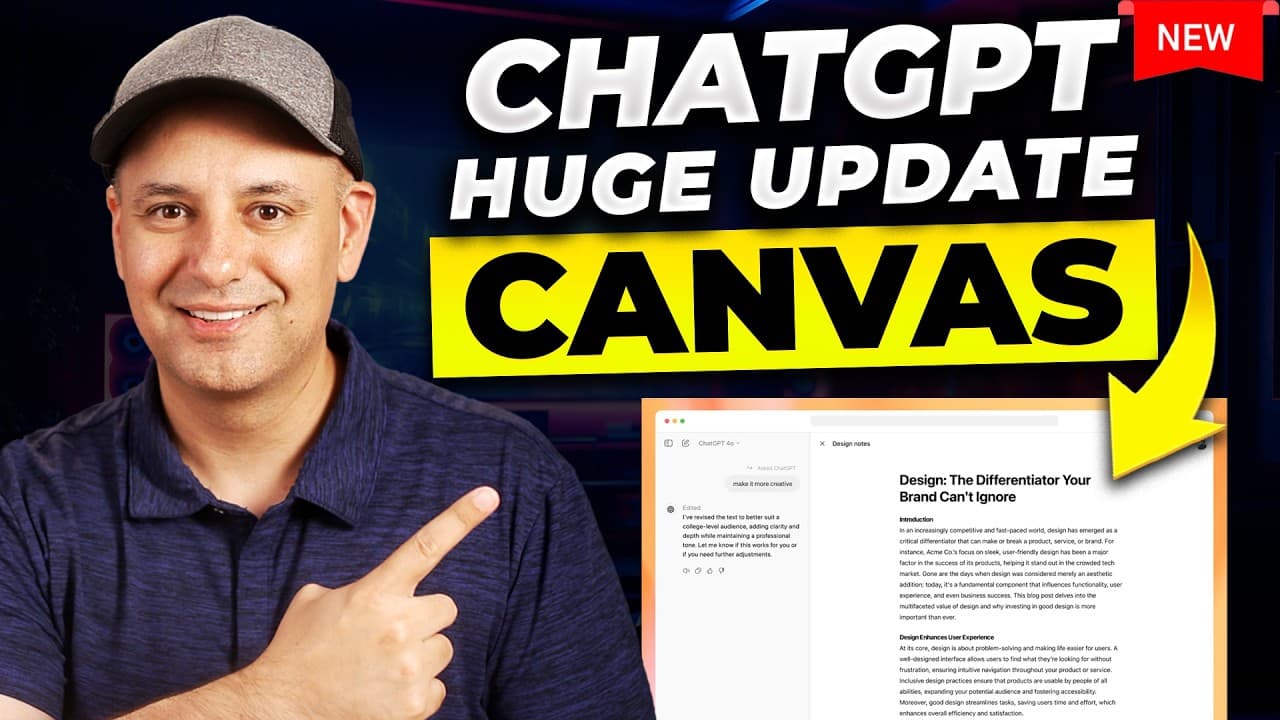
ChatGPT Canvas lets you edit writing and code in a document-style workspace while using chat for targeted revisions, explanations, and broader instructions. Its shortcuts can adjust length and reading level, polish text, suggest edits, review or debug code, add logs and comments, and port code between languages, while version controls help reverse unwanted changes.
Transcript
if you use chat GPT to write anything or for coding you're going to love this new update it's called canvas and it's available right now to paid versions of chat GPT teams plan and plus plan and it's going to come to the education plan and the Enterprise plan too it's not available on the free plan though so right here on the drop down I could clic... Read More
Key Insights
- Canvas is a dedicated ChatGPT interface for writing and coding that combines a document-style editor with an adjacent conversation. Users can work directly inside the generated draft while continuing to give natural-language instructions without returning to the standard chat layout.
- Targeted editing works by selecting a passage or code segment and requesting a specific change or explanation. The demonstrated requests made a heading sound more dramatic, simplified a paragraph, explained unfamiliar wording, and replaced an unwanted word without requiring the entire document to be rewritten.
- Writing shortcuts provide controls for suggesting edits, changing document length, adjusting reading level, applying final polish, and adding emojis. These tools can revise a complete draft with minimal prompting, although the demonstrated emoji shortcut initially inserted far more emojis than the presenter wanted.
- Suggested edits are presented like comments in a shared document. Users can inspect a proposed improvement and choose whether to apply it, allowing ChatGPT to function as an editor while leaving the user in control of each recommended revision.
- Version controls let users restore earlier content after an unwanted revision. The presenter used the previous-version option after preferring an original heading, showing how Canvas supports experimentation with tone, length, and wording without permanently committing to every generated change.
- Attached material can be incorporated into an existing Canvas draft through a conversational instruction. In the demonstration, an SEO content creation course outline was added to a digital marketing article, including ideas related to keyword research and optimizing meta descriptions with ChatGPT.
- Coding shortcuts can review code, fix bugs, add debugging logs, insert inline comments, and port a program to another language. The demonstration converted Python code to JavaScript and PHP, then returned it to Python, showing how the same workspace can support several development tasks.
- Generated code still requires practical testing because automated review and bug fixing do not guarantee correct behavior. The presenter ran a generated checkers game on a Mac, discovered that pieces could not capture one another, and returned to Canvas with that specific failure for another revision.
Install to Summarize YouTube Videos and Get Transcripts
Explore YouTube Video Summarizer or Get YouTube Transcript Extractor
Questions & Answers
Q: How do you use ChatGPT Canvas for writing?
Select Canvas from the model dropdown, enter a writing request, and work with the generated draft in the document-style editor. You can format headings, select passages for targeted revisions, simplify paragraphs, request alternative words, or ask for explanations in the adjacent chat. The shortcut menu can also suggest edits, change length or reading level, polish the draft, and add emojis.
Q: How do targeted edits work in ChatGPT Canvas?
Targeted edits begin when you select a specific passage and give ChatGPT an instruction about that selection. The transcript demonstrates changing a heading to sound more dramatic, simplifying a paragraph, explaining selected wording, and replacing one word with an alternative. A plus sign beside individual paragraphs provides another route to the same editing menu, so revisions can remain focused on the relevant section.
Q: What writing shortcuts are available in ChatGPT Canvas?
The demonstrated writing menu contains five shortcuts: suggest edits, adjust the length, change the reading level, add final polish, and add emojis. Suggested edits appear as comments that can be applied, while length and reading-level controls rewrite the broader document. Final polish addresses matters such as grammar consistency and section readability, and emoji insertion can be refined through a follow-up prompt.
Q: How can ChatGPT Canvas change a document's reading level?
Canvas includes a reading-level adjustment that can rewrite a draft for levels shown in the demonstration, including kindergarten, middle school, high school, college, and graduate school. The presenter changed the digital marketing article to a high school level and reviewed the revised language. This shortcut replaces the need to create a separate custom GPT solely to maintain a chosen reading level.
Q: Can ChatGPT Canvas incorporate an uploaded outline?
Canvas can incorporate material supplied through an attached file into an existing draft when the user gives a direct instruction. The presenter attached an SEO content creation course outline and asked ChatGPT to incorporate it into a digital marketing blog post. Canvas then added related material, including keyword research, SEO content creation, and optimizing meta descriptions with ChatGPT.
Q: What coding tools does ChatGPT Canvas provide?
The coding menu demonstrated tools for reviewing code, porting it to another programming language, fixing bugs, adding logs, and adding comments. Code review produces suggestions that users can apply, logs add print statements for debugging, and comments describe sections inline. Users can also select part of the code and ask ChatGPT to explain what that particular section does.
Q: How can ChatGPT Canvas convert code between languages?
Canvas provides a porting shortcut that rewrites code in a selected programming language. In the demonstration, a checkers game initially written in Python was converted to JavaScript and then PHP. The presenter subsequently requested Python again to return to the original language. The workflow makes language conversion quick, but the resulting program still needs to be reviewed and tested.
Q: Why should code generated in ChatGPT Canvas still be tested?
Generated code can remain functionally incorrect even after Canvas reviews it or applies automatic bug fixes. The presenter created a Python checkers game, followed the provided instructions to run it on a Mac, and found that a piece could not capture another piece. Reporting that precise failure gave Canvas a concrete issue to examine and revise line by line.
Summary & Key Takeaways
-
Canvas provides a dedicated ChatGPT workspace for writing and coding projects. Users can edit and format content directly, select specific passages for targeted requests, ask questions through the adjacent chat, copy completed work, and restore earlier versions when a revision produces an undesirable result or changes the content too aggressively.
-
Writing tools include suggested edits, length adjustment, reading-level controls, final polishing, and automatic emoji insertion. Canvas can also explain selected language without changing the document, replace individual words, simplify paragraphs, and incorporate material from an attached file into an existing draft, such as adding an SEO course outline to a blog post.
-
Coding tools can review an entire program, suggest improvements, fix bugs, add debugging logs, insert inline comments, and port code between programming languages. Users can select a code segment for an explanation, request instructions for running a program, test the generated result locally, and report specific failures for another revision.
Read in Other Languages (beta)
Share This Summary 📚
Summarize YouTube Videos and Get Video Transcripts with 1-Click
Try YouTube Summary with ChatGPT & Claude or YouTube Transcript Generator
Explore More Summaries from Skill Leap AI 📚

Summarize YouTube Videos and Get Video Transcripts with 1-Click
Try YouTube Summary with ChatGPT & Claude or YouTube Transcript Generator