How to Build a No-Code Browser AI Agent in n8n
TL;DR
A browser AI agent built in n8n with Airtop can control a remote web browser using natural language, spinning up a live session and then clicking, typing, querying pages, and ending the session. Because logins are saved once in Airtop, the agent can automate authenticated sites like X, and you can watch it work via a live URL.
Transcript
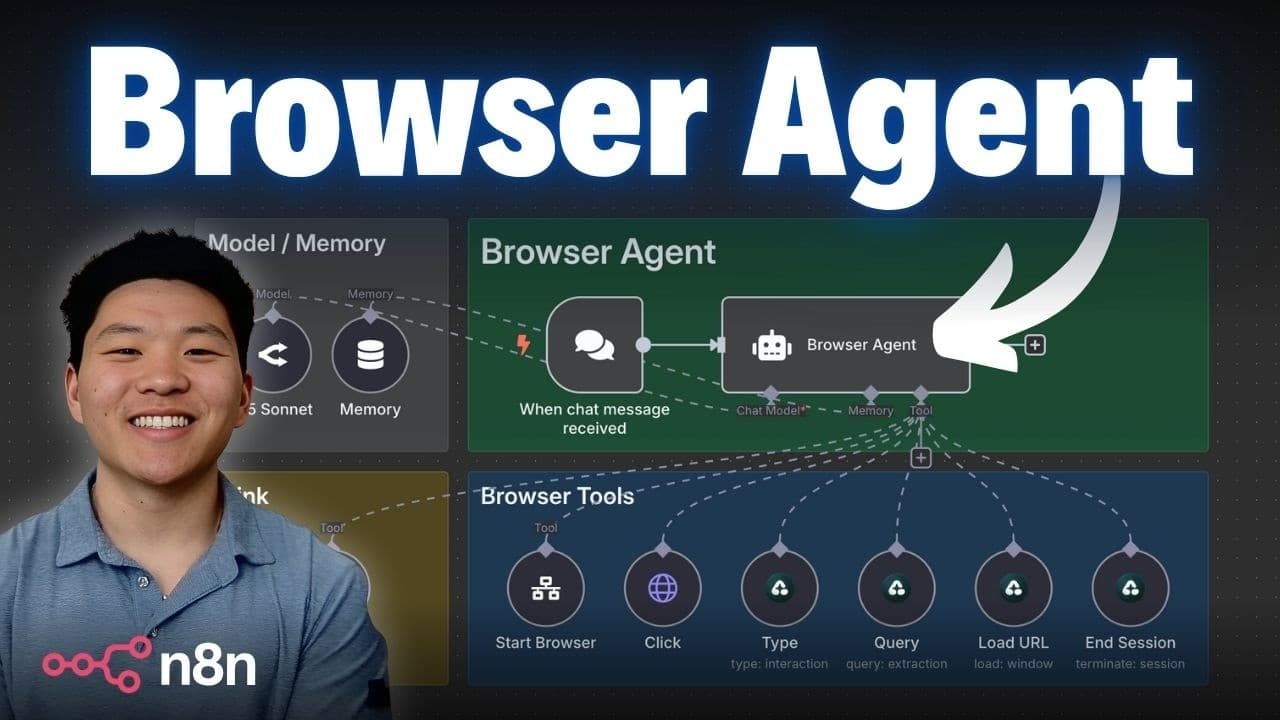
This AI agent can use a computer just like a human would. As you can see, if we take a look at its browser tools, it can start up a browser. It can click, type, query, load windows, and also end those sessions. So, the whole point of this agent is to take web actions with completely natural language. Let's hop into a quick demo so I can show you gu... Read More
Key Insights
- Airtop lets you automate the web with just words, spinning up remote browsers that an AI agent can start, click, type, query, load windows in, and end sessions on, all controlled through natural language in n8n.
- The agent's browser toolset includes six actions: start browser, load a URL, query the page to extract information, click elements, type into input fields, and end the session before responding to the human.
- The start browser tool returns a session ID and window ID that are required by every other tool, so click and type operations know exactly which browser and window they are acting on.
- Authenticated sites can be automated because you set up a login profile once inside Airtop; the demo agent searched X while logged into a Twitter account by passing over the profile name.
- A live view URL is generated for each session, letting you click through, in this build sent to Slack, and watch the agent move the mouse, click, and type in real time.
- The query tool scans the page and extracts requested information, such as locating a search bar or summarizing search results, by sending a prompt alongside the session and window IDs.
- The type tool automatically hits enter after typing, so instructing it to type 'Google V3' into the search box also submits the search without a separate action.
- A tool living in the same n8n workflow can be called by ID: copy the workflow ID from the URL, switch the tool from 'choose from list' to 'by ID', paste it, and map the workflow inputs.
Install to Summarize YouTube Videos and Get Transcripts
Explore YouTube Video Summarizer or Get YouTube Transcript Extractor
Questions & Answers
Q: How do you build a browser AI agent with no code?
You build it in n8n using Airtop, which lets you automate the web with natural language. You create an AI agent and give it browser tools: start browser, load URL, query, click, type, and end session. A system prompt tells the agent it is a smart advanced web agent that controls a remote browser to fulfill the human's request. Airtop nodes spin up the browsers, and you only need to plug in a few credentials after importing the free template into n8n.
Q: What is Airtop and what does it do?
Airtop is a service that lets you automate the web with just your words. It spins up remote browsers that an AI agent can control, letting the agent start a browser, click, type, query pages, load windows, and end sessions. In the video, Airtop nodes handle browser sessions inside an n8n workflow. Airtop also offers ready-made templates for tasks like commenting on X posts, building lists of profiles, and extracting information from LinkedIn profiles.
Q: What tools does the browser agent have?
The agent has six tools. Start browser always begins the process and returns a session ID and window ID. Load URL opens a website in the browser window. Query scans the page and extracts information like where the search bar is or what results say. Click clicks on elements like buttons. Type enters text into input fields and automatically hits enter. End session must be used every time before responding to the human to turn off the browser session. It also has a think tool to reflect on progress.
Q: Why does the agent need a session ID and window ID?
The start browser tool returns both a session ID and a window ID, which are required by the other tools. Tools like click and type have to know which actual browser and which window they are operating in, so these IDs identify the specific remote browser session. After the browser starts, the workflow uses a set node to give the session ID and window ID back to the main agent, which then passes them along whenever it types, clicks, or queries during that session.
Q: How can the agent automate websites that require a login?
You set up a login once inside Airtop by creating a profile, then pass that profile name over when starting the browser. In the demo, the agent searched X while the creator was logged into one of his Twitter accounts, visible in the bottom left. Because Airtop stores the authenticated profile, the agent in n8n can access sites like X, Instagram, or anything else that requires a login and perform actions on them without needing to log in each time.
Q: How can you watch the browser agent work in real time?
When the start browser tool runs, Airtop generates a live view URL for that session. In this build, the workflow sends that URL to Slack, so you can click it and watch the agent move the mouse, click on elements, and type. In the demo, the viewer watched the agent move its mouse to the search bar, click, type Google V3, and hit enter to search X. You can also see all previous sessions under browser sessions in the Airtop dashboard.
Q: How do you call an n8n tool that lives in the same workflow?
If a tool lives in a separate workflow, you can select it by choosing from a list. But to call a tool that lives in the same workflow, you do it by ID. You copy the workflow ID from the URL, which is a string of capital letters, lowercase letters, and numbers after workflow slash. Then you go into the tool, change the setting from choose from list to by ID, paste the ID in, and map the workflow inputs and profile name.
Q: What did the agent find when searching X for Google V3?
Based on search results from X, the agent reported three findings about Google V3. For latest features, it found that V3 now includes native audio generation capabilities. For availability and reception, it found that it was released in 73 countries through the Gemini app. For technical notes, it found that it builds upon previous V2 capabilities. The agent produced this after using its type tool to search and its query tool to summarize the most relevant points from the page.
Summary & Key Takeaways
-
The video demonstrates a no-code browser AI agent built in n8n using Airtop, which lets an agent control a remote web browser entirely through natural language. In a live demo, the agent is asked to find posts on X about Google V3, starts a browser, and shares a link to watch it work.
-
The agent has six browser tools: start browser, load URL, query, click, type, and end session. Starting a browser returns a session ID and window ID that all other tools require. A system prompt frames it as a smart web agent whose goal is to fulfill the human's request using these tools.
-
Because a login profile is set up once inside Airtop, the agent can automate authenticated sites like X. The workflow can keep the start browser tool inline (called by workflow ID) or in a separate workflow called from a list, and a free downloadable template plus setup guide is offered through the creator's Skool community.
Read in Other Languages (beta)
Share This Summary 📚
Summarize YouTube Videos and Get Video Transcripts with 1-Click
Try YouTube Summary with ChatGPT & Claude or YouTube Transcript Generator
Explore More Summaries from Nate Herk | AI Automation 📚


Summarize YouTube Videos and Get Video Transcripts with 1-Click
Try YouTube Summary with ChatGPT & Claude or YouTube Transcript Generator