How to use ChatGPT Voice 2.0 Across Five Levels
TL;DR
ChatGPT Voice 2.0 lets you interact with a desktop level agent that follows you across windows and performs tasks while you talk. The video explains five difficulty levels, from multitasking to hands free browser control, and showcases real examples, setup tips, and caveats such as Mac only limitations and the need for connection to desktop apps.
Transcript
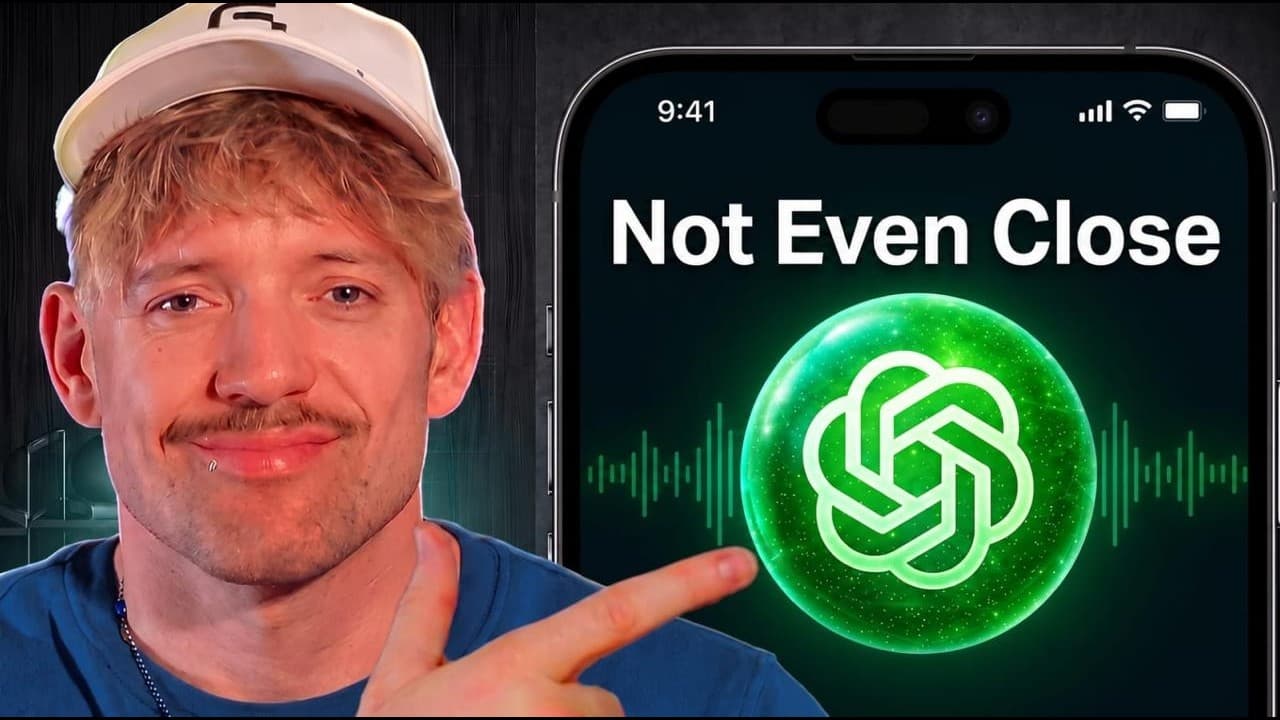
Open AI just dropped Chat GPT Voice 2.0 and it unlocks incredible capabilities. It is essentially Jarvis. It connects all of your tools, works from your phone, and it will change the way that you work, but only if you know how to use it properly and the best use cases. And in [music] this video, I'm going to show you the five levels of Chat GPT Voi... Read More
Key Insights
- ChatGPT Voice 2.0 introduces a moving assistant that follows you across windows and apps.
- The system can handle multiple tasks at once, including desktop actions, research, and page building.
- Voice control can be used on desktop, laptop, and phone for a cohesive workflow.
- CodeX and Codex enable advanced task handling and decision making based on user context.
- You can connect your ChatGPT account to your desktop to enable remote work from anywhere.
- The tool can explain web pages and track live pages by taking screenshots for context.
- There is an emphasis on reducing token use by using Firecrawl for scraping and data gathering.
- There are caveats such as no live camera access and platform restrictions like Mac only.
- More videos from this channel:
- More from this channel: Jack Roberts
Install to Summarize YouTube Videos and Get Transcripts
Explore YouTube Video Summarizer or Get YouTube Transcript Extractor
Questions & Answers
Q: How can I start using ChatGPT Voice 2.0 for multitasking across my desktop and browser?
To start using ChatGPT Voice 2.0 for multitasking, you enable the voice mode in the ChatGPT or Codex app, choose a voice, and begin giving multiple commands in one go. The system can organize files, run research, and build a landing page simultaneously, with the assistant following you as you switch tasks across different windows or pages. This level of control represents a consolidated workflow where voice commands drive multiple concurrent actions.
Q: What makes ChatGPT Voice 2.0 able to follow me around my screen and work on different apps?
The feature works by keeping the assistant active in a floating interface that can be minimized or moved. It follows you across any app, can be muted, and can be prompted with clarifying questions before taking actions. This omnipresence is achieved by integrating the assistant with the user’s environment so that commands apply to the current context, enabling a seamless, continuous workflow.
Q: Can I use ChatGPT Voice 2.0 on my phone and desktop interchangeably?
Yes, the video demonstrates that you can use ChatGPT Voice 2.0 on both desktop and phone. You can start tasks on one device and continue on another, with the assistant maintaining context and performing actions across different windows and apps. This cross device capability is presented as a key advantage for maintaining productivity on the go.
Q: What is Firecrawl and how does it help with ChatGPT Voice 2.0 workflows?
Firecrawl is shown as a web scraping tool used to save tokens and gather data efficiently during tasks like researching growth strategies. By integrating Firecrawl, the assistant can scrape live pages, extract relevant information, and present it in a usable format, reducing manual browsing time and enabling faster decision making in the workflow.
Q: How does ChatGPT Voice 2.0 handle vague prompts and still deliver useful results?
The system can take vague prompts and respond with meaningful outputs by using CodeX and contextual awareness. It references the current page content, user contacts, and build goals to tailor recommendations. This level of capability allows the assistant to propose concrete options or next steps even when the initial instruction is not fully detailed.
Q: What are the practical limits or caveats mentioned for ChatGPT Voice 2.0 in the video?
The video notes practical caveats such as no live camera access and a Mac only limitation for certain features. It also mentions that the level of capability can depend on the platform and connectivity, and some actions may require specific app integrations or account connections to function properly.
Q: What are the five levels of ChatGPT Voice demonstrated in the video?
The five levels progress from basic multitasking to advanced hands free browser control. Level one focuses on multitasking across desktop actions, level two expands to desktop control from a phone and continuous following, level three uses vague ideas to generate substantial outputs, level four triggers a Hermes agent for configurations and reminders, and level five enables hands free browser interactions with form filling and button clicks guided by prior knowledge. This progression shows increasing autonomy and integration with user workflows.
Q: How can I learn more about the related tools like Hermes and Eleven Labs mentioned in the video?
The video provides links for deeper exploration of each tool: Hermes for agent based checks and reminders, Eleven Labs for voice capabilities, ChatGPT for core functionality, and Firecrawl for live web scraping. Following these links allows users to explore advanced features, compare capabilities, and apply them to their own projects, expanding practical AI driven workflows across devices and apps.
Summary & Key Takeaways
-
ChatGPT Voice 2.0 enables a conversational agent that follows you across apps and can perform multiple tasks at once, saving time. It also works on desktop and mobile, with the ability to connect to a user’s account and run tasks remotely. The video walks through five progressive capability levels and real world use cases.
-
The narrator demonstrates multitasking, desktop control from a phone, vague idea to output, and hands free browsing by voice. He highlights practical workflows like organizing downloads, researching strategies, and building a landing page, while noting caveats such as no live camera and Mac only restrictions.
-
The content emphasizes practical implementation of voice driven AI to reduce manual effort, showing how to leverage Firecrawl for web scraping to save tokens and how to use Hermes for configuration checks and reminders, ending with guidance on deeper coding resources.
Read in Other Languages (beta)
Share This Summary 📚
Summarize YouTube Videos and Get Video Transcripts with 1-Click
Try YouTube Summary with ChatGPT & Claude or YouTube Transcript Generator
Explore More Summaries from Jack Roberts 📚





Summarize YouTube Videos and Get Video Transcripts with 1-Click
Try YouTube Summary with ChatGPT & Claude or YouTube Transcript Generator