How to Connect Hermes Agent with NotebookLM
TL;DR
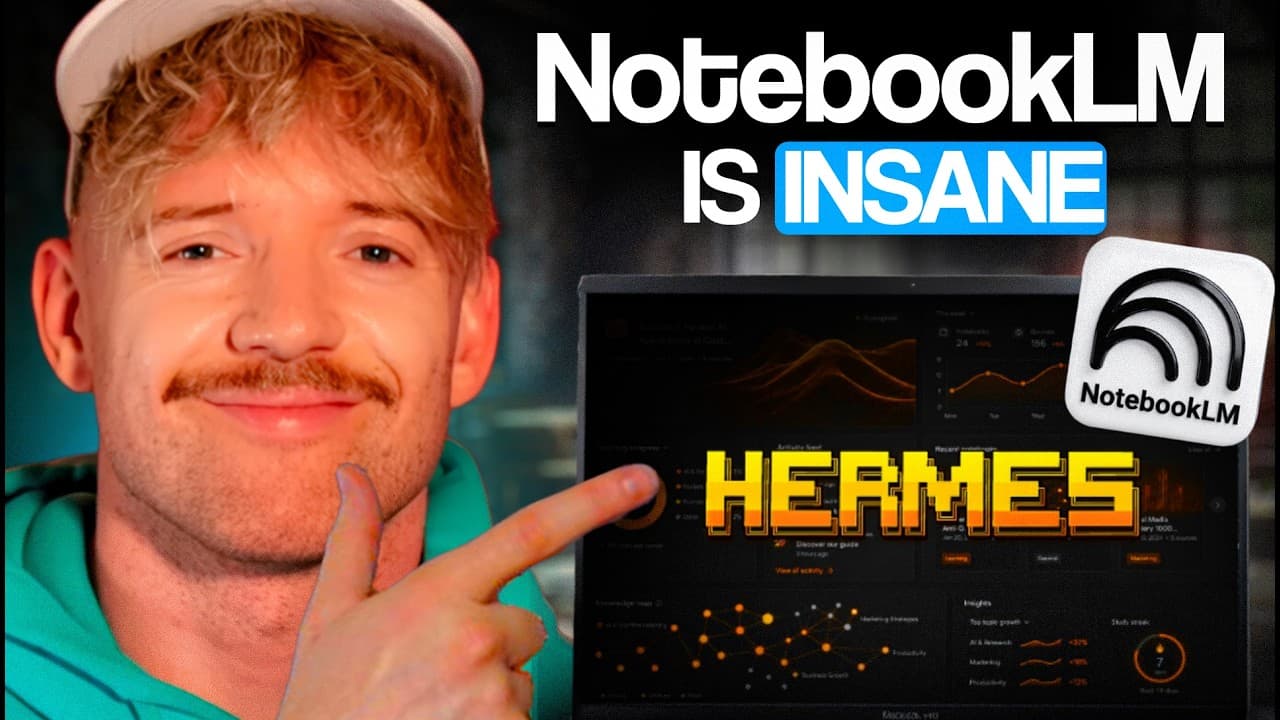
Connect NotebookLM to Hermes Agent by installing the provided NotebookLM skill, authenticating through a signed-in browser, testing notebook access, and activating the corresponding Hermes skill prompt. The integration lets you query research notebooks from Telegram, submit requests by voice, receive cited outputs and artifacts, and use Hermes to turn NotebookLM answers into scripts, notes, reminders, or emails.
Transcript
Imagine combining Hermes's agent with the world's number one research and intelligence platform, Notebook LM. I did this and it blew my mind and it unlocks capabilities that most people on the planet don't even know exist. And in this video, I'll show you exactly how to supercharge Hermes agent by powering it with Notebook LM, giving you a 247 AI r... Read More
Key Insights
- Hermes Agent is positioned as the conversational interface that makes NotebookLM research accessible from a phone, including through Telegram, while retaining the ability to use the retrieved knowledge in later tasks and actions.
- NotebookLM can collect more than 250 resources on a topic, while the presentation also describes support for more than 300 sources per notebook and outputs such as audio overviews, slide decks, video overviews, mind maps, and cited responses.
- The integration works by installing a provided NotebookLM skill, opening NotebookLM in a browser, signing in, and allowing the computer to use the authenticated connection for programmatic requests from Claude Code or Hermes Agent.
- The connection can be tested by asking the installed skill to identify the three most recent NotebookLM notebooks, providing a simple validation that authentication and notebook access are working before Hermes is configured.
- A NotebookLM research brain is a notebook assembled around a particular subject, such as YouTube strategy or e-commerce, which Hermes can query to retrieve focused principles and insights from the stored source collection.
- Voice notes can become research requests because Hermes accepts spoken input from a phone, passes the request to NotebookLM, and returns the resulting information through the same conversational interface.
- NotebookLM supplies the researched answer while Hermes handles subsequent action, including drafting scripts, saving notes, scheduling reminders, or preparing and sending emails from the same chat-based workflow.
- Recurring research workflows can be scheduled through Hermes, with the example of creating a useful notebook each morning from recent conversations and delivering its podcast overview and infographic at 8 a.m.
- More videos from this channel:
- More from this channel: Jack Roberts
Install to Summarize YouTube Videos and Get Transcripts
Explore YouTube Video Summarizer or Get YouTube Transcript Extractor
Questions & Answers
Q: How do you connect Hermes Agent to NotebookLM?
Download the provided NotebookLM skill, upload the file to Claude Code or another chosen model, and ask it to install the skill. Next, open NotebookLM in a browser and sign in when authentication is requested. Test the connection by asking for the three most recent notebooks. Finally, add the supplied description and system prompt to Hermes and activate the resulting skill.
Q: How can Hermes Agent query NotebookLM from a phone?
Hermes can receive a request through its phone-accessible interface or Telegram chat and use the installed NotebookLM skill to query a selected notebook. The example asks a YouTube strategy notebook for two principles about creating effective hooks. Hermes performs the query in the background and returns the notebook-derived answer to the same conversation, making the stored research available while the user is away from a computer.
Q: What can NotebookLM provide through Hermes Agent?
NotebookLM can provide answers grounded in notebook sources, along with cited material and research artifacts. The presentation highlights audio overviews, two-host podcast-style audio, slide decks, video overviews, mind maps, and infographics. Through Hermes, users can request these outputs conversationally and receive results in their chat, including Telegram, instead of navigating NotebookLM separately for each request.
Q: How do you test whether the NotebookLM skill is working?
After installing the skill and signing in to NotebookLM through the browser, ask the connected model to find the three most recent notebooks in the account. A successful response listing those notebooks demonstrates that the computer can access NotebookLM programmatically. This validation should happen before the Hermes skill is activated, because it separates NotebookLM authentication from the later Hermes configuration.
Q: How can NotebookLM and Hermes turn research into action?
NotebookLM provides the researched information, and Hermes uses that information to complete follow-up work. From the same chat, Hermes can draft scripts, save notes, schedule reminders, or prepare and send emails based on the notebook response. This creates a continuous workflow in which users request knowledge, review the answer, and initiate an operational task without moving between separate interfaces.
Q: How can you create a NotebookLM research brain?
Build a notebook around a subject you want to reference repeatedly, then populate it with relevant resources. The examples include notebooks for YouTube strategy, NotebookLM capability research, and e-commerce. Once the NotebookLM skill is connected, Hermes can query that subject-specific collection conversationally, letting the notebook function as a second brain for retrieving focused information from its accumulated materials.
Q: Can Hermes automate recurring NotebookLM research?
Hermes can be instructed to run a recurring research workflow. The example schedules a task for 8 a.m. each morning, asking Hermes to create a NotebookLM notebook on something valuable based on conversations from the previous 24 hours. It then requests a podcast overview and an infographic so those research artifacts are ready to review at the scheduled time.
Q: How do you add the NotebookLM skill prompt to Hermes?
Use the supplied resource containing a skill description and assistant prompt. One option is to copy the material into Hermes and ask it to turn the content into a skill. Another option is to create a new persona in the Pantheon dashboard, paste the description and system prompt into their corresponding fields, choose the model, create the scribe, and send its activation prompt to Hermes.
Summary & Key Takeaways
-
Hermes Agent can serve as the conversational and action layer for NotebookLM. From a phone or Telegram chat, users can query notebooks, request principles from stored research, submit voice notes, and receive results without opening NotebookLM directly. The combination is presented as a portable, continuously accessible research assistant.
-
The setup begins by downloading the free NotebookLM skill, uploading it to Claude Code or another chosen model, and requesting installation. Authentication requires opening NotebookLM in a browser and signing in so the computer can access it programmatically. Users can validate the connection by requesting a list of recent notebooks.
-
After validating desktop access, users connect NotebookLM to Hermes by creating a skill from the supplied description and system prompt. The prompt can be added directly to Hermes or managed visually as a persona in the Pantheon dashboard. Once activated, Hermes can retrieve knowledge and perform follow-up actions from one conversation.
Read in Other Languages (beta)
Share This Summary 📚
Summarize YouTube Videos and Get Video Transcripts with 1-Click
Try YouTube Summary with ChatGPT & Claude or YouTube Transcript Generator
Explore More Summaries from Jack Roberts 📚





Summarize YouTube Videos and Get Video Transcripts with 1-Click
Try YouTube Summary with ChatGPT & Claude or YouTube Transcript Generator