How to Use MicroPython with Raspberry Pi Pico and OLED
TL;DR
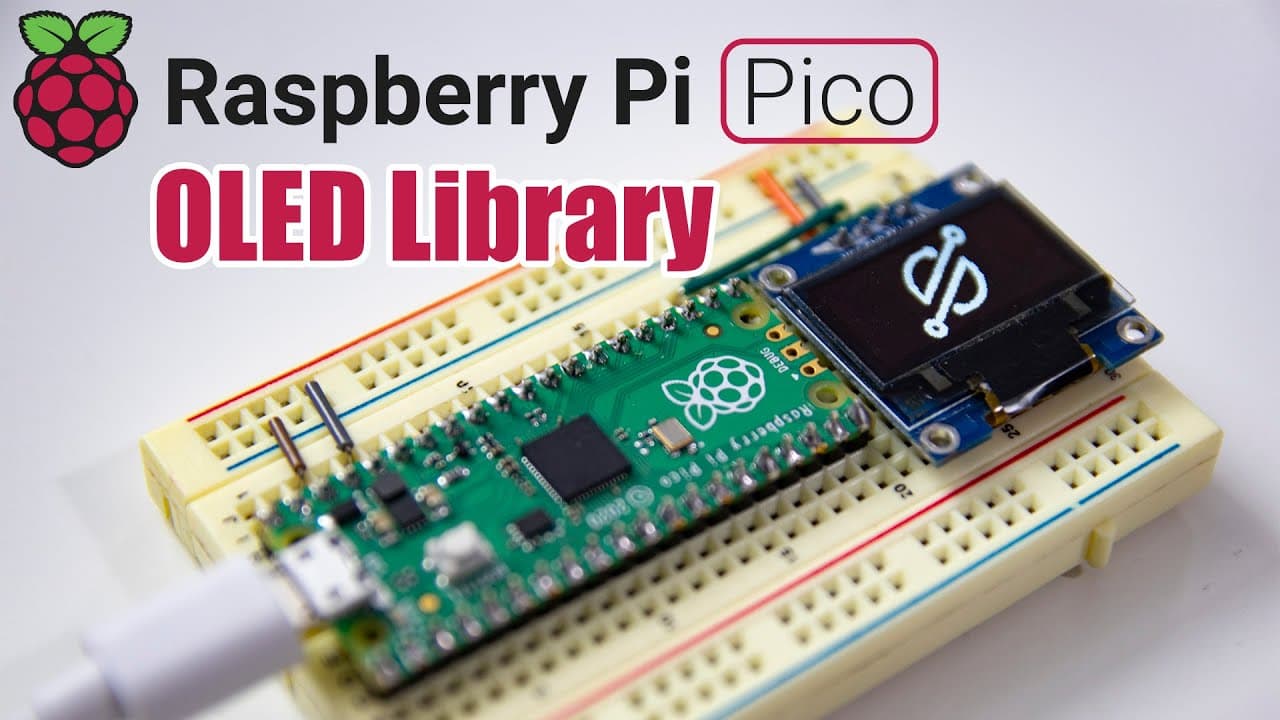
To display images and text on an OLED using MicroPython with a Raspberry Pi Pico, first install the SSD1306 library via Tawny. Set up I2C communication, define your pins, and use the appropriate coding functions to render text and images on the screen. This setup allows for both simple and advanced display capabilities.
Transcript
hey guys it's don here from nova spare tech and welcome back to the channel and today i'm going to show you guys how to code a micro python on the raspberry pi pico to display stuff on an oled lcd so let's get started now before i begin this main project is not solely just to get a display working on oled but how easy it is to install libraries usi... Read More
Key Insights
- 💨 MicroPython provides a flexible way to program Raspberry Pi Pico for various projects, including interfacing with OLED displays.
- 💄 Using Tawny makes library installation straightforward, enabling quick access to necessary packages like SSD1306 for OLED functionality.
- ♓ The integration of I2C protocols is crucial in communication between the Raspberry Pi Pico and the OLED display for transmitting data effectively.
- 😴 Understanding the configuration of pins for SCL and SDA is essential for proper setup and functioning of I2C devices.
- 🤗 The tutorial emphasizes hands-on learning, motivating viewers to experiment with both basic text and advanced image display functionalities.
- 👻 The capacity to utilize libraries allows for more complex projects, highlighting MicroPython's versatility in embedded systems.
- 🛀 The approach introduced facilitates the creation of dynamic displays, where images or animations can be sequentially shown through buffer management.
Install to Summarize YouTube Videos and Get Transcripts
Explore YouTube Video Summarizer or Get YouTube Transcript Extractor
Questions & Answers
Q: What is the main goal of this tutorial?
The primary goal of this tutorial is to teach viewers how to set up an OLED display using MicroPython on a Raspberry Pi Pico. It covers not only getting the display working but also demonstrates how to install necessary libraries through Tawny and how to incorporate both text and images into the OLED display.
Q: How do you install the SSD1306 library for the OLED display?
To install the SSD1306 library, open the Tawny editor connected to your Raspberry Pi Pico, and navigate to the 'Tools' menu. Under 'Manage Packages', search for 'ssd1306' and choose the MicroPython version to install it. After installation, you can verify it by checking the 'lib' directory to confirm the library's presence.
Q: What are the key variables to define while programming the OLED display?
Key variables include setting the dimensions of the display (like width and height), defining the I2C bus (often set to i2c = 0), and declaring the pins used for clock (SCL) and data (SDA) lines. In the tutorial, pins GP17 and GP16 are used for these functionalities, along with the required frequency settings.
Q: How can you display images on the OLED screen?
To display images, the video introduces a method to convert images into a byte array using a custom software written in Python. After conversion, you then create a frame buffer to hold the image data and transfer this data to the OLED using the blit function. This allows for displaying custom logos or other images on the screen.
Summary & Key Takeaways
-
This video demonstrates how to configure a Raspberry Pi Pico to work with an OLED display using MicroPython, including installation of relevant libraries via Tawny.
-
Viewers are guided through the setup of I2C communication, necessary library imports, and the coding process to fill the OLED screen with text and images.
-
The tutorial also touches on more advanced projects, including image uploading, and encourages viewers to subscribe for future updates on related content.
Read in Other Languages (beta)
Share This Summary 📚
Summarize YouTube Videos and Get Video Transcripts with 1-Click
Try YouTube Summary with ChatGPT & Claude or YouTube Transcript Generator
Explore More Summaries from Novaspirit Tech 📚




Summarize YouTube Videos and Get Video Transcripts with 1-Click
Try YouTube Summary with ChatGPT & Claude or YouTube Transcript Generator