How to Use Claude Code Without Coding Experience
TL;DR
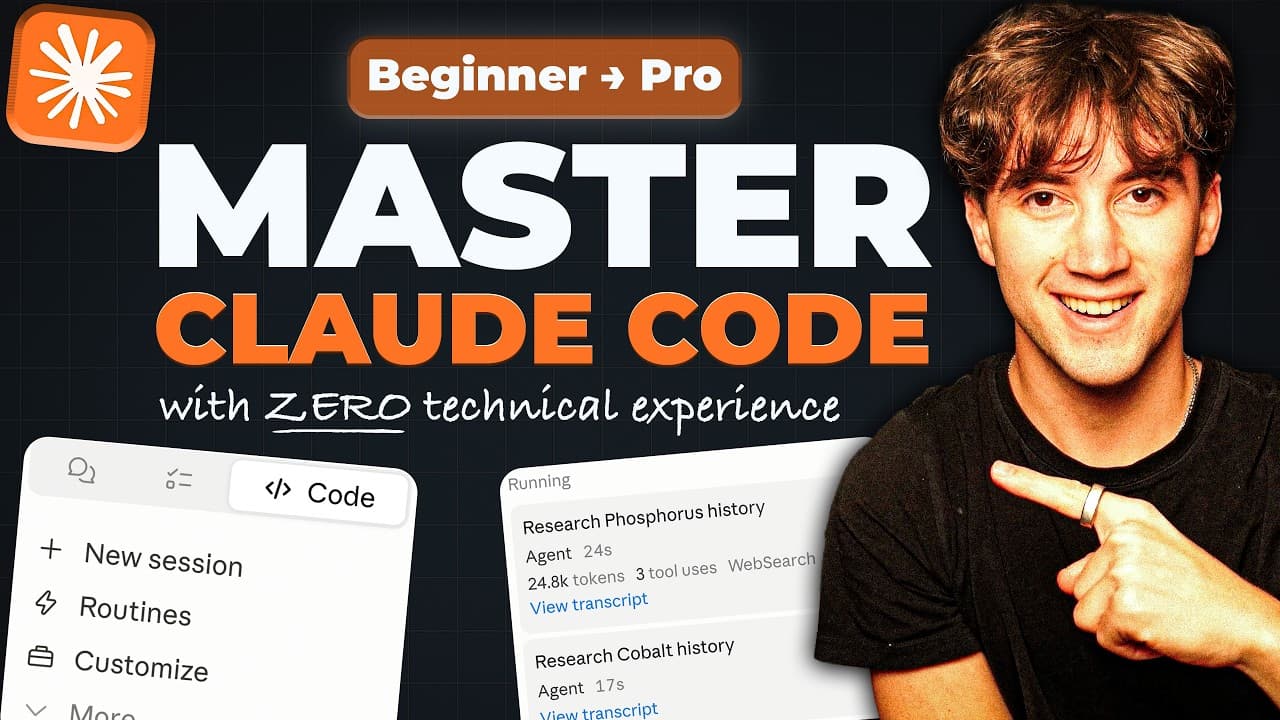
Claude Code works from a trusted local folder, where it can read, write, execute, organize, and transform files based on outcome-focused instructions. Beginners can start by installing Claude Desktop and Git, then progress from file references and slash commands to CLAUDE.md instructions, skills, subagents, connectors, routines, notifications, automations, and website deployment without needing a coding background.
Transcript
In this video, I'm going to walk you through every single feature in Clawed Code from the basics all the way up to the more advanced techniques like setting up automations that run while you sleep and deploying websites, apps, and tools to the internet. Also, I'm going to show you how to set up your Claude code operating system. This turns Claude i... Read More
Key Insights
- Claude Code is a desktop-based tool that works directly with folders on a local computer, treating each selected folder as a project or working environment where it can access source materials and create new files.
- The Pro plan is presented as the minimum subscription required to access Claude Code, while the free plan can generate code and visualize data but does not provide the same Claude Code functionality described in the tutorial.
- Git is required for local Claude Code sessions in the desktop application. If the Code tab displays a Git requirement and does not accept prompts, users must install Git for their operating system and restart Claude Desktop.
- Workspace trust is permission for Claude Code to read, write, and execute files within a selected directory. Users create or open a project folder and should grant this access only when they trust the workspace.
- Outcome prompting is the practice of telling Claude Code what finished result to produce instead of asking for instructions. A direct command such as renaming every file in a folder lets the system inspect and modify those files itself.
- Auto mode allows Claude Code to continue working without repeatedly requesting approval for each action. In the demonstrated image-renaming task, it inspected six thumbnail images and renamed them according to the emotions they displayed.
- The at symbol is a way to identify a specific file that Claude Code should read, discuss, modify, or use as context. This lets users ground a task in the full contents of documents stored inside the working folder.
- A Claude Code operating system combines organized project context with CLAUDE.md instructions, skills, subagents, connectors, routines, notifications, and automations. The described workflow can also support creating artifacts and building and deploying websites, apps, and tools.
Install to Summarize YouTube Videos and Get Transcripts
Explore YouTube Video Summarizer or Get YouTube Transcript Extractor
Questions & Answers
Q: How do beginners set up Claude Code on a computer?
Beginners first need a Claude plan that includes Claude Code, with Pro presented as the minimum plan in the tutorial. They then download Claude Desktop from the provided Claude download page and open the Code tab. If the application reports that Git is required, they install Git for their operating system, restart Claude Desktop, create or select a working folder, and trust that workspace.
Q: Why does Claude Code require Git for local sessions?
Git is described as the local versioning tool that Claude Code uses under the hood. Without it, the desktop application may show a message stating that Git is required for local sessions, and the user may be unable to enter or send a prompt. The tutorial recommends downloading the correct Git version for Windows, Mac, or Linux, completing installation, and restarting Claude Desktop.
Q: How do working folders function in Claude Code?
A working folder acts as Claude Code's project or environment on the user's local computer. Claude can read materials placed in that directory and can write outputs back into it. The tutorial says those outputs may include PDFs, documents, markdown files, and images when suitable tools are connected. Users open or create the folder and grant Claude permission to read, write, and execute files within it.
Q: How should you prompt Claude Code effectively?
Effective prompts give Claude Code a clear finish line and describe the desired outcome. Instead of asking how to perform a task and then completing the steps manually, users can directly tell Claude to do the work. The example asks Claude to inspect thumbnail images, identify the emotion shown in each one, and rename each file with a clean, one-word label based on that emotion.
Q: How can Claude Code use a specific file as context?
Users can type the at symbol and select or enter the name of a file stored in the working folder. Claude Code then reads that file so it can discuss its contents, change it, or use it as context for another task. This method provides a simple way to ground a request in an existing document rather than repeating its information manually in the prompt.
Q: What does auto mode do in Claude Code?
Auto mode lets Claude Code carry out work without repeatedly stopping to ask whether each action is acceptable. In the tutorial's example, Claude searches the working folder, finds six thumbnail images, inspects their displayed emotions, and renames all six files. The mode is contrasted with settings that ask for permissions or require the user to accept edits during the task.
Q: What can a Claude Code operating system include?
The described Claude Code operating system combines a structured workspace with instructions and connected capabilities so Claude can function as an executive assistant. The tutorial description includes a CLAUDE.md instruction file, custom skills, subagents, automations, AI agents, connectors using MCP, routines, and notifications. Users set up the workspace and tools, then tell Claude what they want to build or automate.
Q: Can Claude Code build and deploy projects without coding experience?
The tutorial presents Claude Code as usable by people who do not have a technical background and have never written code. Its workflow focuses on telling Claude the desired outcome while providing an organized folder, relevant context, instructions, and connected tools. The covered projects include artifacts, websites, apps, and tools, along with deploying a real website and setting automations to run on autopilot.
Summary & Key Takeaways
-
Claude Code requires a paid Claude plan, with the Pro plan identified as the minimum option in the tutorial. After downloading Claude Desktop, users select the Code tab and install Git if prompted. Restarting the desktop application after Git installation should make local Claude Code sessions available for use.
-
Claude Code operates inside a selected folder that serves as its project and working directory. After creating or opening a folder, users grant permission for Claude to read, write, and execute files there. The folder can hold source materials and outputs such as documents, PDFs, markdown files, and images.
-
Effective Claude Code prompts specify the desired result instead of asking how to perform a task. The tutorial demonstrates this by directing Claude to inspect thumbnail images and rename each file according to the displayed emotion. More advanced workflows use file references, CLAUDE.md, skills, subagents, connectors, routines, notifications, and deployments.
Read in Other Languages (beta)
Share This Summary 📚
Summarize YouTube Videos and Get Video Transcripts with 1-Click
Try YouTube Summary with ChatGPT & Claude or YouTube Transcript Generator
Explore More Summaries from AI Foundations 📚






Summarize YouTube Videos and Get Video Transcripts with 1-Click
Try YouTube Summary with ChatGPT & Claude or YouTube Transcript Generator