How Do You Build a No-Code Client Onboarding AI Agent with n8n?
TL;DR
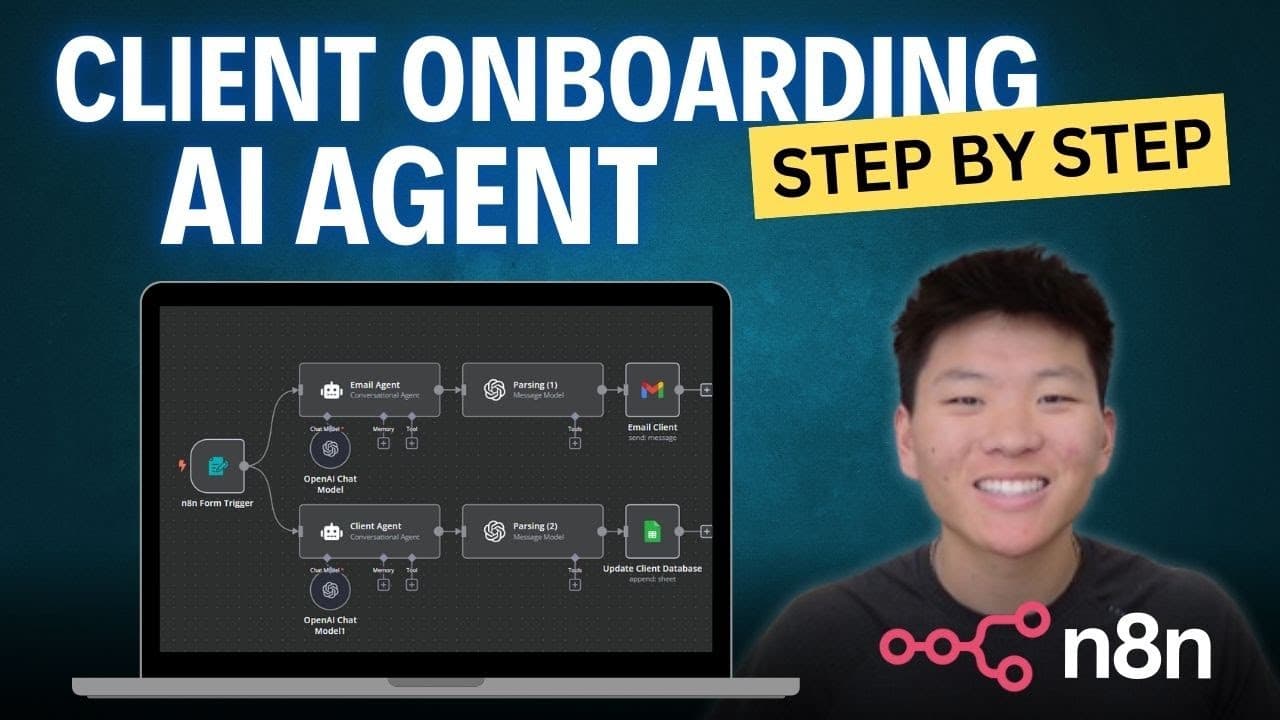
Build a no-code client onboarding AI agent in n8n by collecting client details through a form, generating a personalized welcome email, summarizing the client profile, and adding it to a spreadsheet. The form requires four fields, while two agents automate time-consuming onboarding work. Read on for the exact form setup, prompting approach, testing method, output parsing, and Gmail delivery process.
Transcript
in this step-by-step tutorial I'm going to be walking through how to build this workflow where we're going to be utilizing two different agents in order to get rid of some of the tedious and time-consuming stuff that comes along with onboarding a new client by the end of this video you'll have this workflow up and running and you can do so with usi... Read More
Key Insights
- The n8n form trigger is the workflow’s entry point, collecting client information and starting the remaining automation immediately after submission. Its URL can be shared directly with a new client, and the form path can be shortened to make the resulting link easier to view and distribute.
- The onboarding form requires the client’s name, email, company industry, and desired outcome for the next three months. An additional optional question captures anything else the team should know, allowing useful context such as communication restrictions to enter the workflow without preventing form submission.
- Pinned form data is a reusable test record that flows through later nodes while the workflow is being built. Using the same example submission during testing makes troubleshooting easier because every AI, parsing, and email node receives predictable input instead of requiring another form submission after each change.
- The welcome-email agent is configured as a conversational AI agent because it transforms supplied form data into text without needing access to external tools. Its prompt is defined directly in the node and uses double-curly-bracket JavaScript variables to insert information that changes for every new client.
- The email prompt is responsible for both personalization and output structure. It asks for a concise, friendly, professional welcome message based on the client’s industry and partnership goal, while requiring three output fields: the subject, message body, and recipient email taken from the submitted form.
- A fixed sender signature prevents incomplete template variables from reaching clients. The prompt supplies the sender’s name, company, and position, and explicitly prohibits placeholders for missing information, because visible variables such as an unresolved name or contact field would make the automated email appear unprofessional.
- The OpenAI chat model acts as the conversational agent’s brain. The tutorial selects GPT-4o for generating the personalized welcome message because the presenter found it more consistent, while GPT-4o mini is used for the narrower and more cost-conscious task of parsing generated information into separate parameters.
- The parsing node converts the generated email output into distinct subject, body, and email fields. Enabling JSON content output makes those values separately accessible, after which the Gmail send-message action maps them to the recipient, subject line, and text message needed to deliver the welcome email.
Install to Summarize YouTube Videos and Get Transcripts
Explore YouTube Video Summarizer or Get YouTube Transcript Extractor
Questions & Answers
Q: How do you build a no-code client onboarding AI agent with n8n?
Start with an n8n form trigger that collects client information and runs when the form is submitted. Use one conversational AI agent to create a personalized welcome email, parse its output into separate fields, and send the message through Gmail. The workflow also uses another agent to summarize the client profile and place it in a consolidated spreadsheet.
Q: What information should the n8n client onboarding form collect?
The tutorial requires the client's full name, email, company industry, and desired achievement for the next three months. It also includes an optional field for anything else the provider should know, such as restrictions on contact after 6:00 p.m. or on weekends.
Q: How should the n8n form trigger be configured?
Set authentication to none and configure the workflow to respond when the form is submitted. The form path can be shortened to make its URL easier to view and share, and disabling n8n attribution gives the form a cleaner appearance.
Q: Why should you pin form data while building the n8n workflow?
Pinning preserves one example submission for repeated testing in every later node. This lets the AI, parsing, and email steps process predictable input without requiring another form submission each time, which makes troubleshooting easier.
Q: How does the first AI agent generate a client welcome email?
Configure it as a conversational AI agent because it transforms form data into text without using external tools. Its prompt uses double-curly-bracket JavaScript variables to insert each client's name, email, industry, goal, and other submitted information. The requested email should be concise, friendly, professional, and personalized to the client's industry and partnership goal.
Q: How can unresolved placeholders be prevented in automated client emails?
Put the sender's actual name, company, and position directly in the prompt and tell the agent not to use placeholders for unknown information. This prevents visible variables or missing contact details from making the generated welcome email appear unprofessional.
Q: Which OpenAI models are used in the n8n client onboarding workflow?
GPT-4o generates the personalized welcome message because the presenter found it more consistent for that task. GPT-4o mini handles the narrower parsing step and is presented as the more cost-conscious choice.
Q: How is the AI-generated welcome email parsed and sent through Gmail?
An OpenAI node parses the generated output into separate subject, body, and recipient email fields, with JSON content output enabled so each value is accessible. A Gmail send-message node then maps the email field to the recipient, the subject field to the subject line, and the body to the text message.
Summary & Key Takeaways
-
The workflow begins with an n8n form trigger that clients complete during onboarding. It requests their name, email, company industry, and three-month partnership goal as required fields. An optional field collects additional information. Submitting the form triggers the automation, while disabling n8n attribution produces a cleaner client-facing form for the onboarding experience.
-
The first conversational AI agent converts submitted information into a concise, friendly, and professional welcome email. Its prompt includes dynamic values from the form, personalizes the message around the client’s industry and goals, and specifies a complete sender signature. Explicit instructions prevent unresolved placeholders or unknown contact details from appearing in the message.
-
An OpenAI node parses the first agent’s generated output into separate subject, body, and email parameters, with JSON output enabled for reliable field separation. A Gmail node then maps those parameters to the recipient, subject, and text message. The broader workflow also summarizes each client profile and consolidates new clients in a spreadsheet.
Read in Other Languages (beta)
Share This Summary 📚
Summarize YouTube Videos and Get Video Transcripts with 1-Click
Try YouTube Summary with ChatGPT & Claude or YouTube Transcript Generator
Explore More Summaries from Nate Herk | AI Automation 📚

Summarize YouTube Videos and Get Video Transcripts with 1-Click
Try YouTube Summary with ChatGPT & Claude or YouTube Transcript Generator