How to Use Notion AI for Everyday Workflows
TL;DR
Notion AI is most useful for transforming existing workspace content, answering questions from saved notes, and accelerating routine writing or study tasks. It can reformat text, build tables, extract handwritten notes, create quizzes, and cite workspace sources, but every result should be reviewed because instructions such as creating toggle lists may not work consistently.
Transcript
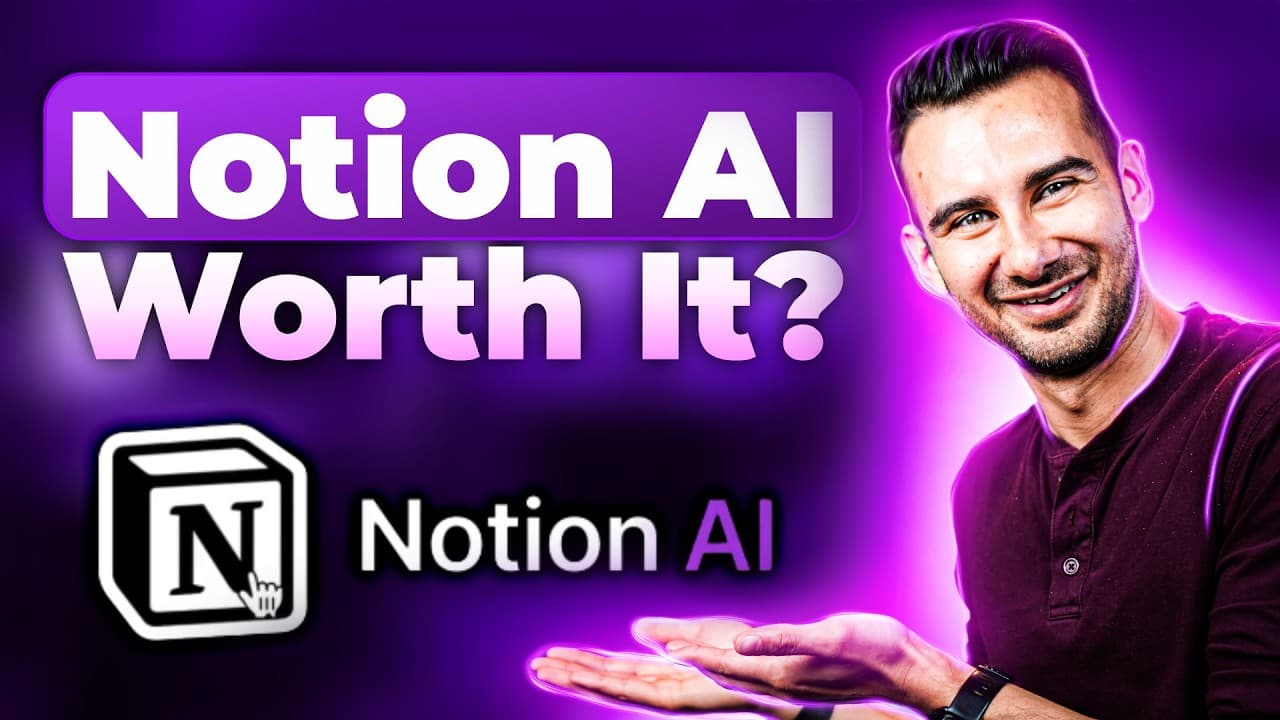
If you use Notion and you haven't tried the new Notion AI yet, then stay tuned. In this video, I'll walk you through 9 scenarios so you can decide if the AI lives up to the hype. Let's go. We've partnered with Notion to get the latest tips and tricks that I'm about to show you. Now every Notion account has free trial access to the AI, so you ca... Read More
Key Insights
- Notion AI is available from the button in the lower-right corner of a workspace or through the dedicated Notion AI page in the sidebar. These entry points support page editing, global questions, content generation, and the creation of new pages.
- The keyboard shortcut for invoking Notion AI is Ctrl J on Windows and Command J on Mac. After selecting relevant blocks or placing the cursor at an insertion point, users can enter a natural-language instruction and review the proposed output before accepting it.
- Notion AI can restructure existing material without requiring manual reformatting. In the demonstration, it changes bullet points into numbered lists, separates combined items, and converts paragraph-based content pillars into a table with requested rows, columns, colors, and header icons.
- Precise prompts help preserve important source wording. The instruction to use examples "exactly as phrased" is included because the AI may summarize material when that behavior is not wanted, showing why users should explicitly state formatting and fidelity requirements.
- Notion AI can improve writing through sequential operations. The tutorial first changes selected text to a friendly tone and then makes it shorter, while preserving user control through accept, discard, follow-up prompts, copying, undoing, and manual editing.
- Search scope determines which context Notion AI uses for an answer. Available choices shown in the tutorial include the current page, the workspace, integrations such as GitHub, AI knowledge only, and the Notion Help Center, with mentions providing additional people, page, or date context.
- Workspace search can replace manual browsing through saved notes. When asked how to identify zone four, Notion AI summarizes information stored in the workspace and attaches numbered citations that users can click to open and inspect the supporting source.
- Notion AI can extract handwritten notes from an image and generate learning materials from the result. It creates quiz questions and a study guide, although the requested toggle-list formatting is inconsistent, so the tutorial demonstrates converting the generated questions manually when necessary.
Install to Summarize YouTube Videos and Get Transcripts
Explore YouTube Video Summarizer or Get YouTube Transcript Extractor
Questions & Answers
Q: How do you open Notion AI while editing a page?
Notion AI can be opened from the AI button in the lower-right corner of the workspace or by using Ctrl J on Windows and Command J on Mac. Select the blocks you want to transform before invoking it, or place the cursor where generated content should appear. After entering a prompt, review the proposed change and choose to accept, discard, or revise it.
Q: How can Notion AI reformat notes and page content?
Select the relevant blocks, invoke Notion AI, and describe the desired structure in plain language. The tutorial changes bullet points into numbered lists and turns paragraph-based content pillars into a table. Users can specify row and column organization, request exact wording, and add visual details such as colors and icons before accepting the generated result.
Q: How do you make Notion AI preserve the original wording?
State the requirement directly in the prompt, as demonstrated with the phrase "exactly as phrased." This instruction matters because the AI may summarize source material even when the user wants a structural transformation only. The result should still be checked against the original content, and users can reject it or request another revision if wording has changed.
Q: How can Notion AI improve unclear or lengthy writing?
Select the passage and apply built-in rewriting commands in stages. The tutorial changes the tone to friendly, accepts that version, then invokes the AI again to make the text shorter. If the output is only partly useful, copy it, undo the replacement to restore the original, paste the generated version below it, and manually combine the strongest parts.
Q: What does search scope control in Notion AI chat?
Search scope controls the context used to fulfill a request. The demonstrated choices include the current page, the wider workspace, integrations such as GitHub, AI knowledge only, and the Notion Help Center. The same request can produce a substantially different response when the scope changes, so users should select the source that best matches the intended task.
Q: How does Notion AI answer questions from workspace notes?
Open the global chat from the sidebar or use the AI button while viewing another page, then ask a question whose answer exists in the workspace. Notion AI searches the available notes, produces a summarized response, and may include numbered citations. Clicking a citation takes the user to the supporting material, making the answer easier to investigate and verify.
Q: How can Notion AI turn handwritten notes into a quiz?
Insert a photograph of the handwritten notes into a Notion page, hover over the image, choose Ask AI, and request that it extract the notes. Insert the extracted material into the page, place the cursor beneath it, invoke AI with Ctrl J, and request quiz questions. If toggle-list formatting fails, select the questions and answers and convert them manually through the block menu.
Q: Is Notion AI reliable enough to accept every result automatically?
No. The tutorial repeatedly recommends reviewing generated content before accepting it. The AI may summarize wording that should remain unchanged, alter the interpretation of a broad request when workspace context is enabled, or create quiz questions without the requested toggle lists. Users can accept, discard, revise, undo, copy, or manually edit outputs, which keeps final decisions under human control.
Summary & Key Takeaways
-
Notion AI can edit selected blocks directly inside a page. Using Ctrl J on Windows or Command J on Mac, users can request formatting changes, rewrite text, shorten passages, adjust tone, or generate structured content. Proposed changes can be accepted, discarded, or revised with another prompt after careful review.
-
The global AI chat can generate material from general AI knowledge or search across a Notion workspace, depending on the selected scope. Workspace context can substantially change an answer, as demonstrated when the same training-plan request produced different results. Answers based on saved notes may include clickable citations for verification.
-
Image understanding and content generation extend Notion AI beyond ordinary rewriting. The demonstrated workflow extracts handwritten notes from a photograph, interprets a drawing, and turns the resulting material into quiz questions or a study guide. The description also identifies task prioritization, habit advice, coaching, and automatic database summaries as additional scenarios.
Read in Other Languages (beta)
Share This Summary 📚
Summarize YouTube Videos and Get Video Transcripts with 1-Click
Try YouTube Summary with ChatGPT & Claude or YouTube Transcript Generator
Explore More Summaries from Kevin Stratvert 📚




Summarize YouTube Videos and Get Video Transcripts with 1-Click
Try YouTube Summary with ChatGPT & Claude or YouTube Transcript Generator