How to set up AWS and install Terraform across OSs
TL;DR
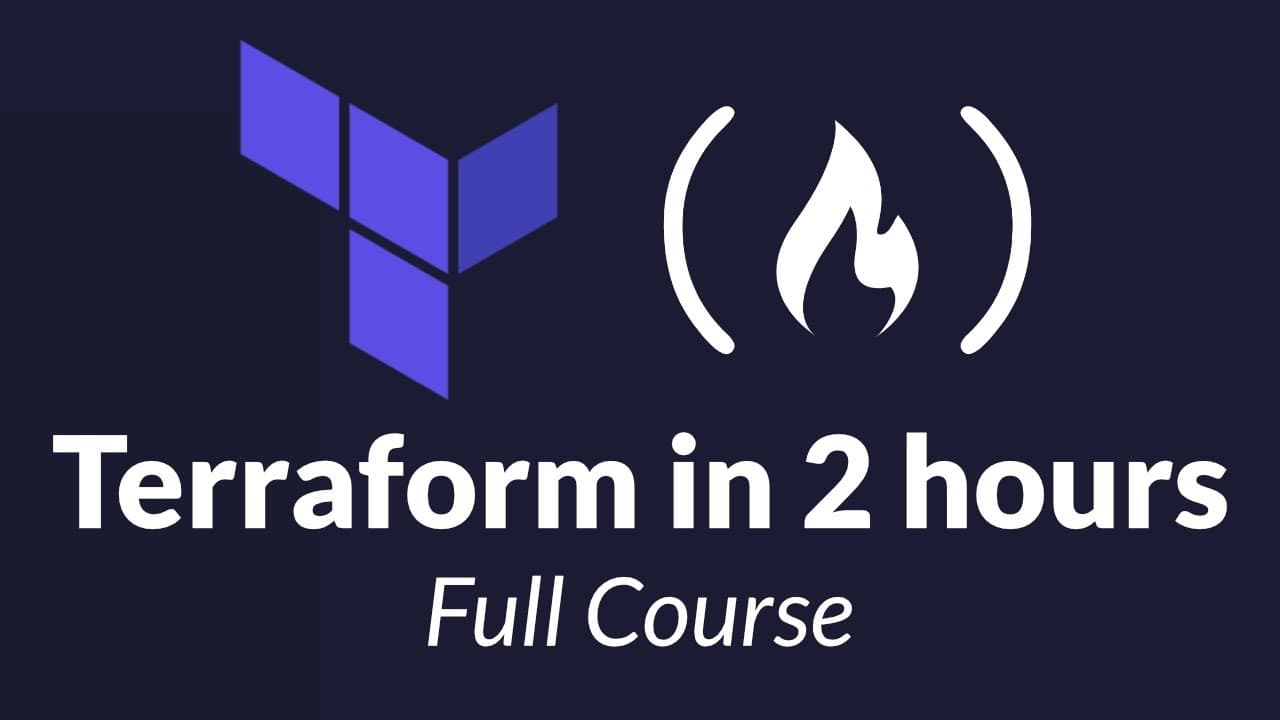
You can model AWS infrastructure with Terraform by installing Terraform across Windows, Mac, or Linux, creating an AWS account, and writing configuration to deploy resources. The course walks through setup, the core concepts, and a mini project to deploy a web server, plus state and reference usage.
Transcript
What's going on guys, so I decided to make a quick crash course on terraform. And if you don't know what terraform is, it's another one of those infrastructure as code tools. And so it's really great for modeling your cloud infrastructure through code. And so for anyone that actually wants to get more familiarized with terraform, or learn ano... Read More
Key Insights
- Terraform is an infrastructure as code tool used to model cloud resources with code.
- The video teaches how to set up an AWS account and stay within the free tier to avoid charges.
- Terraform installation steps differ by OS, with Windows using a downloaded executable and PATH setup.
- Mac users are guided toward Homebrew for easier Terraform installation.
- VS Code is recommended as a text editor to work with Terraform configurations.
- The course covers core Terraform concepts and how to create, modify, and delete AWS resources.
- State management in Terraform and referencing resources within code are introduced.
- A mini project deploys a simple web server on AWS to consolidate learning.
- More videos from this channel:
- More from this channel: freeCodeCamp.org
Install to Summarize YouTube Videos and Get Transcripts
Explore YouTube Video Summarizer or Get YouTube Transcript Extractor
Questions & Answers
Q: How do I start with Terraform on Windows, Mac, or Linux?
To start with Terraform, you first set up an AWS account and ensure you are on the free tier. Then you install Terraform for your operating system: Windows users download the executable and add it to the system PATH, Mac users can install with Homebrew, and Linux users download the binary appropriate for their distro. After installation, verify by running terraform version in a terminal. This confirms the tool is ready for use across OSs.
Q: What is the first practical step in this Terraform crash course?
The first practical step is to set up an AWS account and sign in as the root user to understand the console environment. The video emphasizes creating a root account, possibly adding other users later, and ensuring the account uses the free plan. This foundation lets you follow the subsequent Terraform tutorials without unnecessary charges while practicing resource creation and management.
Q: Why is Homebrew recommended for Mac users?
Homebrew is recommended because it simplifies installing Terraform on Mac by providing a package manager that handles dependencies and updates. The video walks through copying the Homebrew installation command, running it in Terminal, and then using Homebrew to install Terraform. This approach streamlines setup and helps keep software current as you progress through the course.
Q: How do you verify Terraform is installed correctly?
To verify installation, open a terminal or command prompt and run terraform -version. If the terminal prints the version number, the installation was successful. If there is an error, retrace steps for the OS specific setup, such as ensuring the PATH contains the directory where the Terraform executable resides. This validation ensures Terraform is ready to run commands and manage infrastructure.
Q: What core topics are covered after installation?
After installation, the course covers core Terraform concepts, including how to create, modify, and delete resources in AWS, how Terraform state works, and how to reference other resources in your code. The content also includes file structure explanations, what a Terraform configuration looks like, and how to manage changes iteratively in a real project.
Q: What is the purpose of the mini project in this course?
The mini project provides hands on practice by deploying a simple web server to AWS using Terraform. It consolidates setup knowledge, resource creation, and state handling, showing how to deploy and then manage ongoing updates. This practical exercise helps learners connect theory to real cloud infrastructure automation and prepares them for more advanced topics.
Q: How does the course handle cost awareness during learning?
The course emphasizes staying within the free tier and shutting down resources when finished. It notes that if charges occur they would be minimal, but the goal is to avoid ongoing costs by terminating resources after practice. This cost awareness is important for beginners who are learning through experimentation in AWS.
Q: What should a learner do if they want more topics after finishing the crash course?
If learners want more topics after finishing the crash course, they are encouraged to suggest topics for future videos. The creator plans to record more Terraform content based on viewer requests, enabling deeper dives into specific areas like state commands, outputs, variables, and more advanced resource configurations, extending the learning path beyond the basics.
Summary & Key Takeaways
-
The course starts from the basics by explaining what Terraform is and why it is useful for cloud automation, especially for AWS. It covers account creation, authentication, and staying within the free tier to avoid charges. A focus on cross OS setup makes it practical for diverse environments.
-
Key Terraform concepts are introduced, including installing Terraform on Windows, Mac, and Linux, and using a text editor like VS Code. The video emphasizes environment setup and verifying installations across platforms before building resources in AWS.
-
A hands on mini project demonstrates deploying resources to AWS with Terraform and exploring state management and resource references. It ends with tips on progression to more topics and continuing the learning path with additional videos.
Read in Other Languages (beta)
Share This Summary 📚
Summarize YouTube Videos and Get Video Transcripts with 1-Click
Try YouTube Summary with ChatGPT & Claude or YouTube Transcript Generator
Explore More Summaries from freeCodeCamp.org 📚

Summarize YouTube Videos and Get Video Transcripts with 1-Click
Try YouTube Summary with ChatGPT & Claude or YouTube Transcript Generator