How to Automate YouTube Videos for Free with n8n
TL;DR
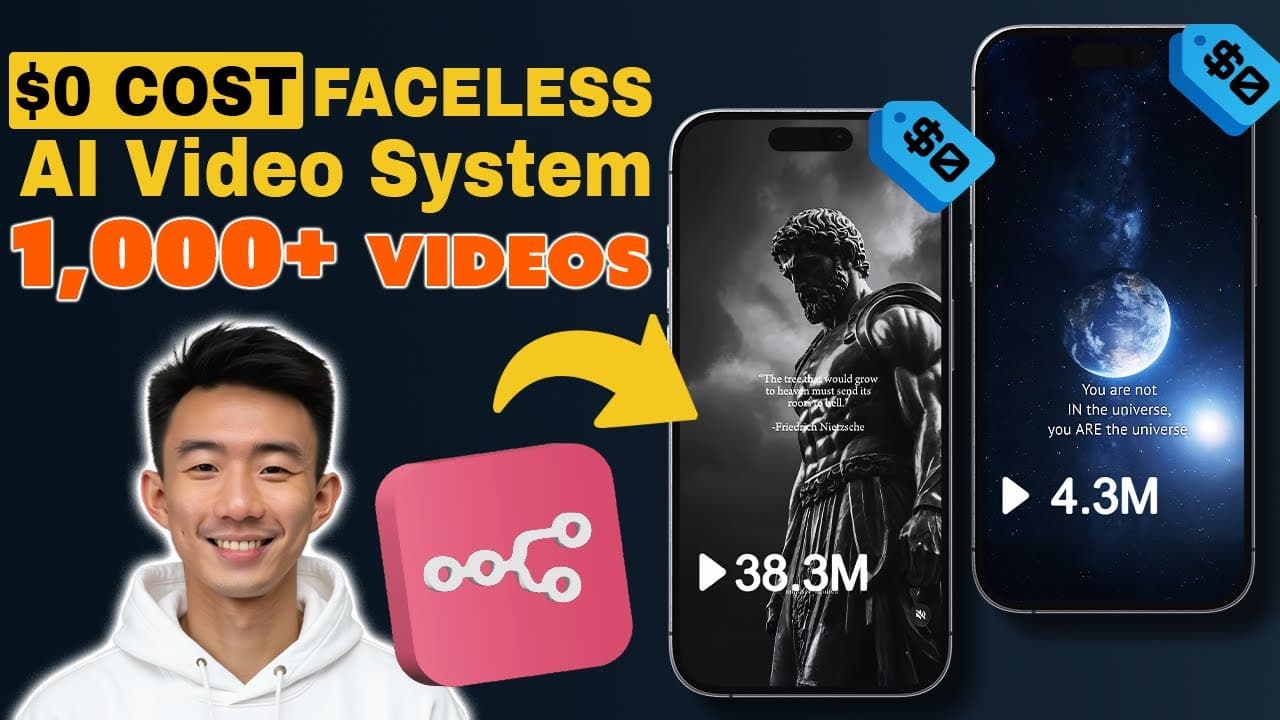
Run n8n locally through Docker, connect it to Google Sheets and YouTube, then use a structured workflow to download licensed media, combine footage, music, and quotes, and publish finished videos automatically. The setup avoids paid APIs by relying on local processing, reusable workflow templates, Google credentials, FFmpeg, and a YouTube downloading tool installed inside the n8n container.
Transcript
Z yes I just made this air agent system that just CAU 0 to create and publish vir AI videos like this getting thousands or even millions of views and I'm sharing the AI agent system to everyone in case you haven't seen them a videos like this are getting thousands of millions of views you can actually automate the creation of those videos through A... Read More
Key Insights
- The automation system is built in n8n, a no-code workflow tool that lets users connect processing steps through a visual interface. A prepared blueprint can be imported into n8n, while users starting from scratch can reproduce the system node by node.
- Google Sheets is the workflow's central source of structured input and status information. It stores links to footage and music, video titles, quote text, local output paths, processing results, publishing times, and YouTube links created after successful uploads.
- Docker provides the local environment used to run n8n without a hosted automation service. The setup involves installing Docker Desktop, pulling the n8n image from Docker Hub, starting a container, selecting a host port, and opening the resulting localhost address.
- FFmpeg is the local media-processing component that combines footage, music, and quote-based content into finished videos. It is installed inside the running Docker container by identifying the relevant container and executing the provided installation command through a terminal.
- The YouTube downloading tool is installed inside the same n8n container so the workflow can retrieve source media from supplied links. The spreadsheet is then updated with internal file paths and success statuses when downloads complete correctly.
- YouTube authorization is handled through OAuth credentials created in Google Cloud. The process enables the YouTube Data API, registers n8n's redirect address, copies the client identifier and secret into n8n, and authorizes the Google account intended for uploads.
- Google Sheets authorization uses a similar OAuth process in Google Cloud. The Google Sheets API is enabled, a web application credential is created, the n8n redirect address is registered, and the selected Google account grants the workflow permission to access its sheets.
- Copyright permissions are an essential input requirement for the workflow. Background footage should be royalty-free, and music should have a license that permits its intended use, including monetized use when applicable, with attribution requirements checked before the asset enters the music pool.
Install to Summarize YouTube Videos and Get Transcripts
Explore YouTube Video Summarizer or Get YouTube Transcript Extractor
Questions & Answers
Q: How can n8n automate YouTube video creation for free?
n8n can coordinate a local workflow that retrieves footage, music, and quote text from Google Sheets, downloads the required media, combines the assets with FFmpeg, and uploads the completed result to YouTube. Running n8n and media processing locally through Docker avoids paid processing APIs. The workflow can also update spreadsheet paths, statuses, publishing information, and final YouTube links.
Q: How do you run n8n locally with Docker?
Install Docker Desktop using the version appropriate for the computer, open Docker Hub, and locate the n8n image. Pull the image, open the Images section, and run it as a container. Expand the optional settings and assign a host port. Docker then provides a localhost link where n8n can be opened, registered, and configured through its browser interface.
Q: Why does the workflow install FFmpeg inside Docker?
FFmpeg performs the media-processing work required to create a finished video from separate inputs. The demonstrated setup installs it inside the Docker container running n8n, allowing workflow commands to access it locally. After the n8n container identifier is copied, the supplied terminal command uses that identifier to install FFmpeg in the correct container environment.
Q: How does the workflow download source videos?
A YouTube downloading tool is installed inside the same Docker container as n8n. The user first finds and copies the n8n container identifier, replaces the placeholder in the supplied command, and executes that command in a terminal. Once installed, the tool can download linked footage, while the workflow records local paths and processing statuses in Google Sheets.
Q: How do you connect n8n to the YouTube API?
Create or open the YouTube OAuth credential in n8n and copy its redirect address. In Google Cloud, enable the YouTube Data API, create an OAuth client for a web application, and register the copied redirect address. Copy the resulting client identifier and client secret into n8n, then sign in with the Google account that should receive the uploaded videos and approve access.
Q: How do you connect Google Sheets to local n8n?
Open the Google Sheets OAuth credential in n8n and copy its redirect address. In a Google Cloud project, enable the Google Sheets API and create an OAuth client configured as a web application. Add the n8n redirect address, place the generated client identifier and secret into n8n, and authorize the Google account whose spreadsheet will supply inputs and receive workflow updates.
Q: How should Google Sheets be organized for video automation?
The demonstrated workbook separates information into a video pool, a music pool, and video logs. The video pool holds links for background footage, while the music pool contains links for approved music. Video logs store titles, quote text, output paths, processing statuses, YouTube links, and publishing times. This separation helps workflow nodes select assets and track each video's progress.
Q: What media can be safely added to the automated workflow?
Only footage and music whose licenses permit the planned use should be added. The tutorial recommends royalty-free or copyright-free background assets and demonstrates checking license information in YouTube's audio library. Before using a track, confirm whether monetized videos are allowed and whether attribution is required. The workflow automates production, but it does not replace the need to verify usage permissions.
Summary & Key Takeaways
-
The automation uses n8n as its workflow builder and Google Sheets as the content database. Separate sheets organize background footage, copyright-free music, and video records containing titles, quotes, processing paths, statuses, publishing times, and uploaded YouTube links. This structure lets workflow nodes retrieve and update each asset systematically.
-
The local environment begins with Docker Desktop and an n8n container. After n8n becomes accessible through a localhost address, FFmpeg and a YouTube downloading tool are installed inside the container. These components enable the workflow to download source media and assemble video, music, and text without depending on paid processing APIs.
-
Google Cloud credentials connect the local workflow to Google Sheets and YouTube. The setup enables the relevant APIs, creates web application OAuth credentials, registers the redirect address supplied by n8n, and authorizes the intended Google account. The completed workflow can generate videos, upload them, and record the resulting links automatically.
Read in Other Languages (beta)
Share This Summary 📚
Summarize YouTube Videos and Get Video Transcripts with 1-Click
Try YouTube Summary with ChatGPT & Claude or YouTube Transcript Generator
Explore More Summaries from Andy Lo 📚



Summarize YouTube Videos and Get Video Transcripts with 1-Click
Try YouTube Summary with ChatGPT & Claude or YouTube Transcript Generator