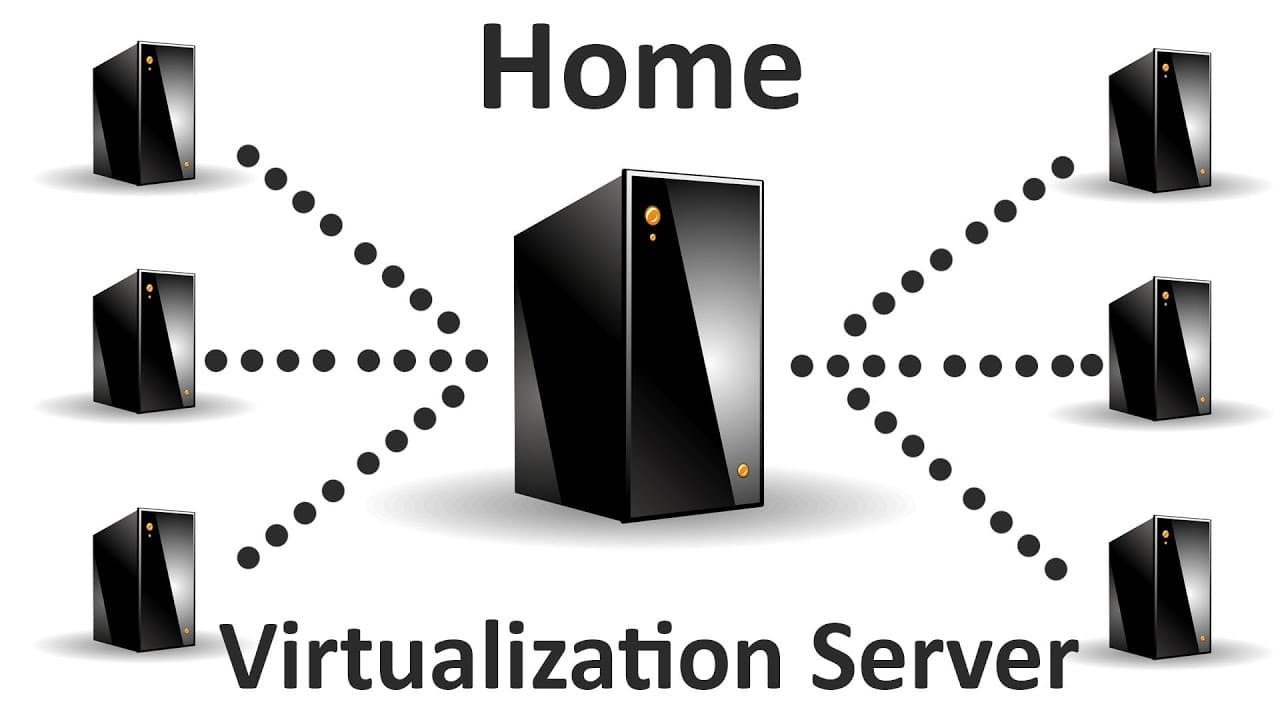
How to Set Up a Home Virtual Environment Server with Proxmox
TL;DR
To set up a home virtual environment server using Proxmox, ensure your hardware supports virtualization and download the Proxmox software. Create a bootable USB drive, install Proxmox on your server, and configure it through its web interface to run multiple operating systems seamlessly. This approach reduces hardware wear and improves server management efficiency.
Transcript
hey guys it's Don here from Nova spirit and recently I had to undergo a major overhaul on my Home Server so that prompted me for this new series that I'm going to be doing which is Home Server stuff or I don't even know what to call it yet but probably Home Server stuff anyway uh to start off we're going to need to build a good foundation and what ... Read More
Key Insights
- 😩 Transitioning from a dedicated server to a virtual environment can enhance performance and reduce hardware wear.
- 🛟 Proxmox serves as a robust solution for running multiple operating systems on a single machine, streamlining server management.
- 🛟 Understanding hardware requirements is crucial; ensure that your server supports virtualization features for efficiency.
- ✊ The creator emphasizes the importance of choosing hardware thoughtfully, considering long-term needs versus immediate power savings.
- 🏆 A significant benefit of virtualization includes the ability to test different environments without requiring separate physical machines.
- 👻 Web-based management interfaces like Proxmox simplify the complexity involved in server administration, allowing for intuitive control.
- 😀 Users should be prepared to face challenges related to service configurations and resource management as they scale their virtual environments.
Install to Summarize YouTube Videos and Get Transcripts
Explore YouTube Video Summarizer or Get YouTube Transcript Extractor
Questions & Answers
Q: What hardware do I need to build a home server?
To build a home server, you need a 64-bit processor that supports virtualization technology such as Intel VT-x or AMD-V. This can be in the form of a laptop or desktop computer. Additionally, consider the RAM and storage requirements based on the virtual machines you plan to run.
Q: Why did the creator switch from a laptop to a desktop server?
The creator initially used a laptop for its power efficiency, but as software installations increased, the limited RAM on the laptop became a bottleneck. This led to hardware deterioration from constant use, prompting a switch to a dedicated desktop server for better performance and upgradeability.
Q: What is Proxmox and why was it chosen for virtualization?
Proxmox is an open-source virtualization management platform that allows users to run multiple operating systems on a single server. It was chosen for its flexibility, ease of management through a web interface, and the ability to create various virtual environments without extensive hardware resources.
Q: How do you create a bootable USB for installing Proxmox?
To create a bootable USB for Proxmox, download the ISO file from the Proxmox site, then use a tool like Win32 Disk Imager to format the USB drive and write the ISO image to the USB. This process makes the USB ready for the installation of Proxmox on your server.
Q: What challenges did the creator encounter when managing multiple servers?
The creator faced challenges in managing multiple server instances on a single Linux distribution. Issues like port configurations and software interdependencies became complex, leading to the decision to adopt a virtualization solution to simplify the management of different operating systems.
Q: What kind of services can be run on the Proxmox virtual environment?
On the Proxmox virtual environment, users can run various services including file servers, game servers, and testing environments for different operating systems. The flexibility of Proxmox allows for easy deployment and management of these diverse services simultaneously.
Q: How can users manage their Proxmox server after installation?
Users can manage their Proxmox server via a web interface by navigating to the assigned IP address using a browser. This allows for the administration of virtual machines, resource allocations, and service configurations in a user-friendly manner.
Q: What can users expect in future episodes of this series?
In future episodes, viewers can expect deeper exploration of setting up specific virtual machines, managing network settings, and configuring advanced features like firewall setups within the Proxmox environment, along with advice on best practices and optimization tips.
Summary & Key Takeaways
-
This guide introduces installing a home virtual server environment using Proxmox, emphasizing the hardware requirements and the advantages of virtualization over traditional dedicated servers.
-
The creator shares personal experiences transitioning from a desktop to a laptop server, eventually adopting Proxmox for its ability to run multiple operating systems easily.
-
Detailed instructions are provided for downloading Proxmox, creating a bootable USB, and installing the system, as well as configuring various virtual machines.
Read in Other Languages (beta)
Share This Summary 📚
Summarize YouTube Videos and Get Video Transcripts with 1-Click
Try YouTube Summary with ChatGPT & Claude or YouTube Transcript Generator
Explore More Summaries from Novaspirit Tech 📚





Summarize YouTube Videos and Get Video Transcripts with 1-Click
Try YouTube Summary with ChatGPT & Claude or YouTube Transcript Generator