How to Build a Real-Time AI Avatar for Zoom
TL;DR
Create a real-time AI avatar by selecting or training an avatar in HeyGen Labs, assigning system instructions, and starting an interactive chat powered by the OpenAI real-time engine. The avatar can join Zoom, run directly on HeyGen, appear on a website through copied HTML code, or connect to an application through an API.
Transcript
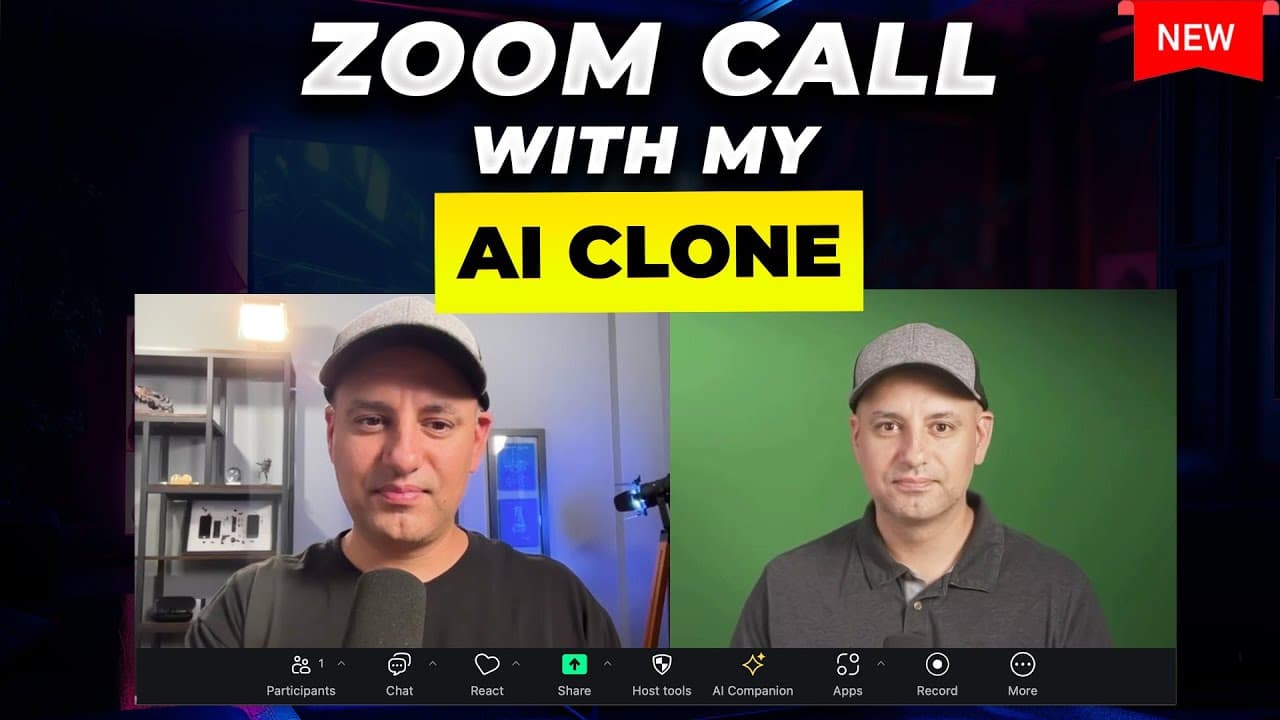
what I'm about to show you might be the most wild and most impressive use case for AI that I've seen since the release of chat GPT I'm going to have a realtime conversation inside of Zoom with my own AI Avatar let me invite the Avatar hi my name is Sag I can help you learn how to use AI for your business hey can you tell me one good use case for ch... Read More
Key Insights
- HeyGen interactive avatars are conversational AI characters that respond to spoken questions in real time using realistic faces and AI-generated voices. They can use a creator's separately trained clone or one of the template avatars available within the platform.
- The OpenAI real-time engine powers the interactive conversations demonstrated in HeyGen. It allows an avatar to answer follow-up questions, handle interruptions, change its speaking speed when requested, and continue responding according to the behavioral instructions selected for the session.
- System instructions define how an interactive avatar should behave. A creator can specify its role, persona, response structure, examples, additional notes, opening introduction, and specific knowledge, making the same avatar suitable for roles such as an AI tutor or business coach.
- Avatar training quality affects the apparent smoothness of the result. The creator's clone showed excessive head movement and performed less smoothly than a template avatar, which the creator attributed to possible issues with movement during the original training recording.
- HeyGen's beta supports knowledge through useful links, pasted text, and detailed prompting. Direct uploads of PDFs or other files are not currently available in the demonstrated interface, so creators must provide relevant information through the supported text and link fields.
- Interactive avatars can participate in Zoom meetings through HeyGen's send-to-Zoom option. The demonstration shows the creator asking his own AI clone business questions, interrupting its responses, requesting specific prompting advice, and asking it to speak more quickly.
- Website embedding requires copying the HTML code supplied by HeyGen and adding it to the desired page. The demonstrated WordPress site presents the avatar as a clickable element that opens a conversational interface, offers language selection, and starts a new chat.
- HeyGen also provides sharing and API integration options for interactive avatars. Direct sharing supports access outside a custom website, while the API is intended for builders who want to incorporate the conversational avatar into an application or a more customized experience.
Install to Summarize YouTube Videos and Get Transcripts
Explore YouTube Video Summarizer or Get YouTube Transcript Extractor
Questions & Answers
Q: How do you create a real-time AI avatar in HeyGen?
Open HeyGen and select the Labs tab, where the early beta interactive avatar feature appears. Choose either a template avatar or an avatar created from your own separately trained clone. Next, select an existing instruction set or create a new one with a role, introduction, knowledge, examples, and behavioral rules. Start a new chat to test the avatar before sharing or integrating it.
Q: How can a HeyGen interactive avatar join a Zoom meeting?
Start with an interactive avatar configured inside HeyGen, then use the option that sends the avatar to Zoom and begin a new meeting. The avatar can participate in a spoken, real-time conversation, answer follow-up questions, and react when interrupted. In the demonstration, the creator invited his AI clone into Zoom and questioned it about ChatGPT, content creation, prompting techniques, and other AI tools.
Q: How do you embed a HeyGen AI avatar on a website?
Use the integration option inside HeyGen to copy the provided HTML code or link, then add it to the desired location on your website. The demonstration uses a WordPress site with a small clickable avatar positioned on the page. When a visitor opens it, the interface allows language selection, starts a new chat, and supports a real-time conversation with the configured avatar.
Q: What can you include in a HeyGen avatar system prompt?
A system prompt can define the avatar's role, behavior, persona, knowledge, response format, examples, and additional instructions. HeyGen also provides fields for a configuration name, an opening sentence, and useful knowledge-base links. The demonstrated AI tutor prompt tells the avatar to guide people through practical AI applications, while another preset changes the avatar into a business coach with different behavior.
Q: Can HeyGen interactive avatars use PDFs or uploaded files?
The early beta interface shown does not allow creators to upload PDFs or other files directly into the avatar's knowledge base. Instead, creators can supply useful links, paste specific knowledge as text, and write detailed system instructions. These inputs can establish the avatar's expertise, persona, examples, output structure, and behavioral boundaries even without direct document uploads.
Q: What is the difference between an instant avatar and an interactive avatar?
An instant avatar is the separately created visual clone that can represent the user, while an interactive avatar adds the live conversational behavior demonstrated in Zoom and on a website. The creator explains that he paid separately for his instant avatar and trained the interactive version somewhat differently. Interactive avatars can also use HeyGen's existing template faces, so cloning yourself is not required.
Q: Why might a trained AI avatar look less smooth than a template avatar?
The quality of the training recording can influence how the finished avatar moves and appears during conversation. In the demonstration, the creator's clone displayed noticeable head bobbing and seemed less smooth than a template avatar. He believed he may have moved his head too much while recording the training footage, although he presented that explanation as a possibility rather than a confirmed diagnosis.
Q: What integration options are available for HeyGen interactive avatars?
HeyGen offers several ways to use an interactive avatar. It can run directly on the HeyGen website, participate in a Zoom meeting, be shared through a direct option, appear on a website through copied HTML code, or connect to an application through the provided API. These options support personal clones and template avatars configured with custom roles and instructions.
Summary & Key Takeaways
-
HeyGen's interactive avatars support live, two-way conversations through realistic AI-generated faces and voices. Users can choose a template avatar or create a separately trained clone, then assign behavioral instructions such as AI tutor, business coach, or language-learning partner before beginning a chat on HeyGen or sending the avatar into Zoom.
-
The avatar's behavior is controlled through configurable system instructions. Creators can provide a name, opening introduction, useful knowledge-base links, a persona, specific knowledge, preferred output formats, example interactions, and additional notes. The beta does not support direct file uploads, so knowledge must currently be supplied through links or pasted text.
-
Interactive avatars can be embedded on websites using a small HTML code snippet, shared directly, or integrated into applications through HeyGen's API. The demonstration places an avatar on a WordPress website as a clickable chatbot, where visitors select a language, begin a new session, and speak with the configured assistant in real time.
Read in Other Languages (beta)
Share This Summary 📚
Summarize YouTube Videos and Get Video Transcripts with 1-Click
Try YouTube Summary with ChatGPT & Claude or YouTube Transcript Generator
Explore More Summaries from Skill Leap AI 📚


Summarize YouTube Videos and Get Video Transcripts with 1-Click
Try YouTube Summary with ChatGPT & Claude or YouTube Transcript Generator