How to Automate AI UGC Videos With n8n
TL;DR
Build automated UGC videos by loading product, character, setting, voice, script, and reference-image inputs from Google Sheets into n8n. The workflow generates prompts, creates consistent starting images with a selected image model, animates them into 8-second scenes, combines the clips, and records prompts and outputs for review and tracking.
Transcript
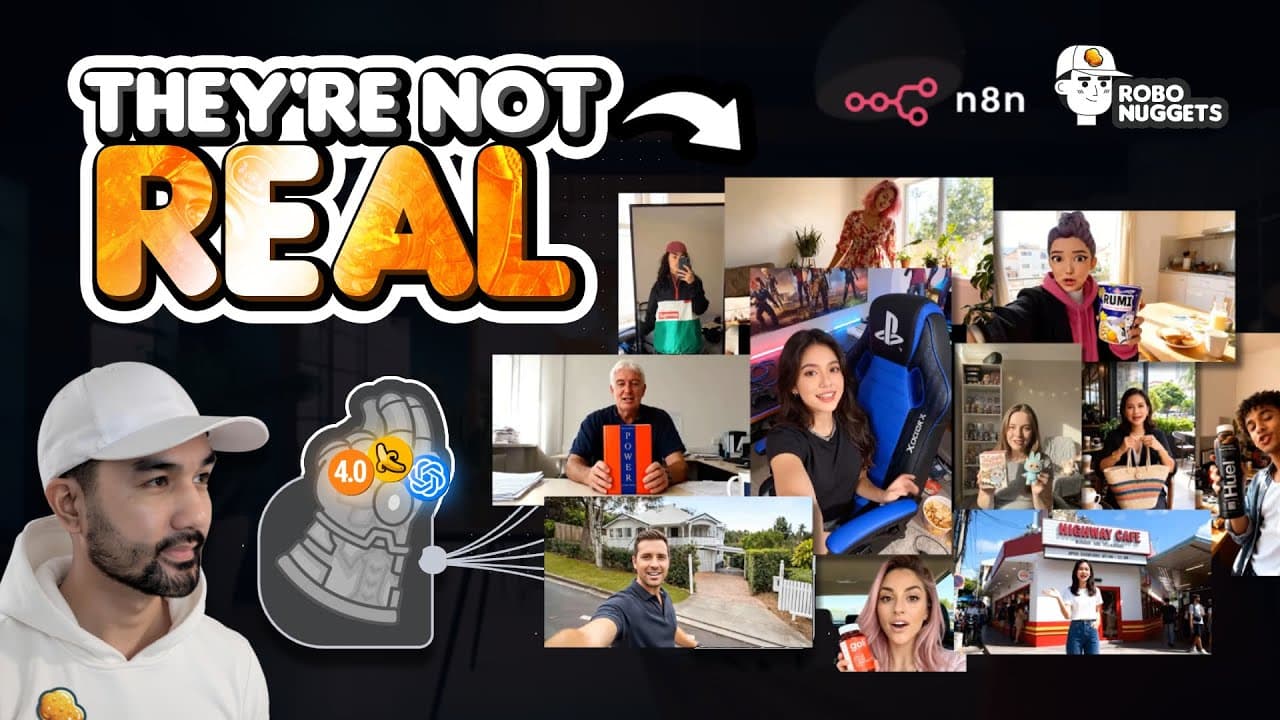
I just built the most comprehensive system to create AI generated UGC's using the collective power of seedream, nano banana and chatbt image and all automated by N8N to create an infinite number of user generated content videos for any product and by any character like this. Okay, guys, this is crazy. This is apple cider vinegar, but they're gummie... Read More
Key Insights
- The n8n workflow is divided into input preparation, prompt generation, starting-image creation, video animation, and final assembly. This segmented structure lets the operator run and inspect individual stages while adapting the system to a specific product, character, script, or creative use case.
- Google Sheets is the workflow's control center, storing production status, image-model selection, aspect ratio, scene count, optional requests, character details, setting, voice, script description, reference-image URL, ID, and title. Rows marked "create" are loaded into n8n for processing.
- Each generated scene is eight seconds long because the workflow uses V3 for animation. The scene-count field therefore determines the final planned duration, with three scenes producing 24 seconds of footage before the clips are combined into the completed UGC video.
- A single reference image can contain both the product and the desired character. The creator suggests assembling this reference with Canva, PowerPoint, or Photoshop, then uploading it to Cloudinary and copying its image URL into the Google Sheets input template.
- The prompt-generation stage creates scene zero for the starting image and scenes one onward for animated video clips. Each video-scene prompt corresponds to an eight-second segment, while the image prompt establishes the visual foundation used by the later animation stage.
- A separate Google Sheets tab serves as a generation log. It records the title, n8n execution ID, scene prompts, chosen image model, and execution time, making individual assets easier to track across repeated tests and larger batches of UGC productions.
- Human review is built into the workflow before costly image and video generation. Logging prompts and dialogue first allows the operator to check whether the AI agent's instructions match the intended message, visual setting, and character performance before continuing.
- The workflow supports Seedream, Nano Banana, and ChatGPT Image as selectable image-generation options. It can also test all three, allowing users to create starting frames with different models while keeping the remaining production structure and reference inputs consistent.
Install to Summarize YouTube Videos and Get Transcripts
Explore YouTube Video Summarizer or Get YouTube Transcript Extractor
Questions & Answers
Q: How do you automate AI UGC video creation with n8n?
Use Google Sheets to provide structured inputs such as production status, image model, aspect ratio, scene count, character, setting, voice, script, and reference-image URL. n8n loads rows marked "create," asks an AI agent to generate image and scene prompts, creates a consistent starting frame, animates each planned scene, combines the clips, and writes tracking information and outputs back to the spreadsheet.
Q: What inputs are required for the AI UGC workflow?
The spreadsheet template includes production status, the selected image model, landscape or portrait aspect ratio, number of scenes, optional additional requests, character information, setting, desired voice, script description or exact dialogue, and a reference-image URL. It also includes an ID and title so each planned video has a unique reference during generation, logging, and output management.
Q: How is the reference image prepared for consistent UGC generation?
Place the desired product and character together in one reference image using a tool such as Canva, PowerPoint, or Photoshop. Upload that combined image to Cloudinary, copy its asset URL, and paste the URL into the appropriate Google Sheets row. The automation then passes that reference to the selected image model when creating the starting frame for the UGC video.
Q: How does the workflow control the length of each UGC video?
The spreadsheet contains a scene-count field, and every animated scene is eight seconds long because the workflow uses V3. The total planned duration is calculated by multiplying the number of scenes by eight seconds. For example, three scenes produce three eight-second clips, which are stitched together into a final video lasting 24 seconds.
Q: Why does the workflow save prompts to a second Google Sheets tab?
The second sheet acts as a logging and review area for individual generations. It stores the title, n8n execution ID, starting-image prompt, video-scene prompts, selected image model, and execution time. This creates a human review point where dialogue and creative instructions can be checked before the workflow proceeds with image and video generation.
Q: What is the difference between scene zero and later scenes?
Scene zero contains the prompt used to create the initial image or starting frame. Scene one and every later numbered scene contain prompts for the animated video segments, with each segment designed as an eight-second clip. Separating the starting image from animation prompts gives the workflow a clear visual foundation before it produces movement, speech, and successive scenes.
Q: Which image models can the n8n UGC workflow use?
The workflow supports Seedream, Nano Banana, and ChatGPT Image as image-model choices. A user can select one model in the spreadsheet or choose to try all three. These models create starting images that keep a supplied brand, product, or character reference consistent before the workflow sends the resulting frames into its video-animation stage.
Q: How can the workflow create many UGC variations efficiently?
Duplicate rows in the Google Sheets template and adjust each row's character, setting, voice, script, model, aspect ratio, scene count, or reference image. Mark the desired rows as "create," then let n8n process their structured inputs. Because prompts, execution identifiers, model choices, timestamps, and outputs are logged, multiple generations can be reviewed and tracked separately.
Summary & Key Takeaways
-
The workflow uses n8n to coordinate an automated UGC production process. Google Sheets supplies each video's production status, image model, aspect ratio, scene count, character, setting, voice, script description, reference-image URL, ID, and title, giving the AI agent structured material for generating multiple product videos.
-
The first workflow step generates image and video prompts, then writes them into a second Google Sheets tab. Scene zero contains the starting-image prompt, while scenes one onward contain prompts for individual 8-second video clips. This logging stage lets the operator review dialogue and creative instructions before generation begins.
-
After prompt preparation, selected image models create consistent starting frames from references containing both the product and desired character. The workflow then animates those images into video scenes and combines them into a final output. Production status, execution identifiers, timestamps, model choices, prompts, and output locations support tracking throughout the process.
Read in Other Languages (beta)
Share This Summary 📚
Summarize YouTube Videos and Get Video Transcripts with 1-Click
Try YouTube Summary with ChatGPT & Claude or YouTube Transcript Generator
Explore More Summaries from Jay E | RoboNuggets 📚
Summarize YouTube Videos and Get Video Transcripts with 1-Click
Try YouTube Summary with ChatGPT & Claude or YouTube Transcript Generator