How to build an AI agent to automate email inboxes no code
TL;DR
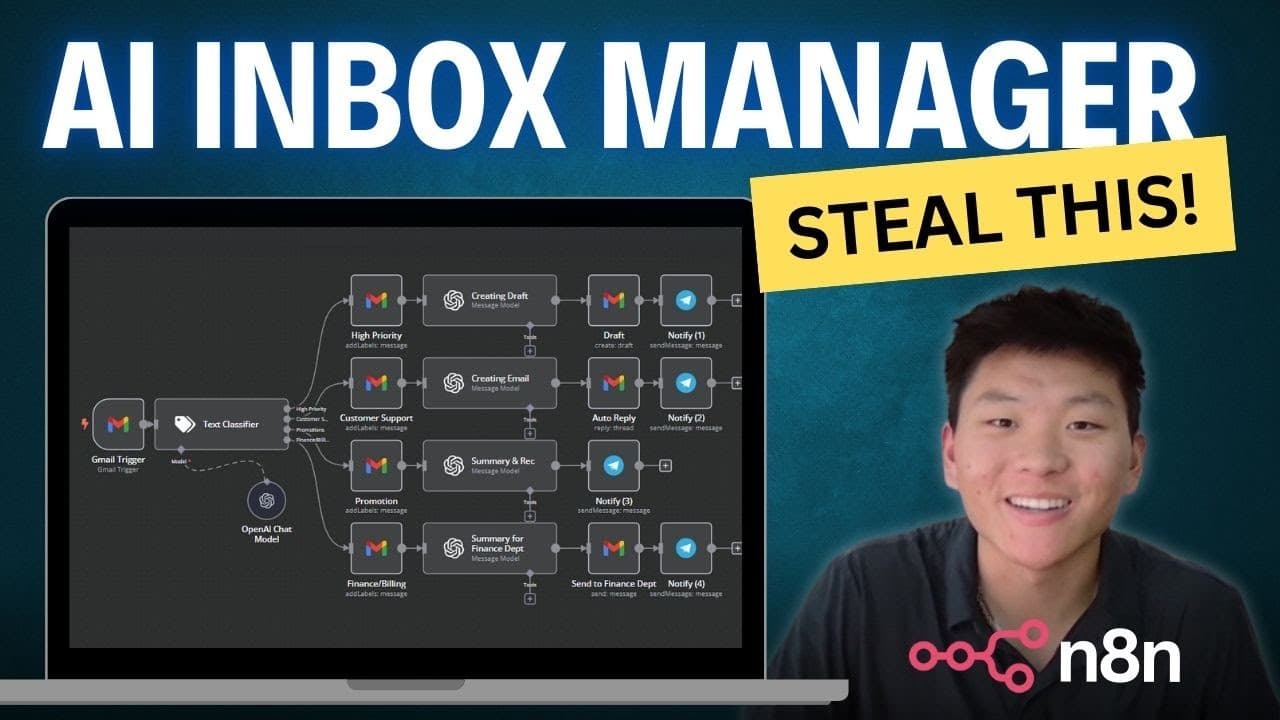
The video shows building an AI agent in n8n that classifies incoming emails into four categories and automatically takes actions such as drafting replies or notifying you via Telegram. The setup uses no code, with examples for high priority, customer support, promotional, and finance emails. A demo outlines steps and nodes used.
Transcript
so what you're looking at right here is an inbox management agent I was able to build this thing in about 25 to 30 minutes using absolutely no code so by the end of this video you guys should all understand what's taking place in this workflow and how you can get one of these things up and running within your own email to completely manage your inb... Read More
Key Insights
- Automation can classify emails into high priority, customer support, promotional, and finance categories to guide actions.
- OpenAI nodes are used to generate draft replies based on the incoming message content and role specific prompts.
- Drafts are created in Gmail rather than sending automatically for high priority emails, preserving a manual review point.
- Telegram alerts provide real-time notifications about what happened and why, helping users stay informed.
- The classifier relies on keywords and content cues to assign labels that drive downstream actions.
- The workflow demonstrates how to parse OpenAI output as JSON for clean field extraction like subject and message.
- Node connections show how to pass original email data into AI prompts and then into Gmail actions.
- The tutor emphasizes labeling accuracy and validation by testing the workflow with sample emails.
Install to Summarize YouTube Videos and Get Transcripts
Explore YouTube Video Summarizer or Get YouTube Transcript Extractor
Questions & Answers
Q: How to set up an AI agent to classify emails in n8n without coding?
To set up a no code AI email agent in n8n you start by connecting your Gmail account as a trigger, then add a text classifier to assign emails to categories such as high priority, customer support, promotional, and finance. You follow with concrete actions for each branch, like creating drafts, sending Telegram alerts, or performing follow ups. The key is to pass the original email content into an OpenAI node and output JSON with fields like subject and message for downstream nodes.
Q: What happens when a high priority email arrives in the workflow?
When a high priority email arrives the classifier marks it as high priority and triggers a branch that creates a draft in Gmail using an OpenAI generated subject and message. A Telegram notification is also sent to surface the alert in real time. This keeps the user in the loop while ensuring rapid drafting of a response for quick review.
Q: How does the system handle customer support emails?
For customer support emails the workflow uses OpenAI to generate a reply based on the content and context, and may instruct the user to contact a dedicated support email if the inquiry cannot be resolved automatically. The process results in an automatic response being sent via Gmail and a Telegram confirmation showing that a response was issued.
Q: Why is there a manual touch point for high priority drafts?
A manual touch point is included for high priority drafts to prevent sending flawed or incorrect responses in time sensitive situations. The system creates a draft first so the user can review, edit if needed, and then proceed with sending or further action, balancing automation with human oversight.
Q: What role does Telegram play in this automation?
Telegram acts as a real time notification channel. After each action, such as a draft creation or a response, a Telegram message is sent to update the user on what happened and why. This keeps users promptly informed without having to constantly check Gmail.
Q: What is the purpose of outputting OpenAI results as JSON?
Outputting as JSON allows clean separation of fields like subject and message, enabling downstream Gmail nodes to easily map inputs without manual parsing. It reduces complexity and errors by ensuring structured data is reused across nodes for create draft actions and notification messages.
Q: Can you modify the workflow to auto send certain emails?
Yes, the workflow can be adjusted to auto send certain emails by altering the high priority or customer support branches to use the Gmail send action instead of drafting. You would adjust prompts and safety checks to ensure the content is appropriate for automatic sending, and you may remove the manual confirmation step for those cases.
Q: What would you need to reproduce this setup from scratch?
To reproduce you need a Gmail account connected to n8n, an OpenAI API key for the AI prompts, and a Telegram bot for notifications. You would define a four branch classifier for high priority, customer support, promotional, and finance emails, wire each branch to actions like draft creation or alerts, and test with sample emails to verify correct labeling and responses.
Summary & Key Takeaways
-
The creator builds an inbox management agent in about 25 to 30 minutes using no code, demonstrating end to end automation for email handling.
-
The workflow labels emails into four groups, then triggers actions like drafting messages or sending alerts via Telegram, reducing manual inbox work.
-
The video covers setup details, node-by-node breakdowns, and a live demo of each branch to illustrate practical automation.
Read in Other Languages (beta)
Share This Summary 📚
Summarize YouTube Videos and Get Video Transcripts with 1-Click
Try YouTube Summary with ChatGPT & Claude or YouTube Transcript Generator
Explore More Summaries from Nate Herk | AI Automation 📚



Summarize YouTube Videos and Get Video Transcripts with 1-Click
Try YouTube Summary with ChatGPT & Claude or YouTube Transcript Generator