How to Run Netflix, Amazon, Disney plus, Hulu, or Spotify on raspberry pi 3/4
TL;DR
This guide explains how to set up streaming services on a Raspberry Pi 4.
Transcript
hey guys what's going on it's down here from Nova spirit techno welcome back to our Channel and today we are gonna get some streaming services working on our Raspberry Pi 4 which is Netflix Disney Plus Amazon Spotify yeah you name it so let's get started now before we begin I want to thank Pi labs for actually sending this over to me again just rem... Read More
Key Insights
- 😫 Setting up streaming services on Raspberry Pi devices can enhance entertainment options during stay-at-home scenarios.
- 👤 The tutorial combines technical instructions with practical application to help users effectively utilize their Raspberry Pi 4.
- 👤 The modification of Chromium to mimic a PC user agent is essential for unlocking DRM-related content through streaming platforms.
- ♓ Performance may vary across models, with Raspberry Pi 4 offering a more reliable experience compared to Raspberry Pi 3.
- 😘 The ability to customize streaming setups empowers users to maximize the utility of low-cost devices like the Raspberry Pi.
- ✊ Understanding hardware limitations is vital for optimizing performance, especially with tasks demanding more processing power like video streaming.
- 🫵 The tutorial encourages engagement with the tech community by suggesting viewers subscribe and stay updated on future content outcomes.
Install to Summarize YouTube Videos and Get Transcripts
Explore YouTube Video Summarizer or Get YouTube Transcript Extractor
Questions & Answers
Q: What are the main streaming services you can get working on a Raspberry Pi 4?
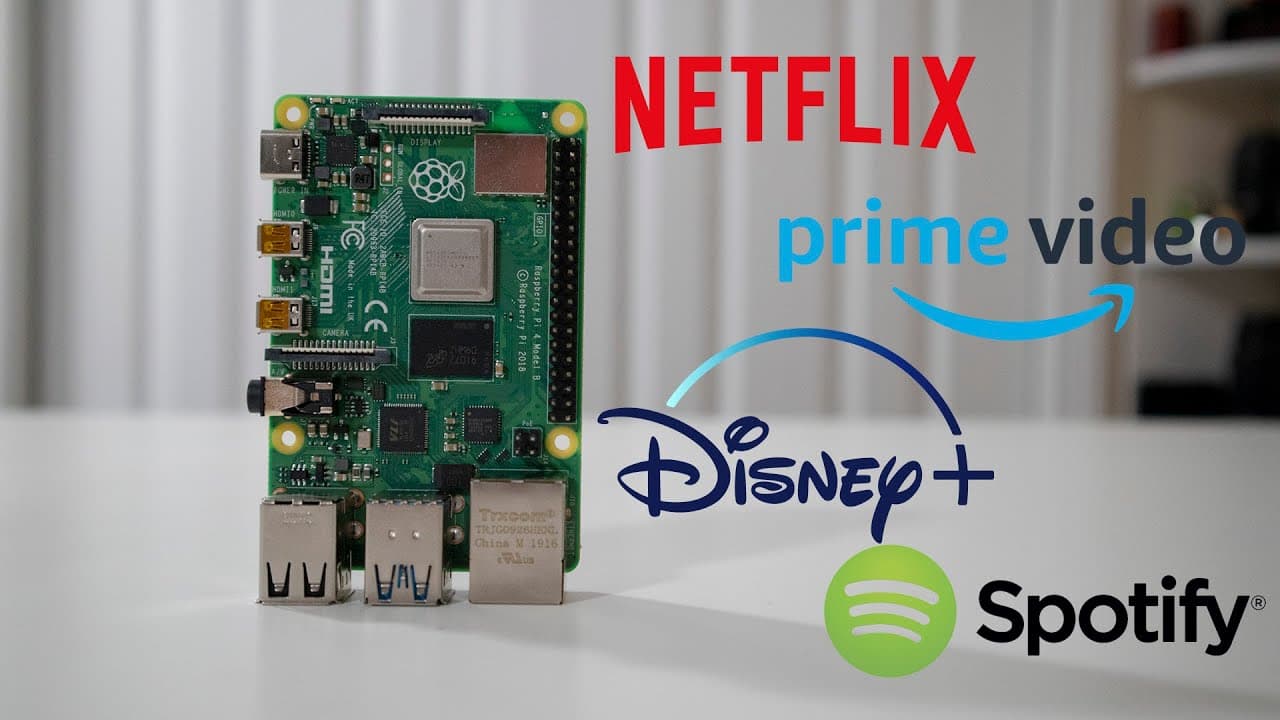
The main streaming services discussed in the video include Netflix, Disney Plus, Amazon Prime Video, and Spotify. The tutorial guides viewers on how to enable these services on their Raspberry Pi 4, highlighting specific methods tailored for each service to ensure smooth functionality and DRM compatibility.
Q: What are the two methods mentioned for setting up streaming services?
The two methods mentioned include the first method of downloading specific scripts to modify Chromium's user agent, allowing streaming with DRM support. The second method involves downloading a Chrome OS recovery image, which provides essential libraries needed for streaming and ensures compatibility across various Raspberry Pi models.
Q: How does overclocking the Raspberry Pi 4 affect streaming performance?
Overclocking the Raspberry Pi 4 to 2 GHz can significantly improve streaming performance by reducing frame drops to almost none. The video highlights that while there may be a slight frame drop without overclocking, performance stabilizes upon increasing the clock speed, making for a smoother viewing experience.
Q: How does the streaming experience differ between Raspberry Pi 4 and Raspberry Pi 3?
The streaming experience on Raspberry Pi 4 is notably better, with minimal frame drops compared to the Raspberry Pi 3, which suffers from 7% to 8% frame drops without any overclocking. The tutorial mentions that while streaming still works on the older model, the performance may be less satisfying due to the decreased power and capabilities of the Raspberry Pi 3.
Q: What issues were encountered while using Spotify on the Raspberry Pi?
The video notes that while Spotify does work on the Raspberry Pi, there is a significant lag when initially opening the application. However, once operational, users can enjoy a seamless music streaming experience, emphasizing the importance of patient troubleshooting during setup.
Q: Why is the desktop icon important for this setup?
The desktop icon is crucial because it provides a convenient way to launch the streaming applications directly from the desktop environment. It ensures that users can easily access the modified Chromium browser with the appropriate settings to function optimally for streaming services without needing to navigate through the terminal every time.
Summary & Key Takeaways
-
The content provides a tutorial on getting popular streaming services like Netflix and Disney Plus running on a Raspberry Pi 4 through two methods.
-
The first method involves downloading scripts and using a Chromium user agent to enable DRM content, demonstrating the effectiveness of this technique with minimal frame drops.
-
The second method outlines installing a Chrome OS recovery image to gain access to necessary libraries for streaming, ensuring compatibility and functionality on Raspberry Pi devices.
Read in Other Languages (beta)
Share This Summary 📚
Summarize YouTube Videos and Get Video Transcripts with 1-Click
Try YouTube Summary with ChatGPT & Claude or YouTube Transcript Generator
Explore More Summaries from Novaspirit Tech 📚





Summarize YouTube Videos and Get Video Transcripts with 1-Click
Try YouTube Summary with ChatGPT & Claude or YouTube Transcript Generator