How to Draw On Your Computer
TL;DR
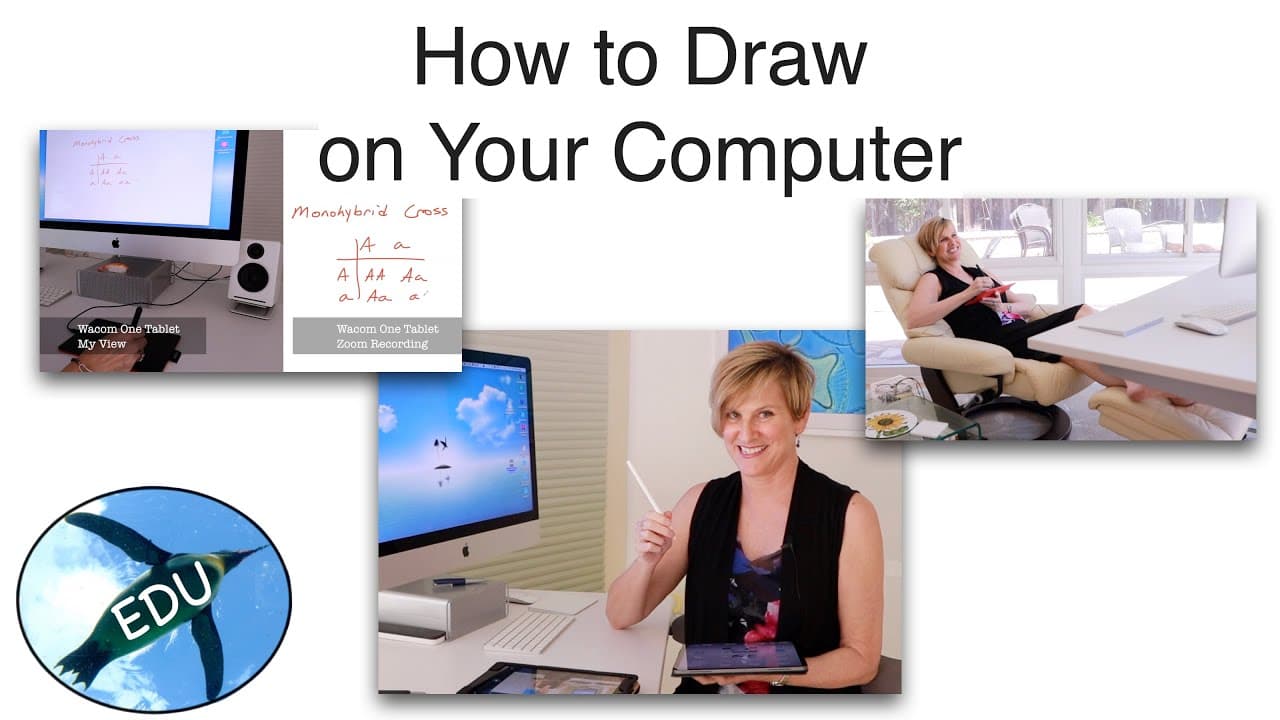
Learn about different hardware and software options for capturing writing and drawing digitally, including graphics tablets, iPads, and various software tools.
Transcript
Hello, and welcome to the Penguin Prof Channel. I'm Valerie Pennington. Today I want to talk about how to capture your writing and drawing, digitally. So in the past I've done some videos on how to convert things on paper into a digital format, so how to use your phone, you can scan things, you can also use your phone live to capture your writin... Read More
Key Insights
- 🐭 Using a mouse or trackpad for digital writing and drawing leads to unsatisfactory results, and it's recommended to use graphics tablets or LCD tablets for a better experience.
- 🔄 Graphics tablets like Wacom and Wacom One are affordable options with customizable buttons and stylus, while iPads and Surface Pros provide a more natural drawing experience.
- ❓ Collaborative drawing can be done using Zoom whiteboard or Jamboard, while individual drawing can be done on PowerPoint, Keynote, and Google Slides.
- 😀 Additional apps like Chrome Canvas, Snippet, Desk Scribble, and Presentify offer more options for drawing on desktops.
- 💻 There is a learning curve when using graphics tablets as there is a disconnect between writing and looking at the computer screen.
- ✍️ The iPad Pro with the Apple Pencil is highly recommended for its exceptional stylus and the availability of screen protectors for a paper-like writing experience.
Install to Summarize YouTube Videos and Get Transcripts
Explore YouTube Video Summarizer or Get YouTube Transcript Extractor
Questions & Answers
Q: What are the hardware options for digital writing and drawing?
The hardware options include graphics tablets like Wacom and Wacom One, which offer better results than using a mouse or trackpad. LCD tablets like iPads and Surface Pros provide a more natural drawing experience.
Q: What are the software options for collaborative drawing?
Zoom whiteboard and Jamboard are recommended for collaborative drawing. They offer various drawing tools and options for sharing and collaborating on drawings.
Q: Can I draw directly on PowerPoint, Keynote, or Google Slides?
Yes, PowerPoint, Keynote, and Google Slides have built-in tools that allow you to draw directly on slides. This is useful for individual drawing and presenting.
Q: Are there any dedicated apps for drawing on desktops?
Yes, there are apps like Chrome Canvas, Snippet (for Windows users), Desk Scribble, and Presentify (for Mac users). These apps allow you to draw on anything on your desktop.
Summary & Key Takeaways
-
Hardware options for digital writing and drawing include graphics tablets, such as Wacom and Wacom One, and LCD tablets like iPads and Surface Pros.
-
Software options depend on collaboration needs. For collaborative drawing, Zoom whiteboard and Jamboard are recommended. For individual drawing, PowerPoint, Keynote, and Google Slides have built-in tools, and there are also dedicated apps like Chrome Canvas, Snippet, Desk Scribble, and Presentify.
Read in Other Languages (beta)
Share This Summary 📚
Summarize YouTube Videos and Get Video Transcripts with 1-Click
Try YouTube Summary with ChatGPT & Claude or YouTube Transcript Generator
Explore More Summaries from ThePenguinProf 📚




Summarize YouTube Videos and Get Video Transcripts with 1-Click
Try YouTube Summary with ChatGPT & Claude or YouTube Transcript Generator