Share All the Things in Zoom
TL;DR
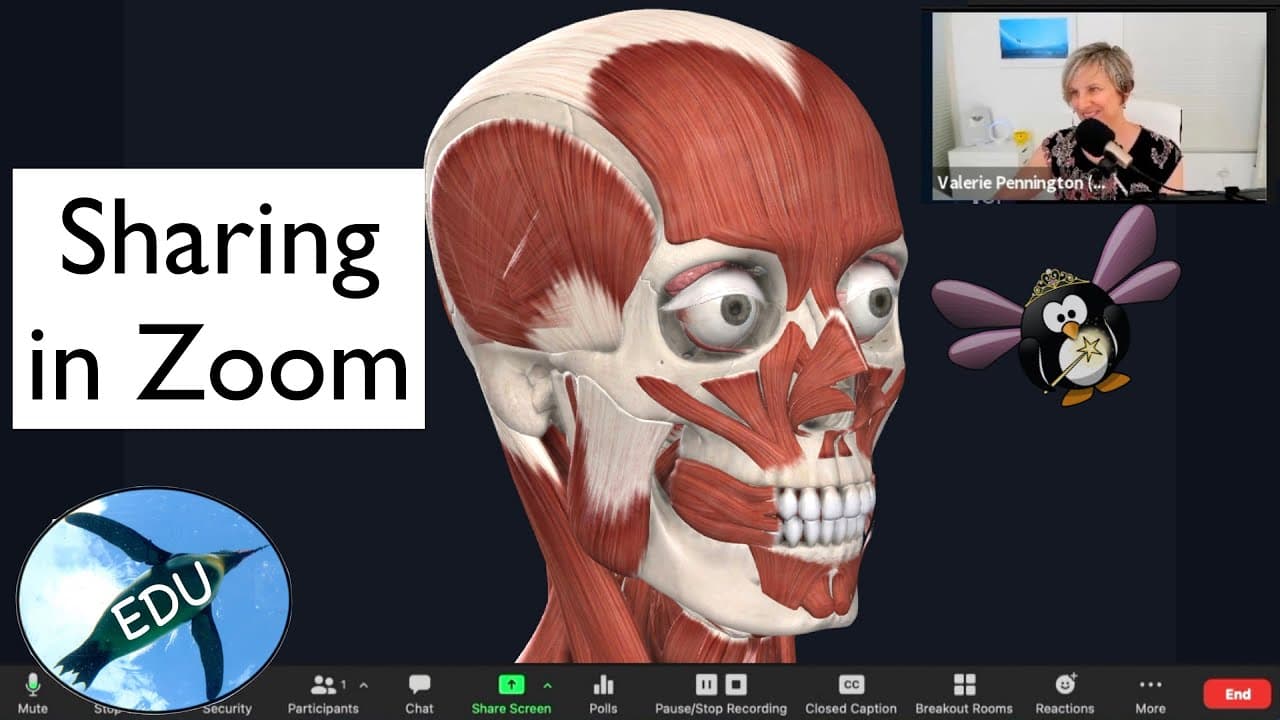
Learn how to share specific portions of your screen, share audio and video files, use slides as virtual backgrounds, switch between cameras, and seamlessly switch between different types of content while screen sharing on Zoom.
Transcript
Hello, and welcome to the Penguin Prof Channel! Let's do some Zoom basics and talk about screen shares today. So if I come down here to " Share Screen," obviously there are a variety of things that I can choose under the basic menu. One of the most common things to share is a browser window. And if I click share, then everything within the green bo... Read More
Key Insights
- 👻 Zoom's advanced share menu allows users to share specific portions of the screen, making it useful for sharing selected information.
- 🎮 Selecting the "share sound" and "share video" options enables users to share audio and video files during screen sharing sessions on Zoom.
- 🛝 Utilizing slides as virtual backgrounds can enhance presentations and allow for smoother transitions between slides.
- 🇳🇨 Switching between devices and content can be done seamlessly in Zoom by using the "New Share" option.
- 👤 For more flexibility and advanced features, users can explore software like OBS or "mmHmm" to create more professional and cohesive presentations.
- 🤝 Zoom's screen sharing capabilities can sometimes be clunky, especially when dealing with multiple types of content to share.
- 🎮 The EdTech playlist of the Penguin Prof Channel offers more helpful videos on Zoom and other educational technology tools.
Install to Summarize YouTube Videos and Get Transcripts
Explore YouTube Video Summarizer or Get YouTube Transcript Extractor
Questions & Answers
Q: How can I share only a portion of an app window while screen sharing on Zoom?
To share only a portion of an app window on Zoom, click on the advanced share menu and select "portion of screen." You can then move and resize the green box to select the desired portion to share.
Q: How can I share audio and video files while screen sharing on Zoom?
To share audio, make sure to select the "share sound" option before sharing the screen. This will share any audio played through the computer, such as music or audio from a video file. To share a video, click on the "share video" button. You can also select computer audio and video options under the advanced menu.
Q: Can I use slides as virtual backgrounds during screen sharing on Zoom?
Yes, you can use slides as virtual backgrounds in Zoom. Select the slides you want to use and they will open on the screen. You can scroll through the slides, resize yourself, and even move yourself around if needed.
Q: How can I seamlessly switch between different devices and content while screen sharing on Zoom?
To switch between different devices and content without stopping and starting the share each time, use the "New Share" option in Zoom. This allows you to easily switch between devices like iPads and interact with different types of content.
Summary & Key Takeaways
-
The video explains how to share a portion of the screen by selecting "portion of screen" under the advanced share menu in Zoom.
-
It also demonstrates how to share audio and video files, including selecting share sound and computer audio/video options.
-
The video showcases the feature of using slides as virtual backgrounds and provides tips on using a second camera and seamlessly switching between different types of content while screen sharing.
Read in Other Languages (beta)
Share This Summary 📚
Summarize YouTube Videos and Get Video Transcripts with 1-Click
Try YouTube Summary with ChatGPT & Claude or YouTube Transcript Generator
Explore More Summaries from ThePenguinProf 📚





Summarize YouTube Videos and Get Video Transcripts with 1-Click
Try YouTube Summary with ChatGPT & Claude or YouTube Transcript Generator