How to Add Custom Models in Invoke AI
TL;DR
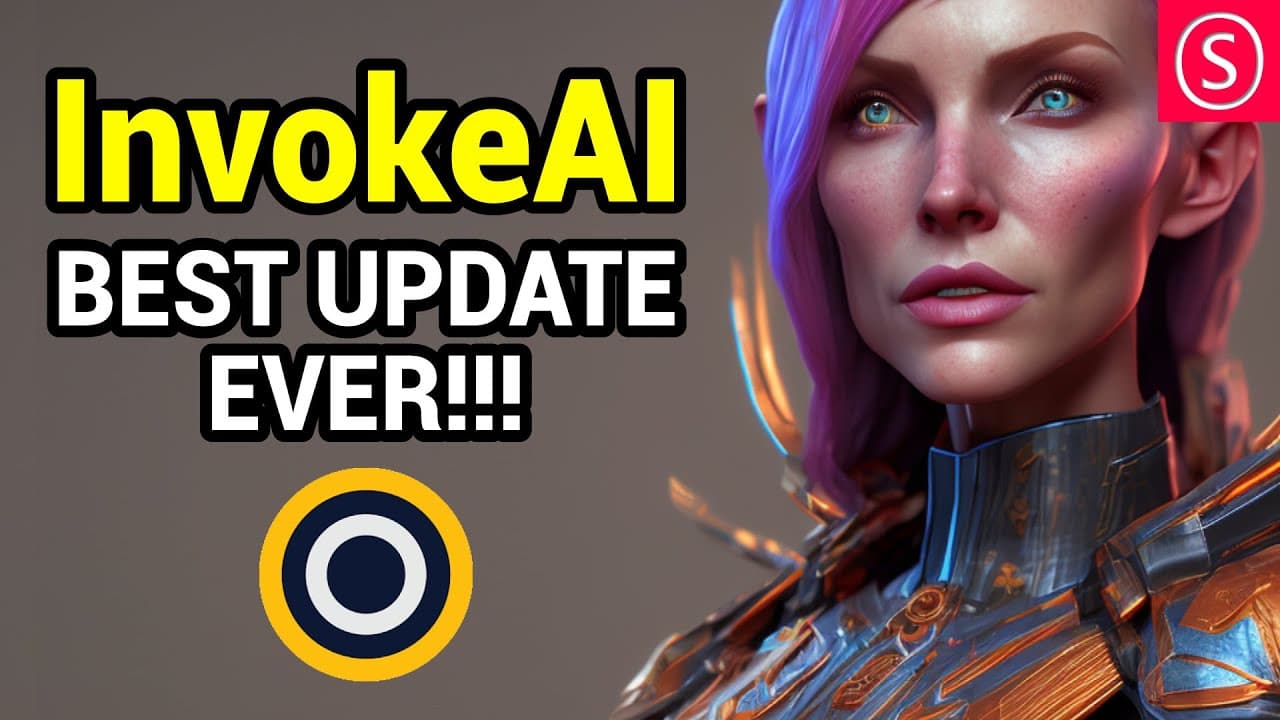
To add custom models in Invoke AI, use the model manager to point to your already installed folders, which saves hard drive space. You can enhance image quality by adding a VAE file and selecting the appropriate YAML configuration. Using a VAE improves detail and contrast in generated images significantly.
Transcript
invoke AI just got a lot better and now you can use your own models hello my friends how are you doing so I haven't done a video about invoke AI quite some time and it has added some really cool features of course let's talk first about how to add your own models so up here you can see if all these beautiful icons and the box one this is the model ... Read More
Key Insights
- 🗨️ Adding your own models to Invoke AI is now possible, allowing you to lessen the storage space required on your hard drive and use previously installed models.
- 💻 Different versions of YAML files can be used to customize the settings of your models in Invoke AI, providing flexibility in configurations.
- 🖌️ Using a VAE file can enhance the image quality by adding more details and contrast, resulting in improved visuals.
- ⚙️ Invoke AI offers a range of features, including keyboard shortcuts, various light modes, multiple language options, and image information retrieval.
- 📈 The upscaling function in Invoke AI allows users to increase the size of their images with adjustable strength, providing greater control over image quality.
- 🔍 The phase restore function enables users to fix specific areas of an image, such as the face or eyes, by repeatedly selecting the restore option until desired results are achieved.
- 🎨 Invoke AI's unified canvas is a powerful tool for both out painting and in painting, offering a wide range of functions for creative exploration.
- 🔄 Changes made to prompts and settings in one mode of Invoke AI will carry over to other modes, allowing for seamless transitions between different features.
Install to Summarize YouTube Videos and Get Transcripts
Explore YouTube Video Summarizer or Get YouTube Transcript Extractor
Questions & Answers
Q: How can you add your own models to Invoke AI?
To add your own models, you need to access the model manager in Invoke AI, click on "Add New," and select the folder where your models are located. Then, click on "Scan" to identify and add the models to your list. Make sure to choose the appropriate YAML file and, if applicable, add a vae file for better results. Don't forget to click on "Update Model" to save your changes.
Q: What are some of the cool features and functionalities in Invoke AI?
Invoke AI offers several cool features such as keyboard shortcuts for a smoother workflow, different light modes (dark, light, and green), language options, and an info button to view image information. You can also upscale images, restore faces, use prompt or seed selectively, and access the overview for a detailed view of your image. Additionally, you can send, copy, or download your images, and utilize the unified canvas for painting and inpainting.
Q: What is the difference between using a vae file and not using one in Invoke AI?
When using a vae file in Invoke AI, the generated images tend to have more details, improved contrast, and nicer colors. The vae file enhances the overall quality of the output. On the other hand, without a vae file, the images may still be good but suffer from muted colors and lower contrast.
Q: How can you use the image-to-image feature in Invoke AI?
To use the image-to-image feature, you can click on the "Image-to-Image" button, and if desired, adjust the output size. You also have the option to fit the initial image to the output size, maintaining the aspect ratio. The image-to-image feature is a powerful tool for creating various characters with similar compositions and can be useful in video game design or other creative endeavors.
Summary & Key Takeaways
-
Invoke AI has added the capability to add your own models, saving space on your hard drive by pointing to an already installed model.
-
Different settings and options can be configured for the models, including adding a vae file for better results and selecting the appropriate YAML file.
-
The video showcases the difference between using a vae file and not using one, highlighting the improvements in detail and contrast.
Read in Other Languages (beta)
Share This Summary 📚
Summarize YouTube Videos and Get Video Transcripts with 1-Click
Try YouTube Summary with ChatGPT & Claude or YouTube Transcript Generator
Explore More Summaries from Olivio Sarikas 📚





Summarize YouTube Videos and Get Video Transcripts with 1-Click
Try YouTube Summary with ChatGPT & Claude or YouTube Transcript Generator