How to connect Claude AI to your life data step by step
TL;DR
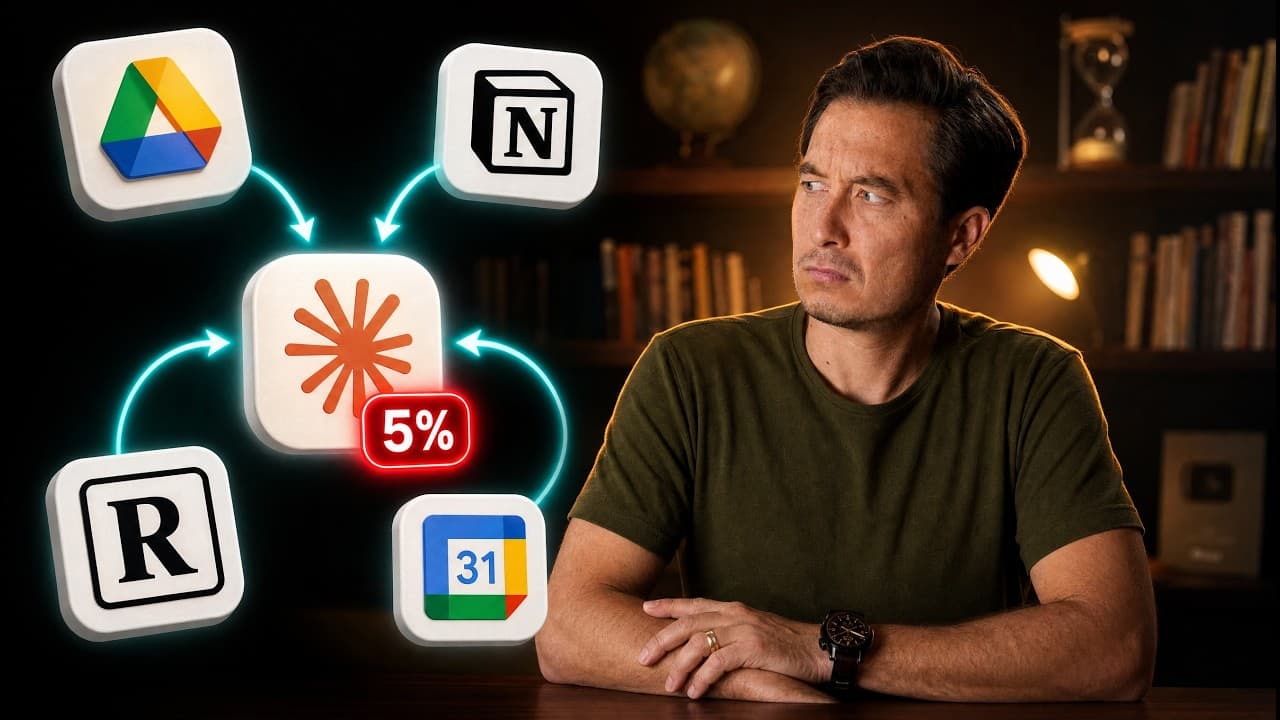
The video demonstrates connecting Claude to a single data source as a starting point and emphasizes that the AI nervous system can extend your data access but is not infallible. It shows a practical workflow for choosing a connector, granting permissions, testing outputs, and cross checking results with other data sources before trusting the analysis.
Transcript
Right now, I see a lot of people giving Claude their notes, their [music] calendar, their email inbox, even their bank login. But, as I've started doing the same, I've started to realize there is way more nuance and complexity than [music] I see anyone talking about online. It's way more complex than just connect everything and you're done. I've sp... Read More
Key Insights
- Connectors act as the nervous system for an AI second brain, expanding its data channels and capabilities.
- Official connectors are accessed through a browse and add workflow, then must be authenticated with a chosen account.
- Read only tools can be broadly allowed, while write tools require human approval to maintain control.
- The initial demo uses Google Calendar to test how Claude analyzes time use, showing the importance of clear data scope.
- Results can appear as a multi step to do list and sub agents, illustrating how the AI organizes tasks internally.
- You must verify whether results reflect actual behavior versus scheduled data, recognizing limitations in data sources.
- Cross referencing data with other apps, like a workout tracker, increases accuracy and reduces misinterpretation.
- Human judgment remains crucial to identify gaps and validate the AI’s conclusions before acting on them.
- More videos from this channel:
- More from this channel: Tiago Forte
Install to Summarize YouTube Videos and Get Transcripts
Explore YouTube Video Summarizer or Get YouTube Transcript Extractor
Questions & Answers
Q: How to begin adding a Claude connector and choose a data source
Begin by opening the Claude connectors area and selecting browse connectors to view official options. Add the connector you want, such as Google Calendar, then sign into the data source with the appropriate account. This creates a data channel that Claude can read or write to, forming the basis for analysis.
Q: What is the role of the tool permissions in Claude connectors
Tool permissions determine what Claude can read or write through a connector. Read only tools are typically set to always allow, enabling data access without changes. Write or delete tools or interactive tools should be set to needs approval, ensuring a human reviews any actions or external communications before they occur.
Q: Why start with a single connector when testing Claude
Starting with one connector limits complexity and clarifies the value Claude can provide. If a single connector does not yield useful insights, adding more may not help. A focused test with one data source, like Google Calendar, helps you assess the AI’s interpretation and planning capabilities before expanding.
Q: What should you check about data sources in Claude outputs
Check whether Claude is analyzing the right scope of data. For example, calendar data may reflect scheduled time rather than actual activities. Look for confirmations of data boundaries, such as whether the analysis includes personal versus work data and whether it excludes untracked activities.
Q: How can you improve accuracy of Claude analysis
Improve accuracy by cross referencing Claude results with independent data sources. If Claude reports on workouts, compare with a workout app log to verify actual activity. This cross reference helps correct biases from one data source and provides a more reliable picture of behavior.
Q: What does the video suggest about interpreting AI results
The video emphasizes a skeptical, questioning approach to AI outputs. Treat Claude results as informative rather than definitive, and look for gaps or missing pieces that the AI might not detect. Use your own judgment to fill in missing context and assess realism.
Q: What is a practical level one workflow for Claude connectors
A practical level one workflow is to connect one data source, define a clear task such as analyze time spent across work and personal life, and request both text and visual summaries. This keeps the process manageable, makes it easier to review results, and builds a foundation for more complex integrations.
Q: What is the final catch the video mentions about connectors
The final catch is determining whether a given connector or integration is worth your time based on how much data Claude can access and how accurately it reflects real behavior. This requires careful permission settings, data cross checks, and a critical evaluation of usefulness before expanding the setup.
Summary & Key Takeaways
-
The video shows how Claude can be extended with official connectors to access external data and perform analyses, starting with Google Calendar as a case study.
-
It highlights the need to carefully manage permissions, particularly write and interactive tools, to prevent unwanted actions and ensure human oversight.
-
It demonstrates a multi step workflow including setup, prompting, and validation, and it stresses cross referencing outputs with independent data sources for accuracy.
Read in Other Languages (beta)
Share This Summary 📚
Summarize YouTube Videos and Get Video Transcripts with 1-Click
Try YouTube Summary with ChatGPT & Claude or YouTube Transcript Generator
Explore More Summaries from Tiago Forte 📚


Summarize YouTube Videos and Get Video Transcripts with 1-Click
Try YouTube Summary with ChatGPT & Claude or YouTube Transcript Generator