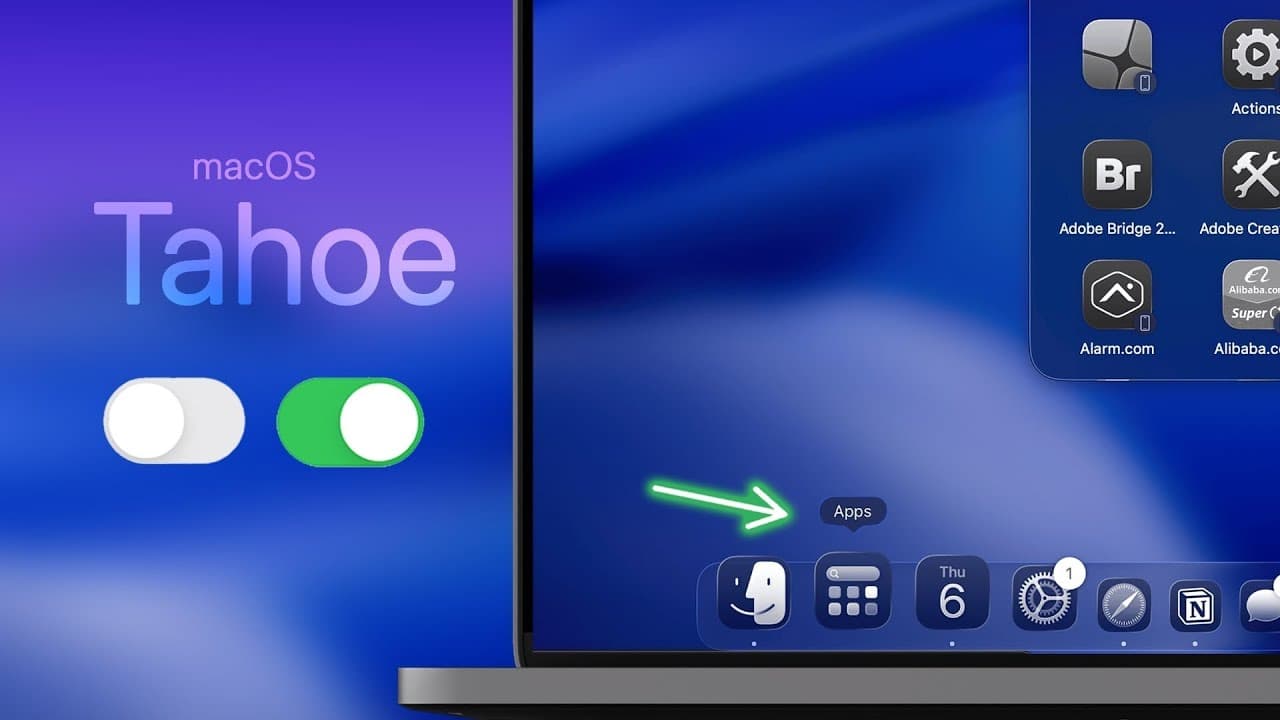
How to tweak macOS Tahoe: 22 essential settings
TL;DR
You should disable unwanted menu bar apps in macOS Tahoe to clean up the bar. Enable the PDF dark mode option in dark appearance, and use the magnifier with your iPhone as a camera source for easier class screenshots. Sharpen Spotlight results by filtering apps and system results, and turn on clipboard history for eight hours of saved clips.
Transcript
Mac OS 26 Tahoe has over a 100 new features and an all-new liquid glass design, but Apple also added several new settings that you might want to consider changing right away. So, here are 22 of those settings that you need to change on Mac OS Tahoe. Okay, so let's start with the menu bar because Mac OS Tahoe introduces a new way to clean up your me... Read More
Key Insights
- The menu bar can be cleaned up by disabling specific applications in macOS Tahoe.
- Dark mode for PDFs can be enabled in the Preview/view menu to match system dark appearance.
- Spotlight settings let you deselect iPhone apps so only Mac apps appear in results.
- System settings in Spotlight allow fine tuning of search results to improve relevance.
- Clipboard history is introduced in macOS Tahoe, showing recent clippings for easy re-use.
- Clipboard items are stored for up to eight hours unless they contain sensitive data.
- Quick actions in Spotlight can be created with custom keyboard shortcuts to automate tasks.
- Custom Spotlight actions can automate frequent tasks like creating reminders or sending messages.
Install to Summarize YouTube Videos and Get Transcripts
Explore YouTube Video Summarizer or Get YouTube Transcript Extractor
Questions & Answers
Q: How do I hide iPhone apps from Spotlight results in macOS Tahoe?
To hide iPhone apps from Spotlight results, open the system settings and go to Spotlight. Then click the three dots and deselect show iPhone apps. This narrows search results to Mac apps only, making it easier to find what you want without mobile app noise.
Q: What is the best way to keep PDFs in dark mode on macOS Tahoe?
In dark mode, go to the Preview menu and enable use dark appearance for PDF. This setting applies dark mode to the PDF itself, ensuring the document appearance matches the system theme and provides a consistent reading experience.
Q: How can I use the new magnifier with an iPhone on macOS Tahoe?
Open the Magnifier tool and change the camera source to your iPhone in the menu bar under camera. This allows you to use the iPhone as the camera for magnified viewing or screenshots, which is useful for classroom or presentation scenarios.
Q: How do I enable clipboard history in macOS Tahoe?
Clipboard history is off by default and can be enabled in the Spotlight area of system settings. Once enabled, Spotlight shows recent clippings with time and source app, and you can recopy any item back to the clipboard.
Q: What is a practical use of Spotlight quick keys in macOS Tahoe?
In Spotlight, you can set up quick keys for actions by selecting an action, adding a keyboard shortcut, and then triggering the action with a simple keystroke. This speeds up repetitive tasks like creating reminders or sending messages.
Q: How can I customize Spotlight results to speed up searching?
Go to Spotlight settings and adjust results from apps and results from system. Deselect unwanted apps and folders, leaving only the categories you use. This reduces noise and helps you find files, apps, or settings faster.
Q: What security considerations exist with clipboard history in macOS Tahoe?
Clipboard history can display copied content for eight hours and may expose sensitive data; macOS Tahoe will avoid showing truly sensitive information in plain text. You should be aware of what you copy and configure clipboard usage accordingly.
Q: How do I enable or use the new Spotlight actions feature for reminders?
In Spotlight actions, add a new action like create a reminder and assign a short keyword. When you type that keyword in Spotlight and press return, it prompts you to fill in reminder details, allowing quick creation from the search interface.
Summary & Key Takeaways
-
macOS Tahoe introduces a new menu bar management feature that lets you disable specific apps from appearing in the menu bar, helping to declutter the interface.
-
There is a new setting to apply dark appearance to PDFs when viewing in dark mode, keeping documents consistent with the system theme.
-
Spotlight can be customized to hide iPhone apps and refine what types of results appear, plus a clipboard history feature is added to store recent clippings for up to eight hours.
Read in Other Languages (beta)
Share This Summary 📚
Summarize YouTube Videos and Get Video Transcripts with 1-Click
Try YouTube Summary with ChatGPT & Claude or YouTube Transcript Generator
Explore More Summaries from Brandon Butch 📚

Summarize YouTube Videos and Get Video Transcripts with 1-Click
Try YouTube Summary with ChatGPT & Claude or YouTube Transcript Generator