How to map your thoughts with Obsidian Canvas
TL;DR
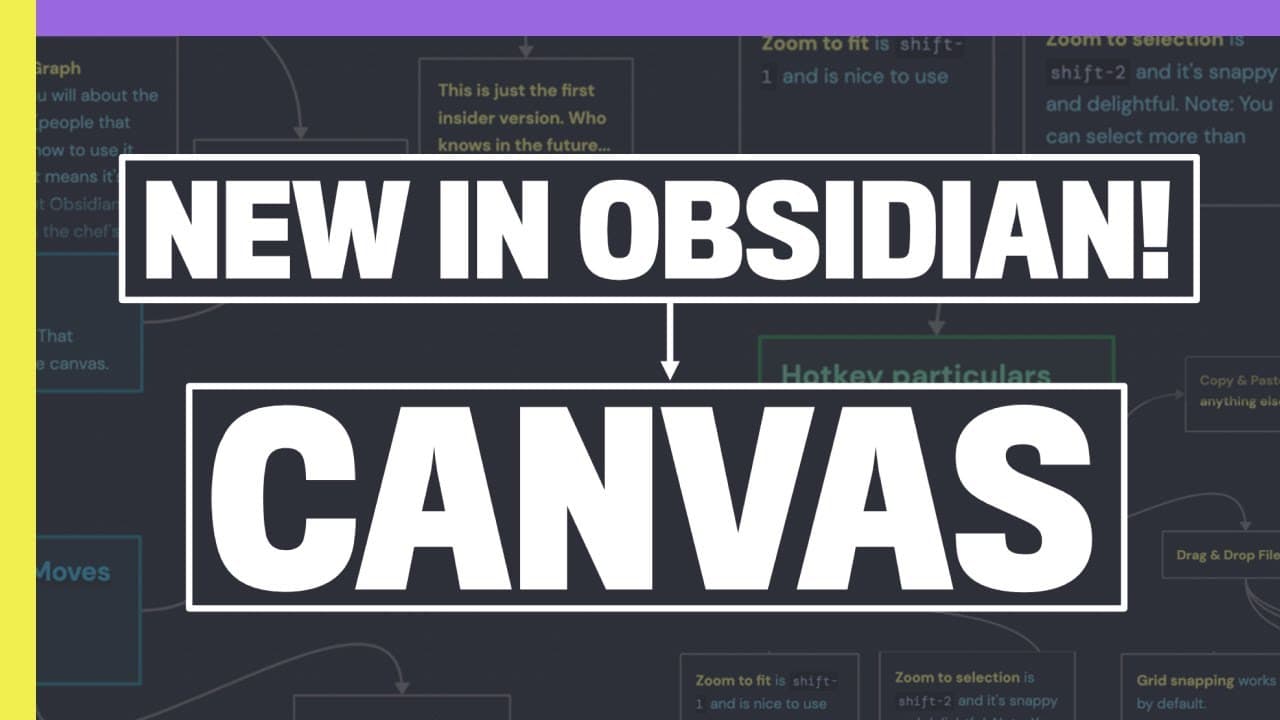
Canvas lets you visually organize thoughts by creating cards, images, and notes on a virtual board. It guides you from setup to powerful maneuvers like zoom, pan, and grid snapping to reorient when overwhelmed. The video covers basics, secret maneuvers, power moves and practical takeaways for thinking with Canvas.
Transcript
I was lost but now I'm fast I was lost but now I'm found but now I'm found yes come on man stuck how do I get out I don't know I just gave up it wasn't going well I guess I lost momentum life happened I lost my train of thought I lost the spark I was overwhelmed life happens man my way out they who make a bet... Read More
Key Insights
- Canvas lets you create a new canvas inside Obsidian and add cards, notes and media to structure thinking visually.
- You can input notes or media from your vault, drag and connect elements, and use zoom and fit functions to manage large canvases.
- Hotkeys provide faster access to the canvas interface, including command P on Mac or control P on Windows for quick access.
- Secret Maneuvers include zooming with a scroll wheel while holding a modifier, as well as using shift commands to zoom to fit or center the view.
- The tool emphasizes movement on the X and Y planes with optional Shift dragging to maintain alignment and grid snapping for tidy layouts.
- Undo and redo at the canvas level are not global and must be performed with the per note controls, which is an important nuance for workflow.
- There are specialized maneuvers for navigating large canvases quickly, such as zoom to fit (Shift 1) and zoom 2 selection (Shift 2) for rapid repositioning.
- The video promises practical power moves and lingering questions to help viewers adopt Canvas as a thinking partner.
Install to Summarize YouTube Videos and Get Transcripts
Explore YouTube Video Summarizer or Get YouTube Transcript Extractor
Questions & Answers
Q: How to start using Obsidian Canvas for thinking maps
Starting with Canvas requires updating Obsidian to at least version 1.10 and enabling Insider builds. Use the command palette (Command P on Mac or Control P on Windows) to create a new canvas, then name it and begin adding cards, notes and media from your vault. This setup lays the foundation for rapid mapping of thoughts and linking ideas visually.
Q: What are the essential elements you can add to a canvas
Essential elements include cards, notes from your Obsidian vault, and media such as images. Cards act as anchors for ideas, notes link to existing knowledge, and media provides context or reference visuals. These elements can be rearranged, zoomed and connected to form a coherent map of your thinking.
Q: How do you navigate and arrange content on the canvas effectively
Effective navigation uses zooming, panning and grid snapping to maintain alignment. Hold a modifier key while scrolling to zoom, drag items to reposition, and use Shift to constrain movement along a single axis. Zoom to fit and zoom 2 selection help you view the whole board or focus on specific clusters.
Q: What are secret maneuvers and why are they useful
Secret maneuvers are lesser known techniques that unlock efficient use of Canvas. They include using mouse scroll with a modifier to zoom, shift based centering and rapid navigation between selected items. These maneuvers reduce cognitive load and speed up the process of organizing thoughts into a coherent map.
Q: What are power moves mentioned in the video
Power moves refer to advanced techniques for Canvas that accelerate thinking workflows. They encompass rapid canvas setup, hotkey customization, and fluid transitions between different views like zoom to fit and focused selection. These moves help users regain momentum when thinking becomes overwhelmed.
Q: What is the recommended workflow when experiencing a mental squeeze point
The recommended workflow is to create a map as a reflex to regain orientation and momentum. By visually laying out thoughts, you reestablish bearings, connect ideas, and reframe the problem. This practice reduces overwhelm and supports clearer decision making.
Q: What caveat is mentioned about pre judging tools like Canvas
The video cautions against pre judging tools, suggesting that early skepticism can hinder exploration. It encourages trying Canvas with an open mind to discover how its visual mapping can support thinking, planning and decision making rather than relying solely on linear notes.
Q: What are the key takeaways and where to learn more
Key takeaways emphasize practicing with Canvas, upgrading Obsidian to access the feature, and applying secret maneuvers for effortless use. For further learning there are links to the creator’s channels and resources, including Obsidian flight school and the Ideaverse workshop, which provide ongoing learning and practice material.
Summary & Key Takeaways
-
Canvas introduces a new way to map thinking by building a visual board with cards, notes and media, enabling quick connections between ideas.
-
Secret maneuvers unlock efficient navigation and manipulation, including zooming, panning and grid snapping for precise layouts and orientation.
-
Takeaways emphasize practicing with the tool, upgrading Obsidian to access Canvas and applying the technique to regain momentum when feeling stuck.
Read in Other Languages (beta)
Share This Summary 📚
Summarize YouTube Videos and Get Video Transcripts with 1-Click
Try YouTube Summary with ChatGPT & Claude or YouTube Transcript Generator
Explore More Summaries from Linking Your Thinking with Nick Milo 📚



Summarize YouTube Videos and Get Video Transcripts with 1-Click
Try YouTube Summary with ChatGPT & Claude or YouTube Transcript Generator