How to Use Terminal Commands as a Beginner
TL;DR
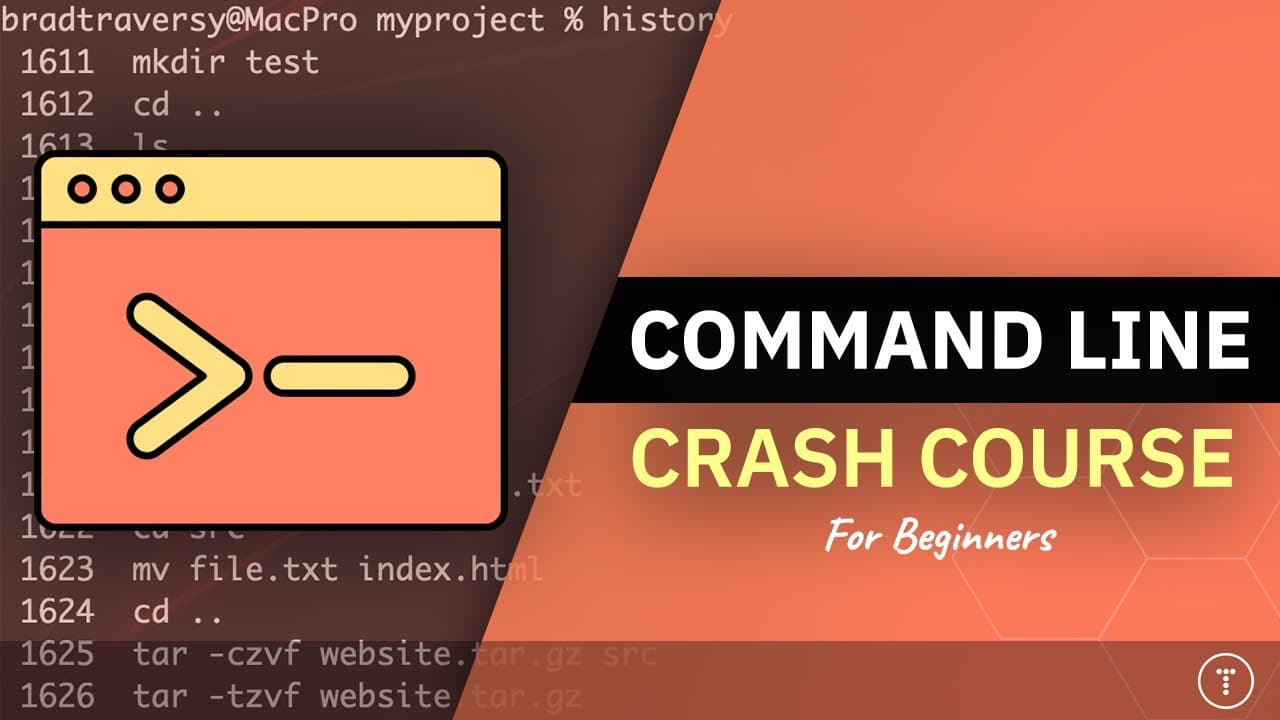
Start by learning how to navigate directories, manage files and folders, inspect text, search content, and connect commands through piping. The command line provides greater control and can make repetitive work faster, while terminal emulators and shells vary by operating system. Windows users can follow Unix-style commands through Git Bash, Hyper, or Windows Subsystem for Linux.
Transcript
what's going on guys welcome to my command line crash course so if you're a developer of any kind chances are you're going to be using the command line at some point you may just be installing some npm dependencies as a front-end developer or you may be logging into servers via ssh and performing more advanced tasks but either way it's good to lear... Read More
Key Insights
- The command line is valuable because it provides greater control over a computer than a graphical interface, including access to operations, permissions, and user-management capabilities that may not be exposed through menus and buttons. Advanced commands require care because they can perform complex system operations.
- Command-line work is efficient because one or a few commands can process multiple files, including collections containing hundreds or thousands of items. Frequently used commands can also be assigned aliases, and users can keep their hands on the keyboard instead of repeatedly switching to a mouse.
- Remote server access is commonly performed through SSH, or Secure Shell, from the command line. This is particularly relevant when deploying websites and applications or administering headless operating systems, which may run without a graphical interface, monitor, or keyboard.
- A terminal emulator is a software replacement for the historical hardware terminal, which consisted of a keyboard and text display connected to a larger computer system. Users can choose the terminal included with their operating system or install alternatives such as iTerm2, Git Bash, or Hyper.
- The command line is the terminal interface through which users enter commands and receive output. Windows commonly uses terms such as command line, command prompt, and cmd, while Mac and Linux users more often refer to the terminal, although these terms are frequently used interchangeably.
- The shell is the program that reads terminal input and displays command output. Bash is commonly used on Linux and Unix systems, while macOS changed its default from Bash to zsh. The commands demonstrated in the course can be performed with either Bash or zsh.
- Windows command environments differ from Unix-based shells because Windows historically used command.com, later cmd.exe, and then PowerShell. Developers who want to follow Unix-style examples on Windows can use Git Bash, Hyper, or Windows Subsystem for Linux, while PowerShell is relevant to Windows administration.
- The practical command set covers navigation, file management, text processing, searching, links, archives, and history. Demonstrated commands include pwd, ls, cd, mkdir, touch, rm, cp, mv, cat, less, head, tail, nano, echo, grep, find, ln, tar, and history.
Install to Summarize YouTube Videos and Get Transcripts
Explore YouTube Video Summarizer or Get YouTube Transcript Extractor
Questions & Answers
Q: Why should developers learn the command line?
Developers should learn the command line because it offers greater control, improves speed for repetitive operations, enables remote server access through SSH, and supports many development tools. It is used with npm, Git, Sass, Webpack, and Parcel. Employers may also expect developers to navigate their systems and operate common tools without relying entirely on graphical applications.
Q: What is the difference between a terminal, command line, and shell?
A terminal emulator is the software program opened to work with text-based commands. The command line is the interface where commands are entered and their output appears. The shell is the underlying program that reads the input and produces the output. Bash and zsh are shell examples, while iTerm2, Git Bash, and Hyper are terminal emulator examples.
Q: How can Windows users follow Unix-style terminal commands?
Windows users can install Git Bash or Hyper to work in a Unix-based terminal environment, and Git Bash is specifically recommended for following the course. Windows Subsystem for Linux is another option because it allows Linux to run within Windows. PowerShell can also be worth learning for someone planning to work as a Windows system administrator.
Q: How does the command line make file operations faster?
The command line can apply operations to many files through a small number of commands, avoiding hours or days of manual work in a graphical interface when hundreds or thousands of files are involved. Users can also create aliases for commands they run frequently. Keeping both hands on the keyboard can further reduce interruptions caused by switching between keyboard and mouse.
Q: What terminal commands help navigate files and directories?
The course uses pwd to work with the current location, ls to inspect directory contents, and cd to move between directories. It also covers open, start, and xdg-open for opening items across different operating systems. Keyboard features such as the up and down arrows, the Tab key, and shortcuts support faster command entry and navigation.
Q: What commands create, copy, move, and remove files?
The demonstrated file-management commands include mkdir for directories, touch for files, cp for copying, mv for moving, and rm for removal. Recursive removal with rm -r is also covered. These commands provide direct ways to manage files and folders, but removal commands deserve care because advanced terminal operations can make significant changes to a system.
Q: How can terminal commands inspect and search text?
The course covers cat, less, head, and tail for viewing text in different ways. Nano is introduced for editing, while echo produces text output. Grep searches content, and find locates items. The right angle bracket and broader piping concepts are also demonstrated so command input and output can be redirected or connected during text-processing workflows.
Q: Which additional command-line topics are included in the course?
Beyond basic navigation and file management, the course introduces man for command documentation, whoami for identifying the current user, date, clear, symbolic links with ln, archive handling with tar, and previous commands through history. It also covers piping and keyboard conveniences. Permissions, groups, and user management are intentionally excluded to keep the course beginner-friendly and operating-system agnostic.
Summary & Key Takeaways
-
The course begins by explaining why developers benefit from command-line skills. A terminal offers greater system control, speeds up repetitive file operations, supports access to remote servers through SSH, and runs development tools such as npm, Git, Sass, Webpack, and Parcel. Command-line familiarity can also help when seeking development work.
-
The terminology section distinguishes three related concepts. A terminal emulator is the software used to enter text, the command line is its input and output interface, and the shell interprets commands. Bash is common on Linux and Unix systems, while newer Macs use zsh, which supports the demonstrated operations.
-
The practical course covers keyboard completion and history, help through man, identity and date checks, directory navigation, file and folder creation, copying, moving, removal, text inspection, editing, searching, piping, symbolic links, archives, and command history. The material avoids permissions, groups, and user management to remain broadly operating-system agnostic.
Read in Other Languages (beta)
Share This Summary 📚
Summarize YouTube Videos and Get Video Transcripts with 1-Click
Try YouTube Summary with ChatGPT & Claude or YouTube Transcript Generator
Explore More Summaries from Traversy Media 📚

Summarize YouTube Videos and Get Video Transcripts with 1-Click
Try YouTube Summary with ChatGPT & Claude or YouTube Transcript Generator