How to use Copilot Chat prompts to save time
TL;DR
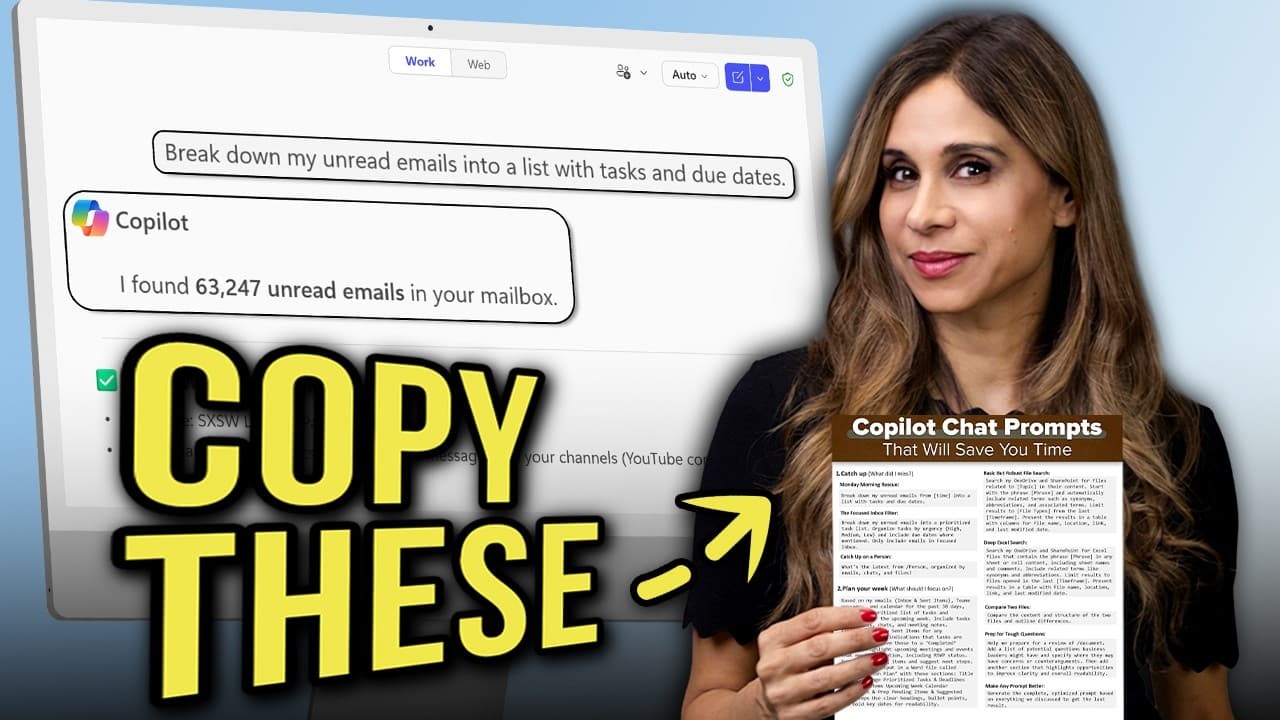
Copilot Chat prompts can automate catching up, planning, and finding files, saving you time by turning unread emails into tasks, summarizing documents, and creating weekly action plans. Most powerful prompts require a paid Copilot license and work in Work mode, where your organization data is accessible for automation. Grounded prompts include catching up on emails, planning your week, and advanced file searches.
Transcript
Today I'm going to share 10 Microsoft 365 Copilot chat prompts that actually save me time. You can copy all of them. Now M365 Copilot Chat is free if you have Microsoft 365. You can get to it by clicking the icon on your desktop if you have the app or open your browser. Go to microsoft365.com or like me if you still type office.com out of ... Read More
Key Insights
- Copilot Chat can convert unread emails into a prioritized task list with due dates.
- Catching up on a colleague’s activity is possible by organizing emails, chats, and files by person.
- A weekly action plan can be generated from emails, calendar, and sent items and exported as a Word document.
- Advanced file search supports deep queries inside OneDrive and SharePoint for targeted results.
- You can summarize a specific file to a one-paragraph brief using a quick command.
- Prompt saving and scheduling allow prompts to run automatically at set times.
- File comparison prompts reveal differences in content and structure between two documents.
- Copilot can help prepare for tough questions by outlining likely queries and improvement opportunities.
Install to Summarize YouTube Videos and Get Transcripts
Explore YouTube Video Summarizer or Get YouTube Transcript Extractor
Questions & Answers
Q: How can Copilot Chat turn unread emails into tasks?
Copilot Chat can breakdown unread emails from a selected time frame into a list of tasks with due dates. You can further constrain the results to a focused inbox, or expand to all inbox items. This helps prioritize actions and reduces manual sorting, making it easier to start your workday with a clear plan.
Q: What is the Monday morning rescue prompt used for?
The Monday morning rescue prompt is used to summarize unread emails into a prioritized task list with due dates. It helps get you caught up quickly after holidays or long breaks by transforming inbox content into actionable items. This approach creates structure and reduces overwhelmed start-of-week workloads.
Q: How does the weekly planning prompt work?
The weekly planning prompt analyzes emails, Teams messages, and calendar data from the past period to produce a prioritized list of tasks and deadlines for the upcoming week. It also checks sent items for completed tasks, places finished work in a Completed section, and highlights upcoming meetings, delivering a structured Weekly Action Plan.
Q: What does an advanced file discovery prompt do?
An advanced file discovery prompt searches OneDrive and SharePoint for files related to a topic, including content within files and deep search inside Excel workbooks. It can limit results to certain file types and a specific time window, returning a comprehensive list with names, locations, links, and last modified dates.
Q: How can you summarize a file quickly with Copilot?
You can quickly summarize a file by using a quick access method to locate the file and then asking Copilot to generate a one paragraph summary. This makes it easy to capture essential insights from a presentation or document without manually reading through the whole file.
Q: What is the purpose of the compare two files prompt?
The compare two files prompt allows you to review content and structure differences between two documents. It highlights what information is present in one file but not the other and notes discrepancies in content or figures, helping you spot variances or updates quickly.
Q: How does Copilot help with tough questions in meetings?
Copilot can prepare for tough questions by analyzing a document, adding a list of potential questions executives might ask, and suggesting counterarguments as well as opportunities to improve clarity and readability. This provides a ready-made briefing for opening remarks and Q&A sessions.
Q: Can prompts be saved and scheduled for later use?
Yes, prompts can be saved for reuse and scheduled to run at specific times. This ensures that prebuilt workflows like weekly planning or email rescues are prepared in advance, so you arrive with results ready to review, saving time and maintaining consistency across weeks.
Summary & Key Takeaways
-
This video demonstrates practical Copilot Chat prompts that automate daily work tasks, focusing on catching up with unread emails, organizing coworker updates, and generating a weekly action plan from Outlook, calendar, and messages. It also covers advanced file discovery and document analysis to save time.
-
A key take here is the distinction between free and paid Copilot features, with many prompts requiring a paid license. The presenter shows how to use Work mode for accessing work data while protecting enterprise information, and how to save or schedule prompts for later use.
-
The session ends with tips on probing for tough meeting questions, comparing files for differences, and prepping executives with concise summaries and ready-to-use insights, all aimed at reducing manual workflow effort.
Read in Other Languages (beta)
Share This Summary 📚
Summarize YouTube Videos and Get Video Transcripts with 1-Click
Try YouTube Summary with ChatGPT & Claude or YouTube Transcript Generator
Explore More Summaries from Leila Gharani 📚






Summarize YouTube Videos and Get Video Transcripts with 1-Click
Try YouTube Summary with ChatGPT & Claude or YouTube Transcript Generator