How to Clean and Analyze Excel Data With Python
TL;DR
Python in Excel can fix inconsistent dates, unpivot columns into rows, and reveal delivery patterns with only short Python expressions. Pandas functions such as to_datetime and melt handle cleanup and reshaping, while a Seaborn swarm plot visualizes clusters, outliers, and differences between package types without requiring the user to become a programmer.
Transcript
Here's why you'll never look at Excel the same way again. Dates in weird formats. Data in columns that should be in rows. Advanced data analysis that seems to need hours of setup. Well, I'm going to share three simple 30-second hacks for each of these. Without these, you could easily spend half a day cleaning up your sheets. That sounds weird. ... Read More
Key Insights
- Python in Excel is entered by typing =PY, which allows short Python expressions to operate on worksheet cells, ranges, and tables. The feature is presented as part of Microsoft 365, with availability being rolled out across desktop and web versions at the time described.
- Pandas to_datetime converts dates written in inconsistent or otherwise unrecognized formats into proper dates. After referencing a messy date cell, the Python result can be switched to Excel values and sent down the column to process hundreds of rows quickly.
- Pandas melt unpivots data by transforming separate columns, such as quarterly sales fields, into rows. Setting Product as id_vars keeps the product identifier while producing one field for the original quarter labels and another field for their corresponding sales values.
- The var_name and value_name arguments replace the generic melt output headers variable and value. Assigning Quarter to var_name and Sales to value_name creates clearer column labels without requiring a separate manual renaming step after the table has been reshaped.
- A dynamic unpivot can be created by expanding the referenced source range beyond its current populated rows. Appending dropna removes empty results, while reset_index(drop=True) suppresses the index column and closes gaps caused by removing blank source records.
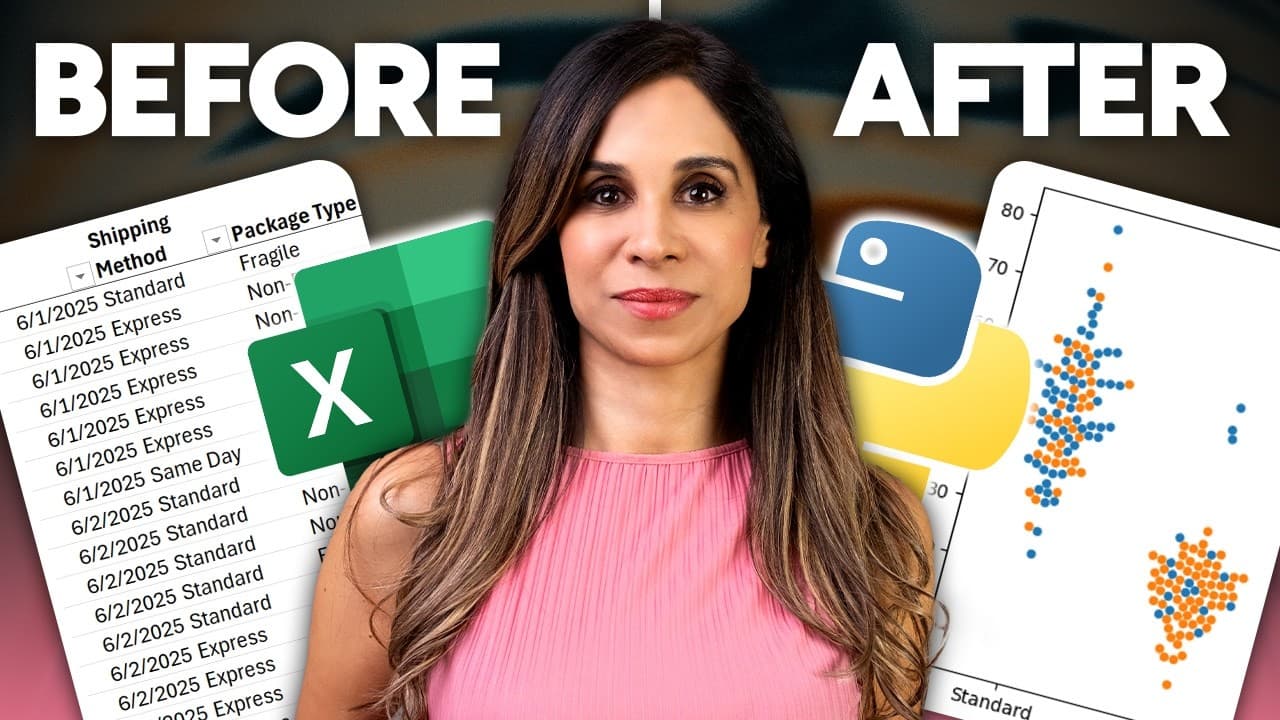
- A Seaborn swarm plot displays individual delivery observations by shipping method on the X-axis and delivery time in hours on the Y-axis. Displaying the plot over worksheet cells makes clusters and outliers visible without relying on scrolling through the underlying records.
- The hue argument separates swarm plot observations by Package Type. Using Fragile and Non-Fragile categories reveals apparent delivery-time differences, including longer times for Fragile packages in Overnight and Same Day shipping, with Express also appearing to have problems.
- Python in Excel can support work beyond the three demonstrated tasks, including bullet chart functions, external data connections, forecasting future periods, and visuals for discovering unexpected patterns. The presentation positions these capabilities as additions to an existing daily Excel workflow.
Install to Summarize YouTube Videos and Get Transcripts
Explore YouTube Video Summarizer or Get YouTube Transcript Extractor
Questions & Answers
Q: How do you convert messy dates with Python in Excel?
Enter Python mode by typing =PY, then use the Pandas function pd.to_datetime with a reference to the cell containing the messy date. After committing the expression, switch the returned result to Excel values and fill it down the column. This method converts differently formatted or previously unrecognized entries into proper dates across hundreds of rows.
Q: Why might changing Excel date formatting fail on messy dates?
Changing a cell's display format does not solve the problem when Excel does not recognize the underlying value as a date. The transcript also shows that using the YEAR function may fail for the same reason. Because people and SAP extracts can supply dates in many inconsistent forms, pd.to_datetime provides a more flexible conversion method than manual formatting or cell-by-cell cleanup.
Q: How do you unpivot columns into rows with Python in Excel?
Use =PY to enter Python mode, then call pd.melt on the source range. Define the column that must remain unchanged through id_vars, such as Product. The returned DataFrame places the former quarter headers into one column and their sales figures into another, producing a row-based table that can be spilled into Excel cells.
Q: How can you rename columns returned by Pandas melt?
Add the var_name and value_name arguments to the pd.melt expression. Set var_name to Quarter so the column containing the former quarterly headers has a meaningful label. Set value_name to Sales so the numeric output is clearly identified. These arguments replace the default variable and value headings directly within the reshaping expression.
Q: How do you make an unpivoted Excel result dynamic?
Expand the referenced range to include additional empty rows where future records may be entered. Append dropna to remove blank output generated by those unused rows. Then append reset_index with drop=True to suppress the index column and eliminate visible index gaps. New product records entered within the expanded source range will then appear in the unpivoted result.
Q: How do you create a swarm plot with Python in Excel?
Enter Python mode and call sns.swarmplot from the Seaborn library. Select the Excel table, including its headers, then assign Shipping Method to the X-axis and Delivery Time in hours to the Y-axis. After committing the expression, display the returned image object over the worksheet cells to inspect clusters and individual outlying observations.
Q: How can a swarm plot compare fragile and non-fragile shipments?
Add hue equal to Package Type in the sns.swarmplot expression. This separates Fragile and Non-Fragile records by color while preserving their positions by shipping method and delivery time. In the demonstrated data, the visual suggests Fragile packages take longer for Overnight and Same Day shipping, while Express shipping also appears to show problems.
Q: Do Excel users need programming experience to use Python in Excel?
The presentation says users do not need programming skills or a goal of becoming programmers. It describes the workflow as intended for Excel users and states that someone who can write an IF function can learn to use Python in Excel confidently. The demonstrations rely on short expressions, cell references, IntelliSense suggestions, and familiar worksheet outputs.
Summary & Key Takeaways
-
Python mode in Excel provides a quick solution for dates that ordinary formatting and Excel formulas cannot interpret reliably. Entering =PY and applying Pandas to_datetime to a cell converts the messy input. The resulting Python output can then be displayed as Excel values and filled down across hundreds of rows.
-
Pandas melt reshapes quarterly sales columns into a row-based table while preserving Product as the identifier. The output can use Quarter and Sales instead of the default variable and value headers. Expanding the source range, applying dropna, and resetting the index with drop=True creates a dynamic result that accepts additional products.
-
A Seaborn swarm plot turns shipping records into a visual comparison of shipping methods and delivery times. Adding Package Type as the hue distinguishes Fragile from Non-Fragile shipments. The resulting clusters and outliers indicate that Fragile packages appear to take longer for Overnight, Same Day, and some Express deliveries.
Read in Other Languages (beta)
Share This Summary 📚
Summarize YouTube Videos and Get Video Transcripts with 1-Click
Try YouTube Summary with ChatGPT & Claude or YouTube Transcript Generator
Explore More Summaries from Leila Gharani 📚





Summarize YouTube Videos and Get Video Transcripts with 1-Click
Try YouTube Summary with ChatGPT & Claude or YouTube Transcript Generator