How to Get Started with Excel for Beginners
TL;DR
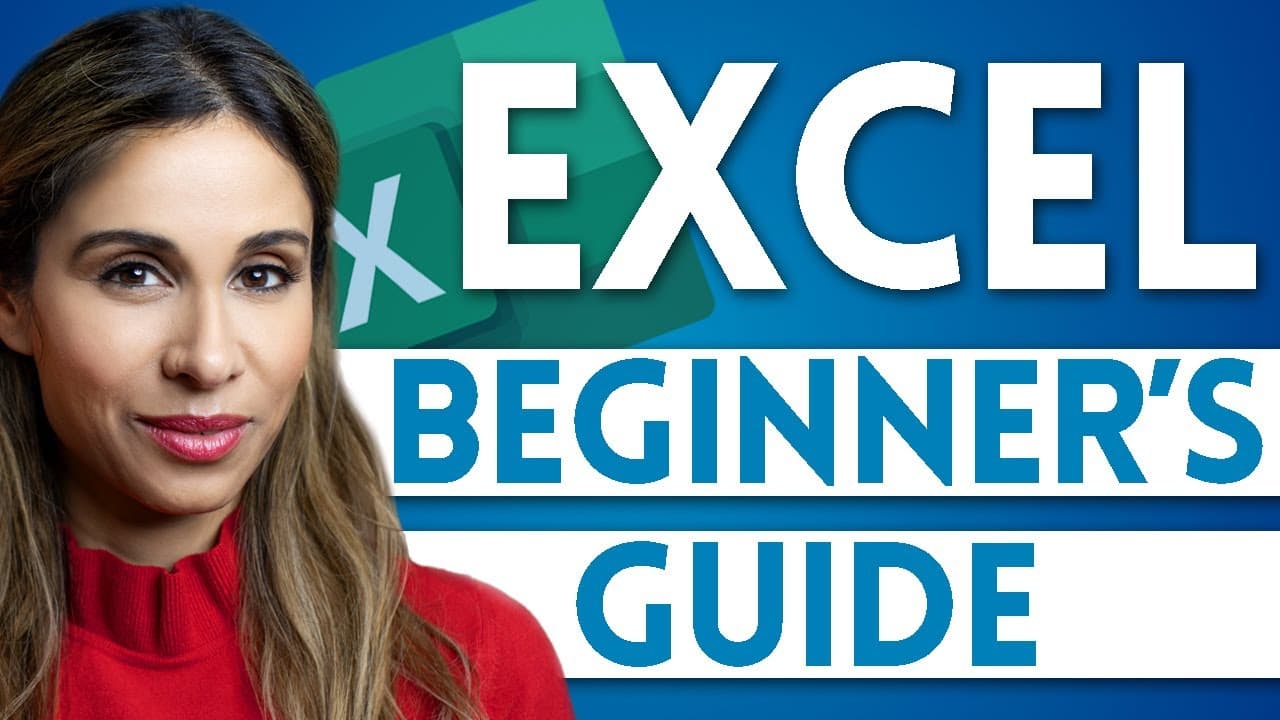
To get started with Excel, create a blank workbook and familiarize yourself with the interface, including the ribbon and formula bar. Learn basic functions like inputting values, using shortcuts, and formatting cells. Notable tips include using the fill handle for quick data entry and understanding cell addresses for referencing data in formulas.
Transcript
In this Excel for beginners tutorial, I'll give you a quick introduction to Excel, so you can start to feel comfortable inside the application. You'll have an idea where things are, how the spreadsheet is set up and how you can input value. (upbeat music) When you open Excel on your desktop, you get to this view. You can decide between a blank work... Read More
Key Insights
- 🔎 Excel is a powerful application that allows users to create and manage spreadsheets.
- 📊 A workbook in Excel may consist of multiple sheets, each containing cells that can be filled with values or formulas.
- 🖱️ The formula bar displays the contents and formulas of active cells, while the name box shows the address of the active cell.
- 🔢 Cells in Excel have unique addresses based on their column and row position, such as D4.
- ️ Shortcuts in Excel can be used to quickly perform actions, such as saving the workbook or selecting an entire column.
- 🔀 Excel offers various options for manipulating cells and ranges, such as cutting, pasting, merging, and moving them.
- 📋 The ribbon in Excel provides access to different tabs and options, allowing users to format the spreadsheet and perform data-related tasks.
- 💼 Excel offers efficient ways to input and manipulate data, such as using the fill handle, tab key, and shortcuts like alt equals for summing values.
Install to Summarize YouTube Videos and Get Transcripts
Explore YouTube Video Summarizer or Get YouTube Transcript Extractor
Questions & Answers
Q: How do you save a new workbook in Excel?
To save a new workbook in Excel, you can click on the "Save" button in the toolbar or press the shortcut key "Ctrl + S". Then, choose the location where you want to save the workbook and provide a filename.
Q: How can you add multiple sheets to a workbook in Excel?
To add multiple sheets to a workbook in Excel, you can click on the "+" icon located next to the existing sheet tabs. This will create a new sheet. You can continue clicking on the "+" icon to add more sheets as needed.
Q: What is the formula bar used for in Excel?
The formula bar in Excel is used to view and edit the contents of a cell. It displays the contents of the selected cell, including any text or formulas. You can also directly input or edit cell contents in the formula bar.
Q: How can you reference a range of cells in Excel?
To reference a range of cells in Excel, you can use the address of the top-left cell and the bottom-right cell of the range, separated by a colon. For example, the range from cell D4 to F7 would be referenced as "D4:F7" in formulas.
Q: How can you quickly select an entire column in Excel?
To quickly select an entire column in Excel, you can use the shortcut key "Ctrl + Space". This will select the entire column where the cursor is located. If you want to select multiple columns, you can hold down the "Shift" key and use the arrow keys to expand the selection.
Q: How can you collapse the ribbon in Excel?
To collapse the ribbon in Excel, you can click on the arrow icon located on the right side of the ribbon. This will hide the ribbon and maximize the workspace. You can click on any tab to temporarily show the ribbon, or press the shortcut key "Ctrl + F1" to toggle the ribbon on and off.
Q: How can you merge cells and center the content in Excel?
To merge cells and center the content in Excel, you can select the cells you want to merge, click on the "Merge & Center" button in the toolbar (in the "Alignment" section), or right-click and choose "Merge Cells" from the context menu. This will combine the selected cells into one cell and center the content.
Summary & Key Takeaways
-
The video provides an introduction to Excel, covering topics such as creating a blank workbook, saving a workbook, and adding sheets and cells.
-
It explains the concept of cell addresses, the formula bar, and the name box, as well as how to navigate the Excel grid and select multiple rows and columns.
-
The video also discusses range references, using the selection handle, the move handle, and the fill handle, as well as formatting cells, merging cells, and using shortcuts.
Read in Other Languages (beta)
Share This Summary 📚
Summarize YouTube Videos and Get Video Transcripts with 1-Click
Try YouTube Summary with ChatGPT & Claude or YouTube Transcript Generator
Explore More Summaries from Leila Gharani 📚



Summarize YouTube Videos and Get Video Transcripts with 1-Click
Try YouTube Summary with ChatGPT & Claude or YouTube Transcript Generator