How to Master Tmux for Efficient Terminal Use
TL;DR
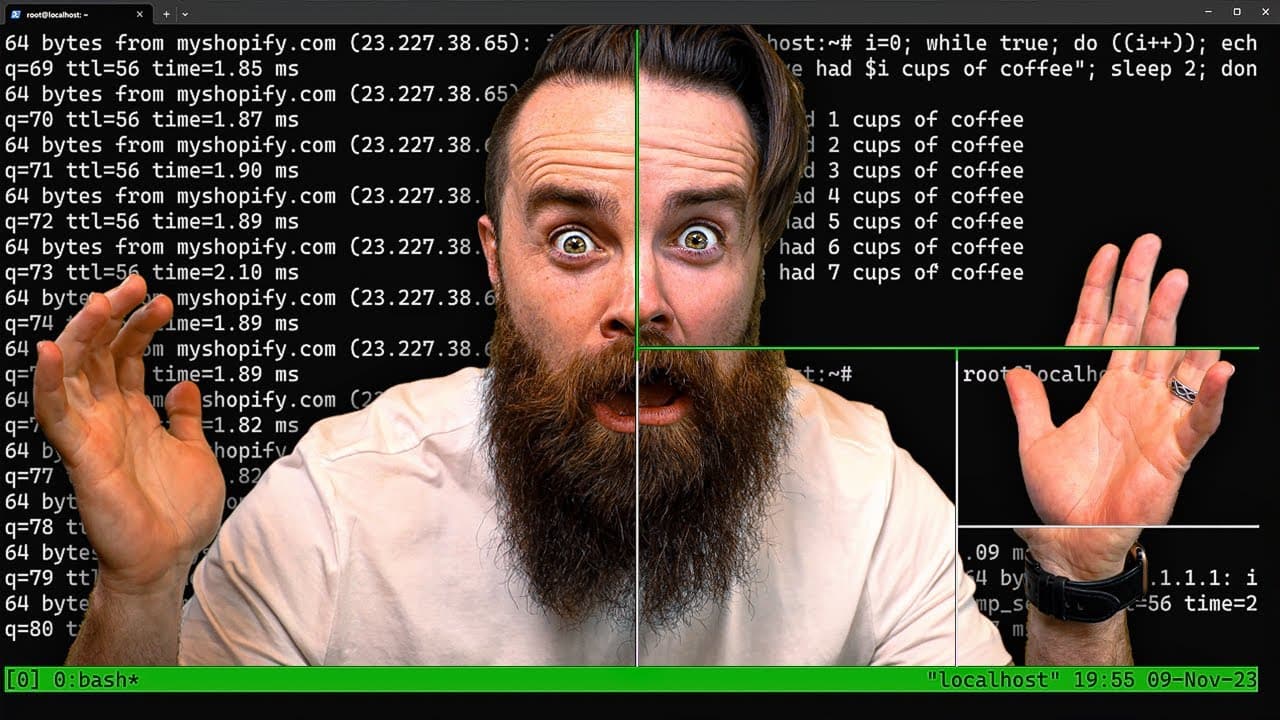
Tmux is a terminal multiplexer that enhances productivity by allowing multiple terminal sessions to run simultaneously. It enables users to create, detach, and reattach sessions across different devices, making it ideal for developers and system administrators. Mastering Tmux involves understanding its session, window, and pane management, along with key commands and shortcuts.
Transcript
You need to start using Team UX right now. Check this out. I'll log into my Linux server in the cloud with one command. Craziness happens in seconds. I can launch new panes, new windows. I can detach an end of my SSH session, run home, pull up a different computer and reattach to that same session. It's a superpower. Now I'm not new to Team ux, but... Read More
Key Insights
- Tmux is a terminal multiplexer that allows multiple terminal sessions within a single window.
- It enables users to detach from a session and reattach from another device, maintaining session continuity.
- Sessions in Tmux can be customized with names and organized into windows and panes for efficient management.
- Tmux uses a prefix key, typically Ctrl-B, to initiate commands, followed by specific keys for actions.
- Panes can be split horizontally or vertically within a window, facilitating multitasking in a single terminal.
- Tmux supports window renaming and navigation through windows using hotkeys for better session organization.
- Copy mode in Tmux allows users to easily copy and paste text within sessions using keyboard shortcuts.
- Customizing the Tmux configuration file can enhance usability, such as enabling mouse support and Vim keybindings.
Install to Summarize YouTube Videos and Get Transcripts
Explore YouTube Video Summarizer or Get YouTube Transcript Extractor
Questions & Answers
Q: How to start a new Tmux session?
To start a new Tmux session, simply open your terminal and type the command 'tmux'. This will create a new session with a default window and pane. You can also name your session by using the command 'tmux new -s [session_name]' to keep track of multiple sessions more easily.
Q: What is the purpose of Tmux's prefix key?
The prefix key in Tmux, typically Ctrl-B by default, is used to signal that a Tmux command is about to be issued. After pressing the prefix key, users can follow it with specific keys to perform actions such as creating panes, switching windows, or detaching sessions, making it a vital part of Tmux's command structure.
Q: How can I detach and reattach a Tmux session?
To detach from a Tmux session, press 'Ctrl-B' followed by 'D'. This leaves the session running in the background. To reattach, use the command 'tmux attach' or 'tmux attach -t [session_name]' if you have multiple sessions and want to specify which one to reattach to.
Q: How does Tmux handle window and pane management?
In Tmux, each session can contain multiple windows, and each window can be split into multiple panes. Windows are created with 'Ctrl-B C', and panes are split using 'Ctrl-B %' for horizontal splits and 'Ctrl-B "' for vertical splits. This structure allows users to efficiently organize their terminal workspace.
Q: What are some useful Tmux navigation shortcuts?
Tmux provides several navigation shortcuts, such as 'Ctrl-B N' to move to the next window, 'Ctrl-B P' to move to the previous window, and 'Ctrl-B W' to list all windows and sessions for quick selection. These shortcuts facilitate efficient movement within and between sessions.
Q: How can I customize my Tmux configuration?
You can customize Tmux by editing the '~/.tmux.conf' file. Common customizations include setting 'set -g mouse on' to enable mouse support and 'set -w -g mode-keys vi' to use Vim keybindings. These changes can enhance usability and align Tmux behavior with personal preferences.
Q: What is Tmux's copy mode and how is it used?
Tmux's copy mode allows users to copy and paste text within terminal sessions. Enter copy mode with 'Ctrl-B [' and navigate to the desired text using arrow keys. Start selection with 'Space', end with 'Enter', and paste using 'Ctrl-B ]'. This mode streamlines text manipulation in Tmux.
Q: Why is Tmux beneficial for developers and system administrators?
Tmux is beneficial for developers and system administrators because it allows for efficient management of multiple terminal sessions, windows, and panes. Its ability to detach and reattach sessions across devices ensures continuity, while its customizable commands and shortcuts enhance productivity and streamline workflows in complex environments.
Summary & Key Takeaways
-
Tmux is a powerful terminal multiplexer that boosts productivity by allowing multiple terminal sessions to run simultaneously. It supports session detachment and reattachment across devices, making it ideal for developers and system administrators. Users can create, manage, and navigate through sessions, windows, and panes using hotkeys and shortcuts.
-
Understanding the structure of Tmux involves mastering sessions, windows, and panes. Sessions can be named and organized into windows, which can further be split into panes for multitasking. Tmux uses a prefix key to initiate commands, making navigation and management efficient.
-
Tmux's copy mode simplifies text manipulation within terminal sessions. Customizing the Tmux configuration file can enhance functionality by enabling mouse support and Vim keybindings. These features, combined with Tmux's session continuity, make it a valuable tool for efficient terminal management.
Read in Other Languages (beta)
Share This Summary 📚
Summarize YouTube Videos and Get Video Transcripts with 1-Click
Try YouTube Summary with ChatGPT & Claude or YouTube Transcript Generator
Explore More Summaries from NetworkChuck 📚


Summarize YouTube Videos and Get Video Transcripts with 1-Click
Try YouTube Summary with ChatGPT & Claude or YouTube Transcript Generator