How to Install XFCE Desktop on WSL for Windows
TL;DR
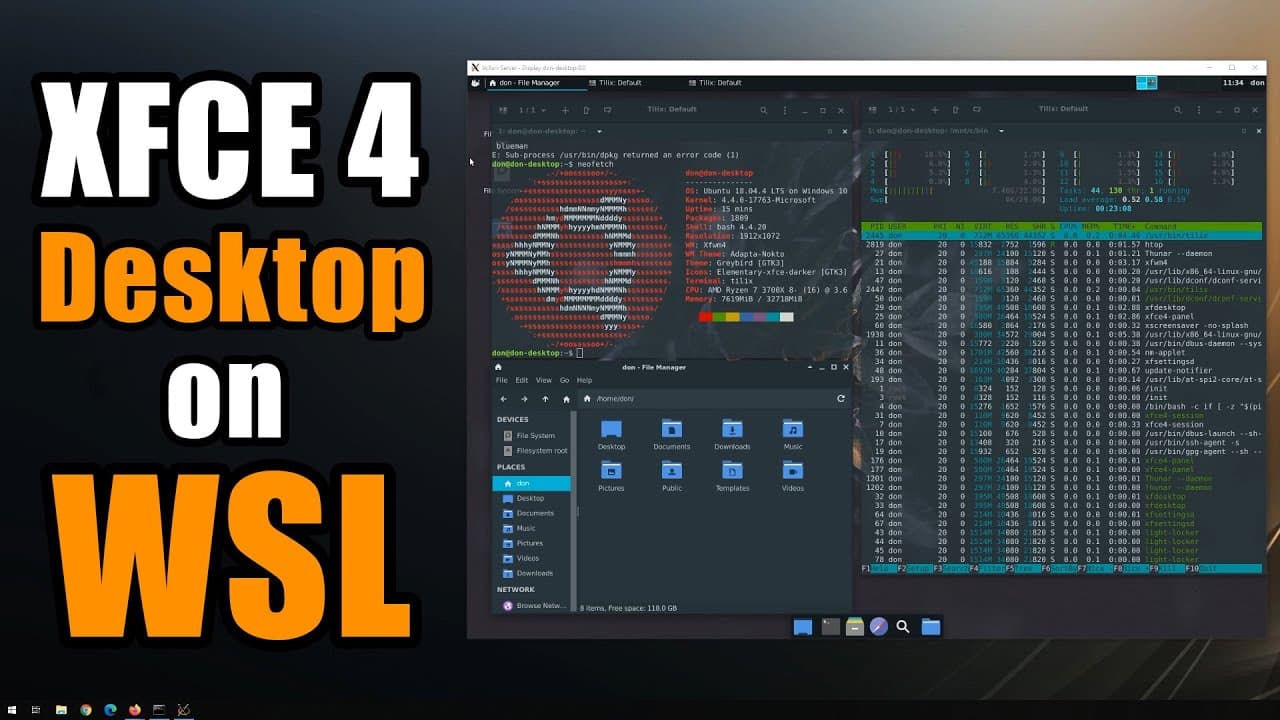
To install XFCE desktop on Windows Subsystem for Linux (WSL), begin by downloading Ubuntu from the Microsoft Store and running it. Use the command 'sudo apt install xfce4' to install the desktop. Ensure you also install X server and PulseAudio for sound, configuring necessary settings for seamless integration and complete desktop experience.
Transcript
hey guys what's going on it's down here from Nova spirit tech and welcome back to my channel and today we are gonna be installing xfce for desktop for WSL so let's get started so you can now actually run Linux inside Windows 10 environment and it's not really a emulated system like you would with VirtualBox and running a full complete install and t... Read More
Key Insights
- 👤 Installing XFCE desktop in WSL enables users to experience Linux directly on Windows without the overhead of a virtual machine, enhancing efficiency.
- 👻 WSL allows seamless sharing of resources, providing advantages in memory usage and CPU performance for intensive Linux applications.
- 🎮 Proper configuration of audio and video components is crucial for a complete attached Linux desktop experience, ensuring smooth playback and application usage.
- 🕴️ Customization within the XFCE environment is possible, with options to choose themes, organize applications, and change settings to suit user preferences.
- 🏃 The flexibility of running various desktop environments like KDE and GNOME alongside XFCE makes WSL a powerful tool for users experimenting with different Linux setups.
- 📦 Installation of required packages and settings should be meticulously followed to avoid common pitfalls like configuration errors and unresponsive applications.
- 👂 Effective management of system and session background services, such as D-Bus and PulseAudio, is necessary for optimal operation and sound playback.
Install to Summarize YouTube Videos and Get Transcripts
Explore YouTube Video Summarizer or Get YouTube Transcript Extractor
Questions & Answers
Q: What is the primary advantage of using WSL over a virtual machine?
The primary advantage of WSL (Windows Subsystem for Linux) is that it shares system resources with your host operating system. Unlike virtual machines where you allocate specific RAM and CPU cores, WSL runs alongside your Windows applications, optimizing performance and reducing resource consumption while allowing the use of Linux applications.
Q: How do you install the XFCE desktop environment on WSL?
To install XFCE on WSL, first, you must have Ubuntu installed from the Microsoft Store. Then, use the command "sudo apt install xfce4" in the terminal, which will fetch and install the XFCE desktop environment. Optionally, you can install components or go for a minimal version if you desire fewer features.
Q: What steps are needed to enable audio functionality in XFCE on WSL?
To enable audio in XFCE on WSL, install PulseAudio and configure your settings to allow audio playback. This involves modifying configuration files in the PulseAudio directory to ensure proper connections and managing services like D-Bus to start necessary processes for audio output.
Q: Why did the speaker recommend using the Epiphany browser?
The speaker recommended the Epiphany browser because traditional browsers like Firefox and Chrome were not functioning correctly in the WSL environment due to compatibility issues. Epiphany presented a simple solution for browsing within the Linux desktop, allowing for web access without encountering the same problems.
Summary & Key Takeaways
-
The video tutorial explains how to set up the XFCE desktop environment on Windows Subsystem for Linux (WSL) using an Ubuntu installation, allowing for a full Linux desktop experience without needing a virtual machine.
-
The process includes installing necessary components such as the X server for Windows, setting up PulseAudio for sound, and configuring connection settings for a seamless Linux and Windows integration.
-
Viewers are shown step-by-step instructions to tweak the environment, install applications, and customize settings, highlighting the advantages of running a shared resource system compared to traditional VM setups.
Read in Other Languages (beta)
Share This Summary 📚
Summarize YouTube Videos and Get Video Transcripts with 1-Click
Try YouTube Summary with ChatGPT & Claude or YouTube Transcript Generator
Explore More Summaries from Novaspirit Tech 📚


Summarize YouTube Videos and Get Video Transcripts with 1-Click
Try YouTube Summary with ChatGPT & Claude or YouTube Transcript Generator