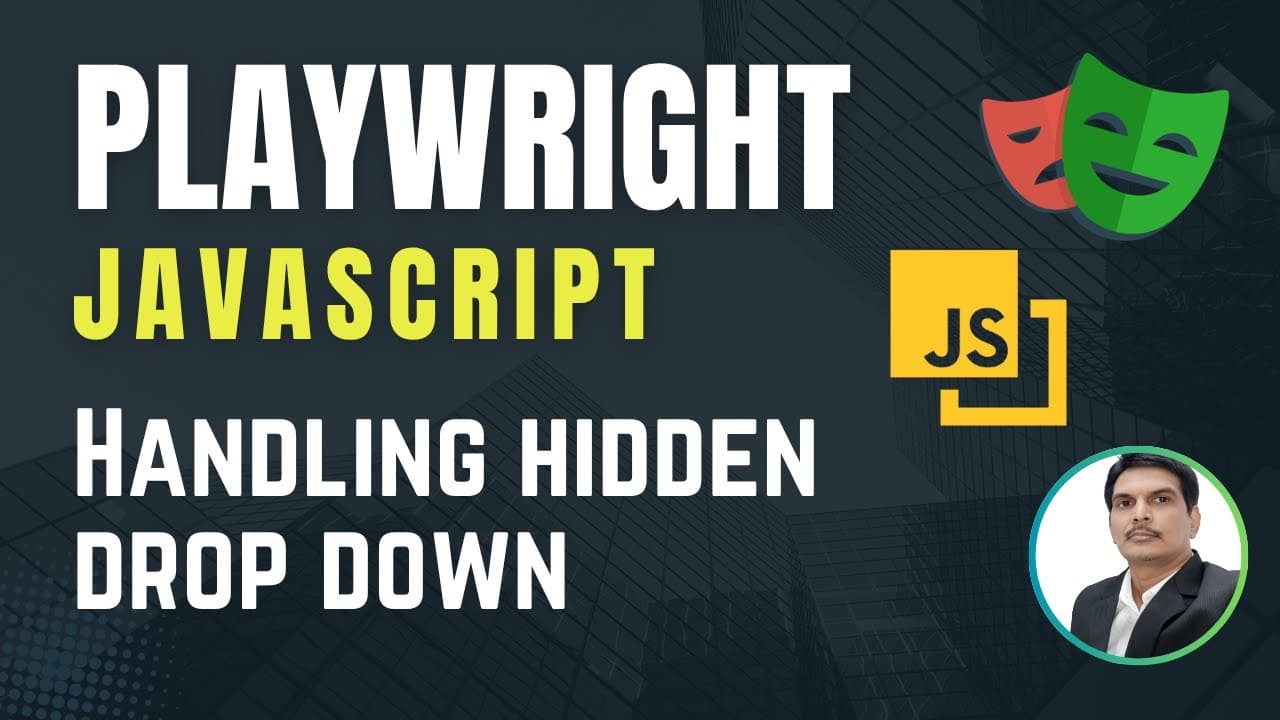
How to handle hidden drop downs with Playwright
TL;DR
Hidden drop downs require a debugger to reveal elements, then a custom locator to capture all options. The tutorial walks through logging in, navigating to PM, opening the drop down, freezing the UI with the debugger, extracting options by role list box, iterating them, and selecting QA engineer.
Transcript
hi everyone welcome you all so in our previous videos we have seen how to handle different type of drop downs like a drop down is having select attack and a multi select drop down and bootstrap drop down and auto suggest a drop down right so in the today's video I'm going to show you something different type of drop down so which is normally ca... Read More
Key Insights
- Hidden drop downs conceal their options from normal inspection unless a debugging tool is used.
- Selector Hub provides a debugger feature that freezes the UI for a few seconds to capture hidden elements.
- A common locator pattern uses role equal to list box and descendant divs to represent each option.
- Options are captured by reading the text content of each element inside the list box.
- Options are accumulated into a list and iterated to find a match such as QA engineer.
- The script prints each option title to help verify what is available in the drop down.
- After locating a matching option, the script clicks it and breaks the loop to confirm selection.
- Waiting periods are added after actions to visually verify that the selection occurred correctly.
- More videos from this channel:
- More from this channel: SDET- QA
Install to Summarize YouTube Videos and Get Transcripts
Explore YouTube Video Summarizer or Get YouTube Transcript Extractor
Questions & Answers
Q: How to access hidden drop downs in a web app using Playwright?
To access hidden drop downs in a web app using Playwright you typically need to reveal the options through a debugging tool that freezes the UI for a moment. The video demonstrates turning on a debugger in Selector Hub, then clicking the drop down so the options become inspectable. Once visible, you can craft a locator that targets the list box and its child options, loop through them, and select the desired item.
Q: What is the role of the debugger in handling hidden elements?
The debugger acts as a temporary inspector that pauses dynamic content so you can inspect elements that disappear when you try to select them. By enabling the debugger, you freeze the screen for a few seconds, allowing you to identify the option elements, read their text, and build a robust locator that captures all possible options in the hidden drop down.
Q: How do you capture all options from a hidden drop down in Playwright?
You first click the drop down to reveal options, then wait for a short period to ensure options render. Using a common locator for the list box, you gather all option elements with a shared structure, typically divs with a role attribute like list box. You then extract the text content of each option to a list for later comparison.
Q: What locator strategy is used for hidden drop downs in the video?
The video uses an XPath based locator targeting a list box role and its child div elements. By constructing a path that selects div elements with role equal to list box and then reading the inner span text, you can obtain the visible option texts. This generic path helps capture all available options without relying on direct inspection of each item.
Q: How is the target option selected after listing options?
After listing options, the script iterates through them and checks the text content for a match, such as QA engineer. When a match is found, the script clicks that option element and breaks the loop to prevent unnecessary iterations. A short wait confirms the selection visually.
Q: Why is a wait introduced after selecting an option in the hidden drop down?
A wait is introduced to ensure the UI has registered the selection and to provide a clear pause for validation. Hidden elements can sometimes update asynchronously, so a short delay helps verify that the correct option is chosen and the page responds as expected without race conditions.
Q: What login and navigation steps precede interacting with the hidden drop down?
The workflow starts with logging into the application by filling the username and password fields and submitting. After successful login, you navigate to the PM tab where the hidden drop down is located. This setup ensures the correct page state before attempting to reveal and interact with the hidden options.
Q: What is the overall approach to handling hidden drop downs in Playwright as shown?
The overall approach combines a debugging tool to reveal hidden elements, a robust locator strategy to capture all options, iteration to find the target text, and a controlled click to select the option. This approach helps automate interactions with elements that are not directly inspectable or clickable in a standard run.
Summary & Key Takeaways
-
A user logs into an application and reaches a page with several drop downs, including a hidden one. The video explains why hidden drop downs cannot be inspected directly and introduces a debugger to freeze the UI and reveal options.
-
The method uses an XPath based locator and a common role list box structure to collect all options. It reads the text content of each option, stores it, and prints the titles before selecting a matching item.
-
Finally, the example selects QA engineer from the hidden drop down by matching text and clicking the corresponding option, with a short wait to verify the selection.
Read in Other Languages (beta)
Share This Summary 📚
Summarize YouTube Videos and Get Video Transcripts with 1-Click
Try YouTube Summary with ChatGPT & Claude or YouTube Transcript Generator
Explore More Summaries from SDET- QA 📚



Summarize YouTube Videos and Get Video Transcripts with 1-Click
Try YouTube Summary with ChatGPT & Claude or YouTube Transcript Generator